
What this AutoCAD title block lesson covers
- Set up an A3 layout with PAGESETUP and plot it to PDF.
- Draw a border and a title block at paper size in the layout.
- Show the part through a viewport at an exact scale and lock it.
- Save the layout as a DWT template to start new drawings from it.
A drawing is not finished until it fits on a sheet with its title block: the box in the corner that says what the part is, its number, its scale, its material and the projection used. In AutoCAD the usual way is to draw the part at full size in model space and build the sheet in a layout, where you work in millimeters of paper.
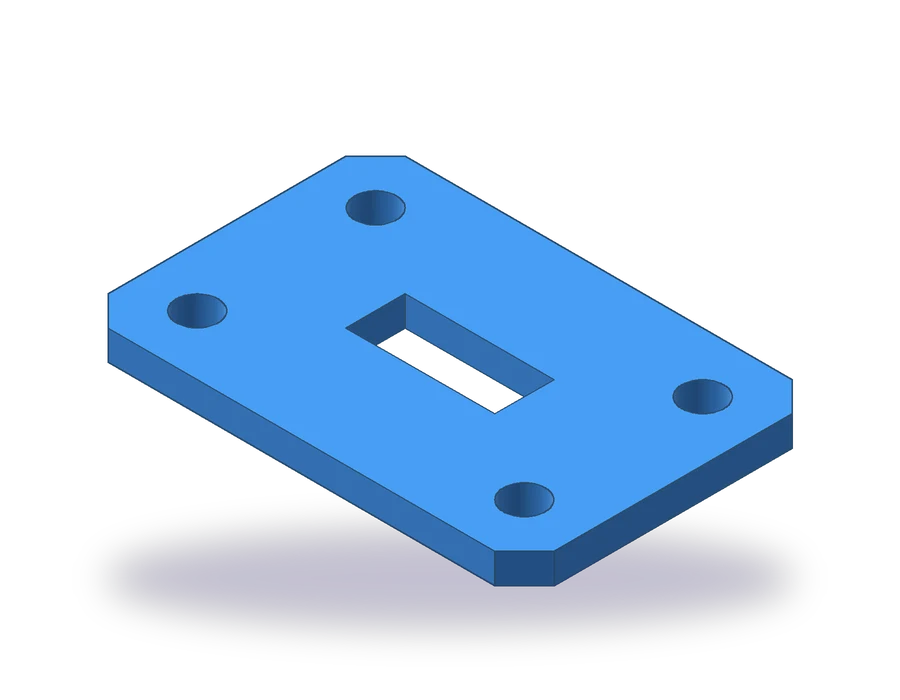
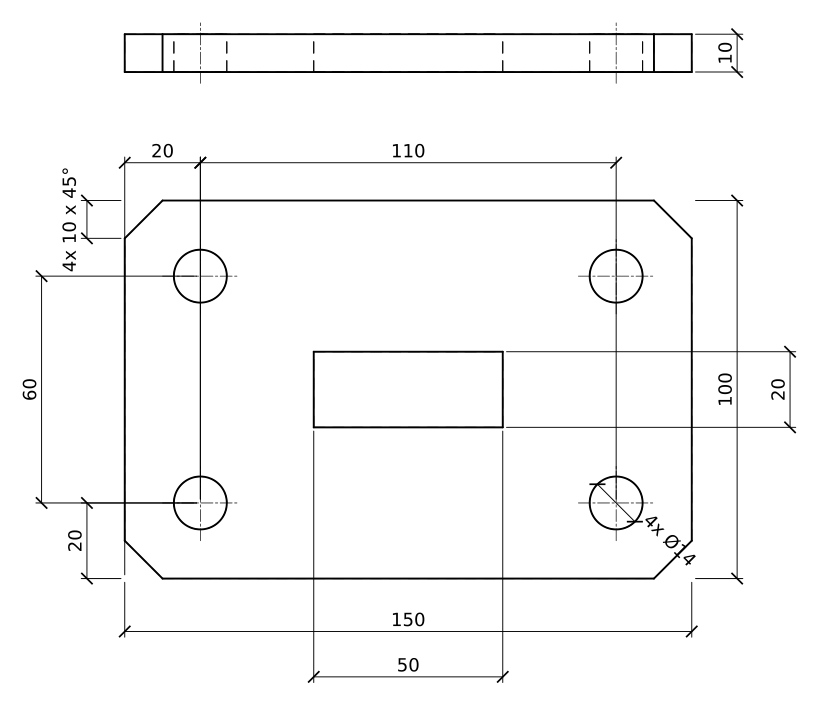
The part is a base plate 150 x 100 x 10 mm with its four corners chamfered 10 x 45°, four Ø14 holes 20 mm from the edges, and a rectangular window 50 x 20 in the middle. It is simple on purpose: the work of this lesson is the sheet around it.
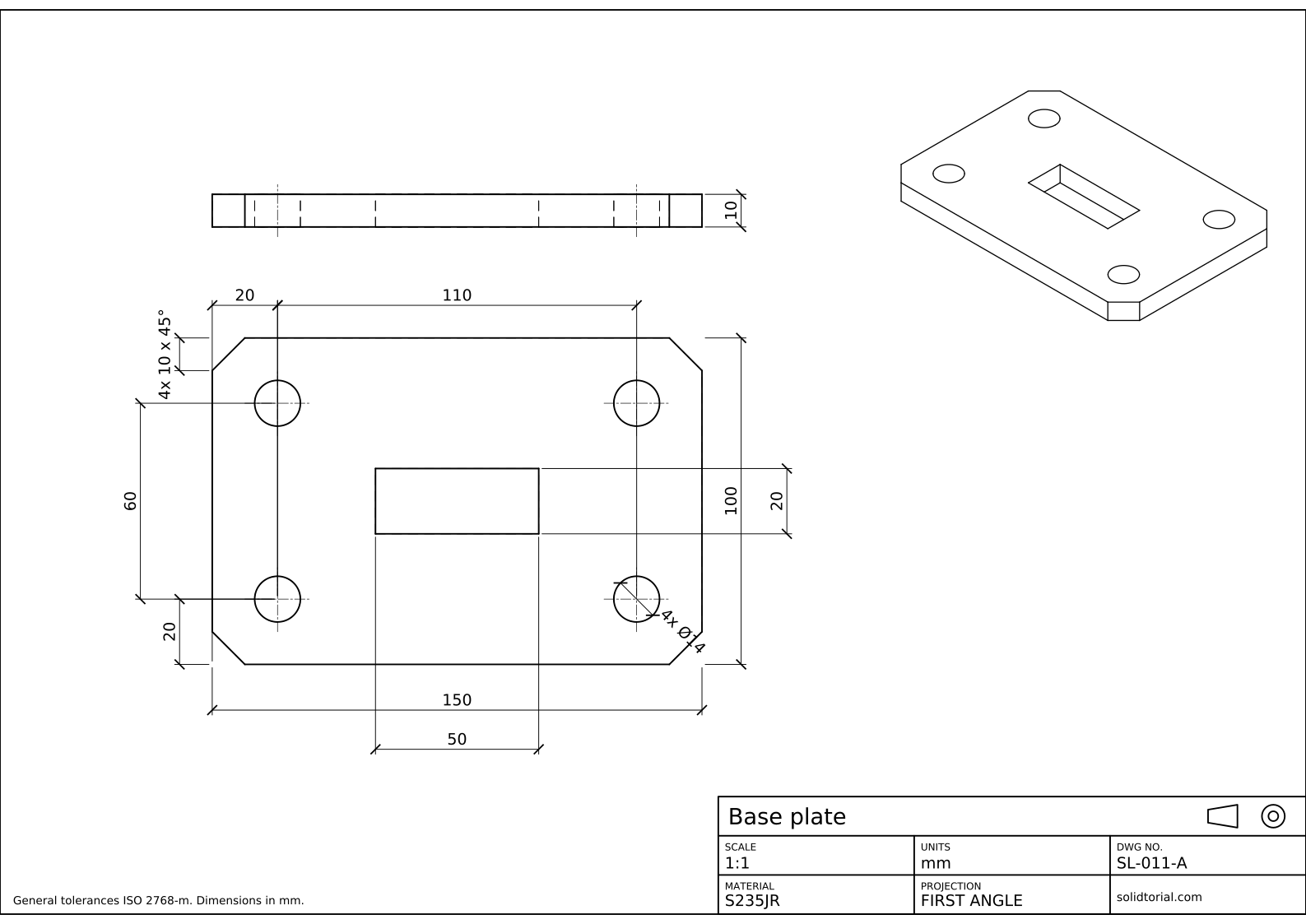
Metric sheet, ISO first-angle projection, scale 1:1 on A3. Click the drawing to open it full size.
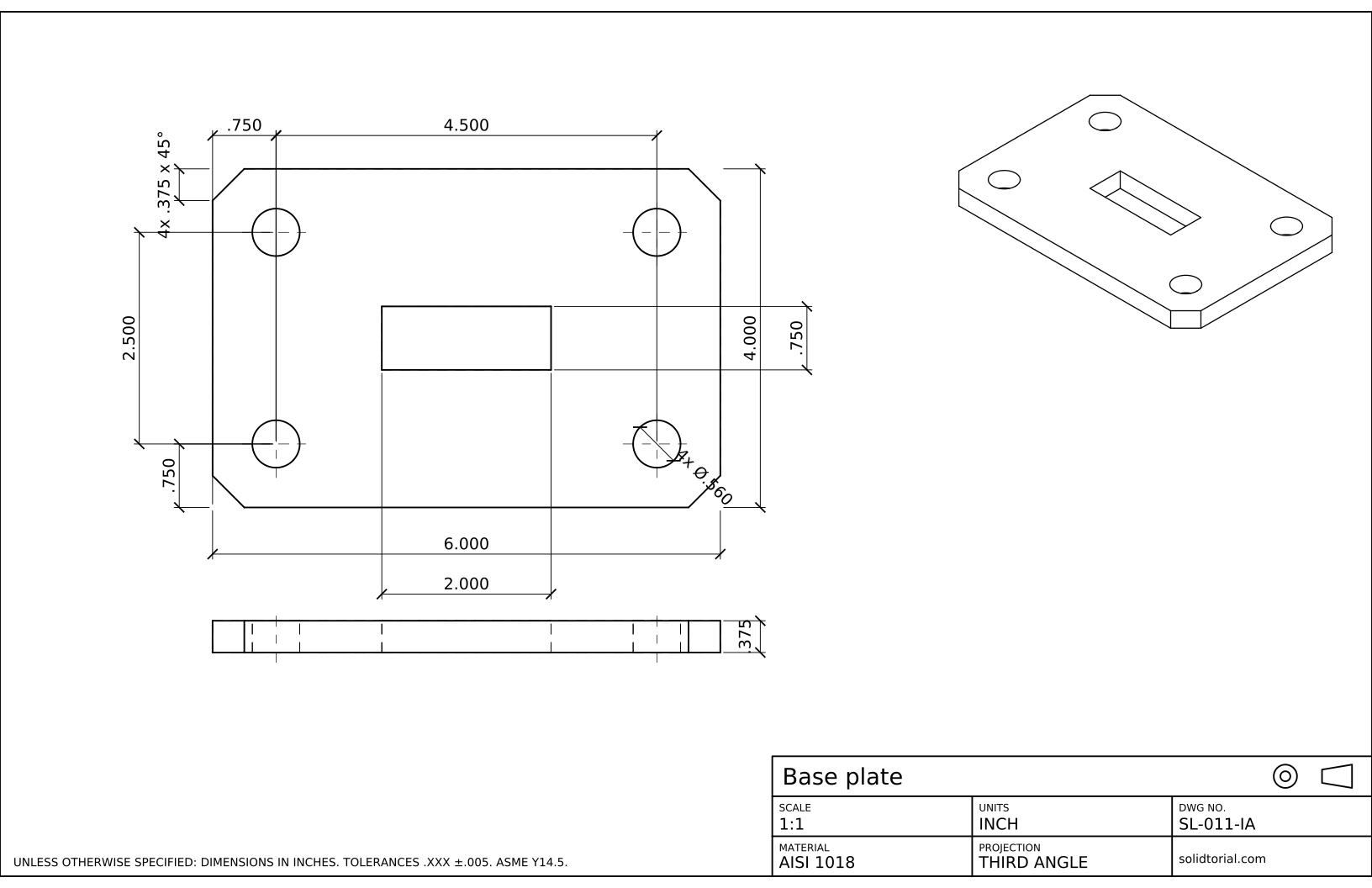
Inch sheet, third-angle projection (ASME), scale 1:1 on ANSI B. Click the drawing to open it full size.
AutoCAD layout and title block commands
| Command | Alias | What it does here |
|---|---|---|
RECTANG | REC | Draw the plate, the border and the frame of the title block. |
LAYOUT | LO | Create or rename the layout that becomes the A3 sheet. |
PAGESETUP | · | Choose the plotter, the A3 paper size and the 1:1 plot scale for the layout. |
MVIEW | MV | Create the viewport that shows the part on the sheet. |
MTEXT | MT | Write the labels and values of the title block. |
PLOT | PRINT | Print the sheet to a PDF file. |
How to make a title block in AutoCAD, step by step
-
Draw the base plate at full size in model space
In model space, draw the plate with
RECfrom 0,0 to 150,100. TypeCHA, set both distances to 10, choose Polyline and pick the rectangle: the four corners are chamfered at once. Draw the four Ø14 holes 20 mm from the edges, which puts them 110 apart along the length and 60 apart across, and the 50 x 20 window centered on the plate. Add the edge view, 150 x 10, above the plate, and dimension both views.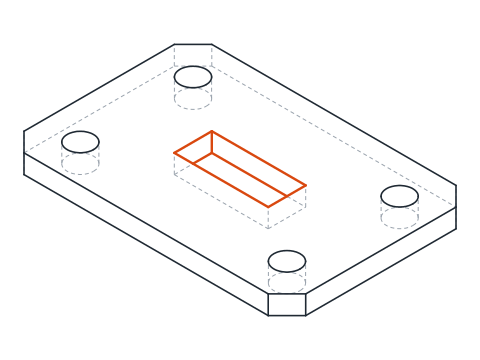
-
Set up the A3 layout
Click the Layout1 tab. Type
PAGESETUP, select the layout and click Modify. Choose the DWG To PDF.pc3 plotter, the ISO full bleed A3 (420.00 x 297.00 MM) paper, landscape orientation, Layout as the plot area and a scale of 1:1. Click OK and close. Delete the default viewport that AutoCAD created: you will make your own.From now on, one unit in the layout is one millimeter of paper.
-
Draw the border and the title block
Draw the border 10 mm inside the edge of the sheet with
RECfrom10,10to410,287. The title block of this bootcamp is 180 x 36 mm in the bottom right corner:RECfrom230,10to410,46. Divide it into three rows 12 mm high with lines at y = 22 and y = 34, and split the two lower rows into three columns 60 mm wide with lines at x = 290 and x = 350.Put all of it on a BORDER layer with a thick lineweight, so it prints like the outlines of the part.
-
Fill in the title block fields
The top row holds the name of the part, Base plate, in text 5 mm high, and the projection symbol at its right end. Each cell of the lower rows has a small label, 2.2 mm high, at its top left and the value, 3.5 mm high, below it: SCALE 1:1, UNITS mm, DWG NO. SL-011-A in the middle row; MATERIAL S235JR and PROJECTION FIRST ANGLE in the bottom row, with the site name in the last cell.
The note for general tolerances goes at the bottom left, outside the title block: General tolerances ISO 2768-m. Dimensions in mm. It covers every dimension without its own tolerance.
-
Create the viewport and set its scale
Type
MVand draw a rectangular viewport inside the border, above the title block. The part appears in it at some scale. Click inside the viewport to activate it, then choose 1:1 in the viewport scale list on the status bar: 150 mm of plate now measure 150 mm on paper. Pan to center the views, click outside the viewport and lock it with the padlock on the status bar, so the scale cannot change by accident.Put the viewport on a layer that does not plot, so its frame does not print.
-
Save the template and plot to PDF
Delete the plate from model space and save the drawing with Save As and the AutoCAD Drawing Template (*.dwt) file type, under a name such as A3-ISO-solidtorial. Every new drawing started from it comes with the layers, the layout, the border and the title block ready; only the fields change.
To print, open the plate drawing again, press Ctrl+P or type
PLOT, check that the page setup is the one you made and click OK to create the PDF.
Engineering drawing title block practice: a larger base plate
Put a larger plate on your own A3 sheet, starting from your template: 180 x 120 x 12 with 12 x 45° corner chamfers, four Ø18 holes 25 mm from the edges and a 60 x 24 window. Fill in the fields with its own drawing number, check that it still fits at 1:1, and plot it to PDF.
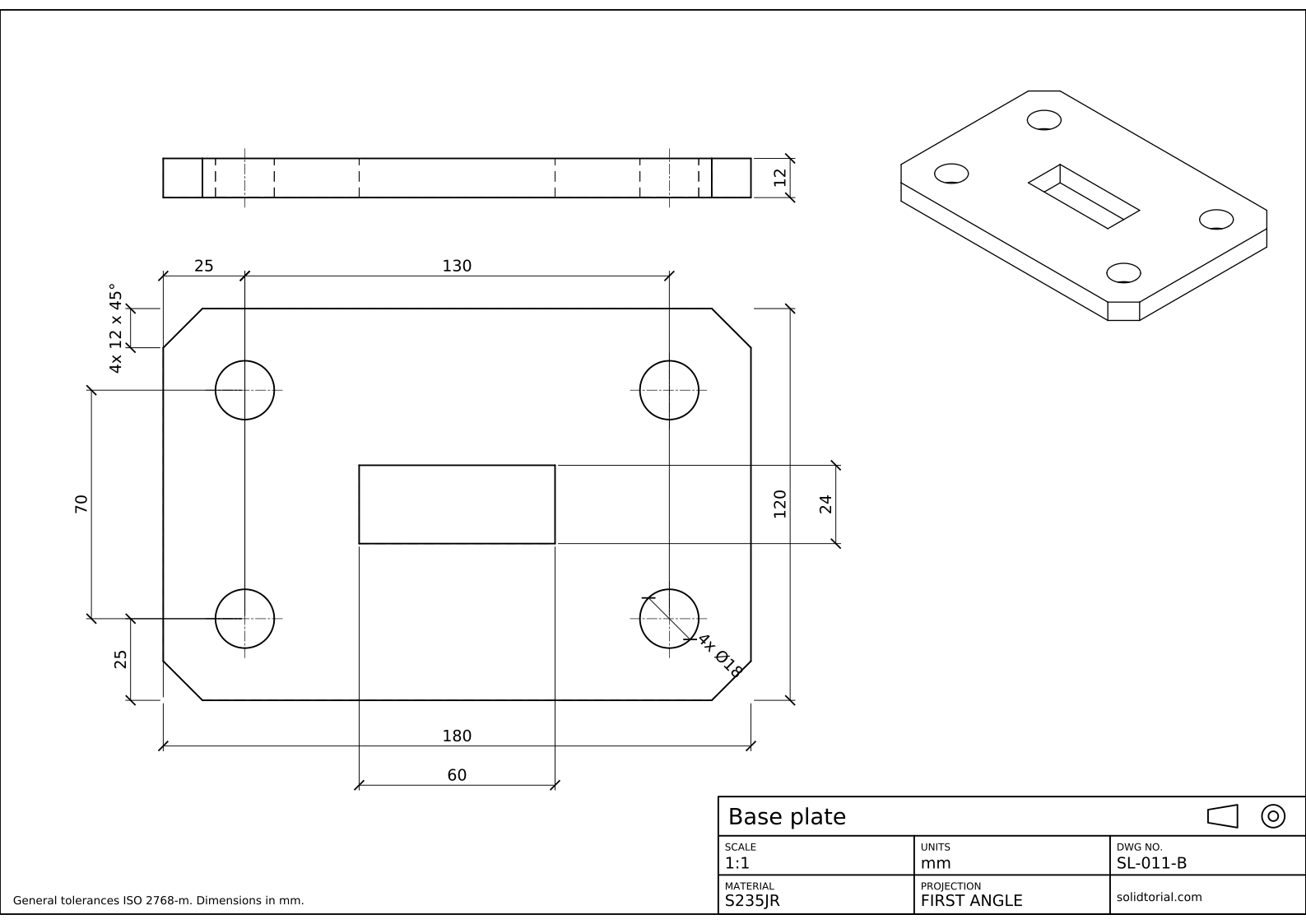
Metric sheet, ISO first-angle projection, scale 1:1 on A3. Click the drawing to open it full size.
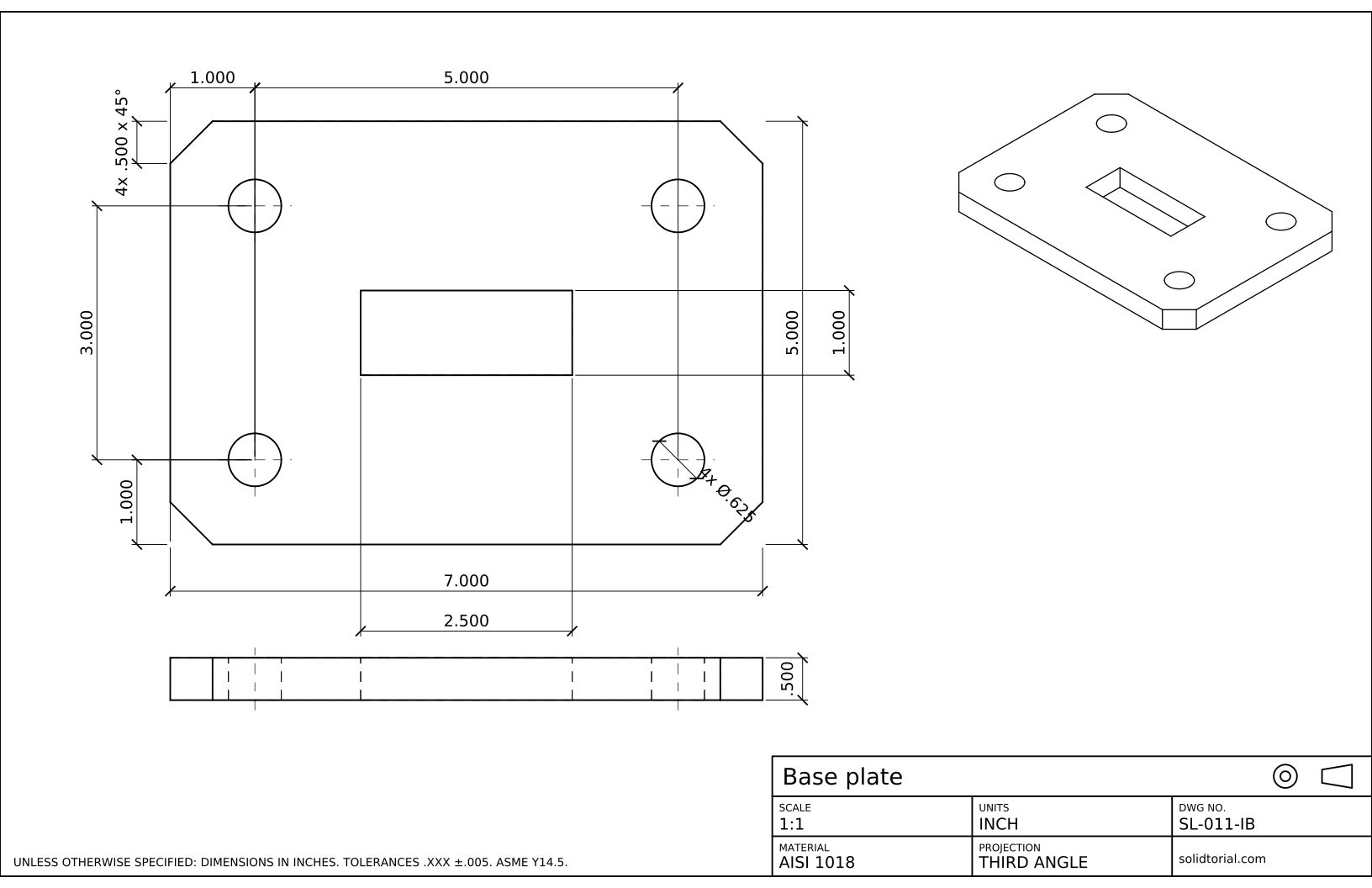
Inch sheet, third-angle projection (ASME), scale 1:1 on ANSI B. Click the drawing to open it full size.
Show the solution files
Metric sheet, ISO first-angle projection, scale 1:1 on A3. Click the drawing to open it full size.
Inch sheet, third-angle projection (ASME), scale 1:1 on ANSI B. Click the drawing to open it full size.
Common AutoCAD title block mistakes
- Drawing the part at the scale of the sheet. The part is always drawn at full size in model space. The scale belongs to the viewport, not to the geometry.
- An unlocked viewport. One turn of the mouse wheel inside it changes the scale shown in the title block into a lie. Lock it.
- The viewport frame printed. Put viewports on a non-plotting layer.
- Title block text too small. Values under 2.5 mm are hard to read on a printed A3. Keep labels at about 2 mm and values at 3.5 mm or more.
- A title block that disagrees with the drawing. Scale, units and projection must match what is on the sheet. Check them every time you reuse the template.
Title block example: the fields of this sheet
| Field | On this sheet | Why it is there |
|---|---|---|
| Title | Base plate | What the part is |
| Drawing number | SL-011-A | The unique reference of the drawing |
| Scale | 1:1 | How sizes on paper relate to the part |
| Units | mm | What the dimension values mean |
| Material | S235JR | What the part is made of |
| Projection | First angle, with its symbol | Where each view is placed |
Company title blocks usually add the author, the checker, the date, the revision and the sheet number. ISO 7200 lists the fields a title block should carry, and ASME Y14.1 sets the sheet sizes and formats used on American drawings.
AutoCAD title block template: why a DWT
A template saves the sheet and everything around it: layers, text and dimension styles, page setups and layouts. Starting each drawing from it keeps every sheet identical, and correcting the template once fixes all future drawings. The solution files of this bootcamp draw the frame directly around the views in model space, scaled to the sheet, which makes them easy to open anywhere; the layout method of this lesson is the one to use for drawings you print and revise. The inch version of this plate goes on an ANSI B sheet, 17 x 11 in.
AutoCAD title block questions
How do I put a title block in AutoCAD?
Draw it in a layout at paper size, or insert one from a template or a block. Then add a viewport that shows the drawing from model space at the scale you need.
Should the title block be in model space or in a layout?
In a layout. There it stays at paper size whatever the scale of the drawing, and one model can be shown on several sheets at different scales.
How do I set the scale of a viewport in AutoCAD?
Activate the viewport by double-clicking inside it, choose the scale in the viewport scale list on the status bar, then lock the viewport.
What goes in an engineering drawing title block?
At least the title, the drawing number, the scale, the units, the material and the projection. Most companies add the author, the date, the approval and the revision.
Updated: September 11, 2026