
AutoCAD Commands and Shortcut Keys for 2D Drawing
The commands used in the AutoCAD 2D bootcamp, grouped by what they do, with the alias you type and the lesson where you practice each one.
Every AutoCAD command has a full name, such as FILLET, and most have a short alias, such as F, that you type on the command line instead. The aliases below are the default ones that Autodesk ships with AutoCAD and AutoCAD LT; they are defined in a file called acad.pgp and can be changed there. Where a command has no default alias, the column is empty: type its full name.
In a localized version of AutoCAD, commands have translated names. Typing the English name with an underscore in front, for example _LINE, runs the command in any language.
AutoCAD draw commands and shortcuts
The commands that create geometry. Type the alias and press Enter or the spacebar.
| Command | Alias | What it does | Practiced in |
|---|---|---|---|
LINE | L | Draws straight segments from point to point; each segment is a separate object. | Lesson 1 |
RECTANG | REC | Draws a rectangle as one closed polyline from two opposite corners. | Lesson 1 |
CIRCLE | C | Draws a circle by center and radius or diameter, or tangent to other objects. | Lesson 2 |
ARC | A | Draws an arc through three points or from center, start and end. | Lesson 2 |
POLYGON | POL | Draws a regular polygon inscribed in or circumscribed about a circle. | · |
PLINE | PL | Draws a polyline: lines and arcs joined in one object. | Lesson 13 |
ELLIPSE | EL | Draws an ellipse; in isometric drafting its Isocircle option draws circles on the iso planes. | Lesson 10 |
XLINE | XL | Draws an infinite construction line, handy to project points between views. | Lesson 7 |
AutoCAD modify commands
The commands that change what is already drawn. Most of them ask you to select objects first.
| Command | Alias | What it does | Practiced in |
|---|---|---|---|
MOVE | M | Moves objects from a base point to a second point. | Lesson 7 |
COPY | CO | Copies objects from a base point to one or more new points. | Lesson 14 |
MIRROR | MI | Creates a mirror image about a line, keeping or deleting the original. | Lesson 9 |
ROTATE | RO | Rotates objects about a base point. | · |
SCALE | SC | Enlarges or reduces objects by a factor from a base point. | Lesson 11 |
STRETCH | S | Stretches the part of a drawing crossed by a selection window. | · |
OFFSET | O | Draws a parallel copy of a line, arc or polyline at a set distance. | Lesson 3 |
TRIM | TR | Cuts objects back to the edges they cross. | Lesson 3 |
EXTEND | EX | Lengthens objects until they meet another edge. | Lesson 3 |
FILLET | F | Joins two objects with an arc of a given radius, or with a sharp corner at radius 0. | Lesson 4 |
CHAMFER | CHA | Bevels the corner between two lines by two distances or by distance and angle. | Lesson 4 |
ARRAY | AR | Repeats objects in a rectangular, polar or path pattern. | Lesson 5 |
JOIN | J | Joins lines and arcs that touch into a single object. | Lesson 13 |
PEDIT | PE | Edits polylines: joins segments, changes width or turns lines into one polyline. | Lesson 13 |
EXPLODE | X | Breaks a polyline, block or dimension into its separate parts. | Lesson 14 |
ERASE | E | Deletes the selected objects. | · |
AutoCAD dimension and annotation commands
These place dimensions, text and hatches. A dimension style decides how all of them look.
| Command | Alias | What it does | Practiced in |
|---|---|---|---|
DIMSTYLE | D | Opens the Dimension Style Manager to create and edit dimension styles. | Lesson 8 |
DIMLINEAR | · | Places a horizontal or vertical dimension between two points. | Lesson 8 |
DIMALIGNED | · | Places a dimension parallel to a slanted edge, showing its true length. | Lesson 8 |
DIMANGULAR | DAN | Dimensions the angle between two lines or along an arc. | Lesson 8 |
DIMRADIUS | DRA | Dimensions the radius of an arc or circle. | Lesson 2 |
DIMDIAMETER | DDI | Dimensions the diameter of a circle or arc. | Lesson 2 |
DIMCONTINUE | DCO | Chains a new dimension from the last extension line. | Lesson 12 |
DIMBASELINE | DBA | Adds dimensions measured from the same baseline. | Lesson 12 |
DIMCENTER | DCE | Adds a center mark or center lines to circles and arcs. | Lesson 2 |
DIMEDIT | DED | Edits the text and extension lines of placed dimensions. | Lesson 8 |
MTEXT | T | Writes a paragraph of text inside a box. | Lesson 11 |
TEXT | DT | Writes single lines of text. | Lesson 11 |
HATCH | H | Fills a closed area with a hatch pattern, for example a cut surface in a section. | Lesson 9 |
HATCHEDIT | HE | Changes the pattern, scale or angle of an existing hatch. | Lesson 9 |
TOLERANCE | TOL | Places a geometric tolerance frame (GD&T). | Lesson 20 |
AutoCAD layer and linetype commands
Layers keep each kind of line apart so it can be shown, hidden or printed with its own weight.
| Command | Alias | What it does | Practiced in |
|---|---|---|---|
LAYER | LA | Opens the Layer Properties Manager to create layers and set color, linetype and lineweight. | Lesson 6 |
LINETYPE | LT | Loads linetypes such as hidden and center lines into the drawing. | Lesson 6 |
LTSCALE | LTS | Sets the global scale of dashed linetypes. | Lesson 6 |
LWEIGHT | LW | Sets lineweight display and the current lineweight. | Lesson 6 |
MATCHPROP | MA | Copies layer, color and other properties from one object to others. | Lesson 6 |
PROPERTIES | PR | Opens the Properties palette for the selected objects. | · |
AutoCAD block commands
Blocks turn repeated geometry, such as a slot or a symbol, into one object you insert many times.
| Command | Alias | What it does | Practiced in |
|---|---|---|---|
BLOCK | B | Creates a block definition from selected objects. | Lesson 14 |
INSERT | I | Inserts a block or another drawing into the current one. | Lesson 14 |
BEDIT | BE | Opens a block definition in the Block Editor. | Lesson 14 |
WBLOCK | W | Writes objects or a block to a separate drawing file. | Lesson 14 |
AutoCAD 3D modeling commands
Solid modeling commands, available in the full version of AutoCAD.
| Command | Alias | What it does | Practiced in |
|---|---|---|---|
EXTRUDE | EXT | Turns a closed 2D profile into a solid by giving it height. | Lesson 22 |
PRESSPULL | · | Pushes or pulls a bounded area or a face to add or remove volume. | Lesson 22 |
REVOLVE | REV | Spins a profile around an axis to make a solid of revolution. | Lesson 24 |
UNION | UNI | Joins two or more solids into one. | Lesson 22 |
SUBTRACT | SU | Removes one solid from another, for example to cut a hole. | Lesson 22 |
SECTIONPLANE | SPLANE | Creates a cutting plane through 3D solids. | Lesson 23 |
FLATSHOT | FSHOT | Creates a 2D drawing of the solids as seen in the current view. | Lesson 23 |
VIEWBASE | · | Creates a base view and projected views of a 3D model in a layout. | Lesson 23 |
AutoCAD layout and plot commands
Commands for the printed sheet: layouts, viewports and plotting.
| Command | Alias | What it does | Practiced in |
|---|---|---|---|
LAYOUT | LO | Creates, renames and manages layout tabs. | Lesson 11 |
MVIEW | MV | Creates viewports in a layout to show the model at a scale. | Lesson 11 |
PLOT | PRINT | Prints or plots the drawing to a printer, plotter or PDF file (also Ctrl+P). | Lesson 11 |
UNITS | UN | Sets the drawing units and the precision of coordinates and angles. | Lesson 1 |
OSNAP | OS | Sets the running object snaps, such as endpoint, midpoint and center. | Lesson 2 |
DIST | DI | Measures the distance and angle between two points. | · |
ISODRAFT | · | Switches the cursor to isometric drafting on the left, top or right plane. | Lesson 10 |
AutoCAD shortcut keys: function keys and Ctrl combinations
These toggle drawing aids while a command is running.
| Command | Alias | What it does | Practiced in |
|---|---|---|---|
F3 | · | Turns running object snaps on or off. | Lesson 2 |
F5 | · | Switches between isometric planes (also Ctrl+E). | Lesson 10 |
F8 | · | Turns ortho mode on or off, for horizontal and vertical lines only. | Lesson 1 |
F10 | · | Turns polar tracking on or off. | Lesson 21 |
F11 | · | Turns object snap tracking on or off. | Lesson 2 |
F12 | · | Turns dynamic input on or off. | Lesson 1 |
Ctrl+P | · | Opens the Plot dialog box. | Lesson 11 |
Ctrl+Z / Ctrl+Y | · | Undoes or redoes the last action. | · |
Print this AutoCAD commands cheat sheet
Print the page from your browser (Ctrl+P, or Cmd+P on a Mac) to get a cheat sheet of the tables above: the header, footer and lesson cards are left out of the printout.
Practice the AutoCAD commands lesson by lesson
- 1
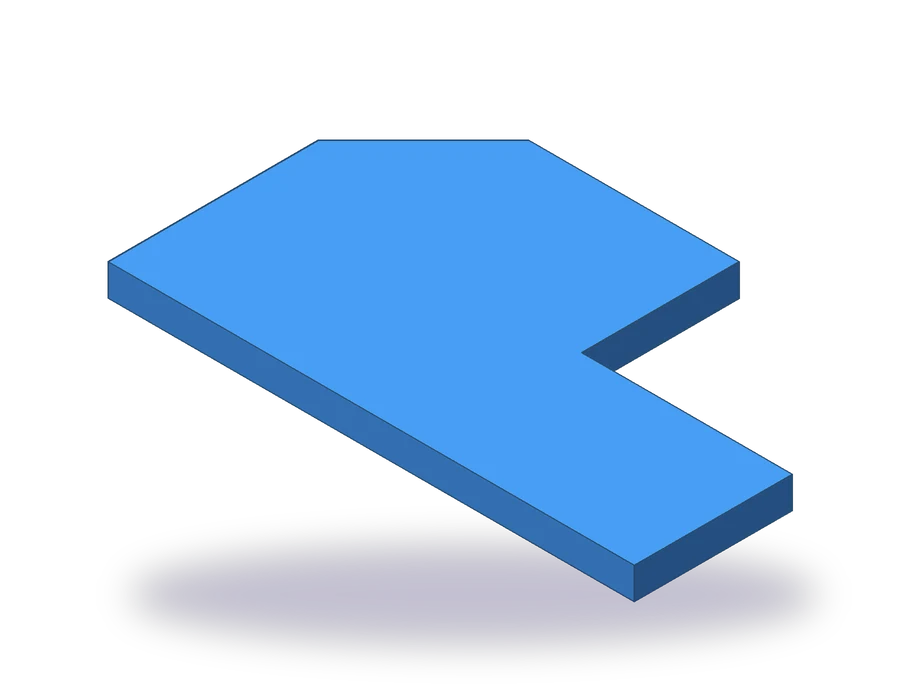 AutoCAD Coordinates
 - 2
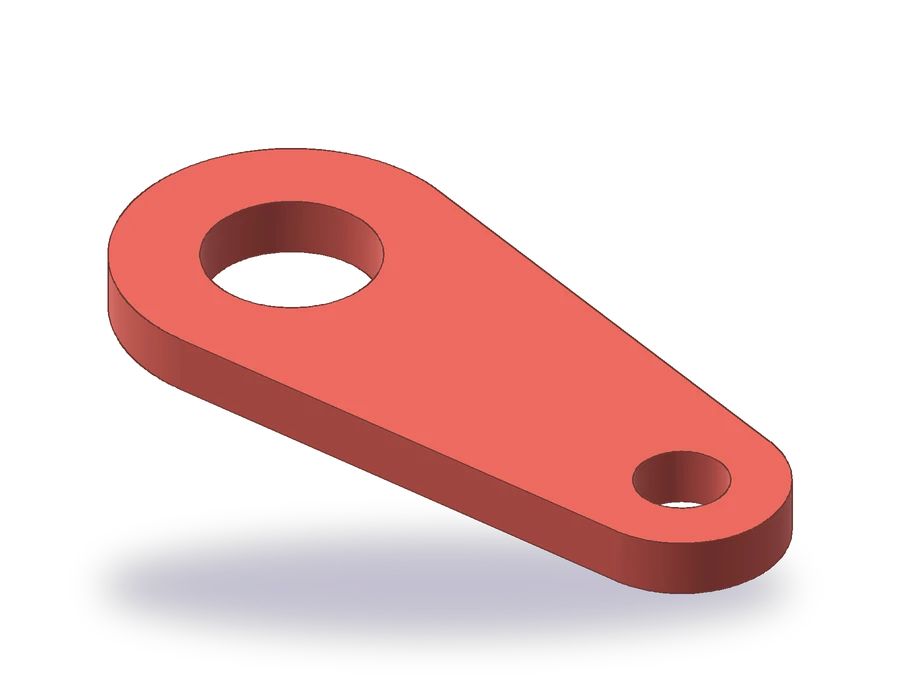 AutoCAD Object Snap
 - 3
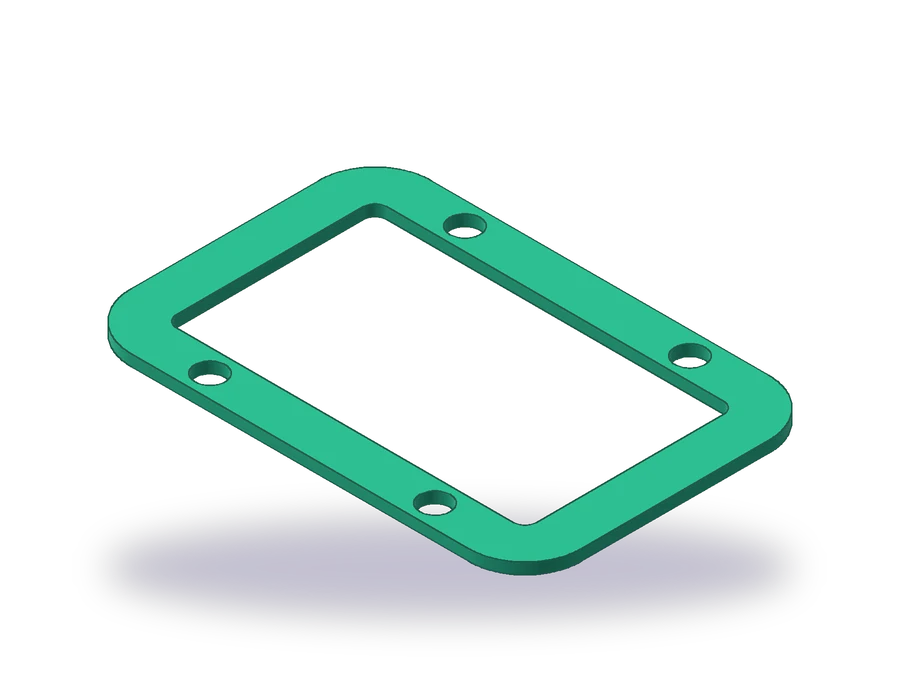 AutoCAD Offset
 - 4
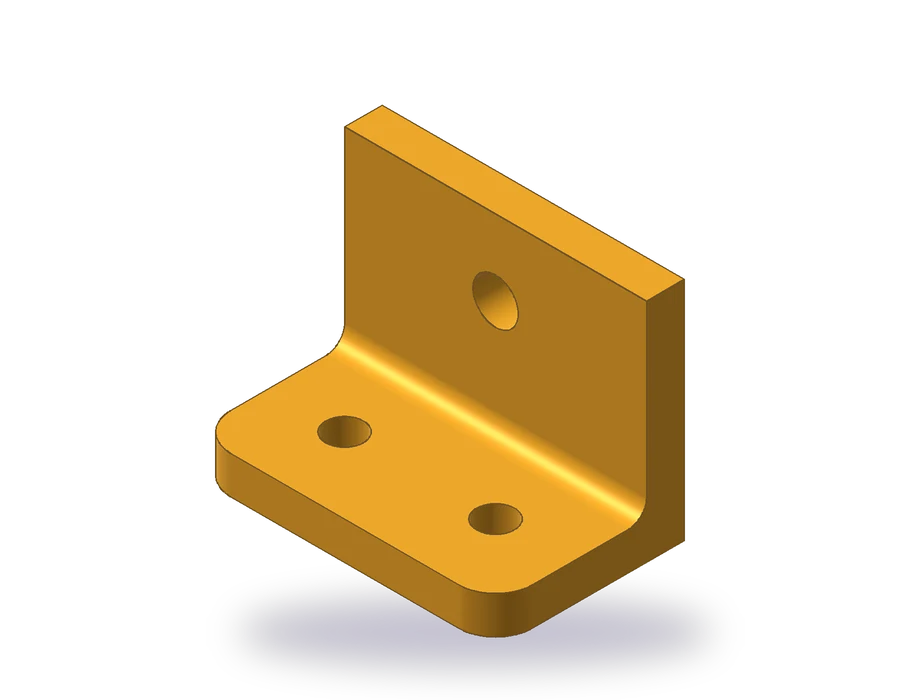 AutoCAD Fillet
 - 5
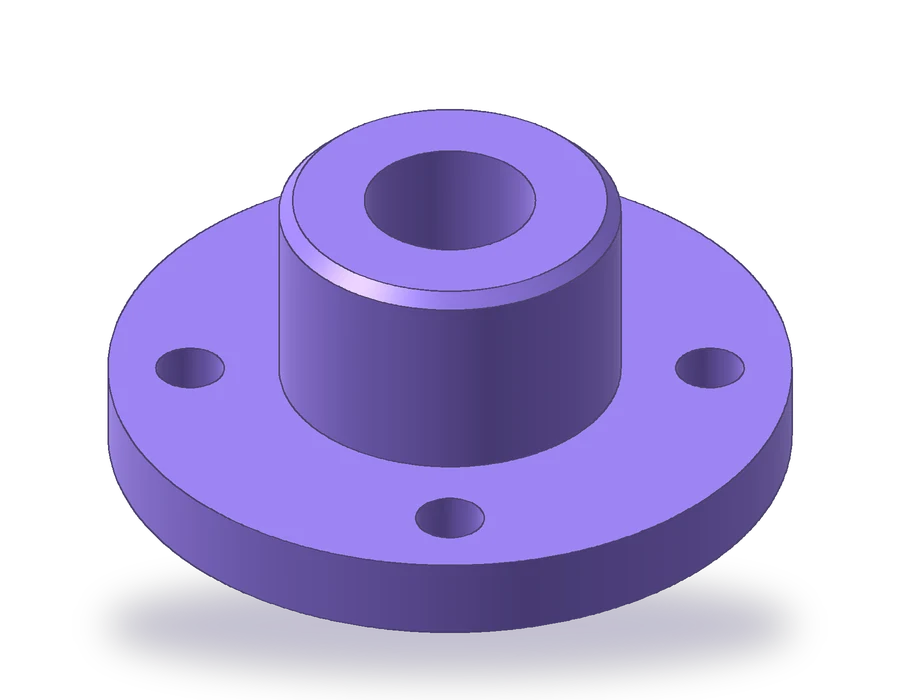 AutoCAD Polar Array
 - 6
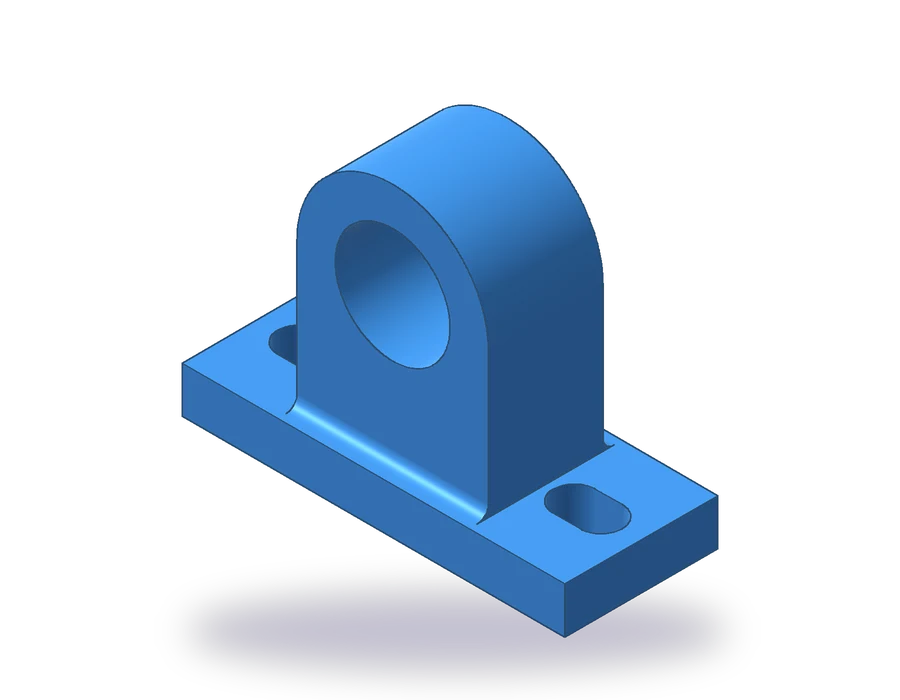 AutoCAD Linetype and Layers
 - 7
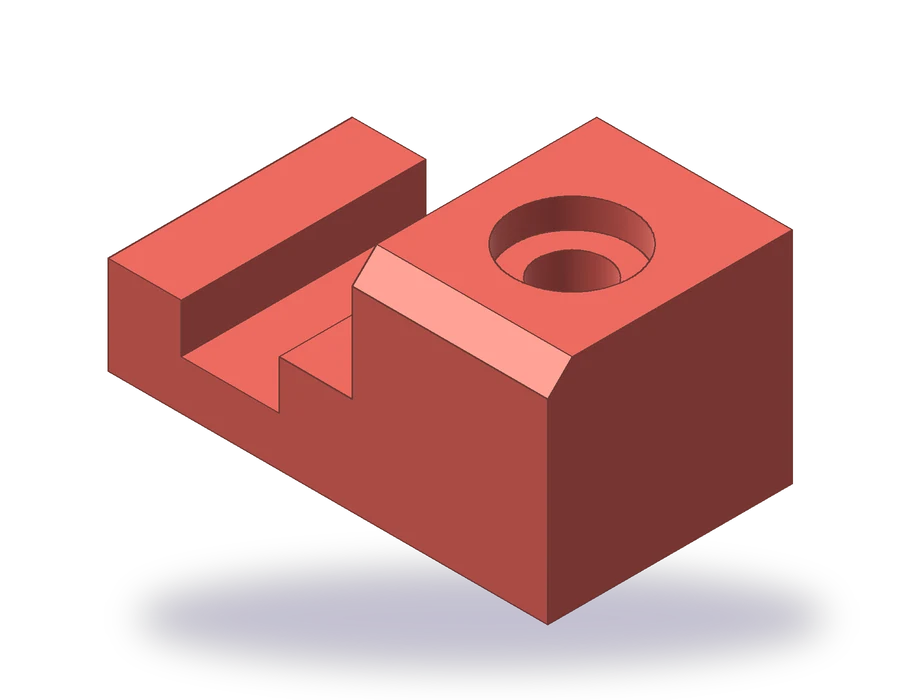 Orthographic Drawing in AutoCAD
 - 8
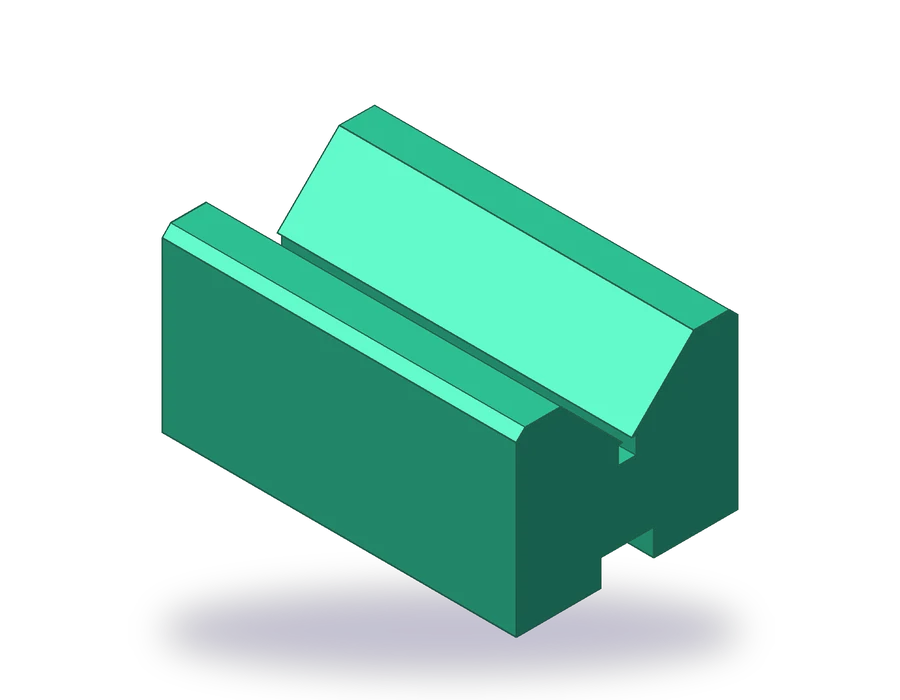 AutoCAD Dimensioning
 - 9
 Sectional View
 - 10
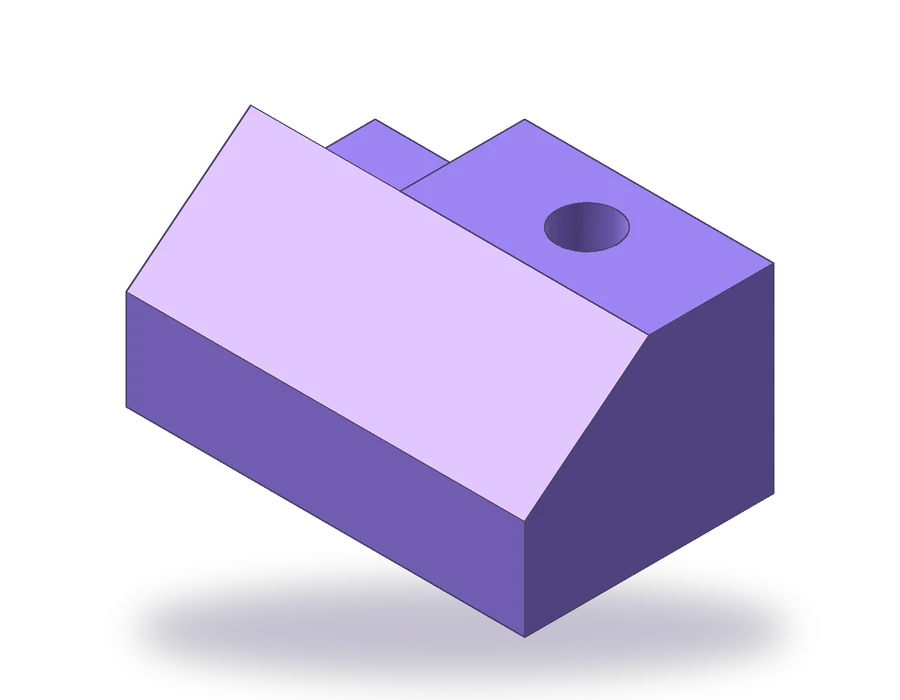 Isometric Drawing in AutoCAD
 - 11
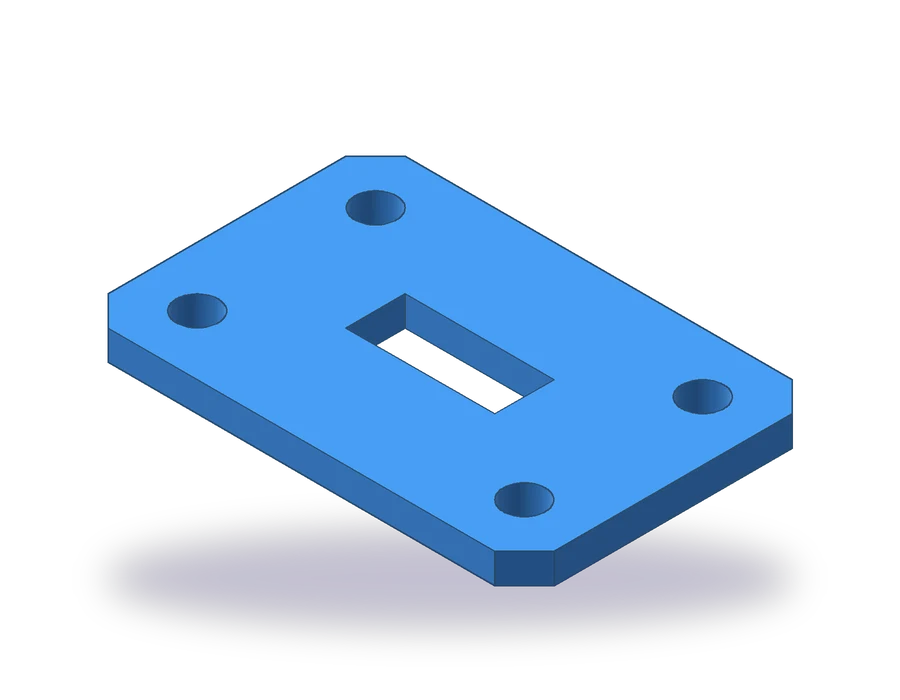 AutoCAD Title Block
 - 12
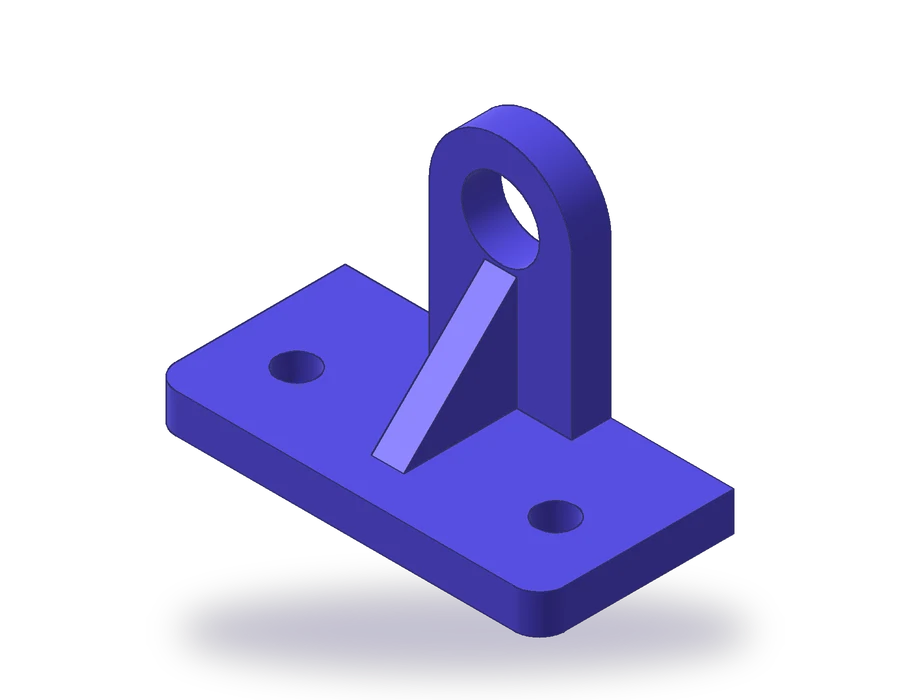 Engineering Drawing in AutoCAD
 - 13
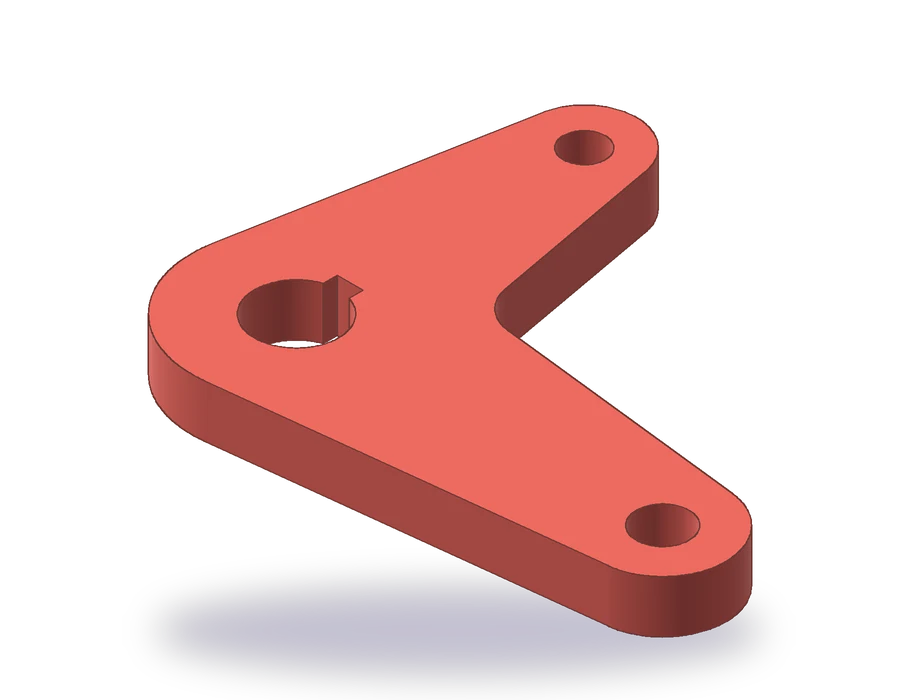 AutoCAD Polyline
 - 14
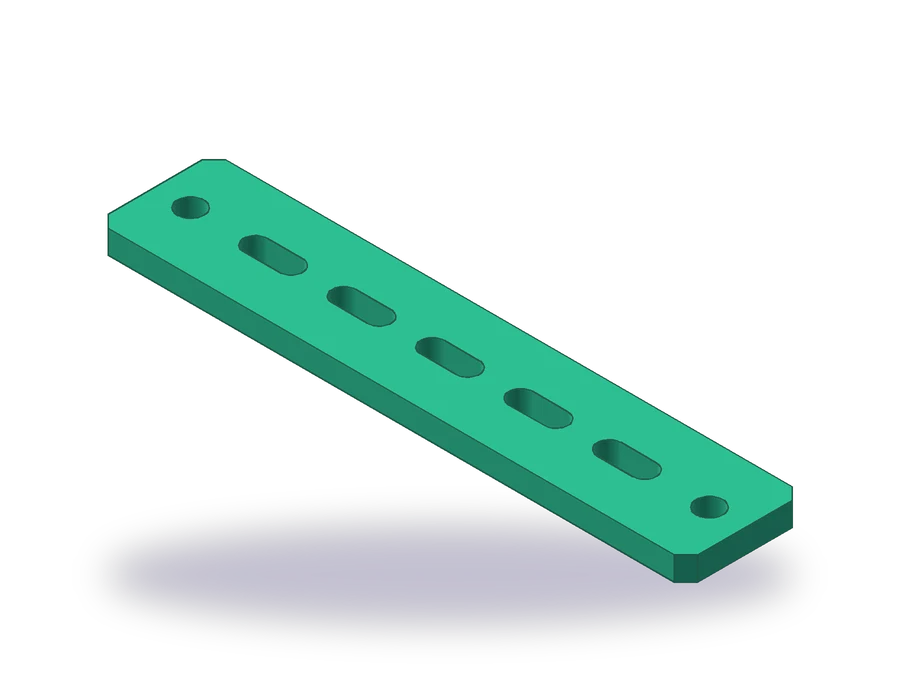 How to Make a Block in AutoCAD
 - 15
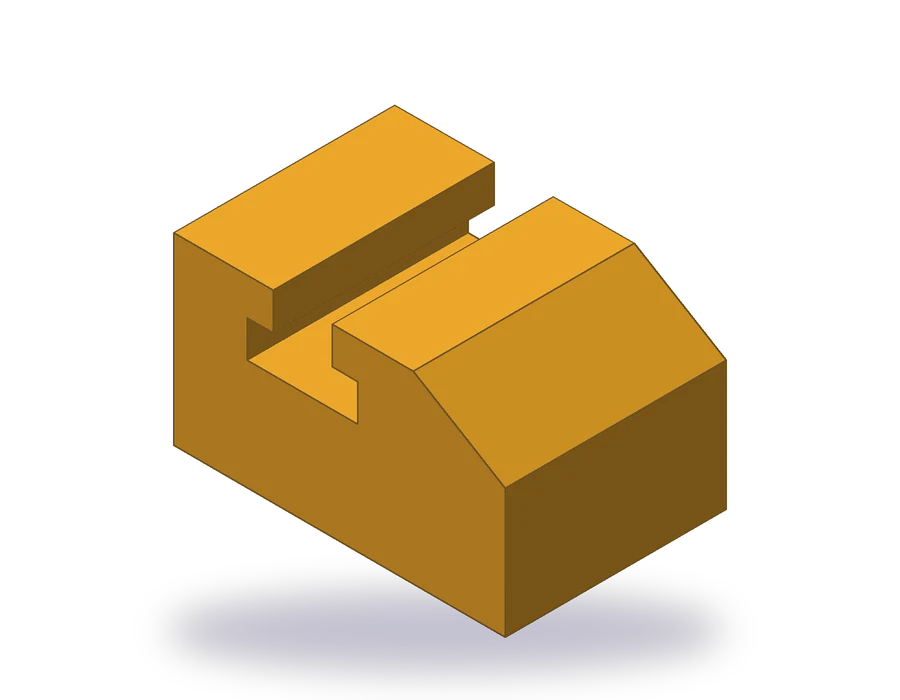 First Angle Projection
 - 16
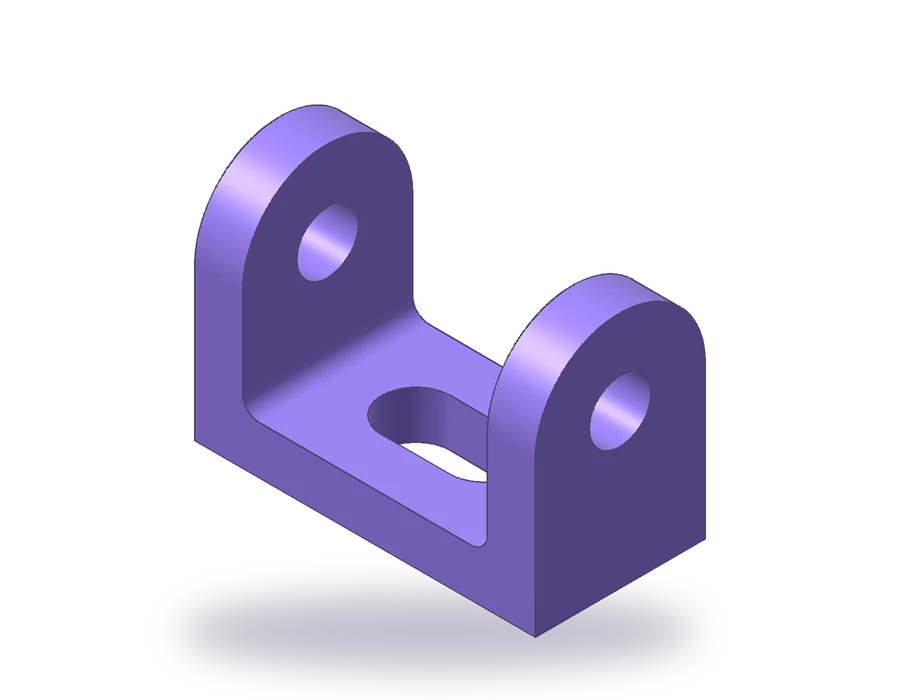 Third Angle Projection
 - 17
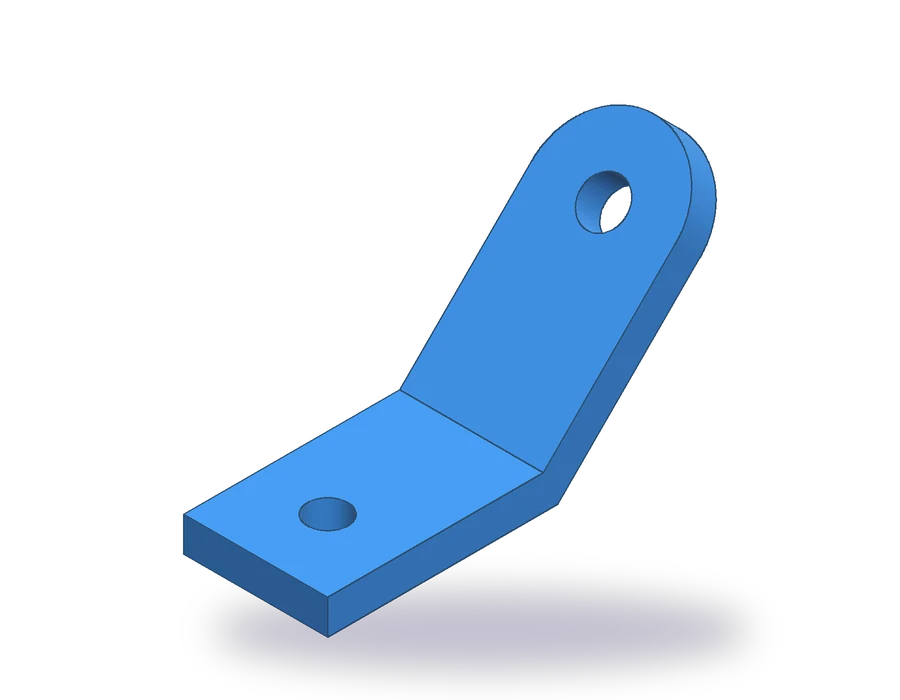 Auxiliary View
 - 18
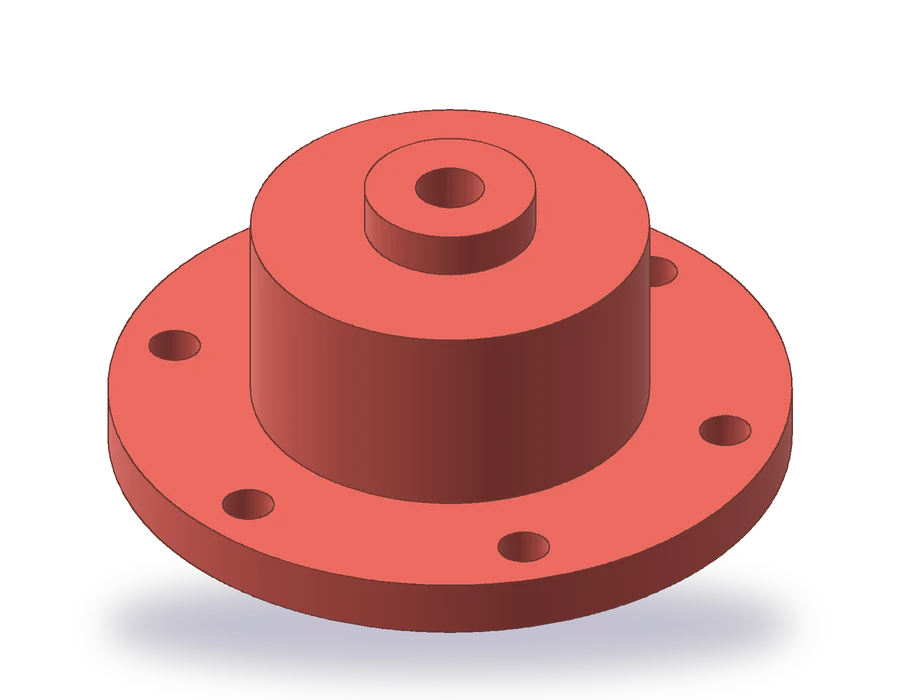 Half Section View
 - 19
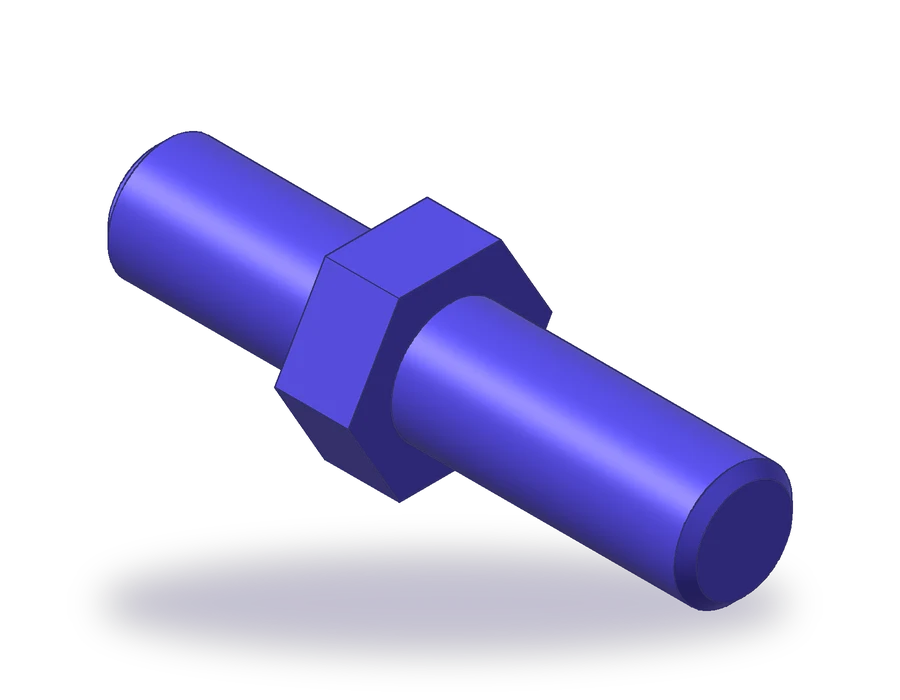 Thread Drawing in AutoCAD
 - 20
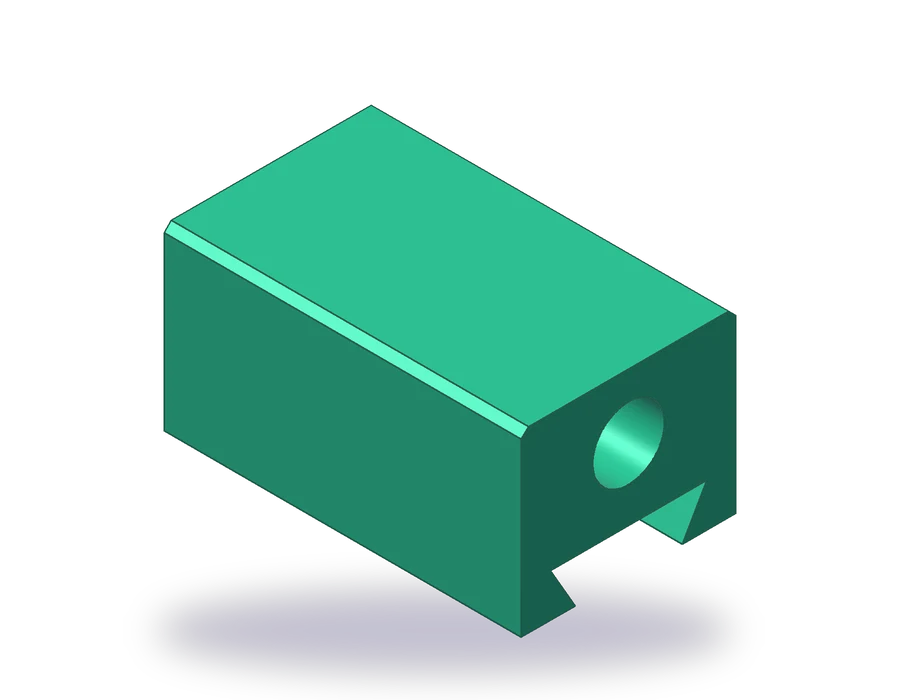 Surface Finish Symbols
 - 21
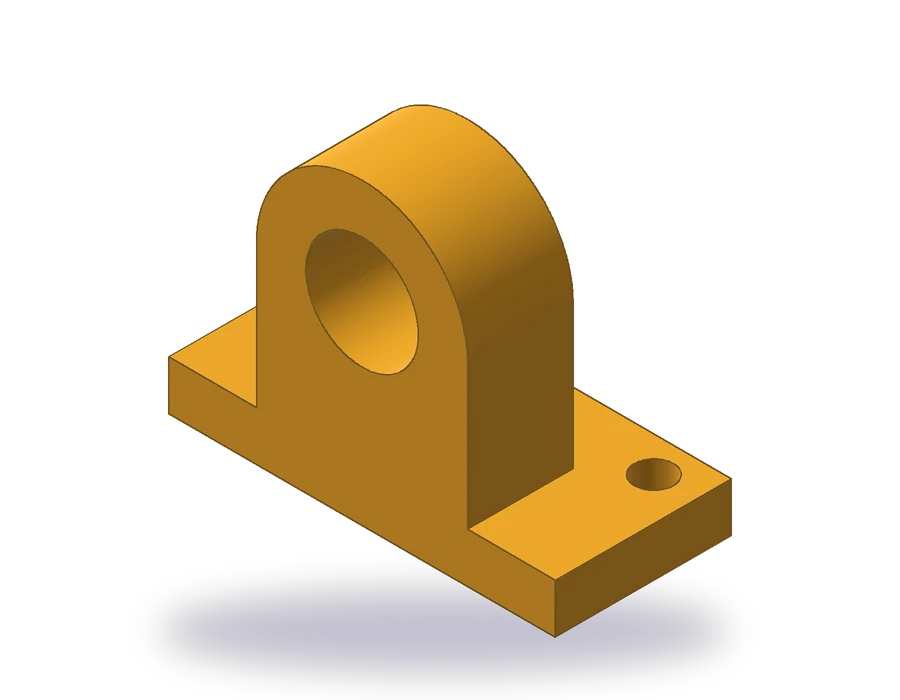 Oblique Drawing in AutoCAD
 - 22
 AutoCAD 3D Modeling
 - 23
 AutoCAD 3D to 2D
 - 24
 Exploded View Drawing