
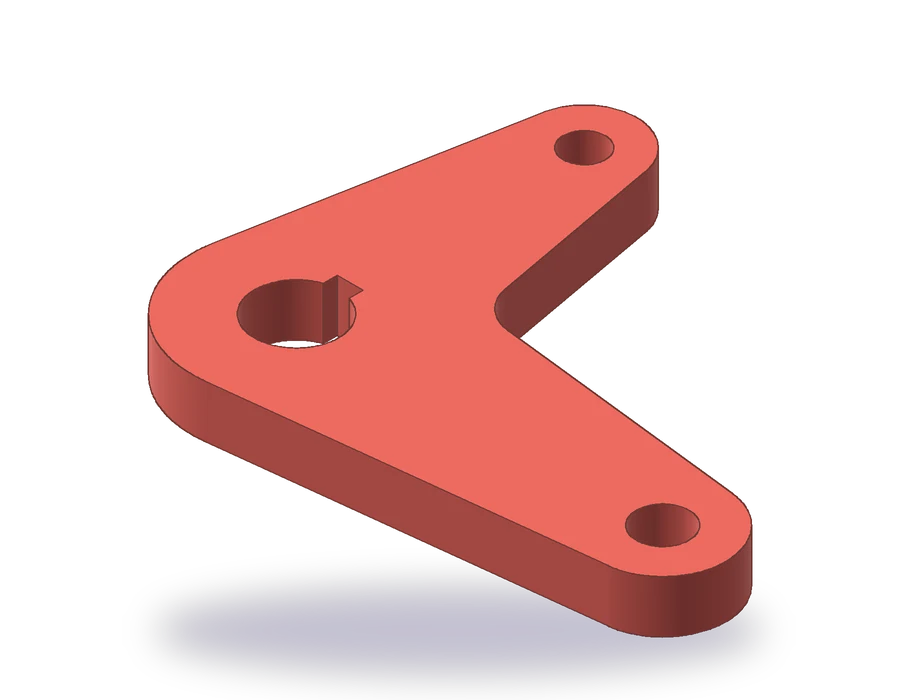
What this AutoCAD polyline lesson covers
- Build an outline of arcs and tangent lines with CIRCLE, LINE and FILLET.
- Convert lines and arcs into one closed polyline with PEDIT or JOIN.
- Use the closed polyline: read its area, offset it in one go and give it a width.
- Draw a keyed bore and dimension the keyway depth the way a machinist checks it.
A polyline is a single object made of connected line and arc segments. An outline drawn as separate lines and arcs looks the same on screen, but it cannot be offset in one step, it has no area, and it cannot be extruded into a solid later in the bootcamp. Turning it into one closed polyline fixes all of that.
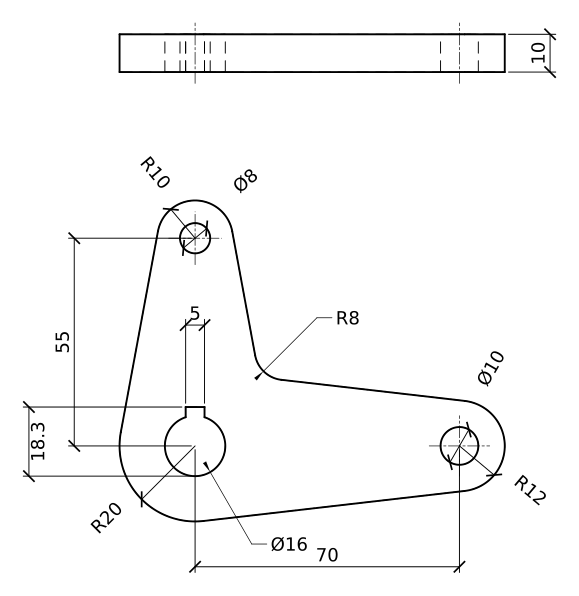
The part is a bell crank lever 10 mm thick. Its hub is R20 with a Ø16 bore and a 5 mm keyway; one arm runs 70 mm to the right and ends in R12 with a Ø10 hole, the other runs 55 mm up and ends in R10 with a Ø8 hole, and an R8 fillet rounds the inside corner between the two arms.
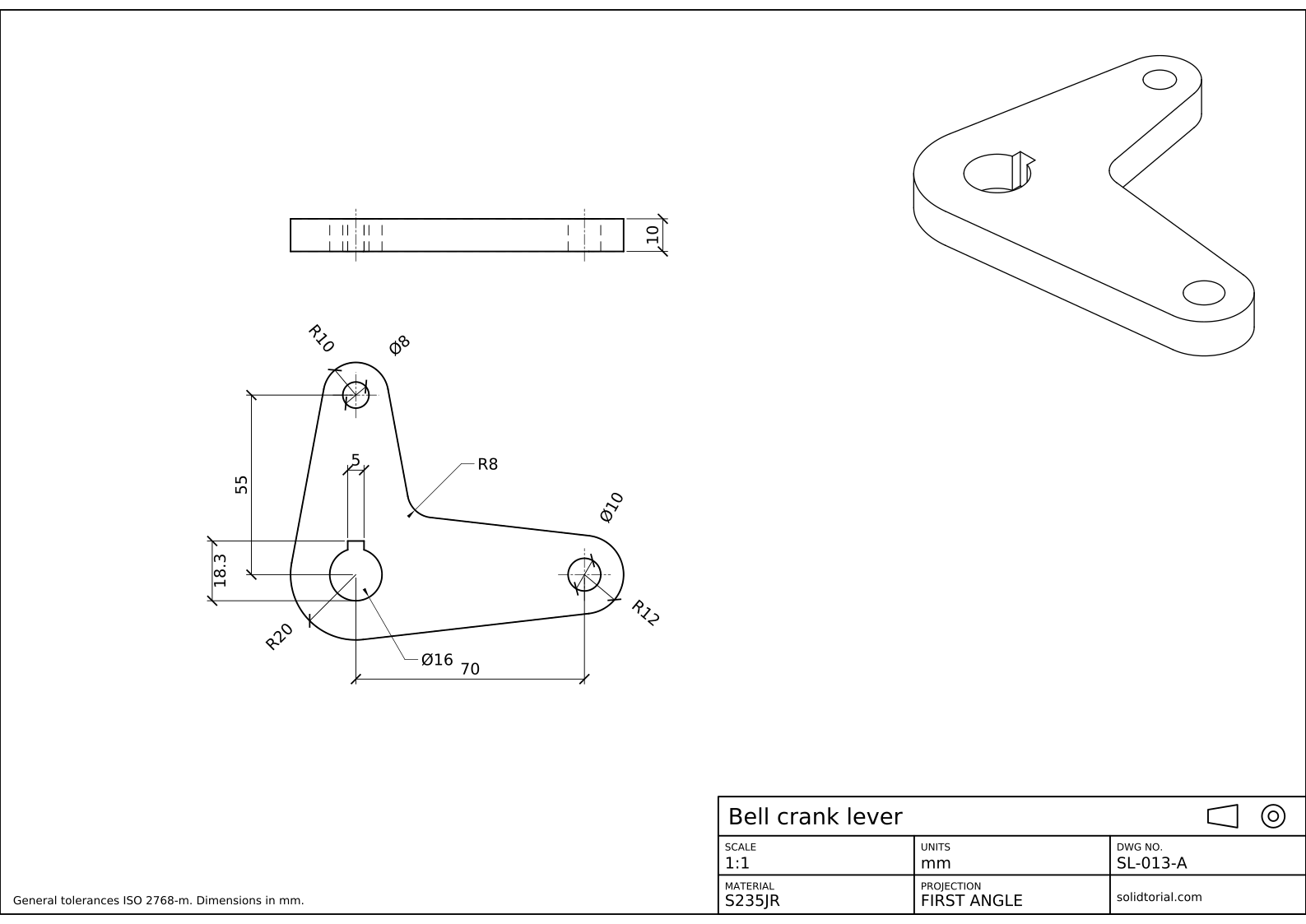
Metric sheet, ISO first-angle projection, scale 1:1 on A3. Click the drawing to open it full size.
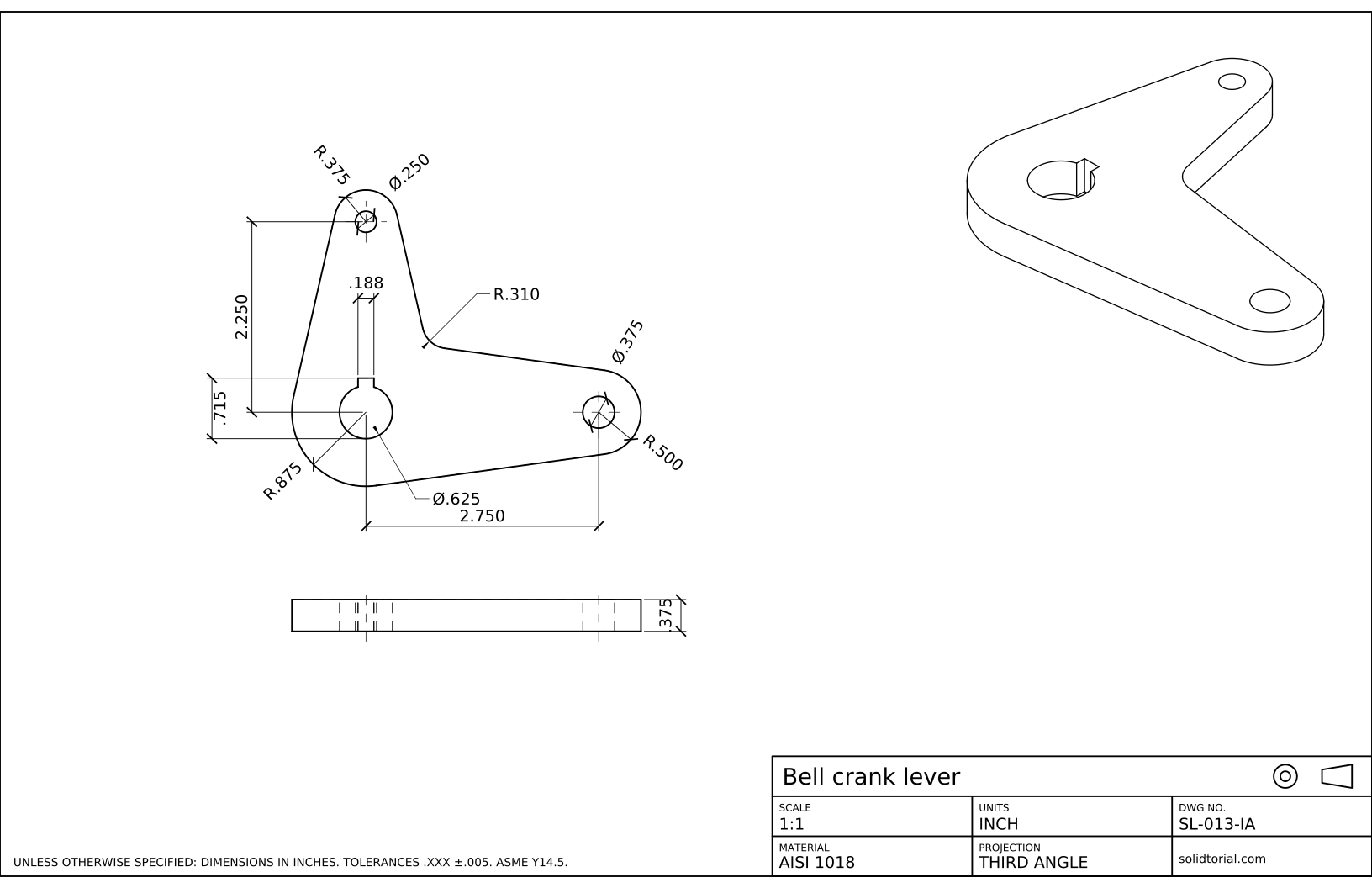
Inch sheet, third-angle projection (ASME), scale 1:1 on ANSI B. Click the drawing to open it full size.
PLINE, PEDIT and the other AutoCAD commands of this exercise
| Command | Alias | What it does here |
|---|---|---|
CIRCLE | C | Draw the hub, the two arm ends and the three holes. |
LINE | L | Draw the four sides of the arms tangent to the circles with the Tangent snap. |
FILLET | F | Round the inside corner between the arms with R8. |
TRIM | TR | Cut the parts of the circles inside the outline. |
PEDIT | PE | Turn a line into a polyline and join the rest of the outline to it. |
JOIN | J | The quicker way: join touching lines and arcs into one polyline. |
PLINE | PL | Draw the keyway directly as a polyline. |
How to draw the lever and join it into an AutoCAD polyline
-
Draw the centers and the circles
Place the hub at 0,0 and draw
Cwith radius 20 for its outside and diameter 16 for the bore. The horizontal arm ends at 70,0: draw an R12 circle and a Ø10 hole there. The vertical arm ends at 0,55: an R10 circle and a Ø8 hole. Add center lines through the three centers on the CENTER layer.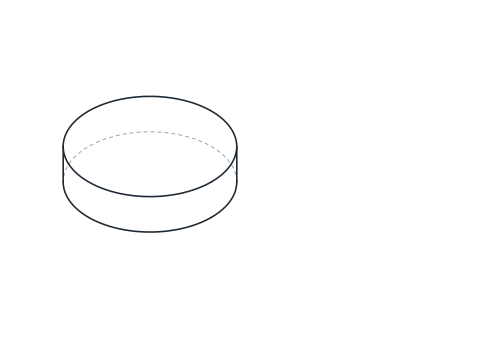
-
Draw the sides of the arms tangent to the circles
Each arm has two sides, each one tangent to the hub circle and to its end circle. Type
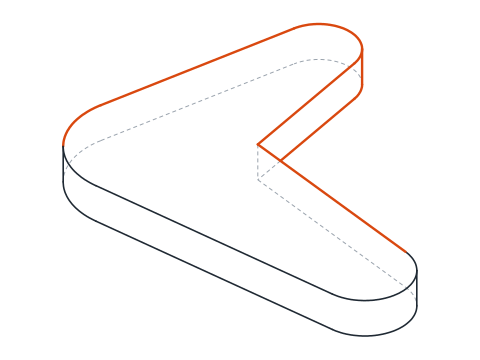
L, then typeTANand pick the hub circle near where the line should touch it, typeTANagain and pick the end circle on the same side. Draw the lower side of the horizontal arm, its upper side, and the left and right sides of the vertical arm.The two inner sides, the upper one of the horizontal arm and the right one of the vertical arm, cross each other near the hub. That corner is where the fillet goes.
-
Fillet the inside corner and trim the circles
Type
F, set the radius to 8 and pick the two inner sides: they are trimmed back and joined by an R8 arc. Then typeTRand trim the parts of the three outer circles that fall inside the lever, so that only the outside arcs remain: the hub arc on the lower left, the R12 end and the R10 end. The holes stay whole.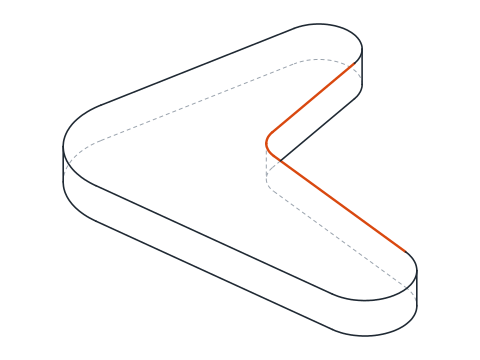
-
Join the outline into one closed polyline
Type
PEand pick one of the lines. AutoCAD answers that the object is not a polyline and asks whether to turn it into one: press Enter for yes. Choose Join, select all the other lines and arcs of the outline and press Enter twice. The outline is now one object.The same result comes faster with
J: select every piece of the outline and press Enter. If the pieces are lines and arcs that touch end to end, JOIN makes them a polyline. Click the outline: it highlights as a whole, and the Properties palette shows Polyline with Closed set to Yes. -
Check the area and offset the outline
Type
LISTand select the outline. Among its data is the area enclosed by the polyline: about 4280.7 mm² for this lever. If the value is missing or wrong, the outline is not closed or a piece was left out of the join.Try
Owith a distance of 2 on the outline: the whole lever is offset at once, arcs and lines together, which is impossible with separate pieces. Undo the offset when you have seen it, since the part does not need it. -
Draw the keyway and dimension the lever
The keyway is a slot 5 mm wide cut into the top of the bore. Draw it with
PL: from the bore, two vertical sides 2.5 mm each side of the center line, joined by a horizontal top 10.3 mm above the center. Trim the bore circle between the two sides.Dimension the lever: 70 and 55 between centers, R20, R12, R10 and R8, the Ø16, Ø10 and Ø8 holes, and the 10 mm thickness in the edge view. The keyway gets its width, 5, and its depth measured from the bottom of the bore to the top of the keyway, 18.3, because that is the size a machinist can check with calipers.
AutoCAD polyline practice: a larger bell crank
Draw a larger bell crank on your own: an R24 hub with a Ø20 bore and a 6 mm keyway whose depth from the bottom of the bore is 22.8, a horizontal arm 85 mm long ending in R14 with a Ø12 hole, a vertical arm 65 mm long ending in R12 with a Ø10 hole, and an R10 fillet between the arms. Join the outline into one polyline and check its area: about 6118.3 mm².
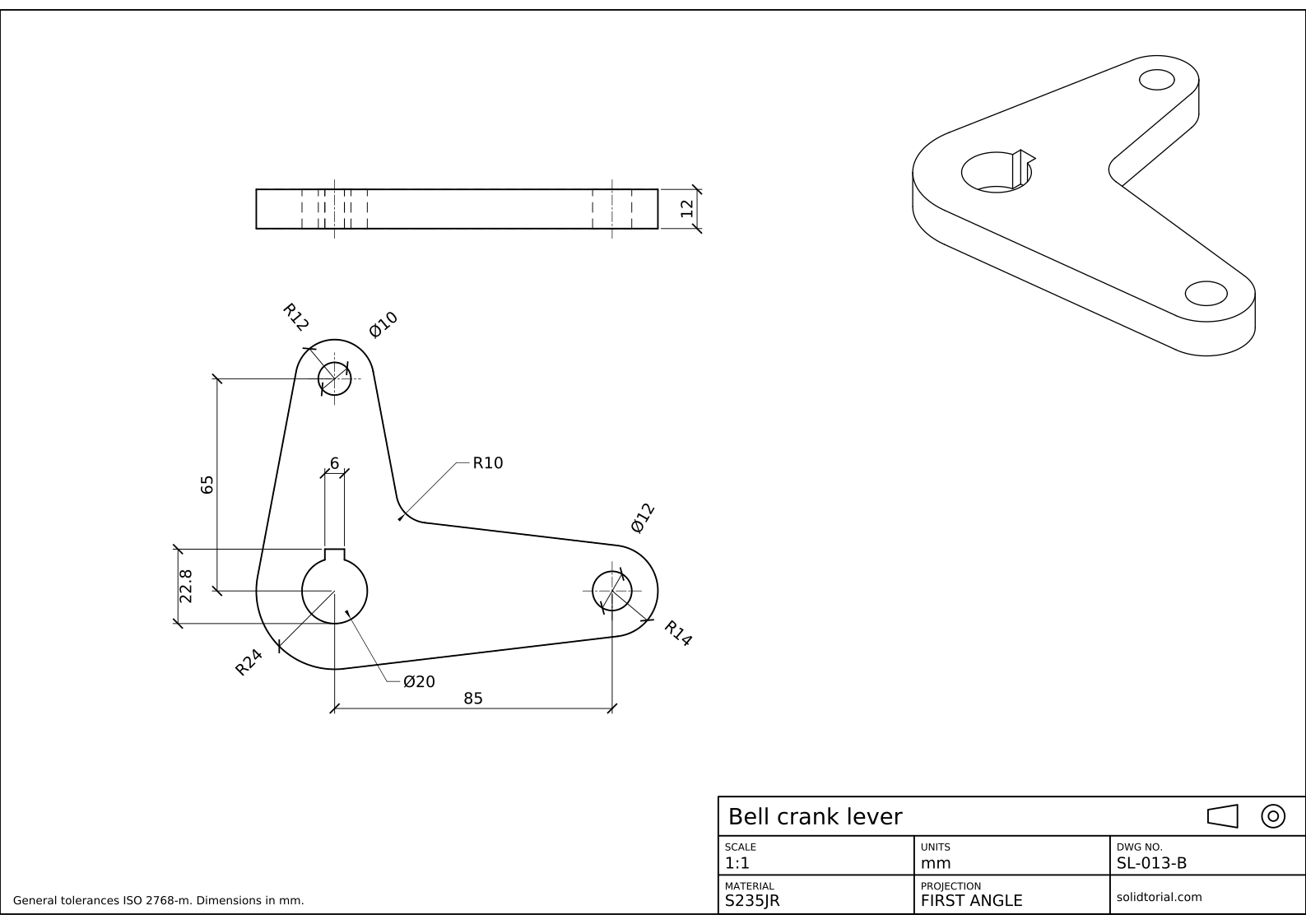
Metric sheet, ISO first-angle projection, scale 1:1 on A3. Click the drawing to open it full size.
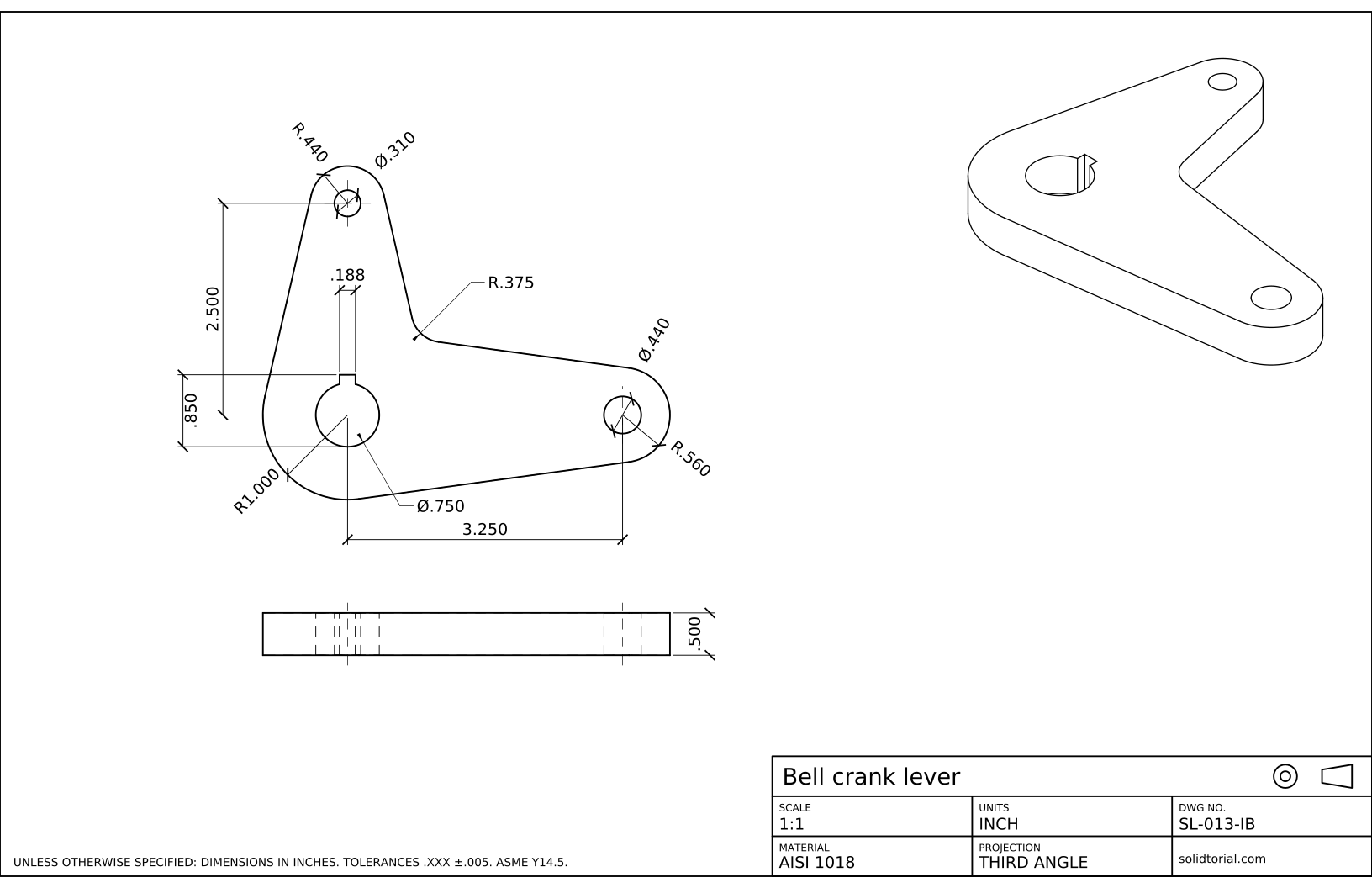
Inch sheet, third-angle projection (ASME), scale 1:1 on ANSI B. Click the drawing to open it full size.
Show the solution files
Metric sheet, ISO first-angle projection, scale 1:1 on A3. Click the drawing to open it full size.
Inch sheet, third-angle projection (ASME), scale 1:1 on ANSI B. Click the drawing to open it full size.
Common AutoCAD polyline problems and how to fix them
- JOIN leaves separate pieces. The ends do not meet exactly. Zoom in where the join fails, fix the gap with endpoint snap, or use PEDIT Join with a fuzz distance.
- The polyline is not closed. The last piece meets the first but the polyline is still open. Use PEDIT and Close, or set Closed to Yes in Properties.
- Tangent lines that touch the wrong side. The Tangent snap takes the side of the circle nearest to where you click. Click close to where the line should touch.
- Trimming the holes. Only the outer circles are trimmed. The holes are separate closed circles inside the outline.
- Joining the holes into the outline. A polyline is one continuous path. The holes stay as their own objects.
Convert lines to a polyline in AutoCAD: PEDIT or JOIN
Both commands turn connected lines and arcs into a polyline. PEDIT asks first whether to convert the object you picked and then offers Join, with an optional fuzz distance that closes small gaps. JOIN is quicker when the pieces already meet exactly. To go the other way, from one polyline back to separate lines and arcs, use EXPLODE.
PEDIT also edits existing polylines: it opens or closes them, changes their width, fits a curve through their vertices and adds or moves vertices.
AutoCAD polyline width and thickness
A polyline can have a width, set with PEDIT Width or in the Properties palette. A wide polyline prints as a thick band, which some drafters use for borders or for section lines. For part outlines, leave the width at 0 and let the layer lineweight set the thickness, as in all the solution files. The Thickness property is different again: it extrudes the polyline in Z as a surface, a leftover of older 3D methods that the 3D lessons replace with solids.
The inch version of the lever has an R.875 hub with a Ø.625 bore, arms of 2.750 and 2.250 and an R.310 fillet.
AutoCAD polyline questions
What is the difference between a line and a polyline in AutoCAD?
Each LINE segment is a separate object. A polyline is one object that can contain many line and arc segments, can be closed, has an area and can have a width.
How do I join lines into a polyline?
Select them with JOIN, or use PEDIT, convert the first line and choose Join to add the others. The pieces must touch end to end, or be within the fuzz distance of PEDIT.
Why can I not offset my outline in one step?
Because it is made of separate objects. Join it into one polyline and OFFSET works on the whole outline at once.
Can a polyline contain arcs?
Yes. While drawing with PLINE, type A to switch to arc segments and L to go back to lines. Joining existing arcs with PEDIT or JOIN also keeps them as arc segments.
Updated: September 17, 2026