
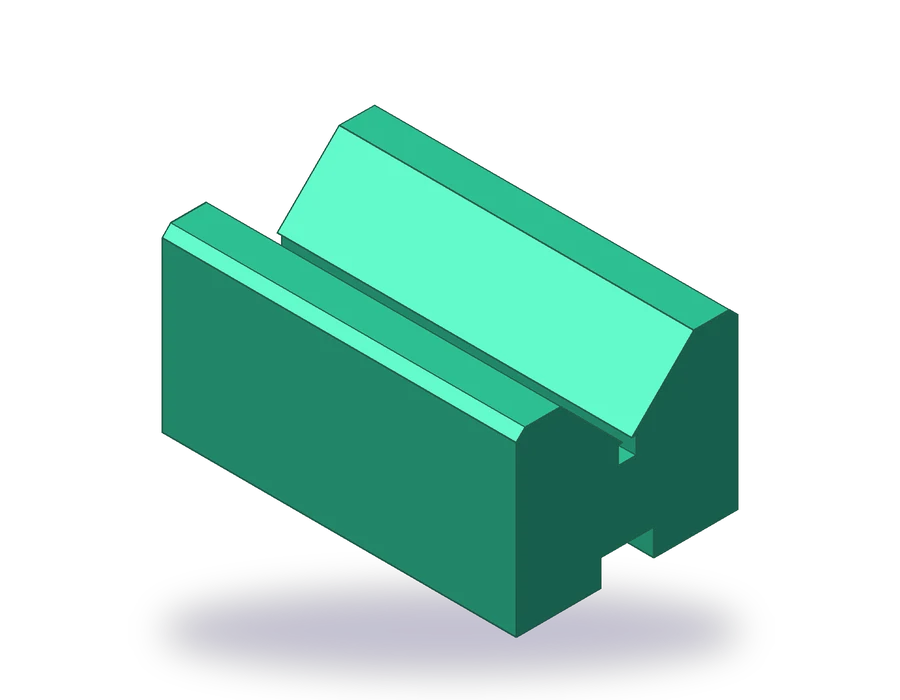
What this AutoCAD dimensioning lesson covers
- Create a dimension style with readable text and arrows for an A3 sheet.
- Place linear dimensions with DIMLINEAR and an angle with DIMANGULAR.
- Write notes such as 4 x 4 or 2 x 45° without breaking the measured value.
- Decide which view shows each size best, and give each size only once.
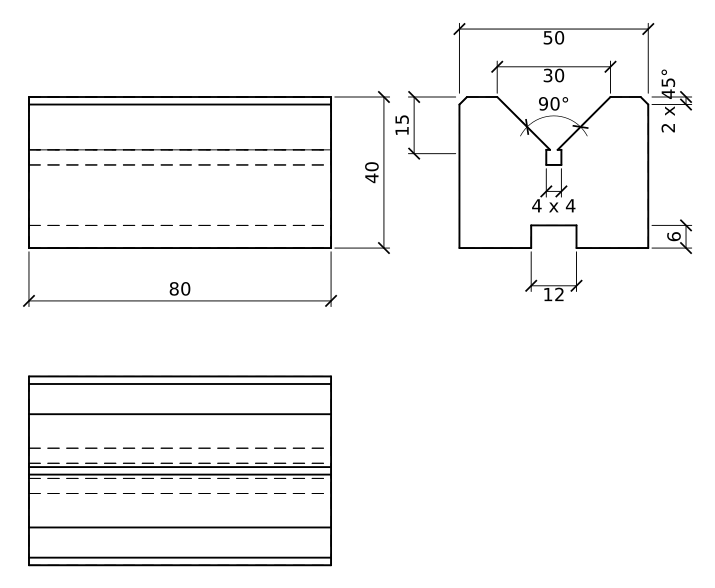
A V-block holds round bars for marking and drilling. This one is 80 mm long, 50 mm wide and 40 mm high, with a 90° V-groove along the top, a small relief groove at the bottom of the V, a slot underneath and two chamfered top edges. It has straight edges, an angle and a few small features, which makes it a good part for learning to dimension: every kind of dimension you need in a first drawing appears once.
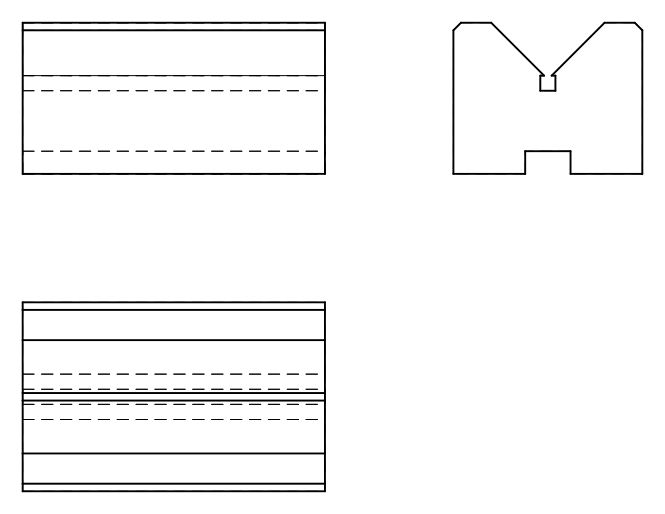
You need the three views of the part (front, top and side). If you followed the lesson on orthographic views you already know how to draw them; otherwise draw them from the sheet below before you start dimensioning.
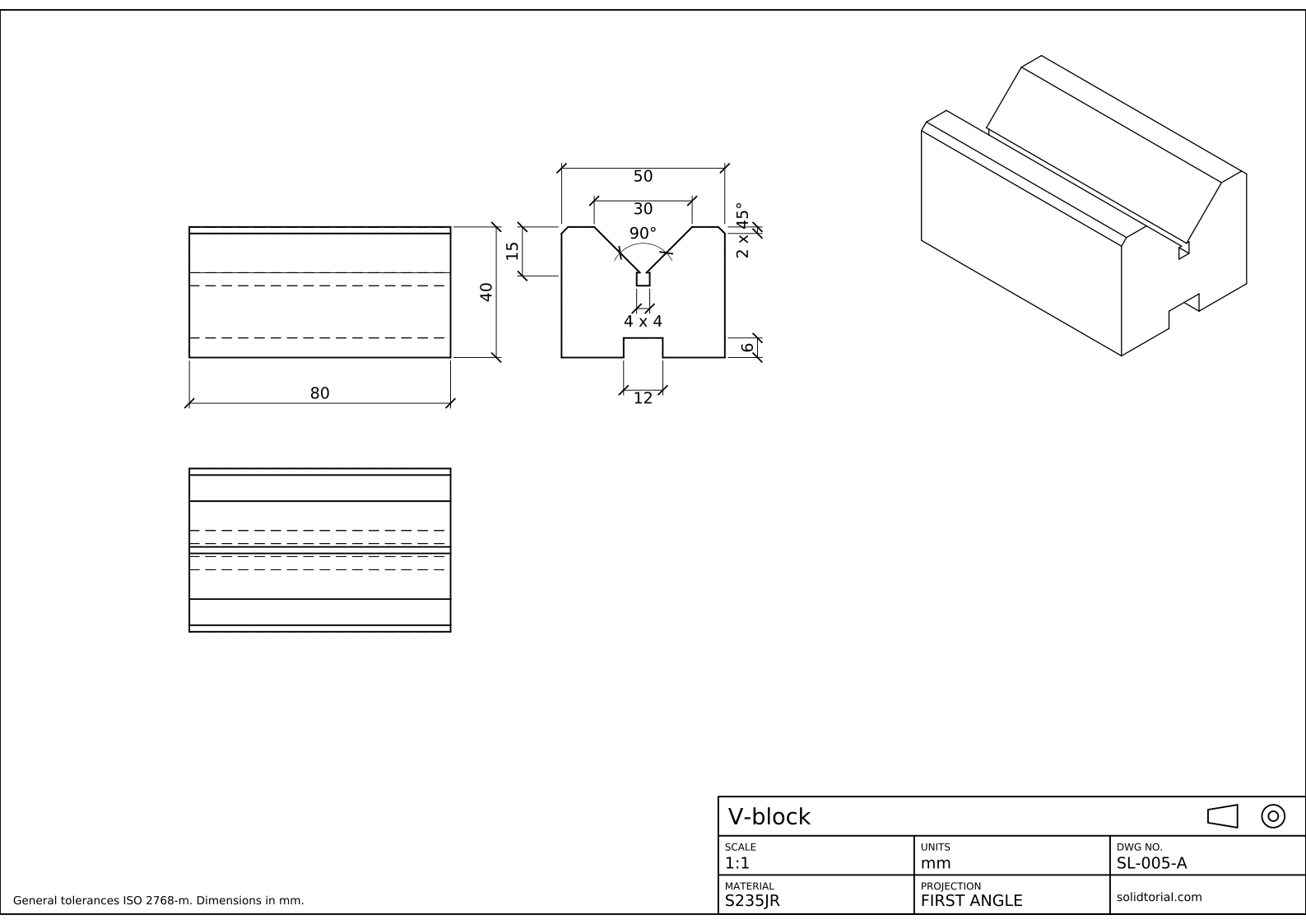
Metric sheet, ISO first-angle projection, scale 1:1 on A3. Click the drawing to open it full size.
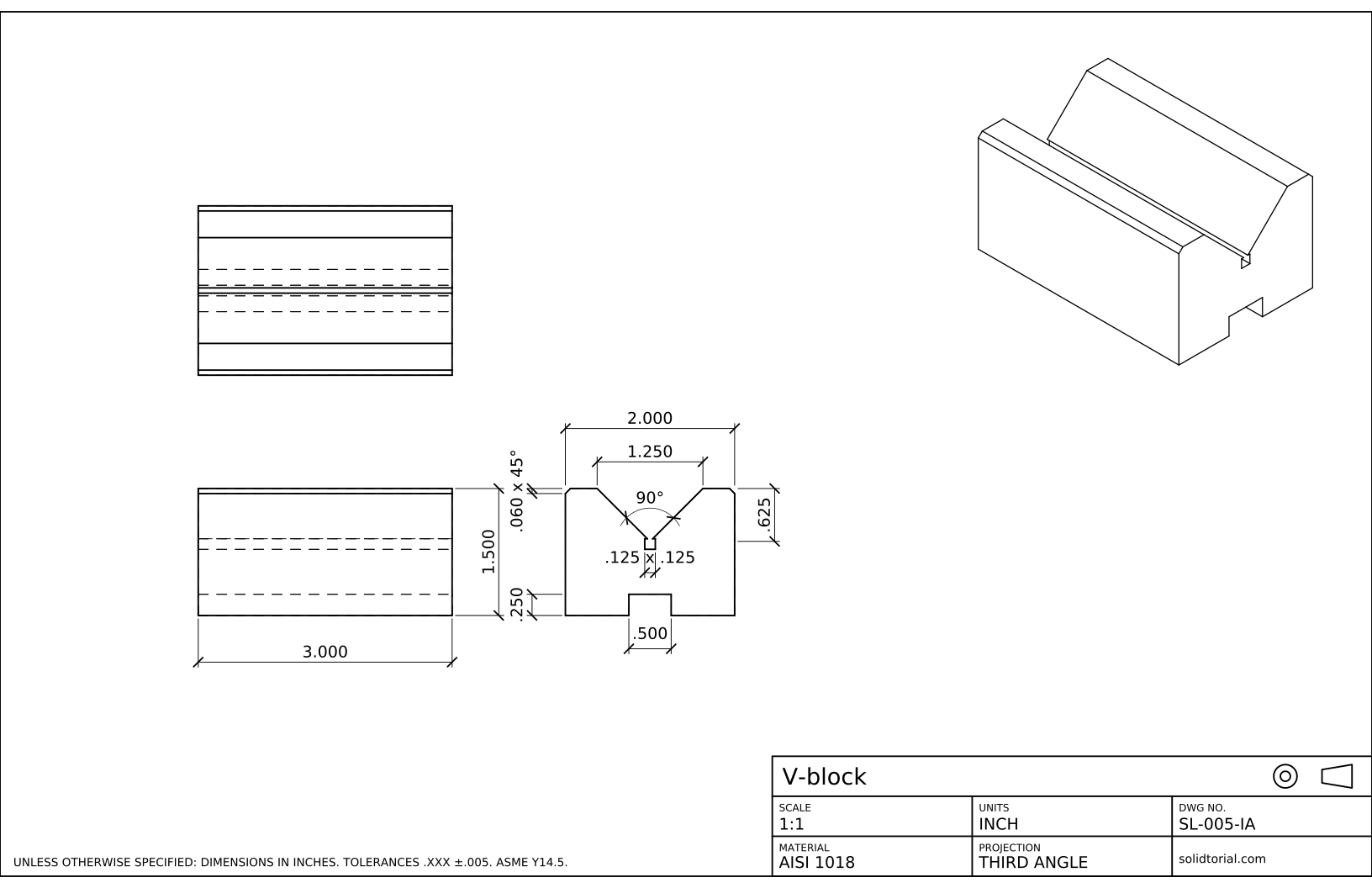
Inch sheet, third-angle projection (ASME), scale 1:1 on ANSI B. Click the drawing to open it full size.
AutoCAD dimension commands used in this exercise
| Command | Alias | What it does here |
|---|---|---|
DIMSTYLE | D | Create the dimension style for the sheet: text height, arrow size and units. |
LAYER | LA | Create a DIMENSIONS layer so dimensions print thin and can be hidden. |
DIMLINEAR | · | Place the horizontal and vertical sizes: 80, 40, 50, 30, 15, 12 and 6. |
DIMANGULAR | DAN | Dimension the 90° angle between the two faces of the V. |
DIMEDIT | DED | Fix the text of a dimension that is already placed, if you need to. |
How to dimension the V-block in AutoCAD, step by step
-
Draw the three views of the V-block
Draw the front view (80 x 40), the top view below it and the side view to its right, as on the sheet. In the side view, the V is 30 wide at the top and 15 deep, with a 4 x 4 relief groove at its bottom; the slot underneath is 12 wide and 6 deep, and the two top edges are chamfered 2 x 45°. Put visible lines, hidden lines and center lines on their own layers.
-
Create the DIMENSIONS layer and a dimension style
Type
LAand create a layer called DIMENSIONS with a thin lineweight, then make it current. TypeDto open the Dimension Style Manager, click New and base the style on the one you have (ISO-25 in the metric template). Set these values:- Text tab: text height 3.5, text placement above the dimension line, text aligned with the dimension line.
- Symbols and Arrows tab: arrow size 3.
- Lines tab: extend beyond dimension lines 1.5, offset from origin 1.
- Primary Units tab: precision 0 for millimeters, with trailing zeros suppressed so that 5.5 still shows its decimal.
- Fit tab: overall scale 1, because this sheet is drawn at 1:1.
Click Set Current and close the manager.
-
Dimension the overall sizes with DIMLINEAR
Type
DIMLINEAR. With endpoint snap on (F3), pick the two bottom corners of the front view and place the dimension line about 10 mm below the view: it reads 80. Repeat for the height on the right of the front view (40) and for the width of the side view along its top (50). Overall sizes go outermost, so smaller dimensions can sit between them and the part without lines crossing. -
Dimension the V-groove: width, depth and 90° angle
In the side view, use
DIMLINEARbetween the two top corners of the V for its width (30), and again vertically from the bottom of the V to the top face for its depth (15). Then typeDAN, pick one face of the V, then the other, and place the arc inside the groove: it reads 90°. A V of known width and angle is fully defined, so you could leave out the depth; it is kept here because it is the size a machinist checks first. -
Add the slot, the relief groove and the chamfer notes
Dimension the slot under the part with
DIMLINEAR: 12 for its width and 6 for its depth. For the relief groove, startDIMLINEARacross it, typeTbefore placing the line and enter<> x 4: the brackets keep the measured 4 and the dimension still updates if the groove changes. For the chamfers, dimension the 2 mm leg and replace the text with2 x 45%%d; AutoCAD shows %%d as the degree sign. -
Check the drawing against the solution sheet
Compare your drawing with the sheet. Every size of the part should appear once and only once, outside the views where possible, and never to a hidden line when another view shows the same edge as a visible one. That is why the slot and the V are dimensioned in the side view and not in the front view, where they are dashed.
AutoCAD dimensioning practice: a larger V-block
Now dimension a larger V-block on your own: 100 x 60 x 50, with a 90° V that is 40 wide and 20 deep, a 5 x 5 relief groove, a 14 x 8 slot and 2 x 45° chamfers. Draw the three views from the sizes on this sheet, dimension them with the same style and compare with the solution files when you finish.
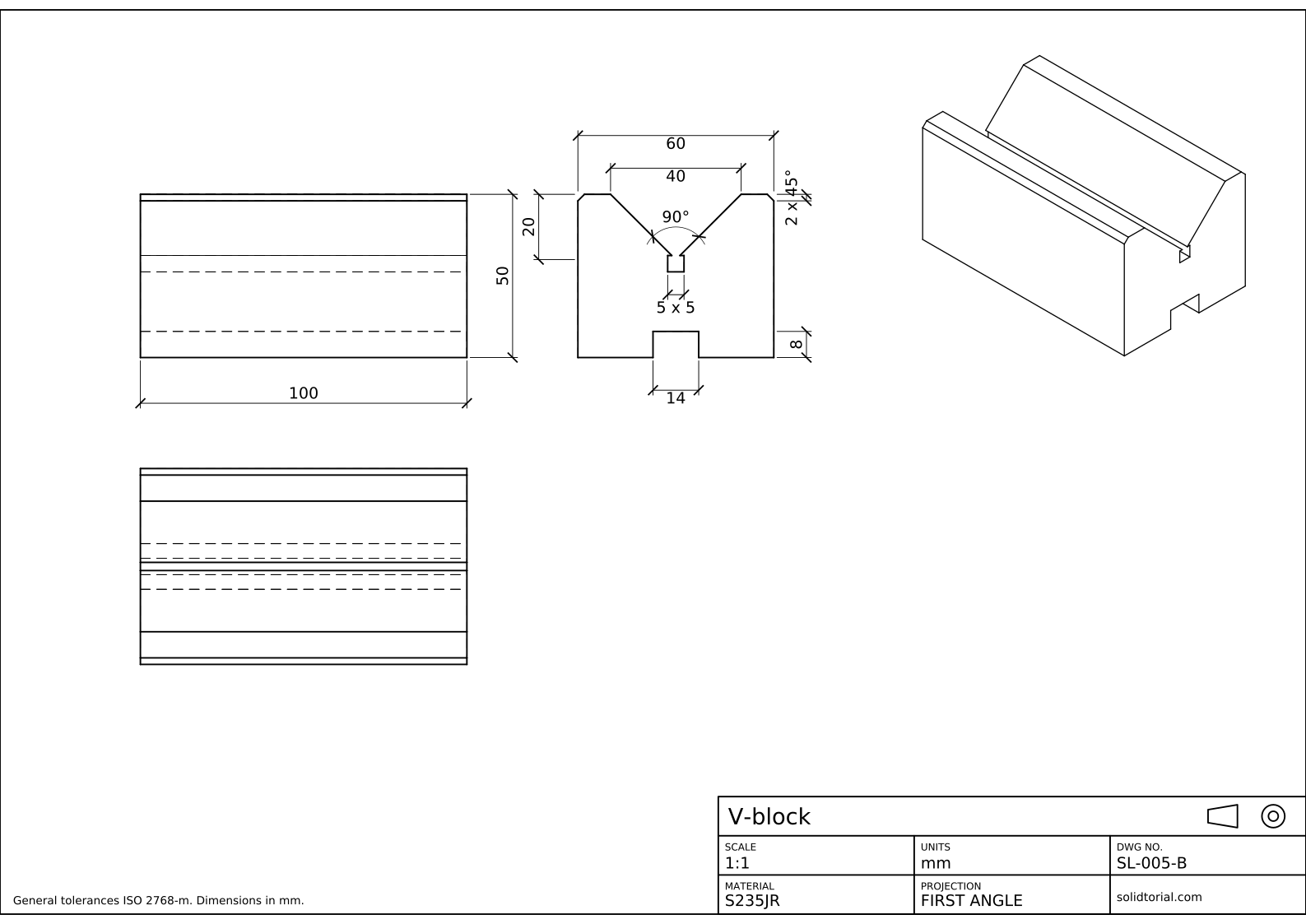
Metric sheet, ISO first-angle projection, scale 1:1 on A3. Click the drawing to open it full size.
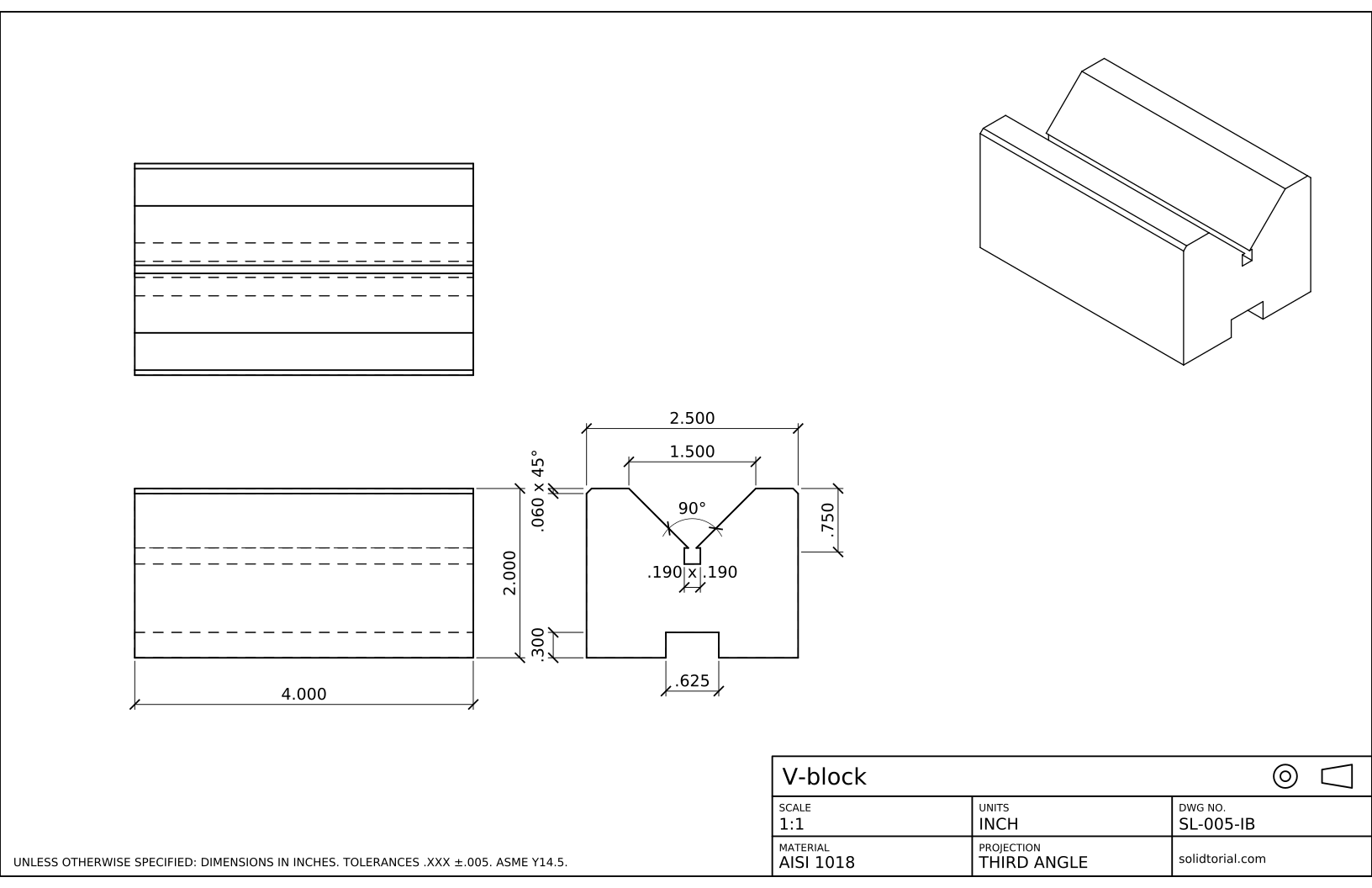
Inch sheet, third-angle projection (ASME), scale 1:1 on ANSI B. Click the drawing to open it full size.
Show the solution files
Metric sheet, ISO first-angle projection, scale 1:1 on A3. Click the drawing to open it full size.
Inch sheet, third-angle projection (ASME), scale 1:1 on ANSI B. Click the drawing to open it full size.
Common AutoCAD dimension mistakes and how to fix them
- Text that is unreadable once printed. A style with 2.5 mm text looks fine on screen and too small on paper if the sheet is reduced. Set the text height for the printed size and leave the scale to the Fit tab.
- Snapping to the wrong point. Center lines and hatches also offer endpoints. Zoom in and check that each extension line starts at a corner of the part.
- Typing a number over the measurement. If you replace the text with a typed value, the dimension stops following the geometry. Use the brackets <> to keep the measured value and only add words around it.
- Dimensioning hidden lines. Give each feature its size in the view where it is drawn with visible lines.
- Repeating a size. If the depth of the V is given in two views, one of them will be forgotten when the part changes. Give each size once.
AutoCAD dimension scale and text size on the printed sheet
On this sheet the part is drawn at full size and printed at 1:1, so a 3.5 mm text height prints at 3.5 mm. When a part is printed at another scale, for example 1:2, the dimension text has to grow by the same factor to keep the printed height. You can do it with the overall scale in the Fit tab of the dimension style (2 for a 1:2 sheet) or, in recent releases, with annotative dimension styles that follow the scale of each layout viewport. The title block lesson sets up such a layout viewport on a real sheet.
The inch version of this exercise uses the same steps. Set the precision to three decimals and suppress the leading zero, so that the relief groove reads .125 instead of 0.125, which is the usual way to write decimal inches on ASME drawings.
AutoCAD dimension questions
What is the difference between DIMLINEAR and DIMALIGNED?
DIMLINEAR measures only the horizontal or vertical distance between two points. DIMALIGNED measures along the line between them, so it gives the true length of a slanted edge such as the face of the V.
How do I change the dimension text size in AutoCAD?
Open the Dimension Style Manager with DIMSTYLE, select the style, click Modify and change the text height in the Text tab. Every dimension that uses that style updates at once.
Why does my dimension show the wrong value?
Usually because the geometry was scaled after it was drawn, or because the measured value was replaced with typed text. Check the text in the Properties palette: if it is not the brackets <>, the dimension is not measuring anymore.
Should I dimension in model space or in a layout?
For this bootcamp, dimension in model space next to the views, as in the solution files. The title block lesson shows how the sheet and the layout fit around them.
Updated: October 24, 2026