

What this exploded view drawing lesson covers
- Model the six parts of an assembly as separate solids, not one merged solid.
- Pull the parts apart along their assembly axes to build the exploded view.
- Number each part with a balloon and list it in a parts list with its quantity.
- Combine assembled views and an exploded pictorial on one sheet.
An exploded view shows an assembly pulled apart, each part moved out along the direction in which it goes in. Whoever assembles it sees every part, the order and where each one goes, without a word of text. Together with a parts list, it is the drawing that comes with a kit, a spare parts catalog or an assembly station.
The assembly is a pulley on a clevis: a clevis bracket 60 mm wide with two arms, a headed pin of Ø12 that crosses both arms, a Ø60 V-belt pulley that turns on the pin between two washers, and a hex nut that holds the pin. The sheet shows it assembled in two views, exploded in the pictorial and listed in the parts table. Like the two previous lessons, it needs the full version of AutoCAD for the solids.
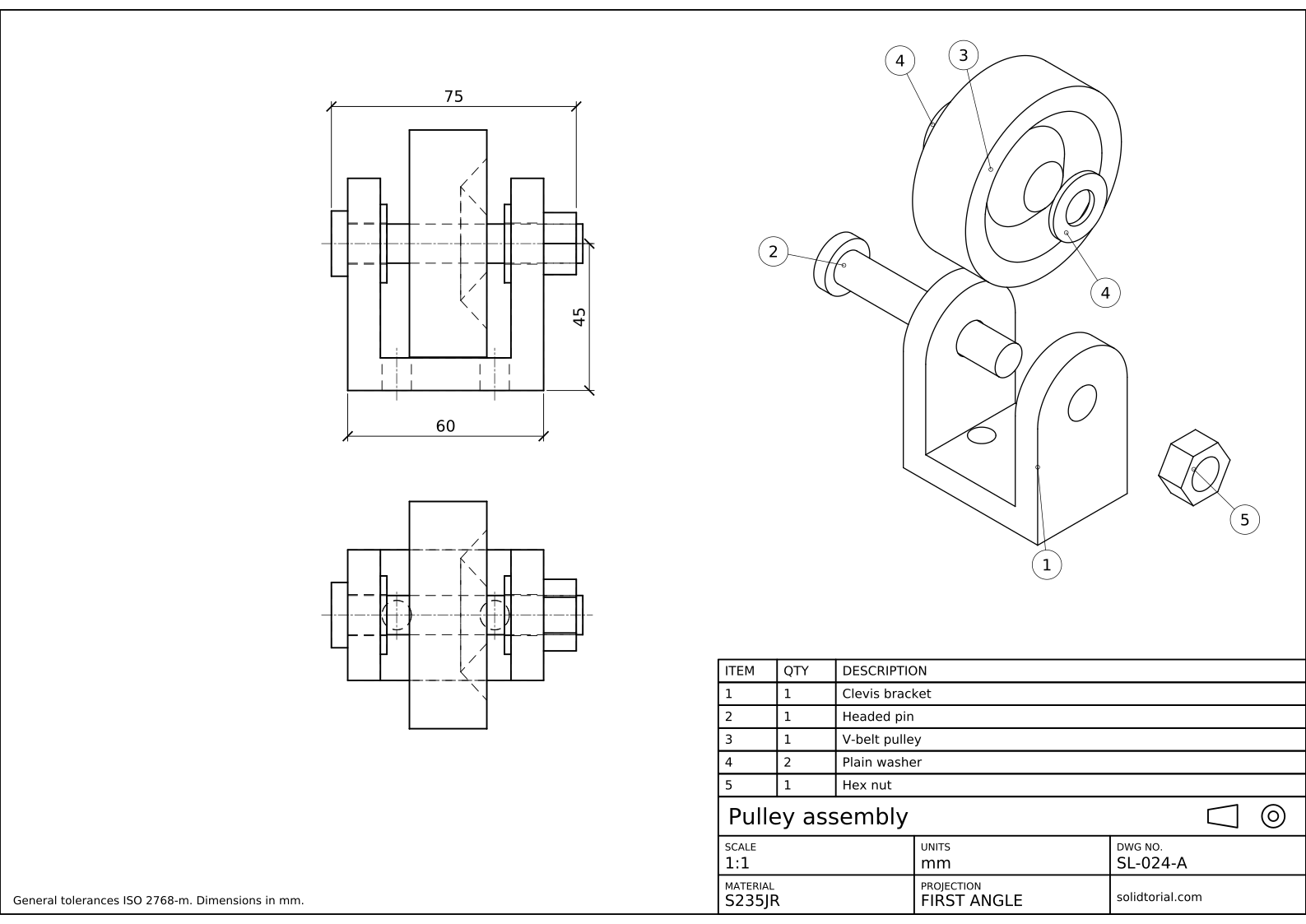
Metric sheet, ISO first-angle projection, scale 1:1 on A3. Click the drawing to open it full size.
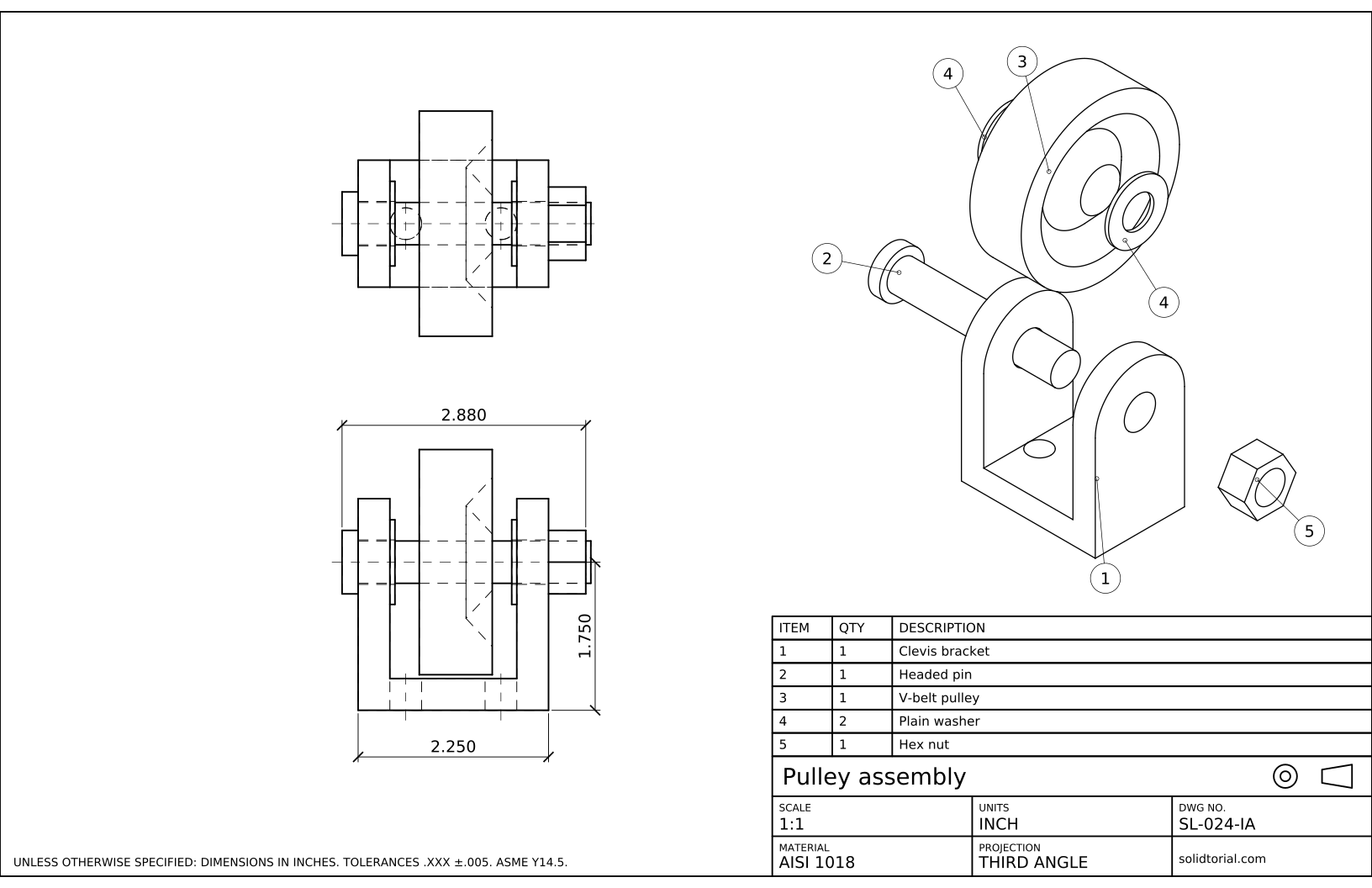
Inch sheet, third-angle projection (ASME), scale 1:1 on ANSI B. Click the drawing to open it full size.
AutoCAD commands for an exploded assembly drawing
| Command | Alias | What it does here |
|---|---|---|
BOX | · | Build the base and the arms of the clevis. |
CYLINDER | CYL | Create the rounded tops of the arms, the pin, the washers and the holes. |
REVOLVE | REV | Turn the half profile of the pulley around the pin axis. |
3DMOVE | · | Move each part out of the assembly along its axis. |
VIEWBASE | · | Project the assembled views and the exploded pictorial onto the layout. |
MLEADERSTYLE | MLS | Create a leader style whose content is a circle with a number: the balloon. |
MLEADER | MLD | Place one balloon per part, pointing at a visible face of it. |
TABLE | TB | Draw the parts list with item number, quantity and description. |
How to make an exploded view drawing in AutoCAD
-
Model each part as its own solid
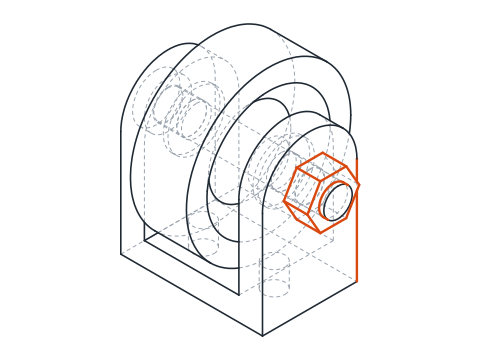
Model the six parts in their assembled positions, with the pin axis along X at 45 mm above the bottom of the clevis. The sizes are in the parts table below the steps. The clevis is a 60 x 40 x 10 base with two 10 mm arms whose tops are R20 half cylinders; the pulley is a half profile revolved around the pin axis with
REV; the nut is a hexagon drawn withPOLand extruded 10 mm.Do not join the parts with UNION. An assembly is a set of separate solids that touch, and each one must stay selectable so it can be moved, counted and listed. Put each part on its own layer to keep them apart.
-
Check the fits before exploding
The holes in the clevis arms, the pulley and the washers are Ø12.6, so the Ø12 pin goes through with a little clearance. Between the arms there are 40 mm: two 2 mm washers, the pulley and a small gap on each side. Check that no solid overlaps another: in the front view every part should sit next to the others without crossing them.
Run
MASSPROPon all six solids together. The total volume should be close to 156 380 mm³.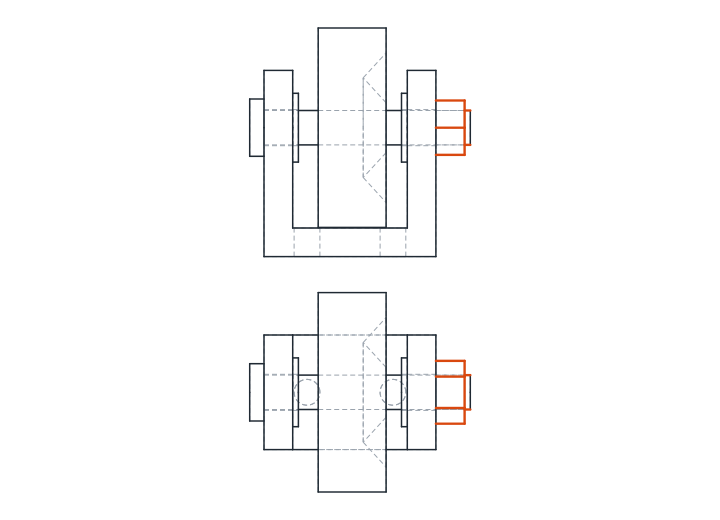
-
Pull the parts apart along their axes
Copy the whole assembly to an empty area: one copy stays assembled for the orthographic views, the other one becomes the exploded view. In the copy, type
3DMOVE, select the pin and move it 45 mm along X, out to the left, the way it comes out of the arms. Move the nut 45 mm to the right along X. Lift the pulley and the two washers 75 mm along Z, so that they come out of the slot between the arms, and shift each washer a little to its side so it does not hide behind the pulley.Each part moves along one straight line from its place in the assembly. That way the eye can follow it back.
-
Place the assembled views and the exploded pictorial
Use
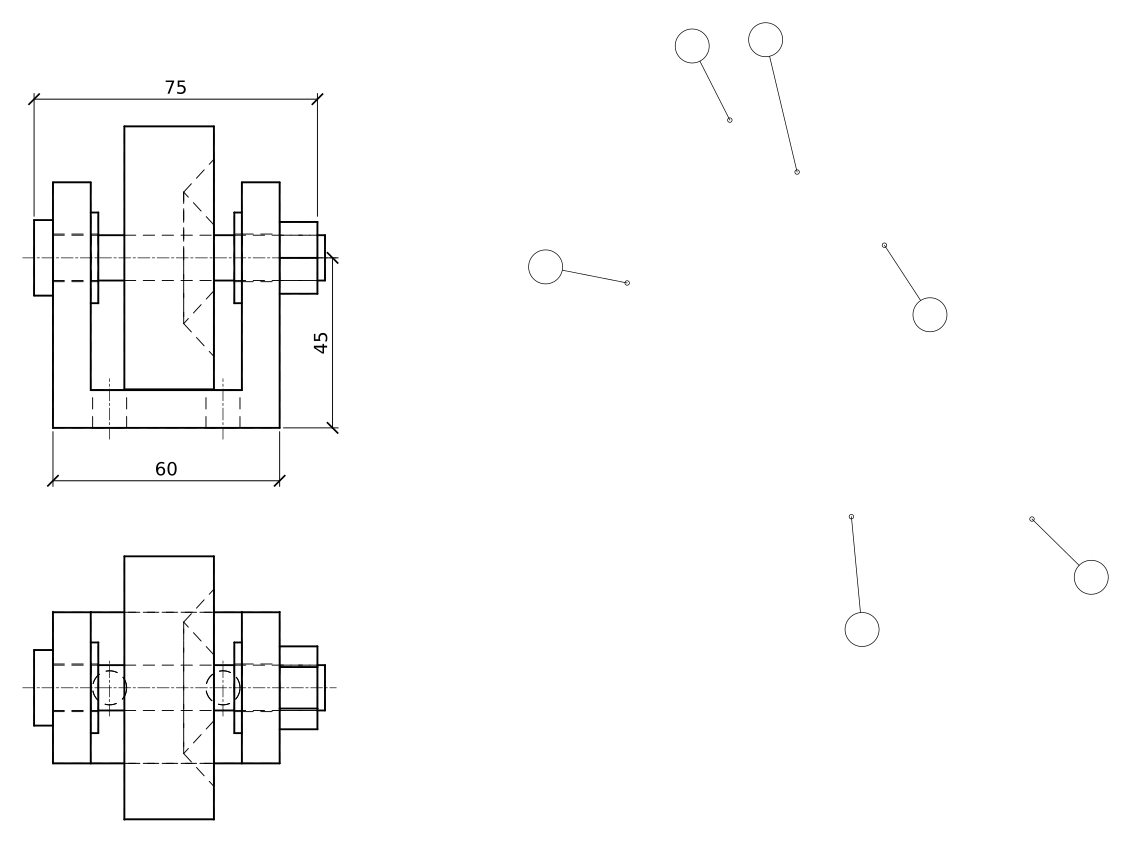
VIEWBASEwith the Select option and pick only the assembled copy. Place its front view at 1:1 and project the top view below it. RunVIEWBASEagain, select the exploded copy and place it as an isometric view in the upper right corner, without hidden lines. The assembled views get only the sizes that matter for mounting: 75 over the pin head and the nut, 60 across the clevis and 45 to the pin axis.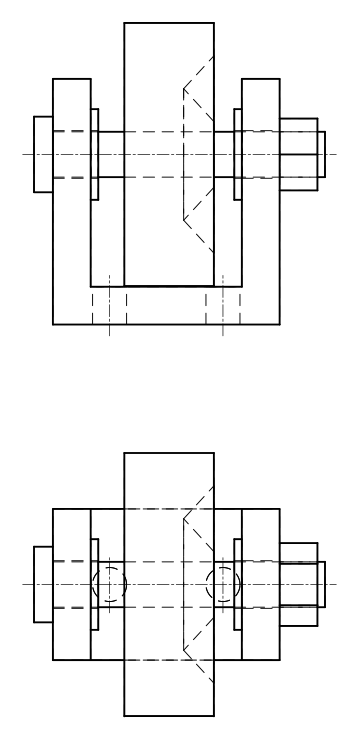
-
Add the balloons with MLEADER
Type
MLS, create a style called BALLOON, and on the Content tab set the multileader type to Block with the Circle source block. Set the leader arrowhead to a small dot, which is the usual end on a face. TypeMLD, click on a visible face of the clevis, place the balloon outside the view and type 1.Repeat for each part: 2 the pin, 3 the pulley, 4 a washer, 5 the nut. Both washers are the same part, so they share number 4; the sheet puts a balloon on each and the parts list counts them. Keep the balloons outside the pictorial and their leaders from crossing each other.
-
Draw the parts list with TABLE
Type
TBand insert a table with three columns, ITEM, QTY and DESCRIPTION, and one row per part number. Fill it in: 1, 1, Clevis bracket; 2, 1, Headed pin; 3, 1, V-belt pulley; 4, 2, Plain washer; 5, 1, Hex nut. Place it directly above the title block, aligned with its width, as on the sheet. The item numbers must match the balloons one to one.
Exploded view practice: a larger pulley assembly
Model and draw a larger assembly on your own: a clevis on a 72 x 48 x 12 base, 12 mm arms rounded with R24 and the pin axis at 54; a Ø16 pin 88 long with a Ø26 x 6 head; a Ø72 pulley with a 10 mm deep V groove; two Ø30 x 3 washers; and a nut 24 across flats and 13 thick. Holes are Ø16.8 for the pin and Ø11 in the base. Explode it with the pin and the nut 55 mm out along the axis and the pulley 90 mm up.
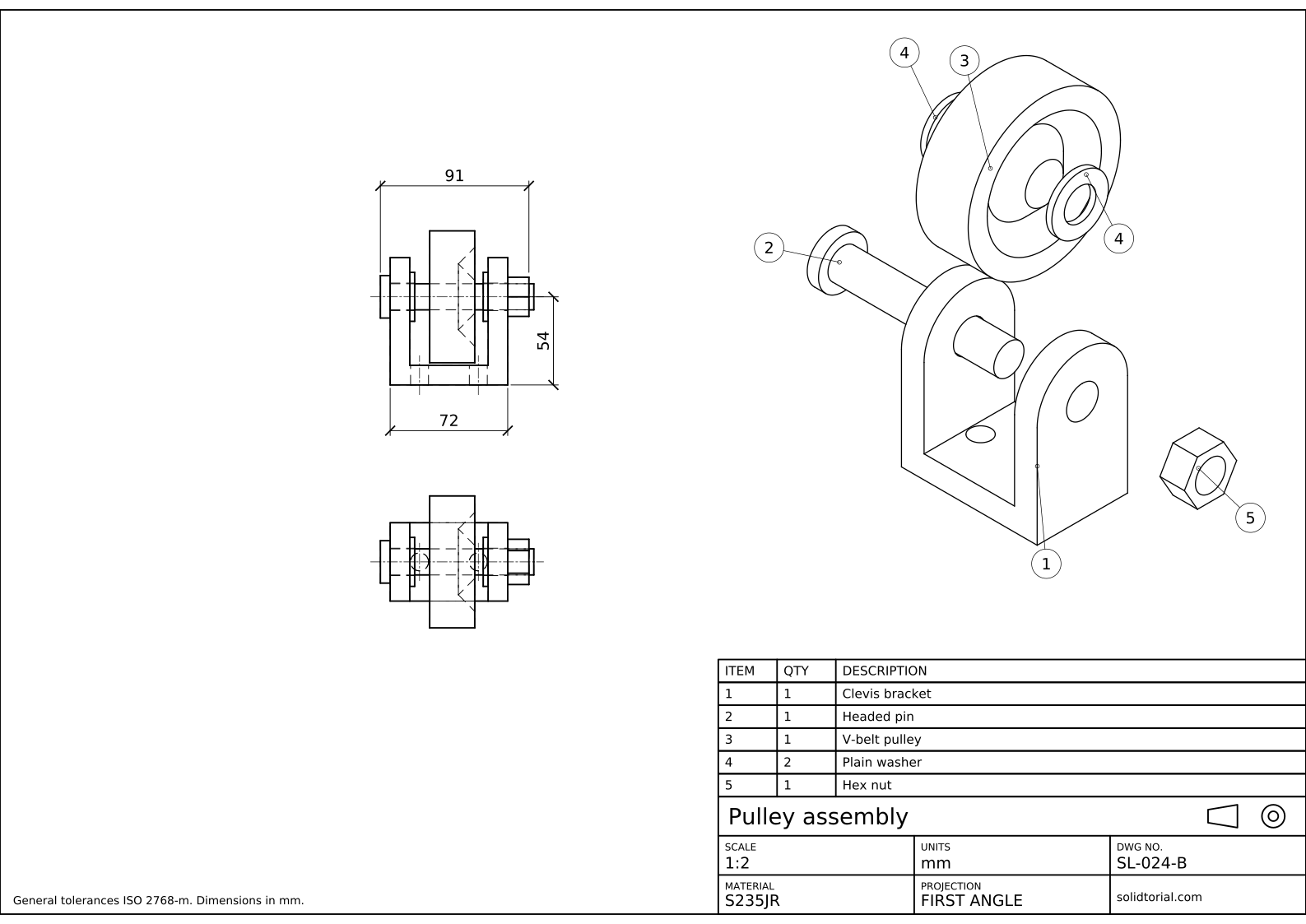
Metric sheet, ISO first-angle projection, scale 1:2 on A3. Click the drawing to open it full size.
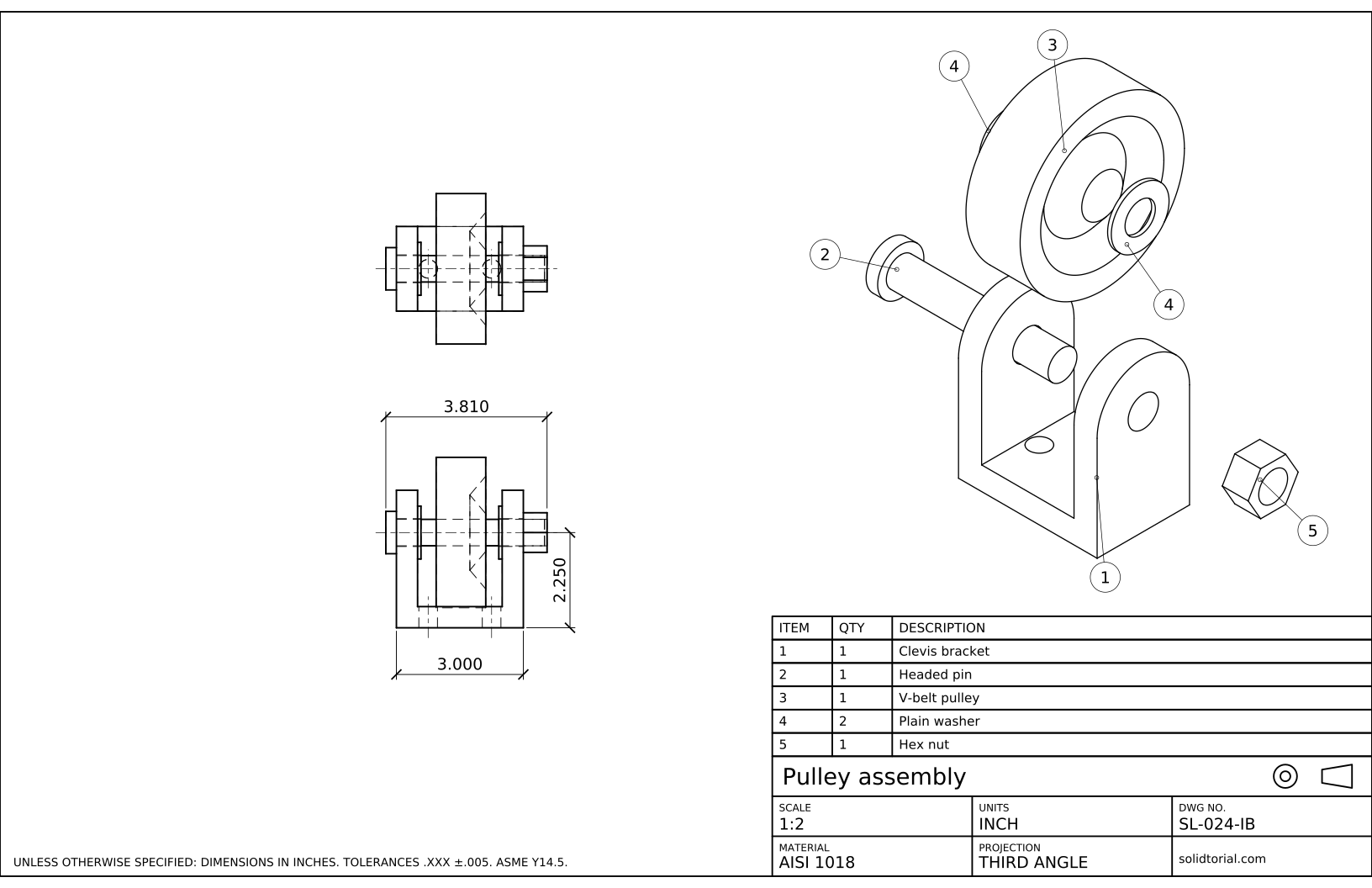
Inch sheet, third-angle projection (ASME), scale 1:2 on ANSI B. Click the drawing to open it full size.
Show the solution files
Metric sheet, ISO first-angle projection, scale 1:2 on A3. Click the drawing to open it full size.
Inch sheet, third-angle projection (ASME), scale 1:2 on ANSI B. Click the drawing to open it full size.
Exploded view drawing mistakes
- Merging the parts with UNION. An assembly drawing needs separate solids. Once merged, a part can no longer be moved out or counted.
- Moving parts in odd directions. Each part leaves along the direction in which it is assembled. A part moved diagonally looks like it belongs somewhere else.
- A balloon for every copy and a quantity of one. Identical parts share one item number, and the quantity column counts them.
- Leaders pointing at an edge or at empty space. End each leader with a dot inside a visible face of its own part, not on an edge shared with another part.
- Dimensioning every part on the assembly sheet. The assembly drawing gives only the sizes that matter for mounting. Each part has its own detail drawing with all its dimensions.
Parts of the pulley assembly
| Item | Part | Main sizes (mm) |
|---|---|---|
| 1 | Clevis bracket | Base 60 x 40 x 10, two arms 10 thick with R20 tops, pin axis at 45, pin holes Ø12.6, two Ø9 holes in the base |
| 2 | Headed pin | Shank Ø12 x 72, head Ø20 x 5 |
| 3 | V-belt pulley | Ø60 x 34.8, V groove 8 deep, bore Ø12.6 |
| 4 | Plain washer (2) | Ø24 x 2, bore Ø12.6 |
| 5 | Hex nut | 19 across flats, 10 thick |
Assembly drawing vs exploded view diagram
An assembly drawing shows the parts in their working positions, usually in orthographic views, with the sizes needed to mount the assembly and a parts list. An exploded view diagram shows the same parts moved apart in a pictorial view, which makes their order and position obvious. Many sheets combine both, as this one does: the assembled front and top views on the left, the exploded pictorial on the right and the parts list above the title block.
Balloons and the bill of materials on a drawing
Balloons, or item numbers, connect the drawing to its bill of materials. Each different part gets one number; the list gives its quantity, description and often its material or part number. On larger assemblies the list grows into a separate document, but on a single sheet a table directly above the title block is the usual place. The inch version of this assembly has its own sizes, with a Ø.500 pin and a Ø2.250 pulley, and the same five items.
Exploded view questions
What is an exploded view drawing?
A pictorial drawing of an assembly with its parts moved apart along the directions in which they are assembled. It shows every part, its position and the assembly order.
Can AutoCAD make an exploded view automatically?
Plain AutoCAD has no automatic explode for assemblies. You move copies of the solids with 3DMOVE, as in this lesson, and project them with VIEWBASE. Dedicated mechanical programs have tools that store explode steps.
What goes in the parts list of an assembly drawing?
At least the item number, the quantity and a description. Material, part number and standard designations, such as the size of a nut, are common additions.
Do the parts of an exploded view get dimensions?
No. The exploded pictorial only identifies the parts. Sizes for mounting go on the assembled views, and each part is fully dimensioned on its own drawing.
Updated: October 20, 2026