

What this sectional view lesson covers
- Explain when a sectional view replaces an ordinary view.
- Draw a cutting plane line with its arrows and letters.
- Draw a full section of a pulley by mirroring half of its profile.
- Hatch the cut material with HATCH and label the view SECTION A-A.
Some parts are mostly inside. Drawn from outside, a pulley would be a rectangle full of dashed lines that cross each other: the bore, the web, the groove. A sectional view solves that. You imagine the part cut by a plane, take away the half in front of it and draw what is left, with the cut surfaces hatched.
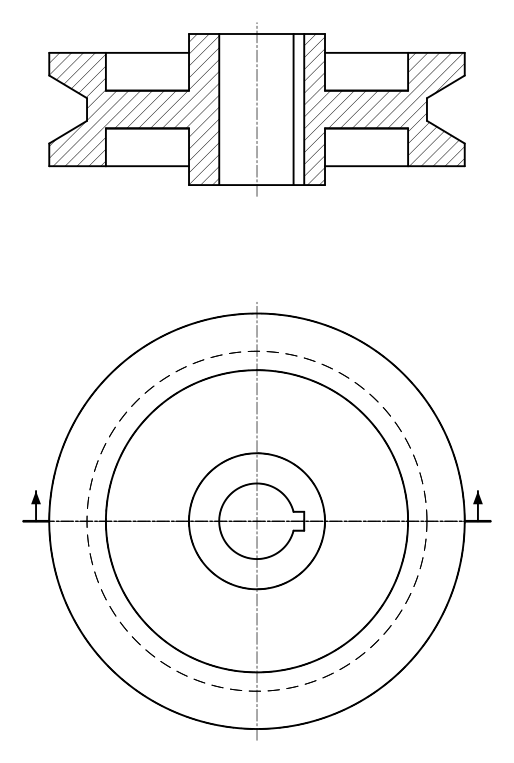
The part is a V-belt pulley Ø110. Its hub is Ø36 and 40 mm long, with a Ø20 bore and a 5 mm keyway; a web 10 mm thick joins it to the rim, which is 30 mm wide and carries a V-groove 18 mm wide at the top, 6 mm at the bottom and 10 mm deep. The sheet shows a full section A-A through the axis above the end view.
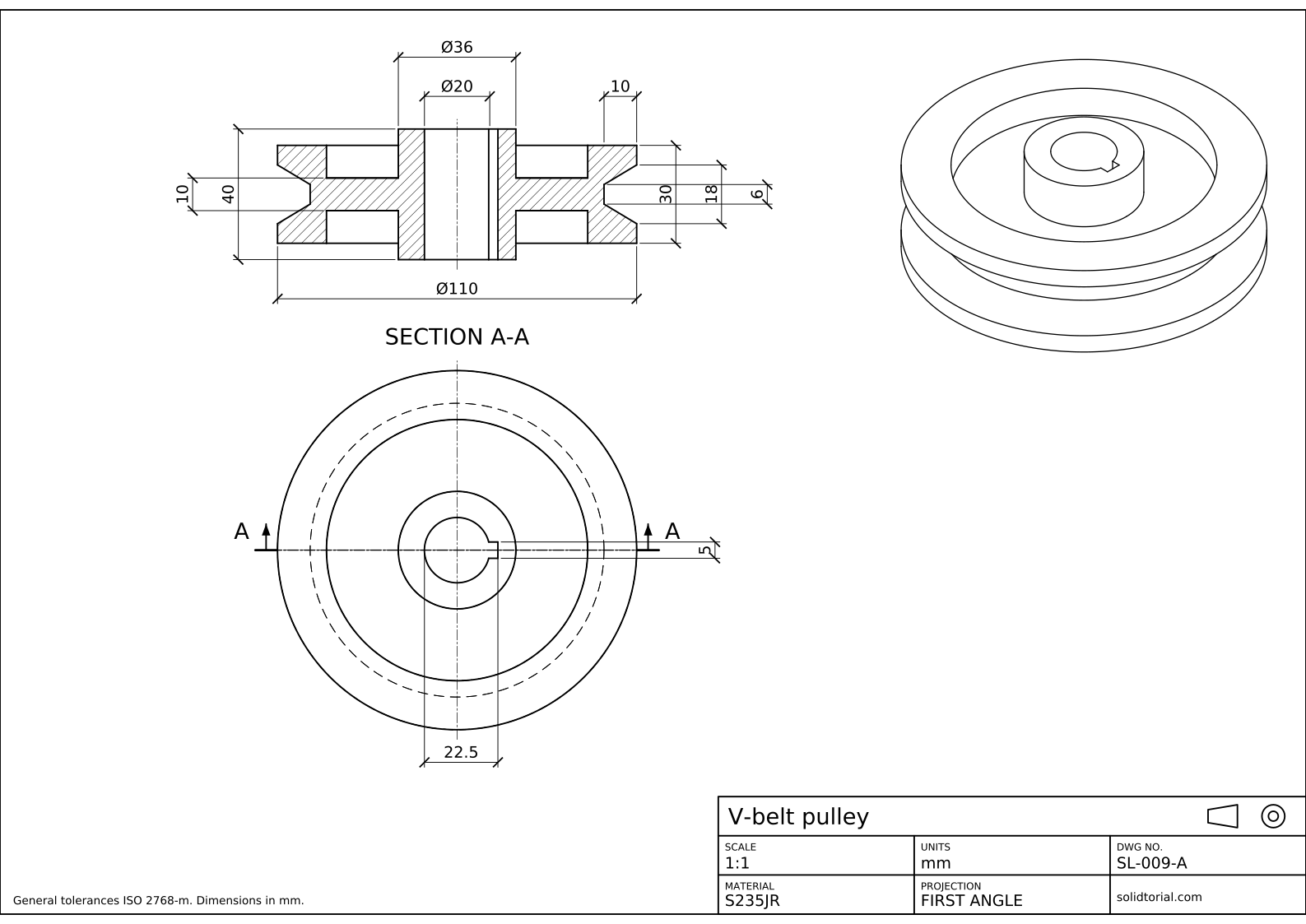
Metric sheet, ISO first-angle projection, scale 1:1 on A3. Click the drawing to open it full size.
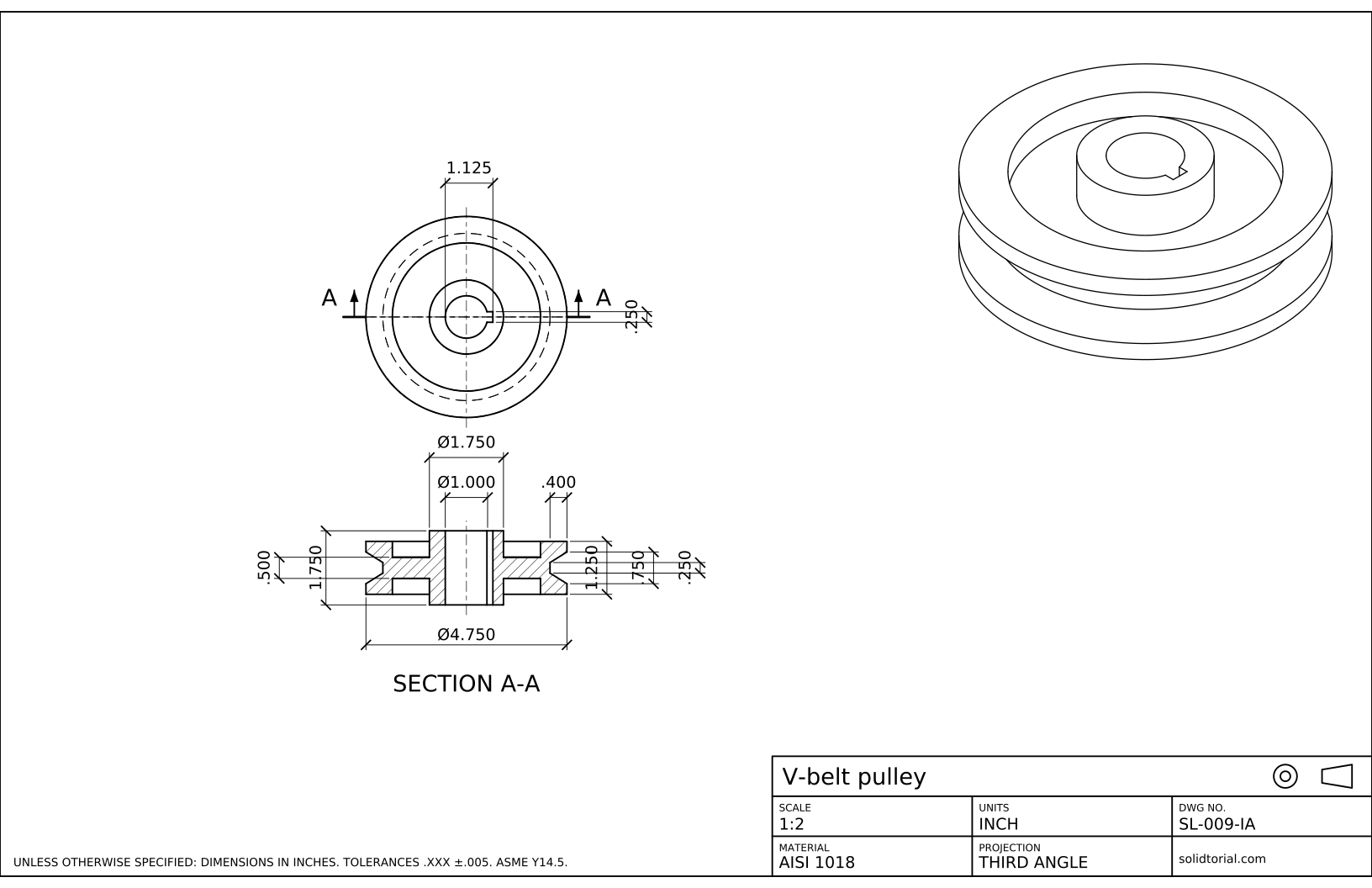
Inch sheet, third-angle projection (ASME), scale 1:2 on ANSI B. Click the drawing to open it full size.
AutoCAD hatch and the other commands for a section view
| Command | Alias | What it does here |
|---|---|---|
CIRCLE | C | Draw the end view: rim, groove bottom, rim inner edge, hub and bore. |
LINE | L | Draw half of the section profile from the axis. |
MIRROR | MI | Copy the half profile across the axis to complete the section. |
HATCH | H | Fill the cut material with the ANSI31 pattern. |
HATCHEDIT | HE | Change the scale or angle of a hatch already placed. |
MTEXT | MT | Write the letters of the cutting plane and the label SECTION A-A. |
How to draw a sectional view in AutoCAD, step by step
-
Draw the end view of the pulley
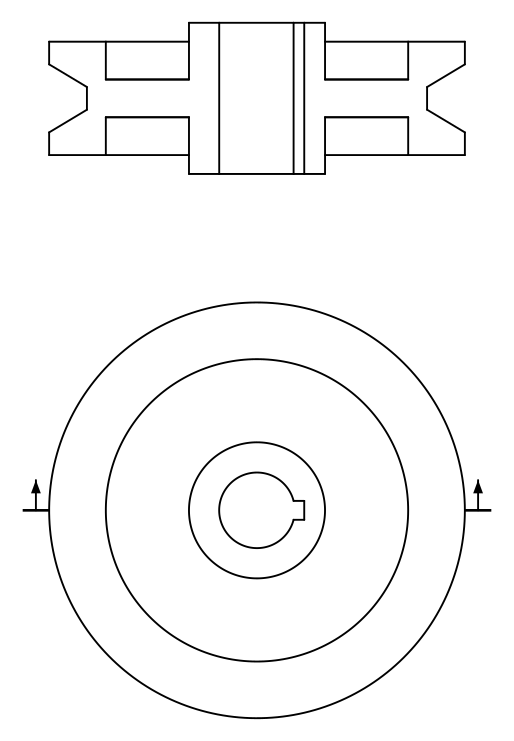
Start with the view that is not cut. Draw concentric circles: Ø110 for the rim, Ø80 for the inside of the rim, Ø36 for the hub and Ø20 for the bore. The bottom of the groove, Ø90, cannot be seen from here, so it goes on the HIDDEN layer. Add the keyway on the right of the bore: 5 mm wide, its bottom 22.5 mm from the opposite side of the bore.
-
Draw the cutting plane line A-A
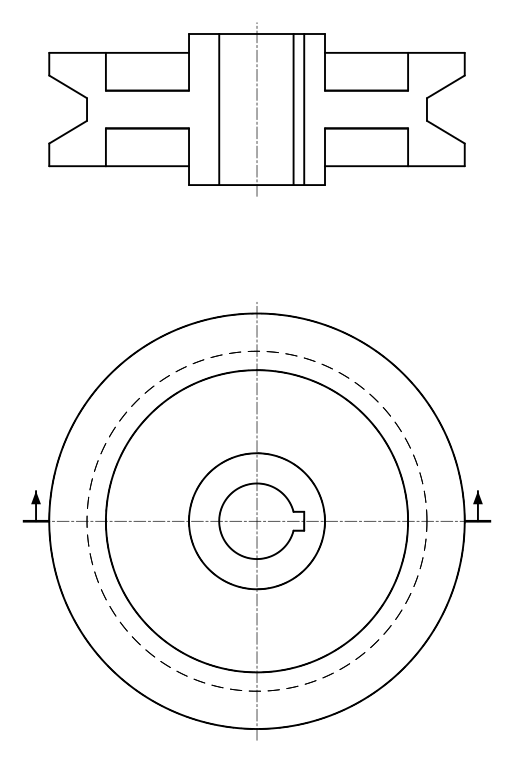
The section is cut along the horizontal axis of the end view. Draw a line across the whole view, extending a little beyond the rim, on a CUTTING-PLANE layer with a chain linetype and thick ends. At each end add an arrow pointing in the direction of view, toward the section, and the letter A. The arrows say which half is kept: the section shows what you would see looking that way.
-
Draw half of the section profile
The section goes above the end view, aligned with it. Draw the axis, then the right half of the profile measured from it. The hub runs from the bore at 10 to its outside at 18, over its full 40 mm length. The web, 10 thick, sits in the middle of that length and reaches the rim at 40. The rim, from 40 to 55, is 30 wide and centered on the web, and the groove cuts into it from 55 down to 45: 18 wide at the top and 6 at the bottom.
On the right the plane also cuts through the keyway, so the bore line on that side is the bottom of the keyway, 2.5 mm further out.
-
Mirror the profile and hatch the cut material
Type
MI, select the right half and mirror it about the axis. Correct the bore line on the left, which has no keyway. Then typeH, choose the ANSI31 pattern and click inside the cut material: the rim, web and hub on each side form one closed area, so two clicks are enough. Behind the cut, the far side of the bore is visible, so its edges are drawn as visible lines, not hidden ones.Both halves get the same pattern at the same angle, because they are the same part. A different angle would suggest two different parts.
-
Label the section and dimension it
Write
SECTION A-Aunder the section withMT. Dimension the section, where every diameter is seen as a line: Ø110, Ø36 and Ø20 with the %%c prefix, the hub length 40, the web thickness 10, the rim width 30, and the groove with its 18 and 6 widths and 10 depth. The keyway goes in the end view: its width 5 and the 22.5 from the bottom of the bore to the bottom of the keyway.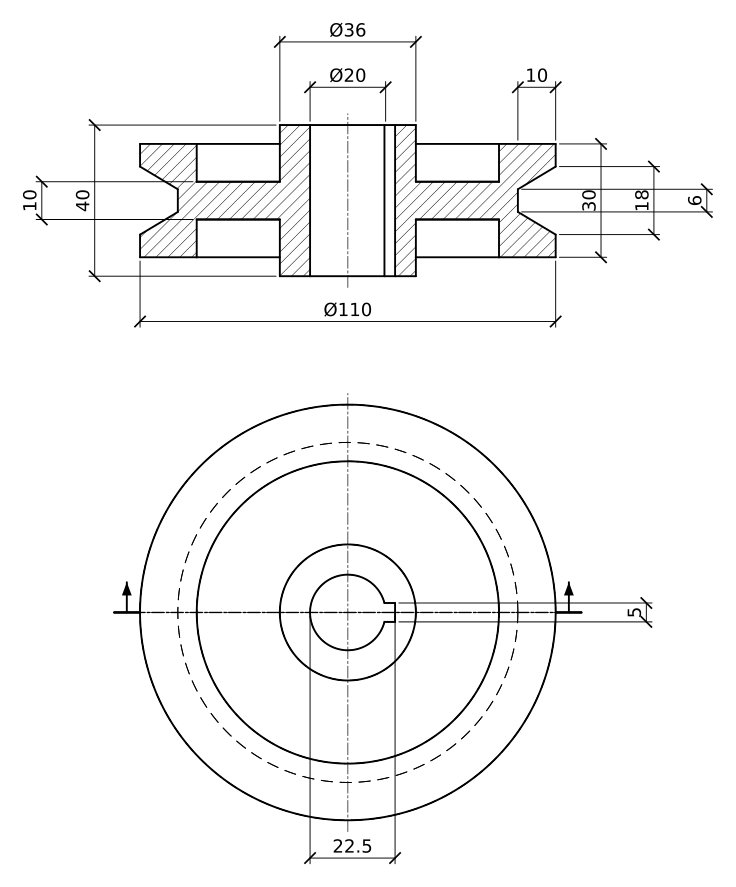
Section view drawing practice: a larger pulley
Draw a larger pulley in section on your own: Ø124 with a Ø44 hub 45 mm long, a Ø24 bore with a 6 mm keyway, a web 10 thick, a rim 35 wide whose inside is Ø92, and a groove 18 wide at the top, 6 at the bottom and 11 deep. Draw the cutting plane, mirror half the profile and hatch both halves with the same pattern.
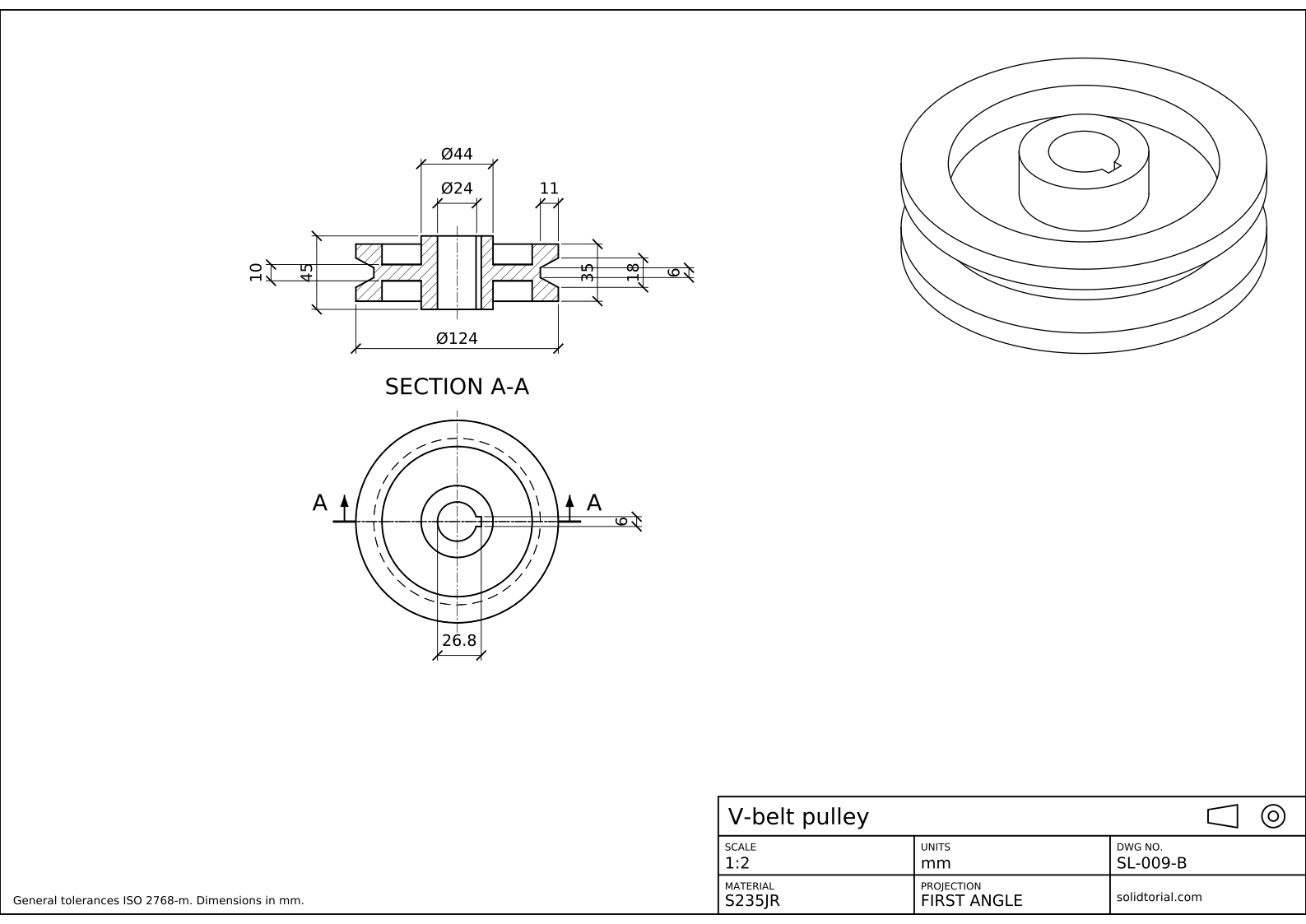
Metric sheet, ISO first-angle projection, scale 1:2 on A3. Click the drawing to open it full size.
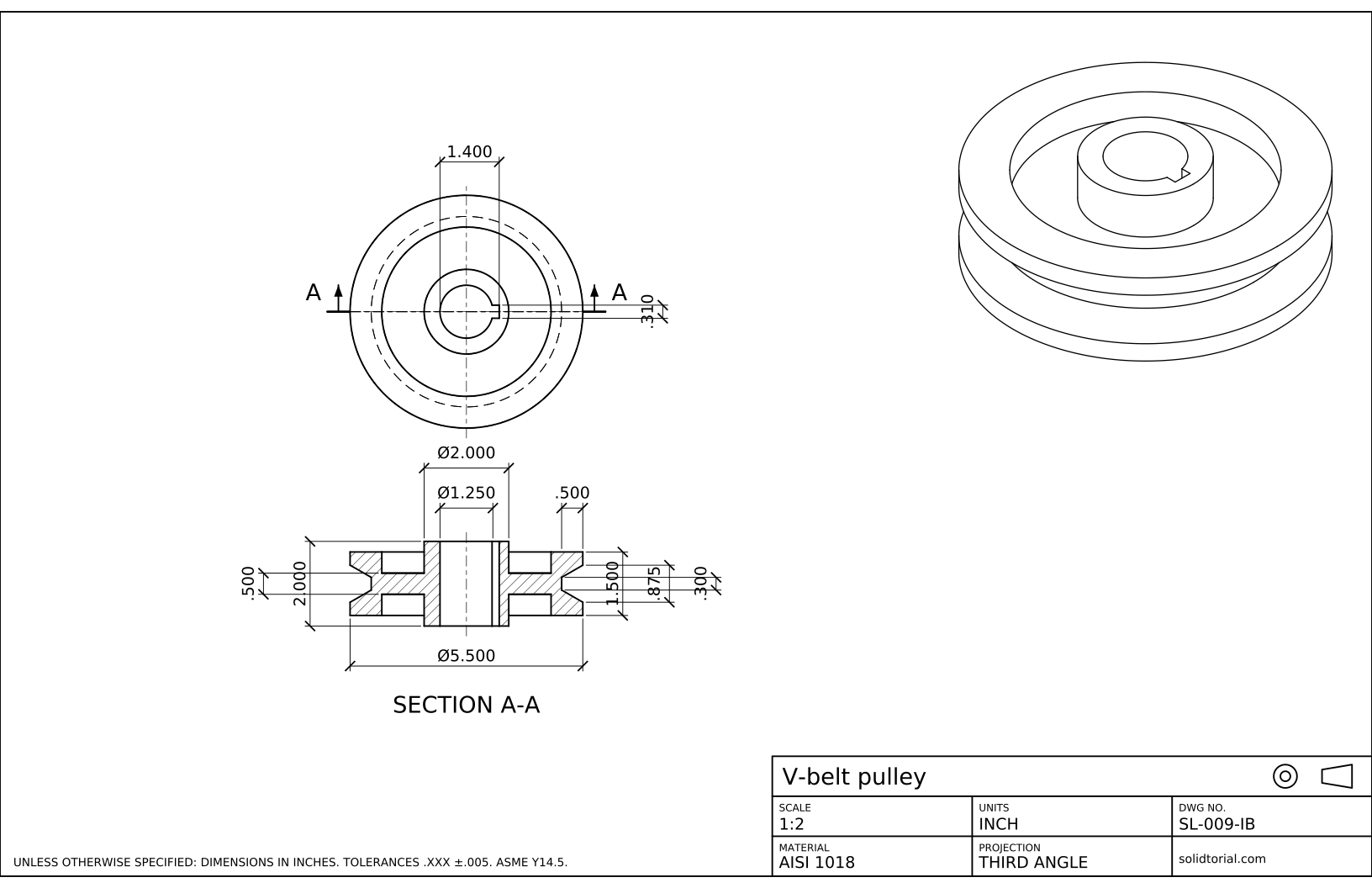
Inch sheet, third-angle projection (ASME), scale 1:2 on ANSI B. Click the drawing to open it full size.
Show the solution files
Metric sheet, ISO first-angle projection, scale 1:2 on A3. Click the drawing to open it full size.
Inch sheet, third-angle projection (ASME), scale 1:2 on ANSI B. Click the drawing to open it full size.
Common sectional view mistakes
- Hatching empty space. Only the material the plane cuts is hatched. The bore and the groove stay white.
- Hidden lines in the section. A section shows the inside directly. Hidden lines behind the cut are usually left out.
- Arrows pointing the wrong way. They show the direction of view. Pointing away from the section would mean you see the other half.
- Different hatch angles on the same part. All the cut areas of one part share pattern and angle. Different angles are for different parts in an assembly.
- Hatch that does not follow the outline. If the hatch was created with Associative off, it stays in place when the outline changes. Keep it associative, or recreate it after editing.
What is a sectional view
A sectional view shows a part as if it had been cut by an imaginary plane, with the material in front of the plane removed. The cut surfaces are hatched, and the features inside, which an ordinary view would show as hidden lines, become visible edges. A section is named with the letters of its cutting plane, as SECTION A-A, so a drawing can carry several of them.
Full section view and the cutting plane line
When the plane goes right through the part, as on this pulley, the view is a full section. The cutting plane line in the other view shows where the cut is and, with its arrows, which way you look. For parts that are symmetric and also need their outside shown, a half section cuts only one quarter, as in the half section view lesson.
AutoCAD hatch: pattern, scale and angle
ANSI31, a set of lines at 45°, is the general pattern for cut material on mechanical drawings. Its spacing depends on the hatch scale: set it so the lines look evenly spaced when the sheet is printed. To change a hatch afterwards, select it and use the Hatch Editor tab, or type HE. The inch version of this pulley is Ø4.750 with a Ø1.000 bore and the same groove shape at its own sizes.
Sectional view questions
What is a sectional view in engineering drawing?
A view of a part cut by an imaginary plane, with the near half removed. The cut material is hatched and the internal features are shown with visible lines.
What is a cutting plane line?
A chain line with thick ends drawn in another view to show where the part is cut. Arrows at its ends give the direction of view and letters name the section.
Which hatch pattern is used for sections in AutoCAD?
ANSI31, lines at 45°, is the usual general-purpose pattern. Some drawings use different patterns for different materials, but a single pattern is common on mechanical drawings.
Why is my hatch not working in AutoCAD?
Usually the area is not closed: a small gap between lines lets the hatch leak or fail. Close the outline with endpoint snap, or select the boundary objects instead of picking a point.
Updated: September 5, 2026