
What this AutoCAD block lesson covers
- Create a block from a few objects with BLOCK, choosing a useful base point.
- Insert the block several times with INSERT and COPY.
- Edit every copy at once in the Block Editor with BEDIT.
- Save the block as a drawing file with WBLOCK to use it in other drawings.
A block is a named group of objects that AutoCAD treats as one. Insert it ten times and the drawing stores the geometry once plus ten references to it. Edit the block and the ten references change together. Symbols, standard features and anything that repeats belong in blocks.
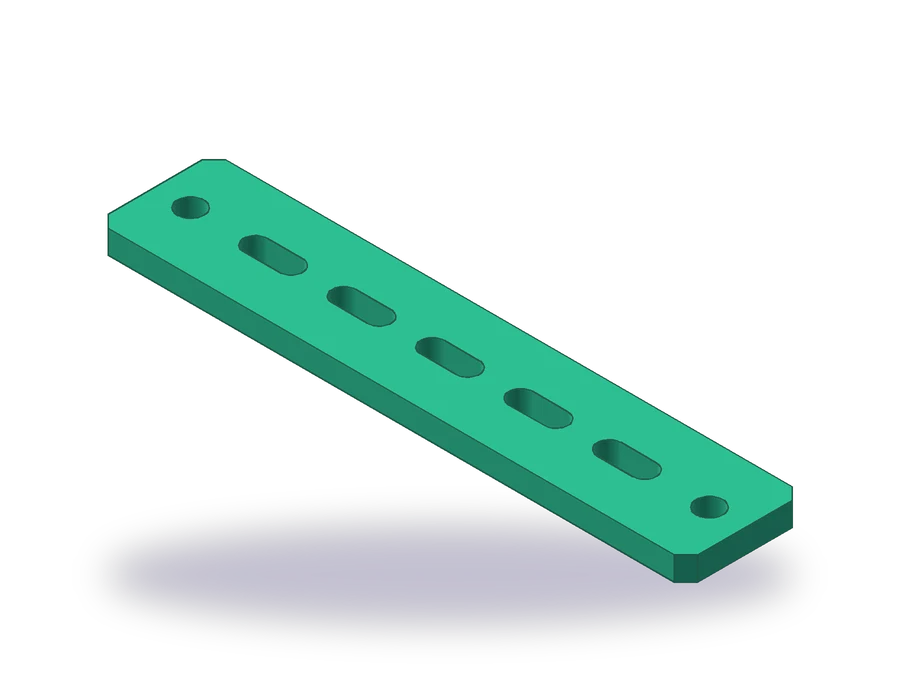
The part is a mounting rail 200 x 40 x 8 mm with its four corners chamfered 4 x 45°. Along its center line it carries five slots 20 mm long and 8 mm wide, 30 mm apart, the first one 40 mm from the end, and a Ø9 hole 12 mm from each end. The rail is drawn at 1:2 on the sheet.
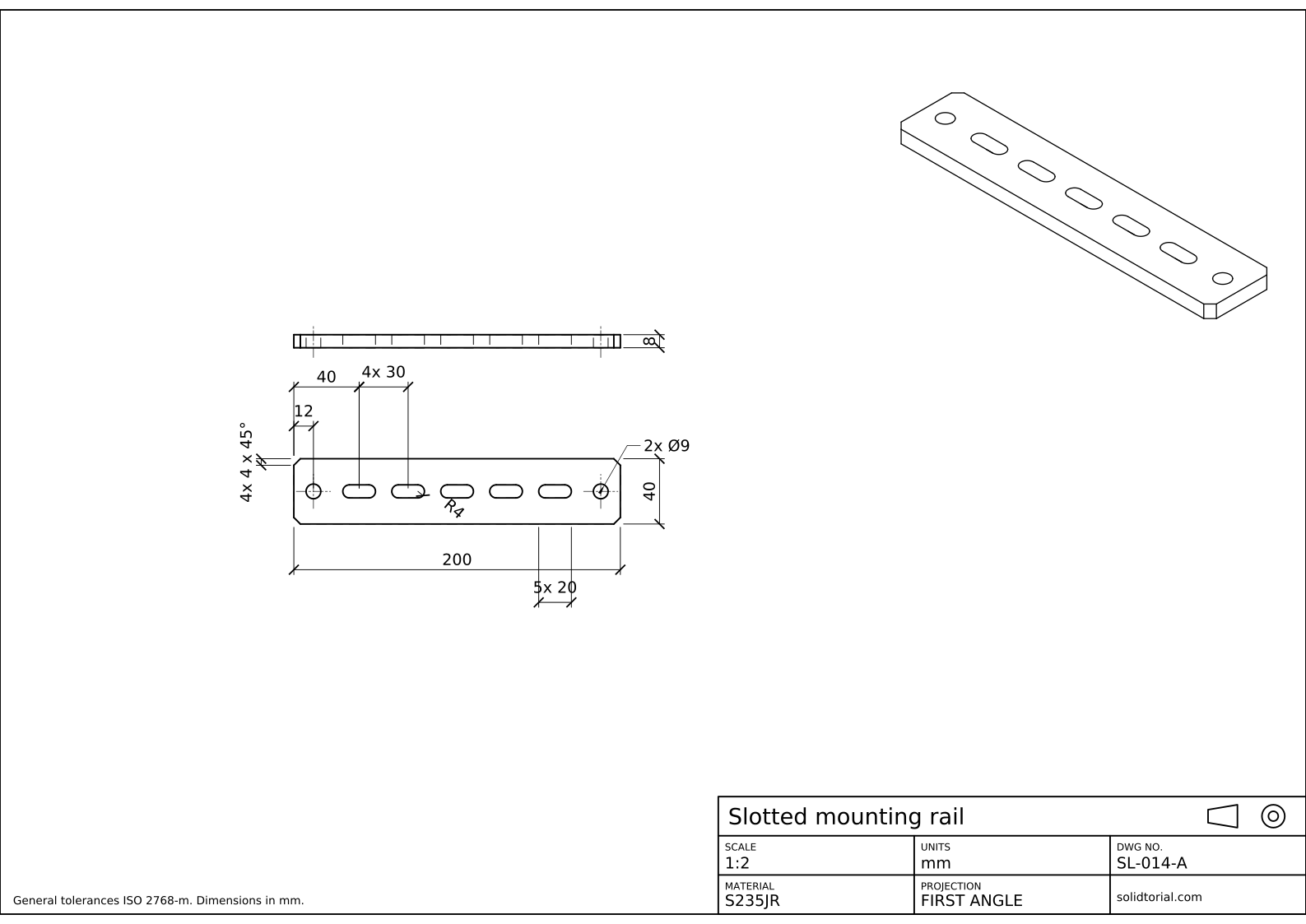
Metric sheet, ISO first-angle projection, scale 1:2 on A3. Click the drawing to open it full size.
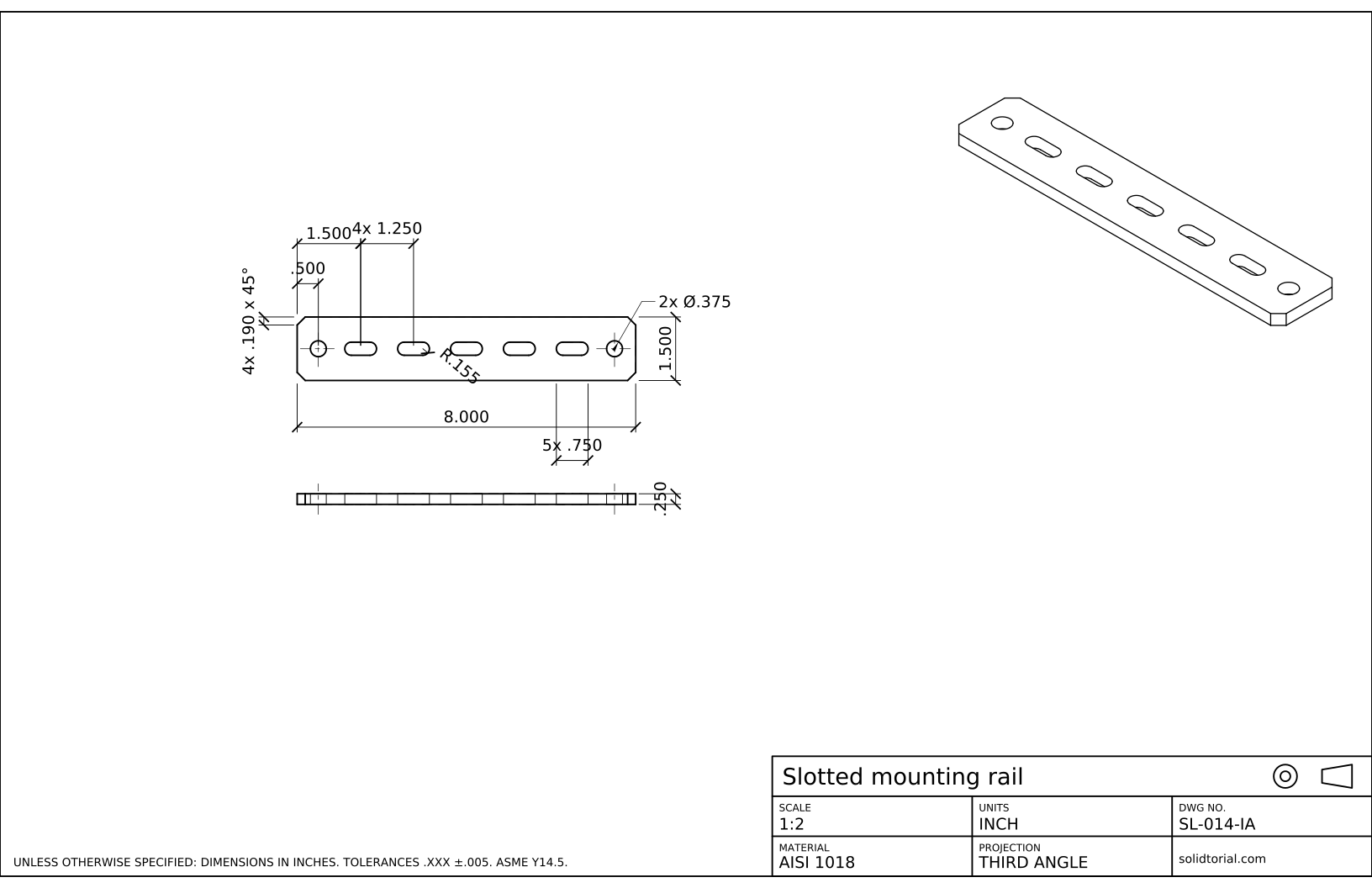
Inch sheet, third-angle projection (ASME), scale 1:2 on ANSI B. Click the drawing to open it full size.
AutoCAD commands to create, insert and edit a block
| Command | Alias | What it does here |
|---|---|---|
RECTANG | REC | Draw the outline of the rail, 200 x 40. |
CHAMFER | CHA | Chamfer the four corners of the rail at once with the Polyline option. |
PLINE | PL | Draw the slot as one closed polyline with two arc ends. |
BLOCK | B | Turn the slot and its center lines into a block with its base point at the center. |
INSERT | I | Place the block at the center of the first slot. |
BEDIT | BE | Open the Block Editor to change the slot in every copy. |
WBLOCK | W | Write the block to its own DWG file for other drawings. |
How to make a block in AutoCAD, step by step
-
Draw the rail and chamfer its corners
Type
RECand draw the rail from 0,0 to 200,40. TypeCHA, choose Distance and set both distances to 4, then choose the Polyline option and pick the rectangle: all four corners are chamfered in one go, because a rectangle is a closed polyline. Draw the horizontal center line at y = 20.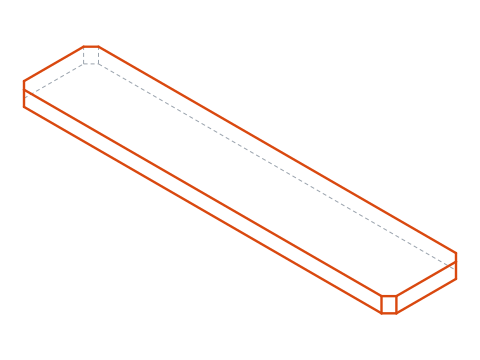
-
Draw one slot away from the rail
Draw the slot in an empty area, centered on a point that is easy to find. A slot 20 x 8 has round ends of R4 whose centers are 12 mm apart. Type
PL, start 6 mm left and 4 mm below the chosen center, draw a line 12 mm to the right, typeAto switch to arcs and draw the end arc 8 mm up, typeLand draw the line 12 mm back, thenAagain and close withCL.Draw the slot outline on layer 0, so that it takes the layer it is inserted on, and its two short center lines on the CENTER layer, so they keep their linetype.
-
Create the block
Type
B. In the Block Definition dialog, name the block SLOT-20x8, click Pick point and pick the center of the slot: that is the base point, the point that lands where you insert the block. Click Select objects, select the slot and its center lines, and choose Delete so the originals disappear. Click OK.A base point at the center is the best choice here, because the sheet dimensions the slots to their centers.
-
Insert the block and copy it along the rail
Type
I, choose SLOT-20x8 and insert it at40,20, the center of the first slot. Then typeCO, select the block, pick its center as the base point, choose the Array option, enter 5 items and type@30,0: four more copies appear, 30 mm apart, the last one at 160,20, which leaves the row centered on the rail.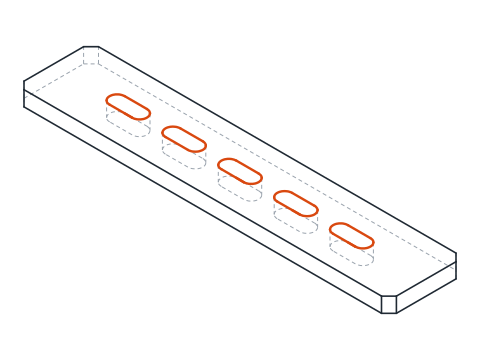
-
Change the slot once in the Block Editor
Type
BE, choose SLOT-20x8 and the slot opens alone in the Block Editor. Any change you make here, and save with Close Block Editor, appears in all five slots at once. Try it: stretch the slot to 22 mm long, close the editor and watch the whole row update. Then undo, because this rail needs 20 mm slots. -
Add the holes, dimension the rail and save the block
Draw the two Ø9 holes 12 mm from each end on the center line. Dimension the rail: 200 x 40, the 8 mm thickness in the edge view, the four chamfers as 4x 4 x 45°, the first slot at 40 from the end, the spacing as 4x 30, one slot as 5x 20 with R4 ends, and the holes as 2x Ø9 at 12.
To use the slot in other drawings, type
W, choose Block and SLOT-20x8, and give a file name. The block is saved as its own DWG, which you can insert into any drawing.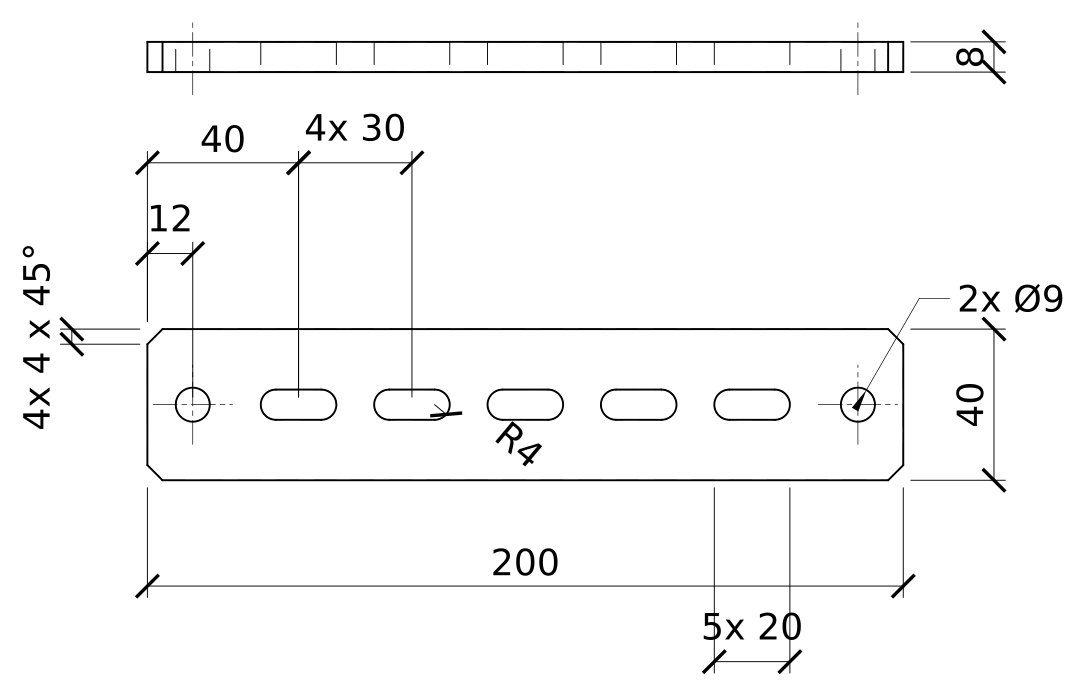
AutoCAD block practice: a longer rail with six slots
Draw a longer rail on your own: 240 x 50 x 10 with 5 x 45° chamfers, six slots 22 x 9 spaced 32 apart with the row centered on the rail, and a Ø11 hole 14 mm from each end. Make a new SLOT-22x9 block and insert it with COPY and the Array option.
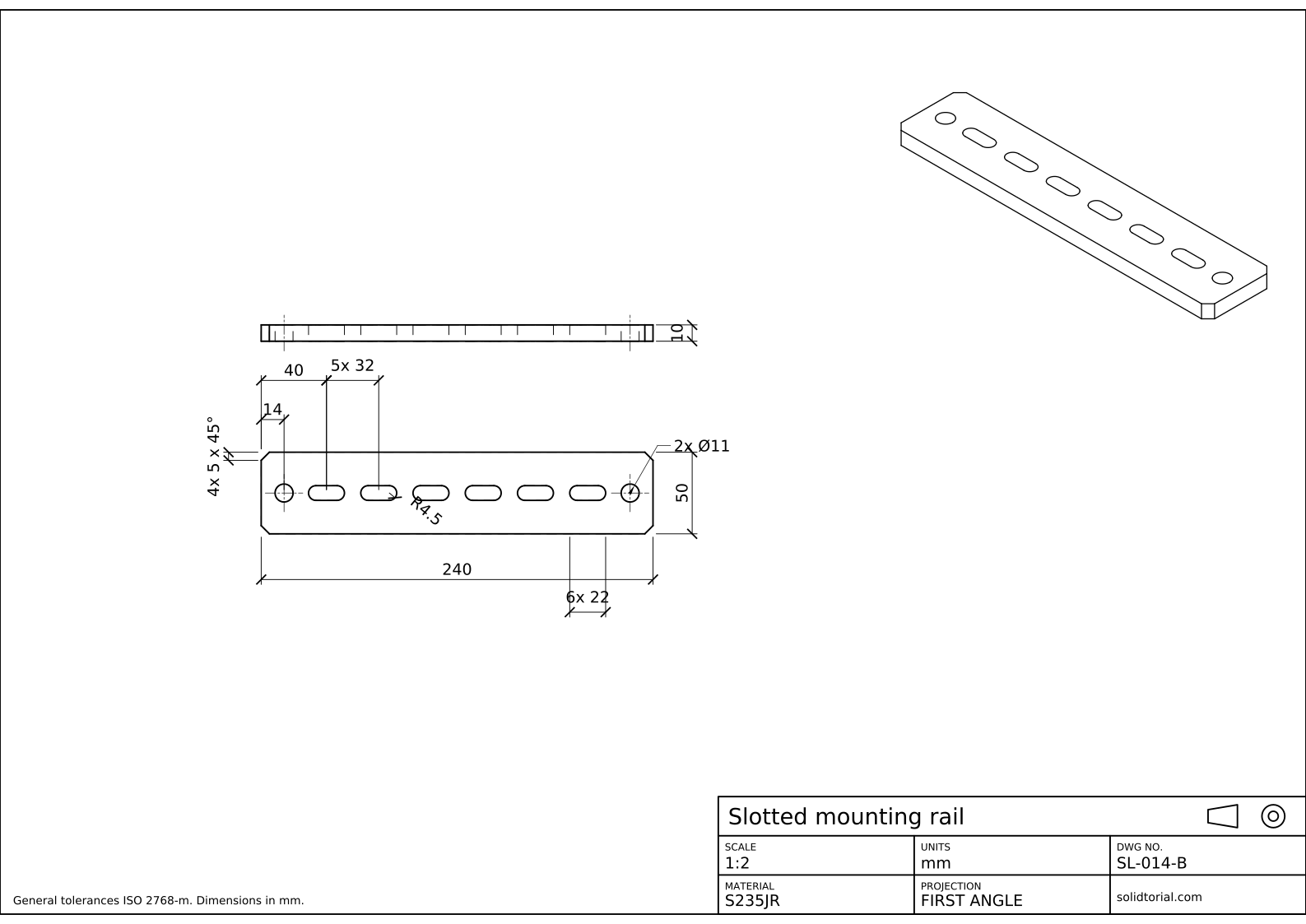
Metric sheet, ISO first-angle projection, scale 1:2 on A3. Click the drawing to open it full size.
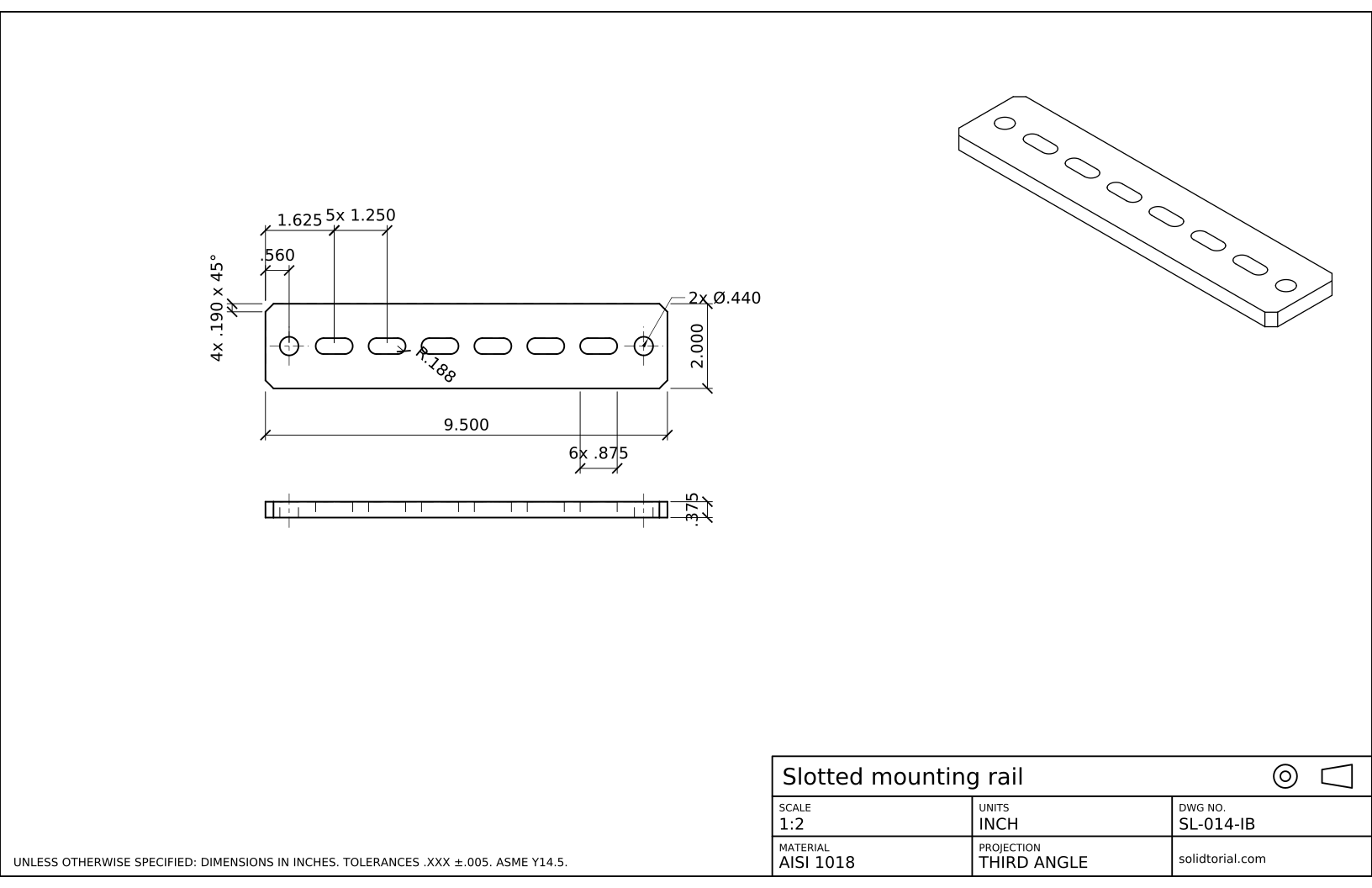
Inch sheet, third-angle projection (ASME), scale 1:2 on ANSI B. Click the drawing to open it full size.
Show the solution files
Metric sheet, ISO first-angle projection, scale 1:2 on A3. Click the drawing to open it full size.
Inch sheet, third-angle projection (ASME), scale 1:2 on ANSI B. Click the drawing to open it full size.
Common mistakes when you create a block in AutoCAD
- Base point left at 0,0. If the block keeps the default base point, every insertion lands far from where you click. Pick a point on the block, usually its center or a corner.
- Exploding the blocks to edit one. An exploded copy no longer updates with the others. Change the definition in the Block Editor instead.
- Block geometry on the wrong layer. Objects drawn on a normal layer keep it wherever the block is inserted. Draw on layer 0 what should take the insertion layer.
- Two blocks with the same name from different drawings. When you insert a file whose block name already exists, AutoCAD keeps the definition that is in the drawing. Give blocks clear, unique names.
- Keeping the originals by mistake. With Retain chosen in the dialog, the loose objects stay under the new block and are copied twice. Choose Delete or Convert to block.
AutoCAD insert block and WBLOCK: inside the drawing or in a file
BLOCK creates a definition that lives inside the current drawing. INSERT places references to any block defined in the drawing, or to another DWG file, which is inserted as a block. WBLOCK does the opposite: it writes a block, a selection or the whole drawing to a separate DWG, the usual way to build a library of symbols to share.
AutoCAD dynamic block: one slot for every length
The Block Editor can also add parameters and actions to a block. With a linear parameter along the slot and a stretch action on its right end, the same block can be stretched to 20, 22 or any length after insertion, while still being one definition. Such a dynamic block saves keeping a separate slot for every size, at the cost of a little setup.
The inch version of this rail is 8.000 x 1.500 x .250 with five .750 x .310 slots 1.250 apart and two Ø.375 holes.
AutoCAD block questions
How do I make a block in AutoCAD?
Draw the objects, type BLOCK, give the block a name, pick a base point and select the objects. The block then appears in the INSERT palette of that drawing.
What is the difference between BLOCK and WBLOCK?
BLOCK defines a block inside the current drawing. WBLOCK writes a block or a selection to its own DWG file, so other drawings can insert it.
How do I edit a block in AutoCAD?
Open it with BEDIT or double-click it, change the geometry in the Block Editor and close the editor saving the changes. Every reference to the block updates.
How do I explode a block in AutoCAD?
Use EXPLODE on the block reference. It becomes loose objects again and stops following the block definition, so explode only when you really want a one-off change.
Updated: September 20, 2026