
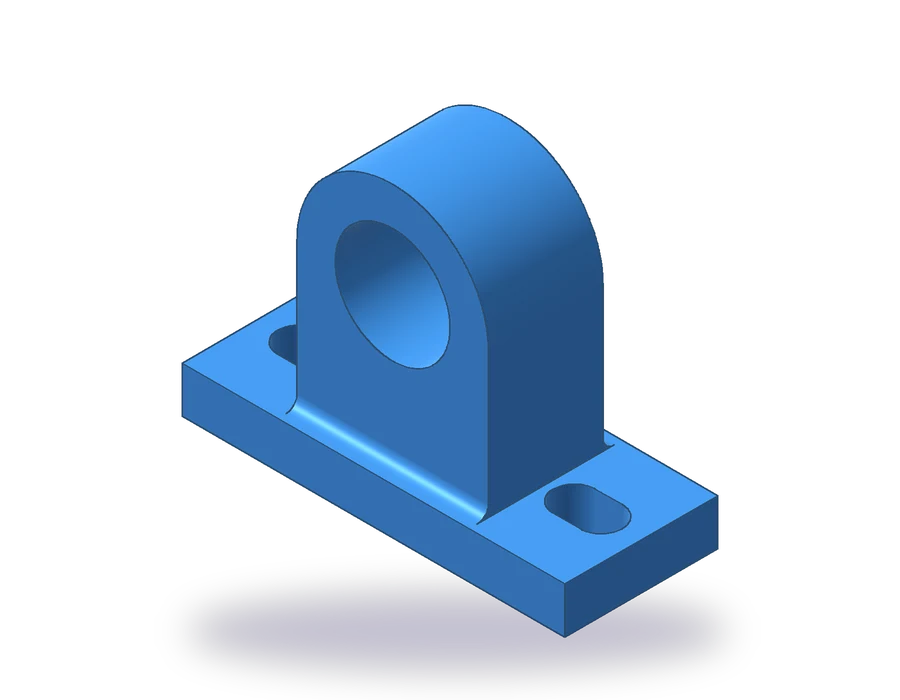
What this AutoCAD linetype lesson covers
- Create the layers of a mechanical drawing with their color, linetype and lineweight.
- Load the HIDDEN and CENTER linetypes and assign them to layers.
- Fix dashes that look solid with LTSCALE.
- Keep objects ByLayer and move them between layers with MATCHPROP.
A technical drawing speaks with line types. A thick continuous line is an edge you can see, a dashed line is an edge hidden behind material, and a long-and-short chain line is an axis or a center. In AutoCAD each kind of line lives on its own layer, and the layer decides how it looks and prints.
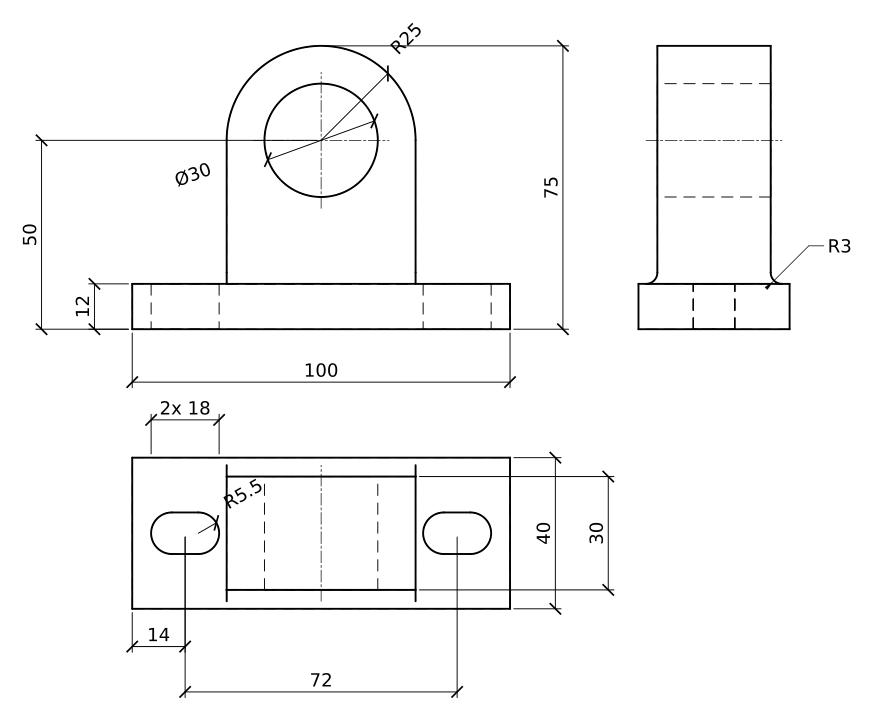
The part is a shaft support: a base 100 x 40 x 12 mm with two slots 18 mm long and 11 mm wide, and an upright 50 mm wide and 30 mm deep, rounded with R25 around a Ø30 bore whose axis is 50 mm above the bottom. R3 fillets join the upright to the base. Its three views need all three kinds of line.
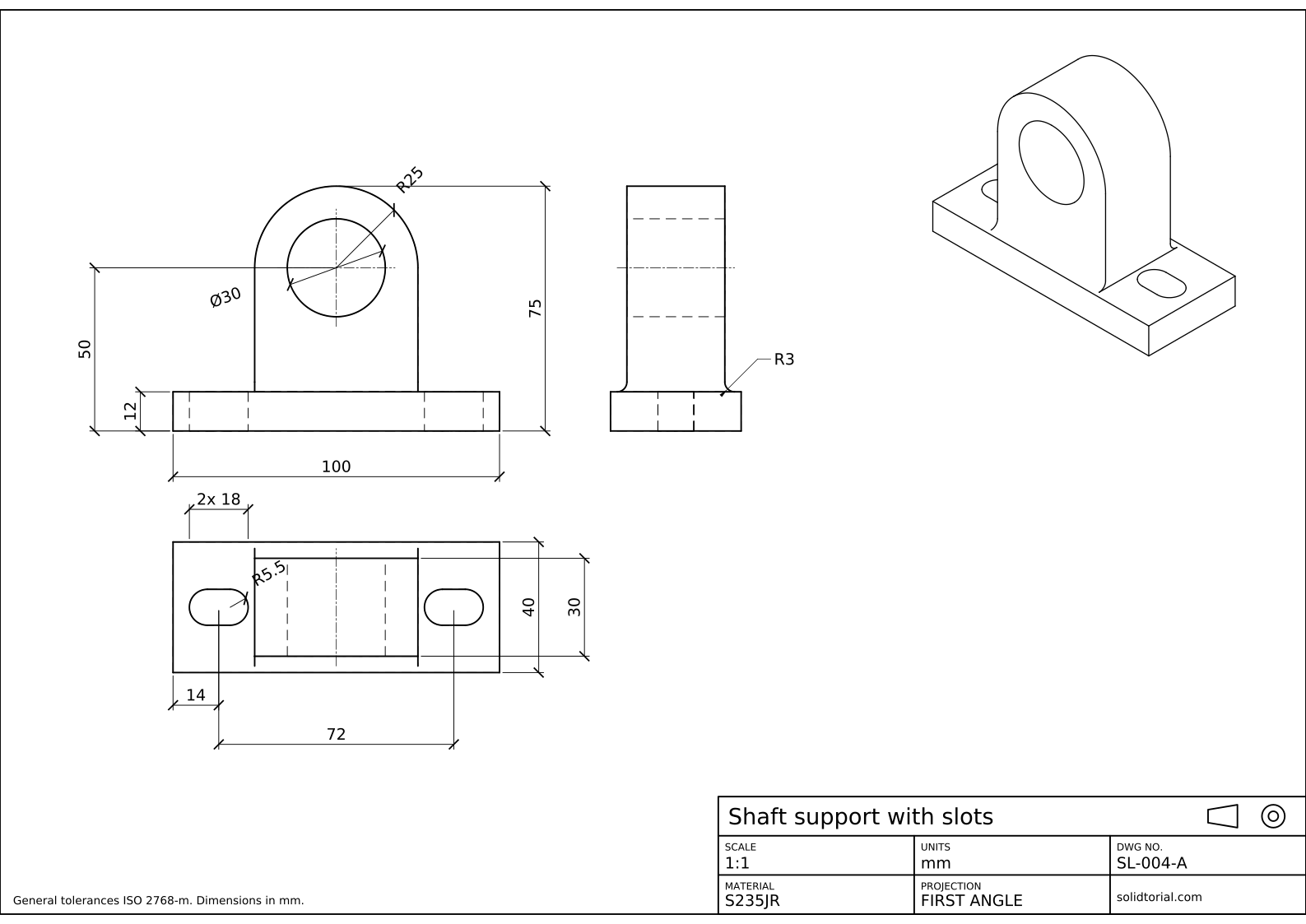
Metric sheet, ISO first-angle projection, scale 1:1 on A3. Click the drawing to open it full size.
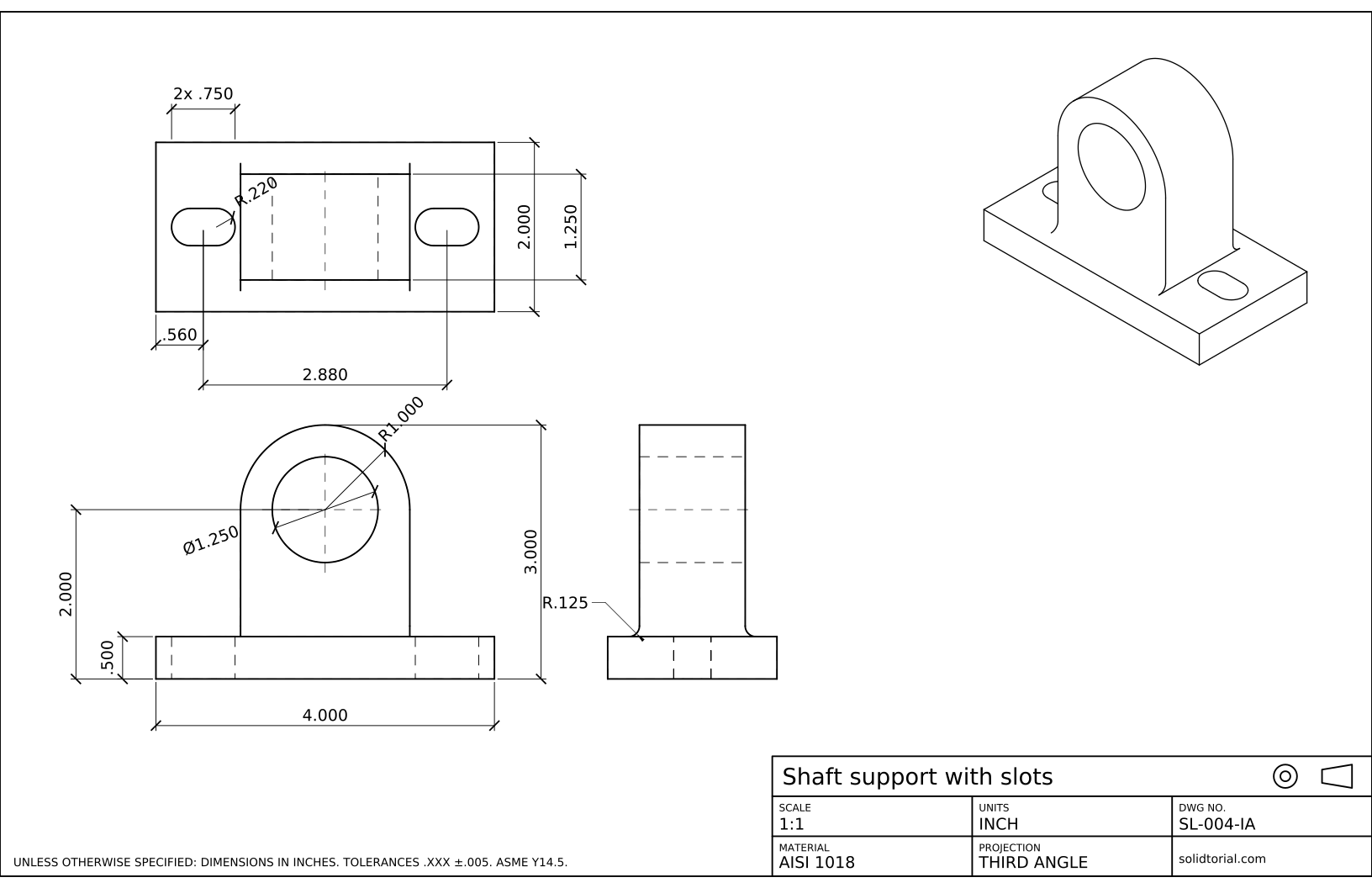
Inch sheet, third-angle projection (ASME), scale 1:1 on ANSI B. Click the drawing to open it full size.
AutoCAD layer and linetype commands in this exercise
| Command | Alias | What it does here |
|---|---|---|
LAYER | LA | Create the VISIBLE, HIDDEN, CENTER and DIMENSIONS layers. |
LINETYPE | LT | Load the HIDDEN and CENTER linetypes from the linetype file. |
LTSCALE | LTS | Scale the dashes of every linetype when they look solid or too fine. |
LWEIGHT | LW | Set lineweight units and show lineweights on screen. |
MATCHPROP | MA | Move objects drawn on the wrong layer onto the right one. |
How to set up layers and linetypes in AutoCAD, step by step
-
Create the layers
Type
LAto open the Layer Properties Manager and create four layers with New Layer:- VISIBLE: white, Continuous, lineweight 0.50 mm.
- HIDDEN: gray, HIDDEN linetype, 0.25 mm.
- CENTER: red, CENTER linetype, 0.18 mm.
- DIMENSIONS: blue, Continuous, 0.18 mm.
These are the layers of the solution files. Thick lines for edges and thin lines for everything else, roughly two to one, is the proportion ISO drawings use.
-
Load the HIDDEN and CENTER linetypes
A new drawing has only Continuous. In the Linetype column of the HIDDEN layer, click Continuous, then Load, and pick HIDDEN from the list; do the same for CENTER on its layer. In a metric drawing started from
acadiso.dwt, the list comes fromacadiso.lin, whose dashes are sized for millimeters. The same dialog opens withLT. -
Draw the front view on the right layers
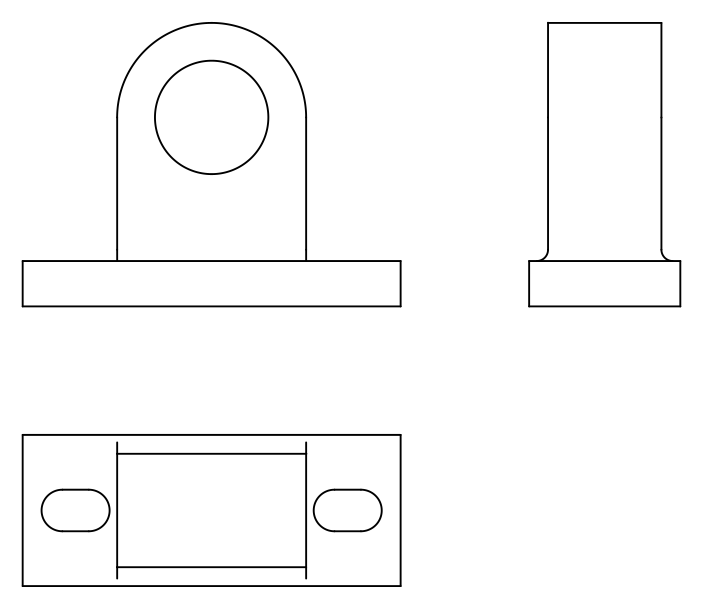
Make VISIBLE current and draw the front view: the base 100 x 12, the upright 50 wide centered on it, rising to an R25 arc whose center is 50 above the bottom, and the Ø30 bore at that center. Then make HIDDEN current: the slots cannot be seen from the front, so draw their sides as hidden lines through the base. Finish with CENTER: the axis lines of the bore, and the axes of the slots.
-
Project the top and side views
In the top view the slots are visible: two slots 18 x 11 with R5.5 ends, their centers 14 mm from the ends of the base and 72 mm apart. The upright is a rectangle 50 x 30 in the middle, and the bore shows as two hidden lines across it. In the side view the upright is 30 deep, the bore is two hidden lines 30 apart, and the R3 fillets round the inside corners with the base.
Each line goes on the layer of its type, whatever the view. If you draw one on the wrong layer, type
MA, pick a correct line, then the wrong ones: they take its layer.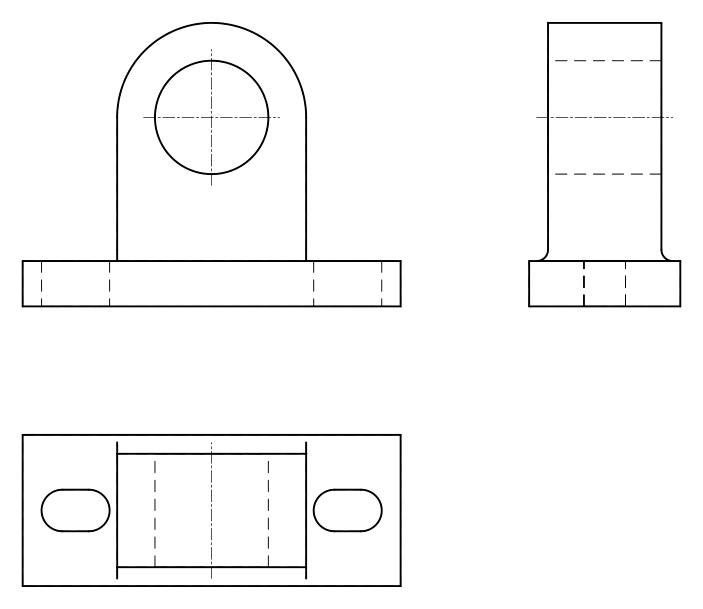
-
Check the linetype scale and the lineweights
If hidden lines look continuous, the dashes are too long or too short for the size of the drawing. Type
LTSand try another value: larger makes the dashes longer. With the metric linetypes and a part drawn at full size, 1 usually works; the solution files use 1 for sheets at 1:1 and 2 for those at 1:2.Turn on Show/Hide Lineweight on the status bar to see the thick and thin lines on screen. Then dimension the part on the DIMENSIONS layer, as on the sheet.
AutoCAD layers practice: a larger shaft support
Draw a larger support on your own with the same layers: base 120 x 50 x 14 with two slots 22 x 13 whose centers are 16 mm from the ends, an upright 60 wide and 36 deep rounded with R30 around a Ø36 bore 60 mm above the bottom, and R4 fillets. Check that every hidden line on screen shows its dashes.
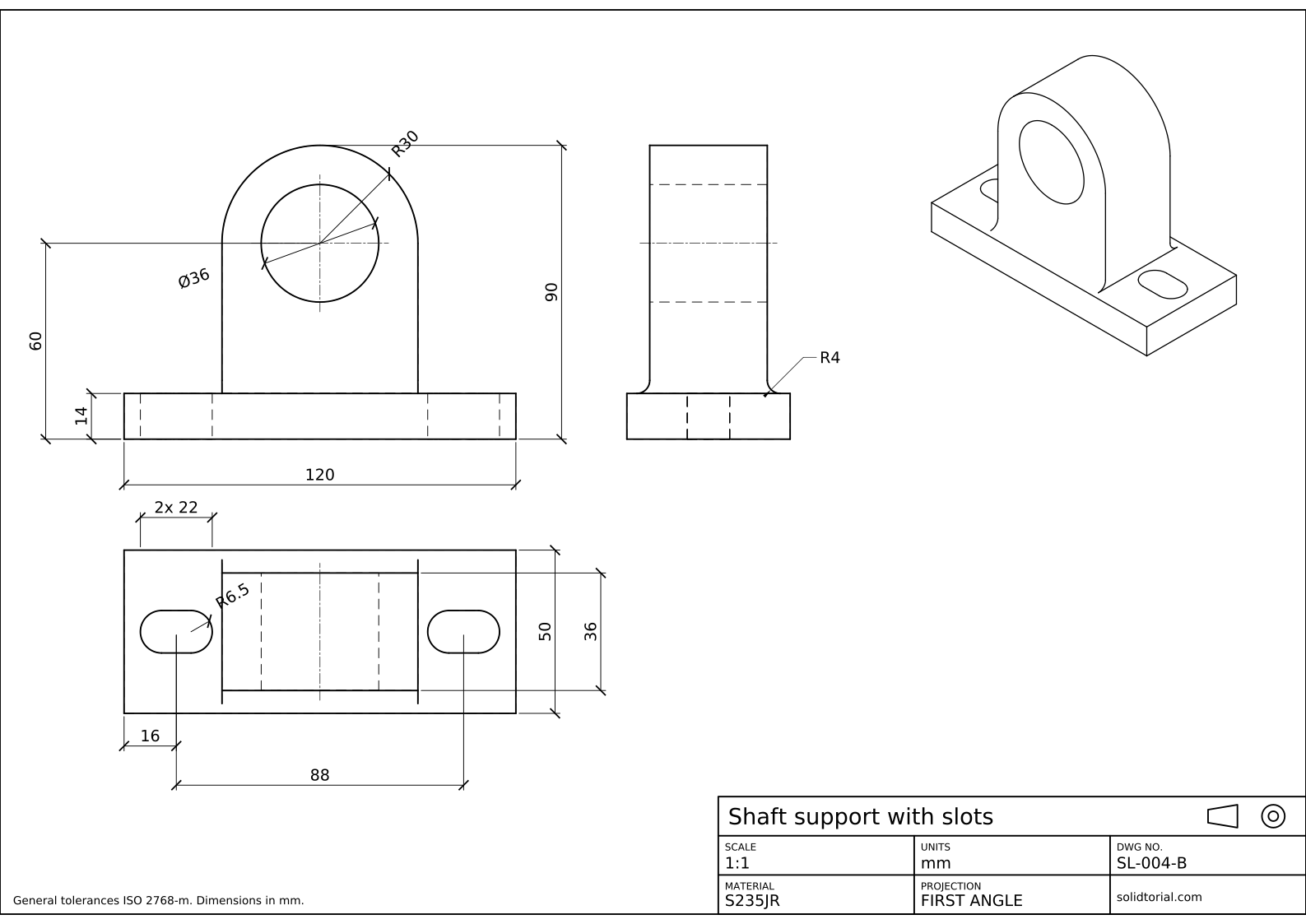
Metric sheet, ISO first-angle projection, scale 1:1 on A3. Click the drawing to open it full size.
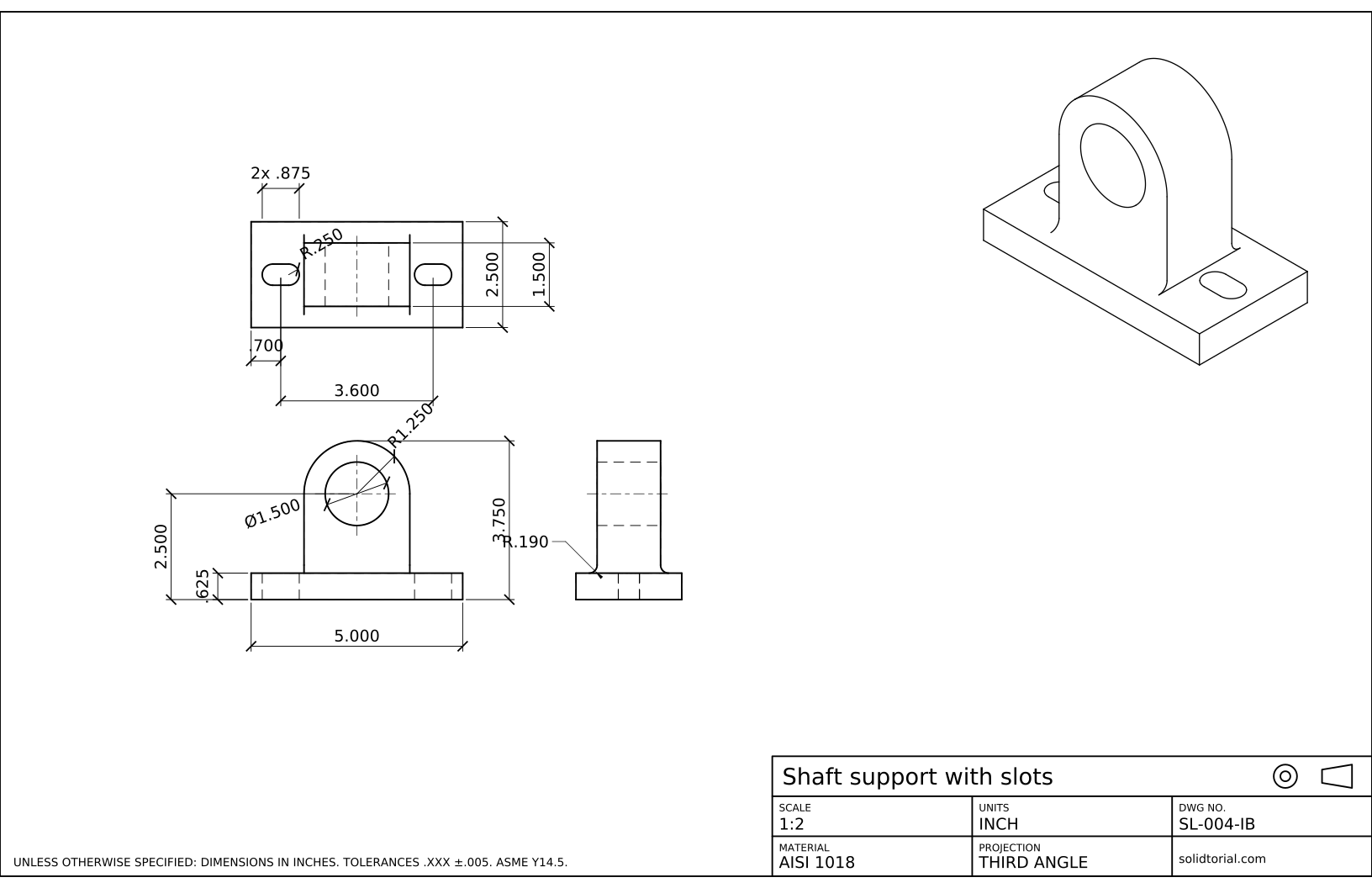
Inch sheet, third-angle projection (ASME), scale 1:2 on ANSI B. Click the drawing to open it full size.
Show the solution files
Metric sheet, ISO first-angle projection, scale 1:1 on A3. Click the drawing to open it full size.
Inch sheet, third-angle projection (ASME), scale 1:2 on ANSI B. Click the drawing to open it full size.
AutoCAD linetype not showing? Common causes
- Hidden lines look solid. The linetype scale does not suit the drawing. Change LTSCALE, and check that the object is not given its own linetype scale in Properties.
- Color or linetype set on the object. An object with a color of its own ignores its layer. Keep color, linetype and lineweight ByLayer, and change the layer instead.
- Linetype not loaded. The HIDDEN layer shows Continuous because HIDDEN was never loaded. Load it from the linetype file first.
- Lineweights not visible. They are there but hidden on screen. Turn on Show/Hide Lineweight on the status bar.
- Drawing everything on layer 0. It works until the drawing has to be printed with the right line weights. Set up the layers before the first line.
AutoCAD hidden line and center line: which line goes where
| Line | Linetype | Weight | Used for |
|---|---|---|---|
| Visible | Continuous | Thick | Edges and outlines you can see |
| Hidden | Dashed | Thin | Edges behind material |
| Center | Long dash, short dash | Thin | Axes, centers of holes, bolt circles |
| Dimension | Continuous | Thin | Dimensions, leaders, notes |
AutoCAD linetype scale: LTSCALE, CELTSCALE and PSLTSCALE
LTSCALE scales the dashes of every object in the drawing. CELTSCALE sets a scale for new objects only, multiplied by LTSCALE, and each object keeps its own value in Properties. PSLTSCALE controls whether dashes in a layout viewport are scaled to look the same on paper whatever the viewport scale. For model space drawings like these, LTSCALE alone is enough.
Create an AutoCAD linetype
Linetypes are defined in text files with the .lin extension. A simple dashed line with 6 mm dashes and 3 mm gaps takes two lines in such a file: *DASH6,Dashed 6 mm followed by A,6,-3. Load it with LINETYPE and Load, then File. The inch version of this support is drawn with the same layers on a 4.000 x 2.000 x .500 base.
AutoCAD linetype questions
How do I change the linetype in AutoCAD?
Change it on the layer: open LAYER, click the linetype of the layer and choose or load another. Objects set to ByLayer follow it at once.
Why do my dashed lines look solid in AutoCAD?
The linetype scale is too small or too large for the drawing. Adjust LTSCALE, and check that the line is long enough to fit at least one dash and gap.
What is ByLayer in AutoCAD?
A setting for color, linetype and lineweight that makes the object take the value of its layer. Keeping objects ByLayer lets you change the look of a whole category of lines from the layer.
Which lineweights should I use for a mechanical drawing?
A thick line for visible edges and a thin one, about half as wide, for hidden lines, center lines and dimensions. The solution files use 0.50 mm for visible lines and 0.25 or 0.18 mm for the rest.
Updated: August 27, 2026