
What this AutoCAD polar array lesson covers
- Place an object at an angle on a circle with the From snap and polar coordinates.
- Repeat it around a center with ARRAYPOLAR.
- Change the number of items of an associative array after creating it.
- Draw and dimension a bolt circle on a sheet.
A polar array repeats objects around a center point, evenly spaced on a circle. Bolt holes on a flange, spokes on a wheel and teeth on a gear are all polar arrays. Instead of working out the position of each copy, you give the center, the number of items and the angle to fill.
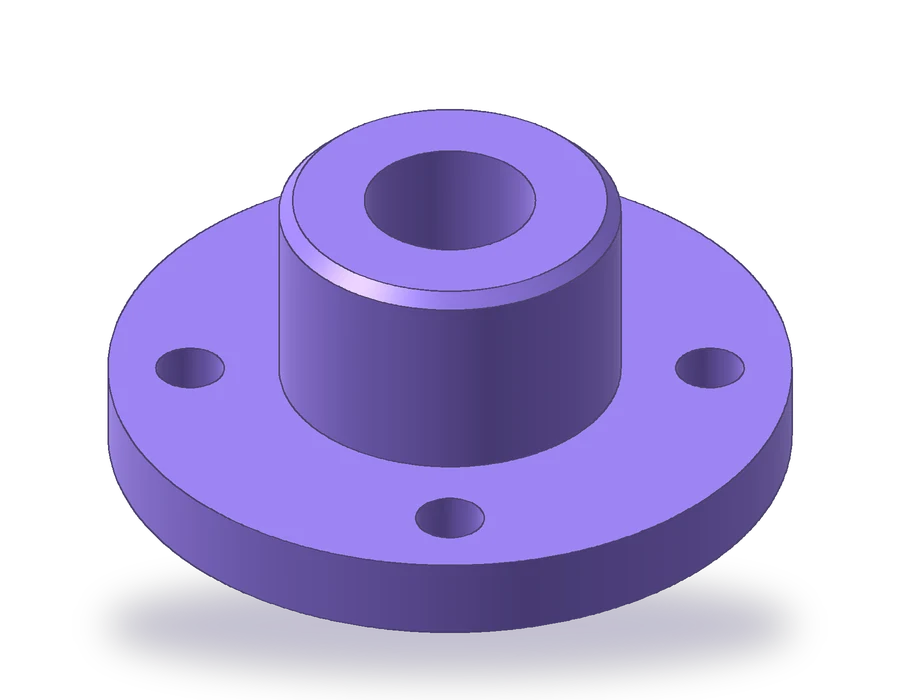
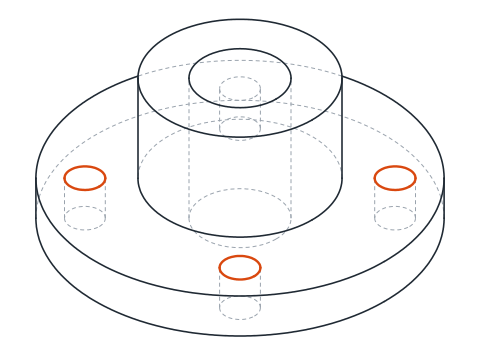
The part is a hub flange: a disc Ø100 x 12 mm with a hub Ø50 rising 30 mm above it, so the flange is 42 mm high overall. A Ø25 bore runs through the hub, a 2 x 45° chamfer finishes its top edge, and four Ø10 holes sit on a Ø76 bolt circle at 45°, 135°, 225° and 315°. The sheet is drawn at 1:2.
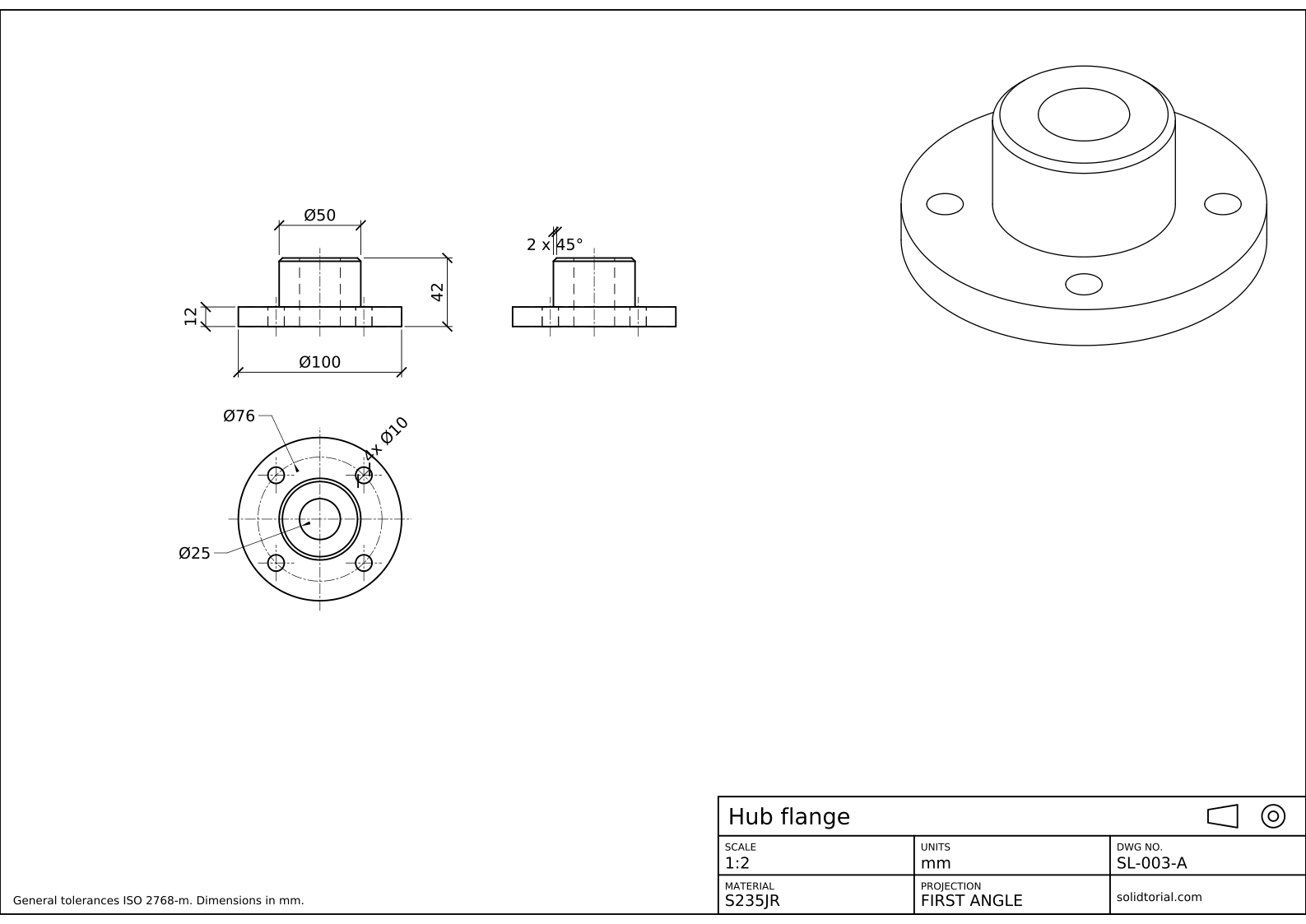
Metric sheet, ISO first-angle projection, scale 1:2 on A3. Click the drawing to open it full size.
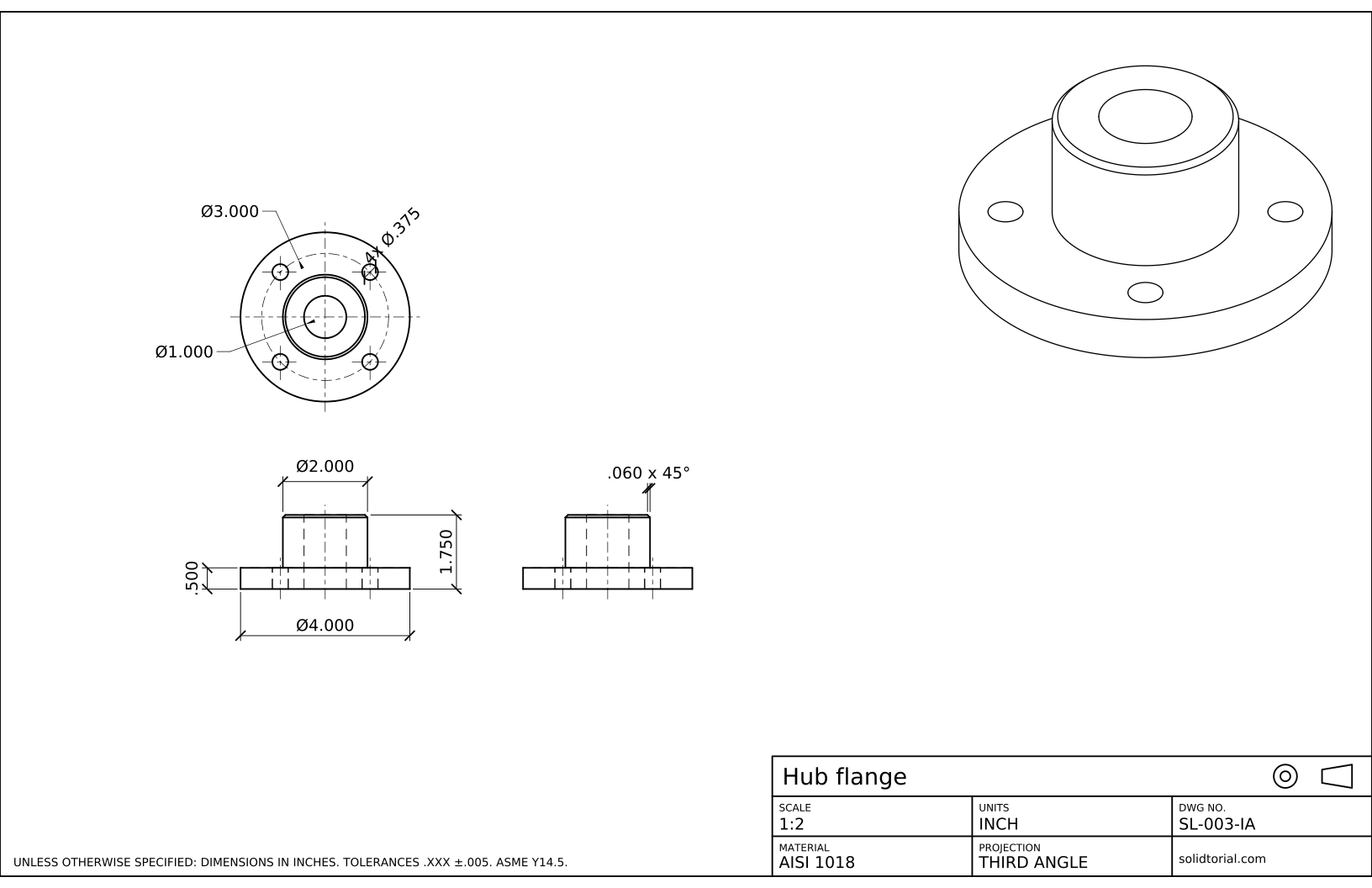
Inch sheet, third-angle projection (ASME), scale 1:2 on ANSI B. Click the drawing to open it full size.
AutoCAD array commands used in this exercise
| Command | Alias | What it does here |
|---|---|---|
CIRCLE | C | Draw the disc, the hub, the bore, the bolt circle and the first hole. |
ARRAYPOLAR | · | Repeat the first hole four times around the center of the flange. |
ARRAY | AR | The general array command, which asks for the type: polar, rectangular or path. |
CHAMFER | CHA | Chamfer the top edge of the hub 2 x 45° in the front and side views. |
DIMDIAMETER | DDI | Dimension the bolt circle, the holes and the bore. |
How to make a polar array in AutoCAD, step by step
-
Draw the concentric circles of the top view
Pick a center and draw the circles of the top view with
Cand the Diameter option: Ø100 for the disc, Ø50 for the hub and Ø25 for the bore. The chamfer of the hub shows from above as one more circle, Ø46, just inside the hub. Draw the Ø76 bolt circle on the CENTER layer: it is not an edge of the part, it marks where the holes go.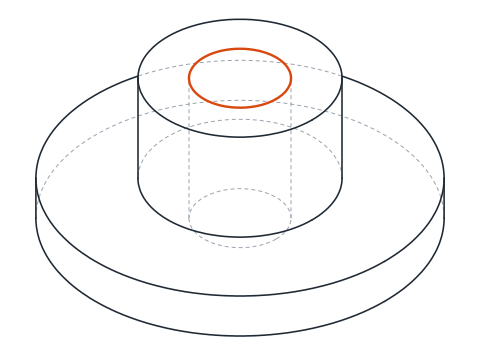
-
Draw the first hole at 45° on the bolt circle
The holes are on the diagonals, so the first one goes at 45° from the horizontal, 38 mm from the center. Type
C, then at the center prompt typeFROM, pick the center of the flange as the base point and enter@38<45as the offset. Give the diameter, 10. The hole lands on the bolt circle, up and to the right of the center. -
Repeat the hole with ARRAYPOLAR
Type
ARRAYPOLAR, select the hole and press Enter. Pick the center of the flange as the center of the array. AutoCAD shows a preview with a default number of items. TypeIfor Items and enter 4, check that the fill angle is 360, and press Enter to finish.The four holes are now 90° apart. Because the array is associative, they are one object: clicking one selects all four.
-
Change the array and see it update
Select the array. Its grips and the Array contextual tab on the ribbon let you change the number of items, the angle and the radius. Set the items to 6 and all the holes move to 60° spacing, then set them back to 4. You can also edit one item without breaking the array by Ctrl-clicking it. When the array no longer needs to change,
X(EXPLODE) turns it into separate circles. -
Draw the front and side views
Project the front view from the top view: the disc is 100 x 12, the hub 50 x 30 on top of it. Chamfer the two top corners of the hub with
CHA, distances 2 and 2. The bore shows as two hidden lines Ø25 through the full height, and the holes at 45° project as hidden lines 26.87 mm each side of the axis, because 38 x cos 45° = 26.87. Holes in front and behind fall on the same lines. The side view is the same as the front view on this part.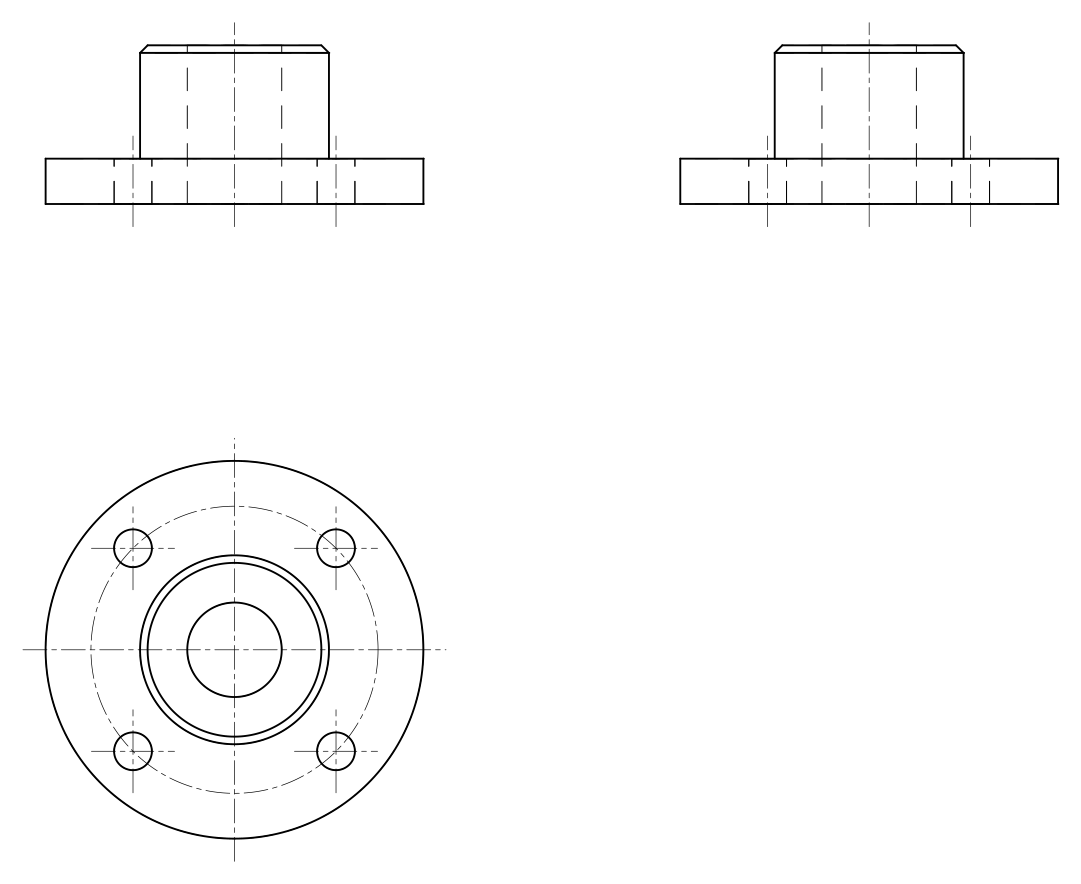
-
Dimension the flange
In the front view, dimension Ø100 and Ø50 with DIMLINEAR and the %%c prefix, the disc thickness 12 and the overall height 42. In the side view, add the chamfer as 2 x 45°. In the top view, give the bolt circle with
DDIon the center-line circle, Ø76, the holes as 4x Ø10 and the bore as Ø25. The holes need no angle: four holes evenly spaced on a circle, two of them on a diagonal, are understood at 45° from the center lines.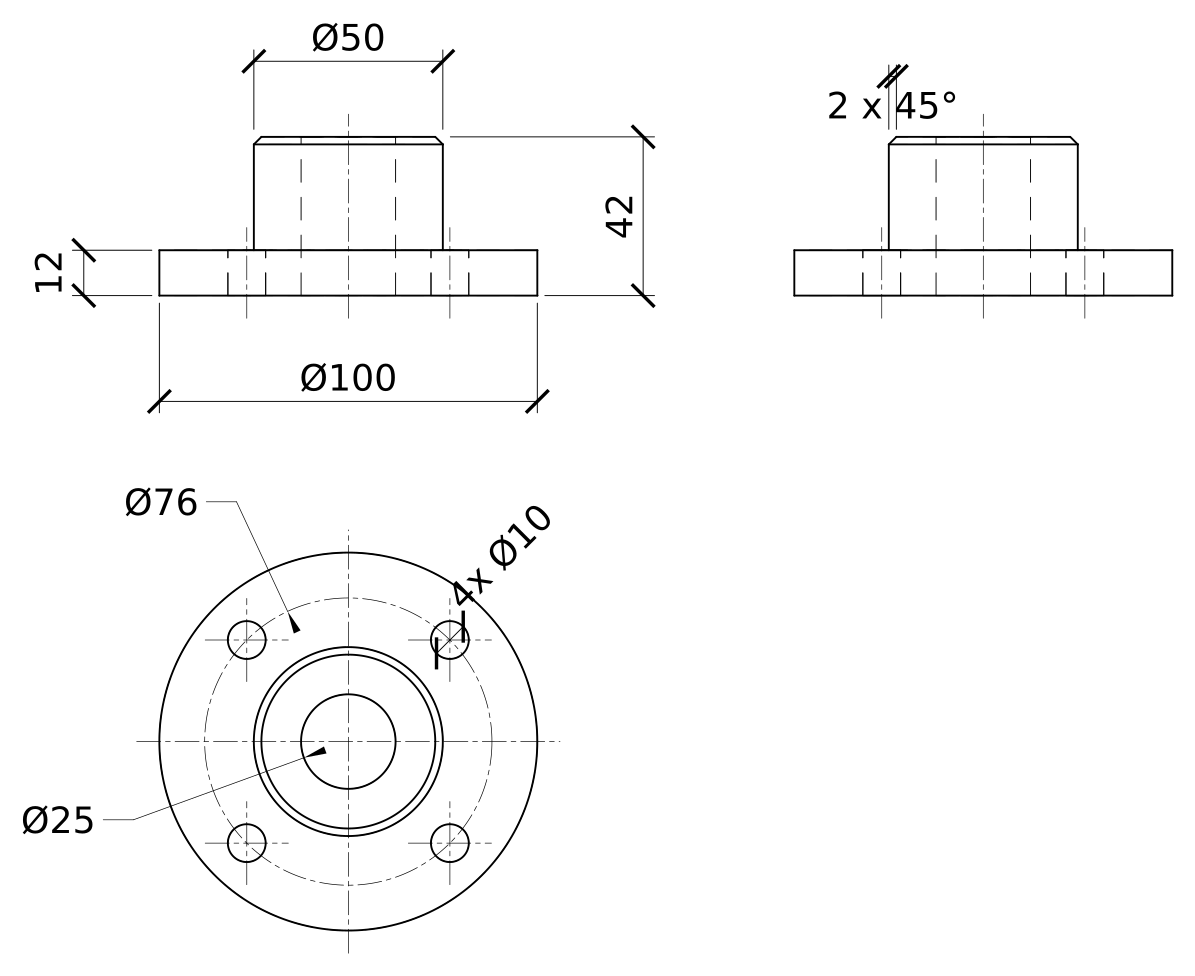
AutoCAD polar array practice: a six-hole flange
Draw a larger flange on your own: a disc Ø120 x 14, a hub Ø60 rising 35 mm, a Ø30 bore, a 2 x 45° chamfer and six Ø11 holes on a Ø92 circle, the first one at the top of the circle. With six holes, ARRAYPOLAR spaces them 60° apart.
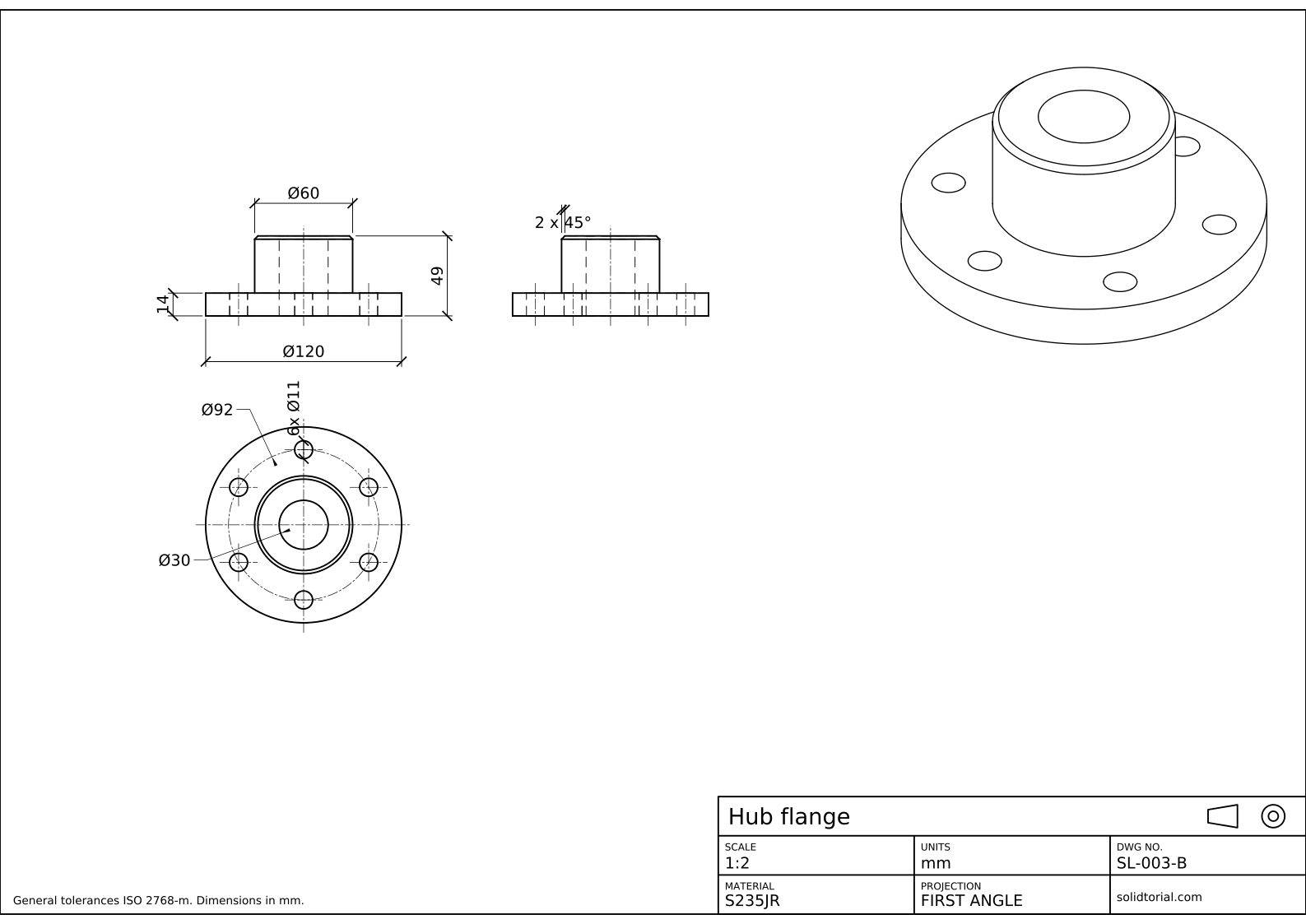
Metric sheet, ISO first-angle projection, scale 1:2 on A3. Click the drawing to open it full size.
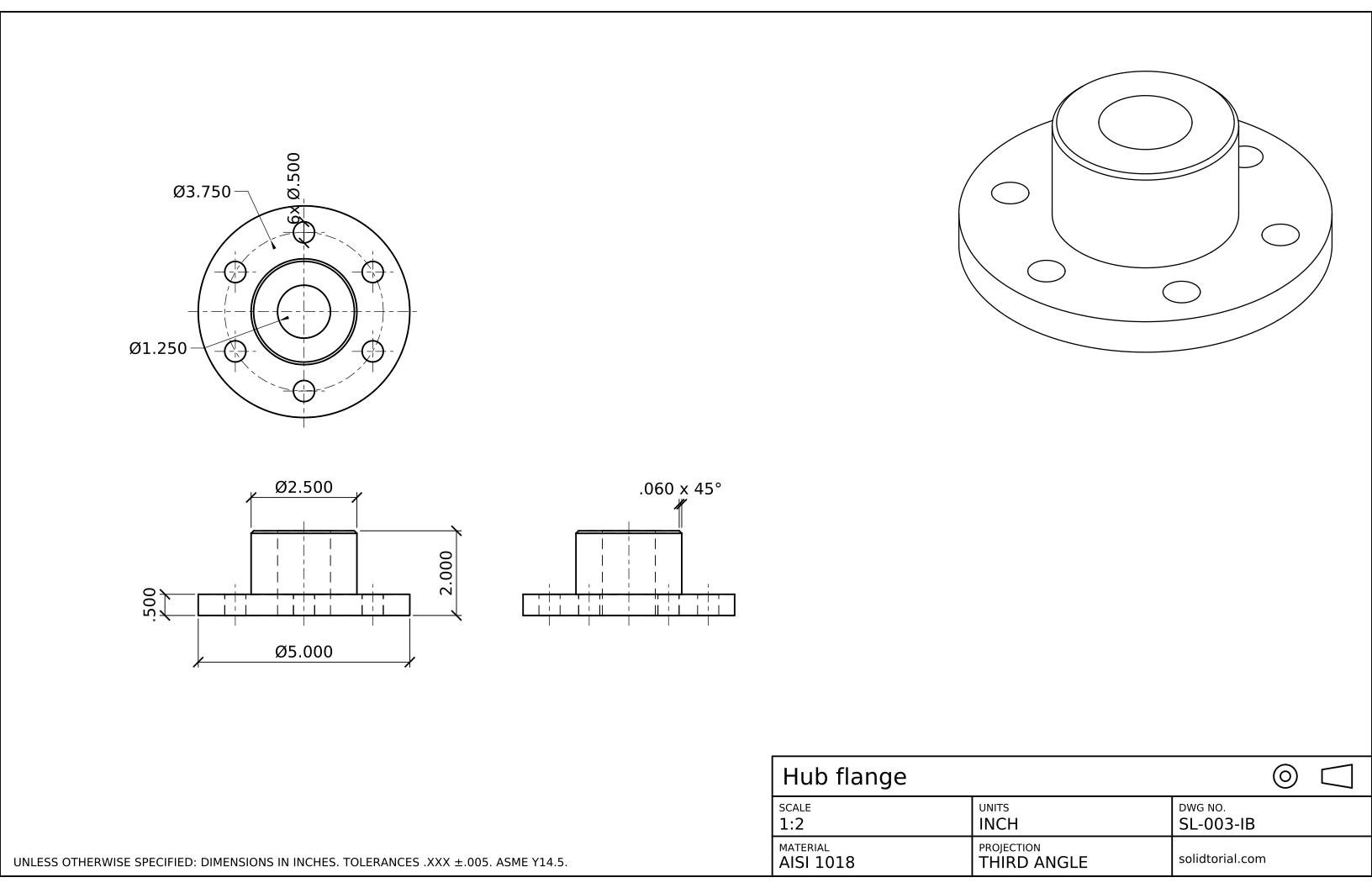
Inch sheet, third-angle projection (ASME), scale 1:2 on ANSI B. Click the drawing to open it full size.
Show the solution files
Metric sheet, ISO first-angle projection, scale 1:2 on A3. Click the drawing to open it full size.
Inch sheet, third-angle projection (ASME), scale 1:2 on ANSI B. Click the drawing to open it full size.
Common AutoCAD array mistakes
- Picking the wrong center. If the array center is not the center of the flange, the holes land off the bolt circle. Use the Center snap on the bolt circle.
- Fill angle other than 360. With 4 items and a fill angle of 180, the holes are spread over half a circle. For a full ring, keep 360.
- Exploding the array too early. Once exploded it no longer updates. Explode only when the number of holes is final.
- Rotate items on text or blocks. Circles look the same either way, but a block or a label in a polar array turns with each copy when Rotate items is on.
- Dimensioning each hole position. A bolt circle is given by its diameter and the number of holes. Four separate coordinates for the holes add work and errors.
AutoCAD array command: polar, rectangular and path
ARRAY, alias AR, asks which type of array to create; ARRAYPOLAR, ARRAYRECT and ARRAYPATH go straight to each type.
| Type | Copies placed | Typical use |
|---|---|---|
| Polar | Around a center, on a circle or an arc | Bolt circles, spokes, teeth |
| Rectangular | In rows and columns at fixed spacing | Hole grids, slots in a row |
| Path | Along a line, an arc or a polyline | Holes along a curved edge, chains |
Bolt circle dimensions
The bolt circle, also called the pitch circle, is drawn as a center line and dimensioned with its diameter, Ø76 here. The holes are given once with their number, 4x Ø10, and equal spacing is assumed unless the drawing says otherwise. Between the hub and the inner edge of each hole there are 8 mm of material: the holes reach 33 mm from the center and the hub surface is at 25.
The inch version of the flange is Ø4.000 with four Ø.375 holes on a Ø3.000 bolt circle, a Ø2.000 hub and a Ø1.000 bore.
AutoCAD polar array questions
How do I make a polar array in AutoCAD?
Type ARRAYPOLAR, select the objects, pick the center point, then set the number of items and the fill angle and press Enter.
How do I edit a polar array after creating it?
Select it: the ribbon shows the Array tab and the array has grips. Change the items, the angle or the radius there, or open the Properties palette.
How do I start a polar array at a specific angle?
Place the first object at that angle before running ARRAYPOLAR, for example with FROM and a polar coordinate. The array starts from the first object.
What is the difference between ARRAY and ARRAYPOLAR?
ARRAY asks which kind of array to make; ARRAYPOLAR goes directly to a polar array. The result is the same.
Updated: August 24, 2026