
What this AutoCAD coordinates lesson covers
- Set up a new drawing in millimeters with the UNITS command.
- Draw lines from absolute, relative and polar coordinates.
- Know how Dynamic Input treats the numbers you type, and the # and @ prefixes.
- Check points and lengths with ID and DIST.
Precision in AutoCAD starts with coordinates. Every point of a drawing has an X and a Y, and every line you draw can be typed as numbers instead of clicked on screen. That is how a part comes out at its exact size from the first line.
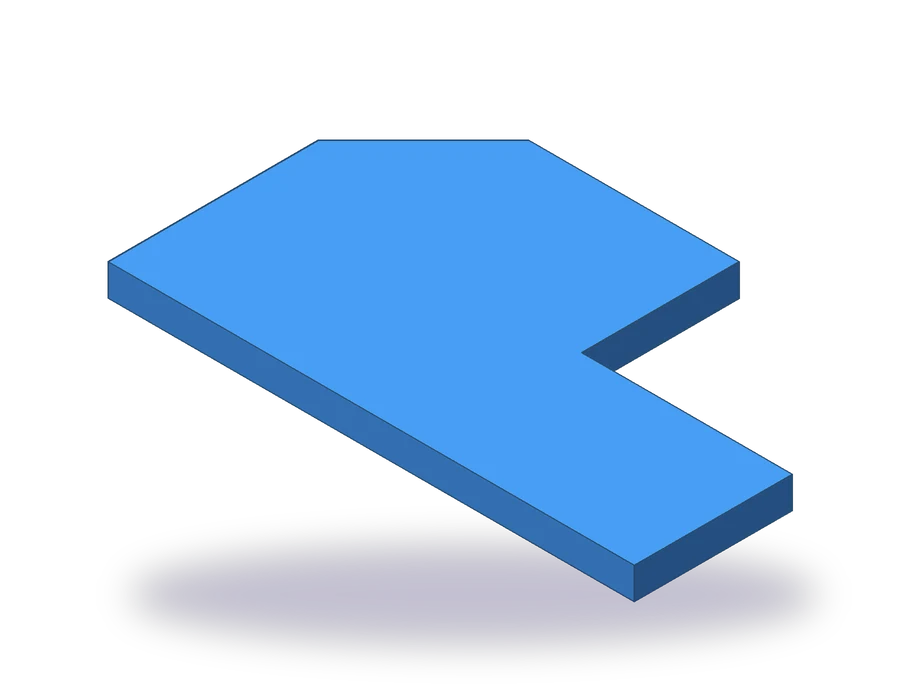
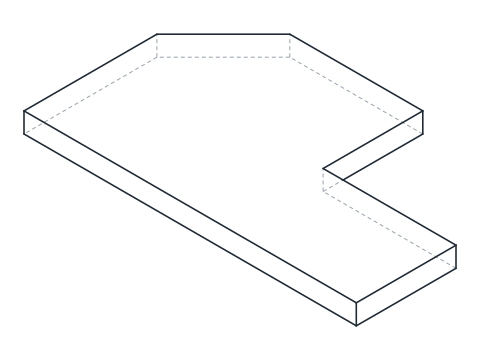
The part is a stepped plate 6 mm thick. Its outline is 100 mm wide at the bottom and 60 mm high on the left side; on the right a step drops the height to 30 mm over the last 40 mm, and the top left corner is chamfered 20 x 20. Everything is straight lines, so the whole outline can be drawn with one LINE command.
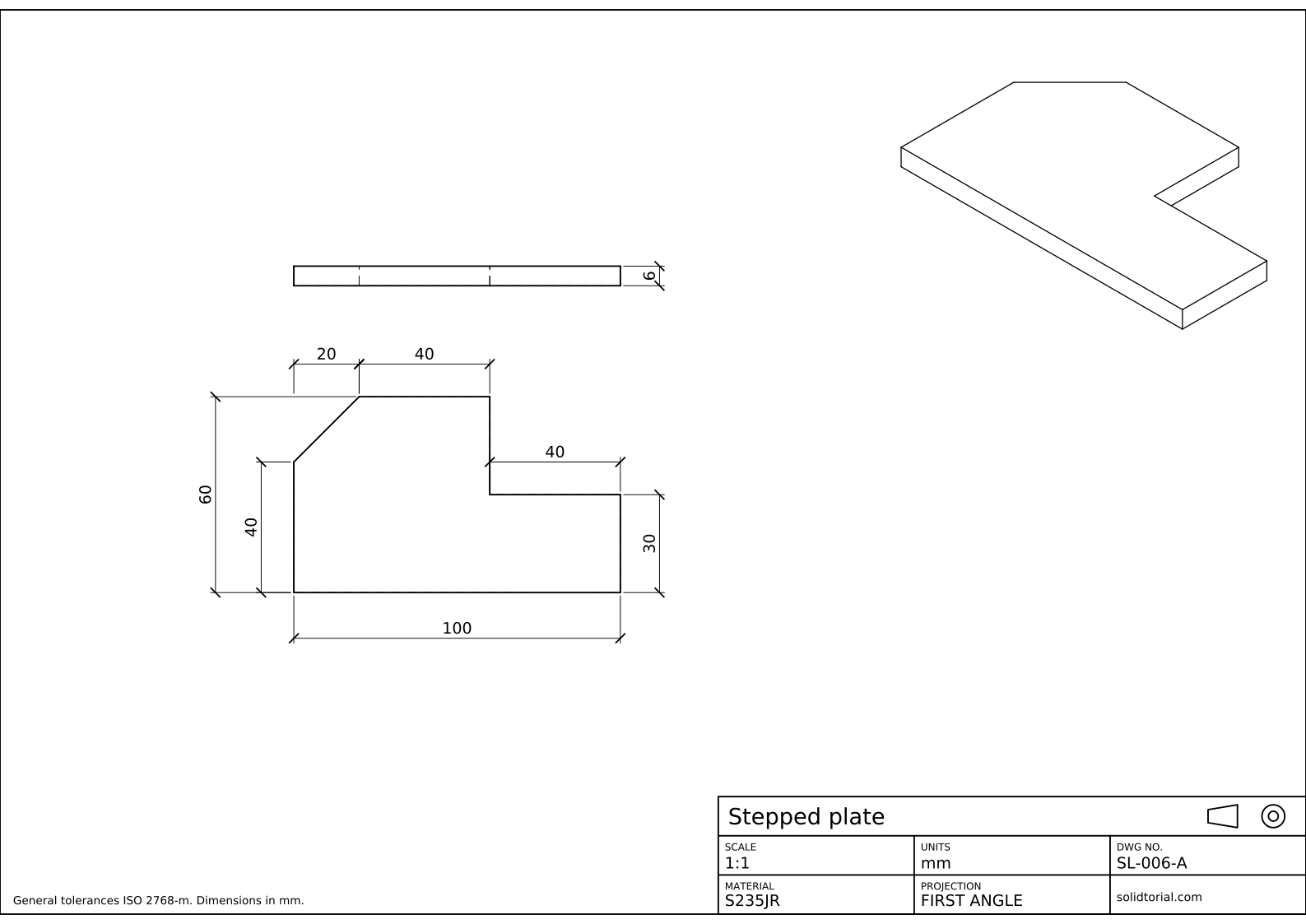
Metric sheet, ISO first-angle projection, scale 1:1 on A3. Click the drawing to open it full size.
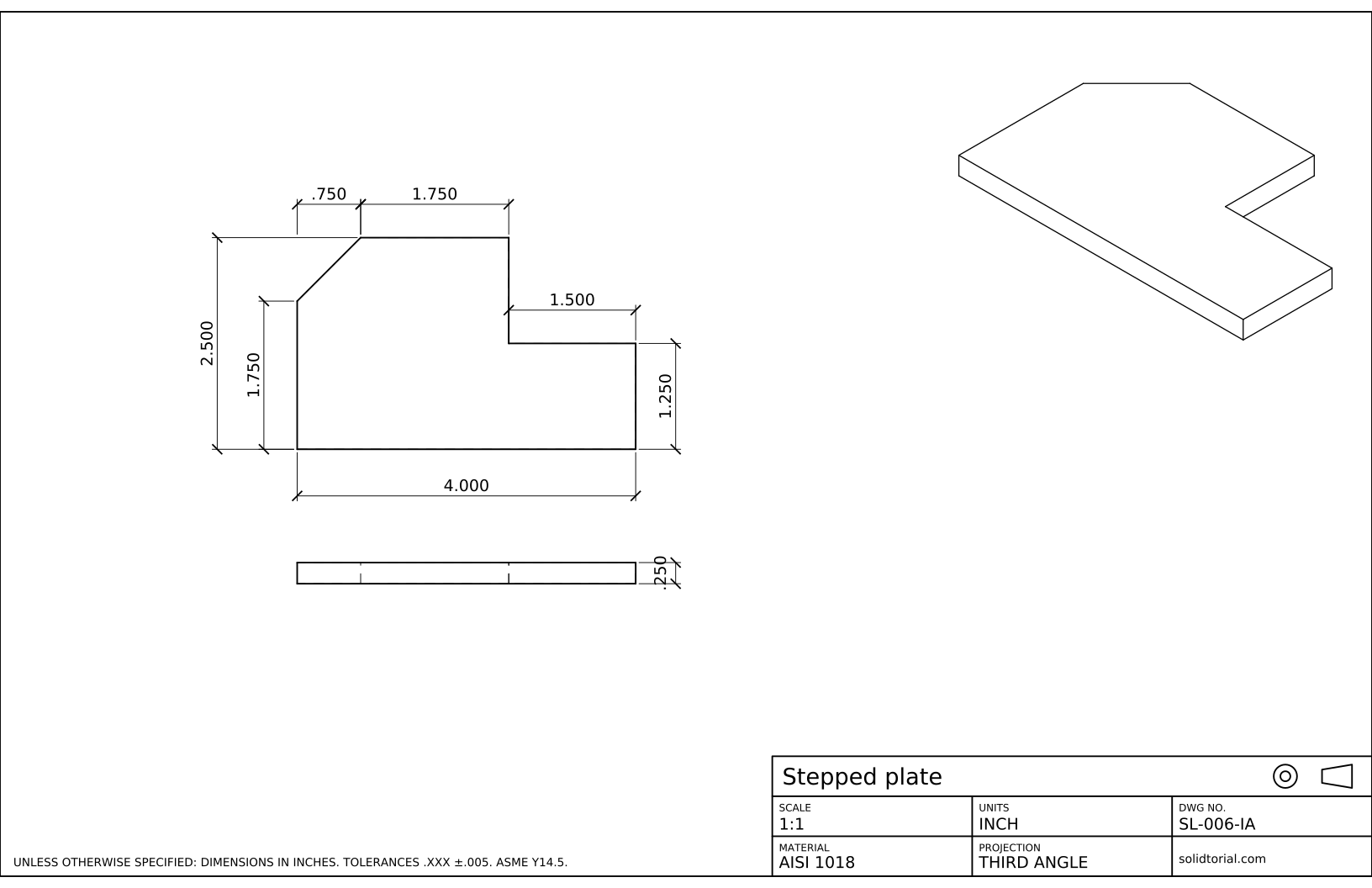
Inch sheet, third-angle projection (ASME), scale 1:1 on ANSI B. Click the drawing to open it full size.
AutoCAD commands for drawing with coordinates
| Command | Alias | What it does here |
|---|---|---|
UNITS | UN | Set decimal units, the precision and millimeters as insertion units. |
LINE | L | Draw the outline of the plate point by point from typed coordinates. |
RECTANG | REC | Draw the edge view of the plate, 100 x 6. |
DIST | DI | Measure the length and angle of the chamfer to check it. |
DIMLINEAR | · | Dimension the plate once it is drawn. |
How to draw the plate with AutoCAD coordinates, step by step
-
Start a metric drawing and set the units
Start a new drawing from the
acadiso.dwttemplate, the metric one. TypeUNto open the Drawing Units dialog: set the length type to Decimal, the precision to 0 or 0.00, and the insertion scale to Millimeters. One drawing unit is now one millimeter, and the part will be drawn at full size.The origin of the drawing, the point 0,0, is where the X and Y axes meet: X grows to the right, Y grows upward. Start the plate there, so its corners have easy coordinates.
-
Draw the first corner with absolute coordinates
Type
L. When AutoCAD asks for the first point, type#0,0and press Enter. Absolute coordinates are measured from the origin, and with Dynamic Input on (F12) the # sign tells AutoCAD that you mean the origin of the drawing and not the last point. With Dynamic Input off,0,0alone is already absolute. -
Follow the outline with relative coordinates
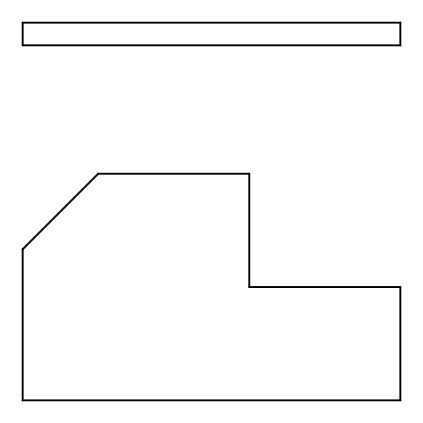
From the first corner every point is easier to give as a distance from the previous one. That is a relative coordinate, written with @ before it. Type, pressing Enter after each one:
@100,0: the bottom edge, 100 to the right.@0,30: the right edge, 30 up.@-40,0: the step, 40 to the left.@0,30: up to the full height of 60.@-40,0: the top edge, 40 to the left.
Negative values go left or down. With Dynamic Input on, the second and later points are relative even without the @, but typing it never hurts.
-
Draw the chamfer with polar coordinates and close
The chamfer goes 20 left and 20 down. You can type it as
@-20,-20, or as a polar coordinate, a length and an angle:@28.2843<225. Angles are measured counterclockwise from the positive X axis, so 225° points down and to the left, and 28.2843 is the diagonal of a 20 x 20 square. Then typeCto close the outline back to 0,0 and end the command.Polar coordinates are the natural choice for lines given by a length and an angle. For this chamfer the relative form is exact and shorter, and the sheet gives it the same way: 20 along the top, and 40 for the straight part of the left edge below it.
-
Check points and lengths with ID and DIST
Type
IDand click the top right corner of the step with endpoint snap (F3): AutoCAD reports X = 60, Y = 60. TypeDIand pick the two ends of the chamfer: the distance is 28.28 and the angle in the XY plane is 225° or 45°, depending on which end you picked first. If a value differs, a coordinate was mistyped. -
Draw the edge view and dimension the plate
The plate is 6 mm thick. Draw its edge view above the outline with
RECand@100,6, aligned with the left end. Dimension the outline as on the sheet: 100 at the bottom, 60 and 40 on the left, 30 on the right, 40 for the step, and 20 and 40 along the top, the chamfer and the edge up to the step. The thickness, 6, goes on the edge view.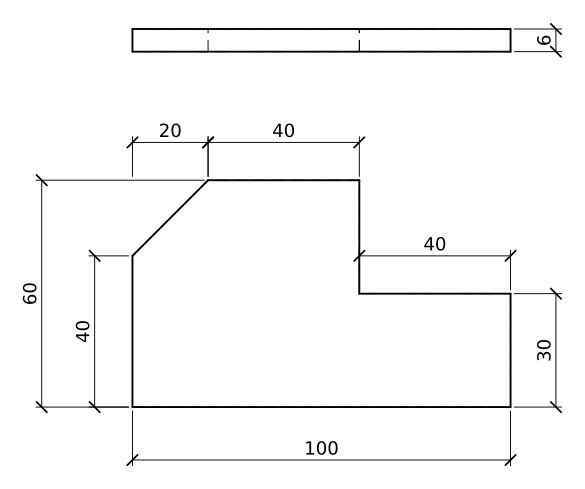
AutoCAD coordinates practice: a larger stepped plate
Draw a larger plate on your own with the same method: 120 wide at the bottom, 70 high on the left, a step that drops to 35 over the last 50 mm, and a 25 x 25 chamfer at the top left corner, 8 mm thick. Write the list of relative coordinates before you start, then type them in one LINE command and close with C.
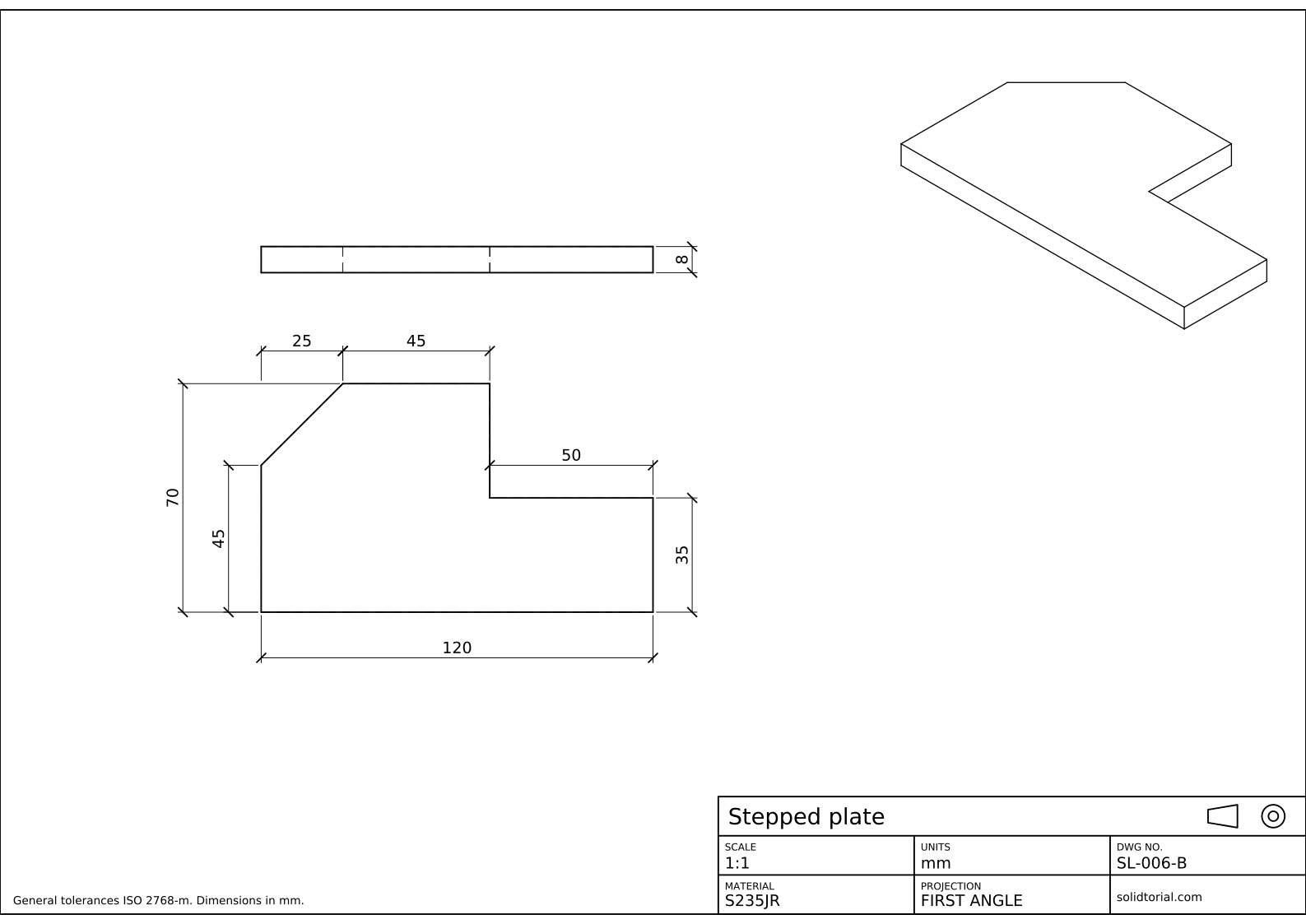
Metric sheet, ISO first-angle projection, scale 1:1 on A3. Click the drawing to open it full size.
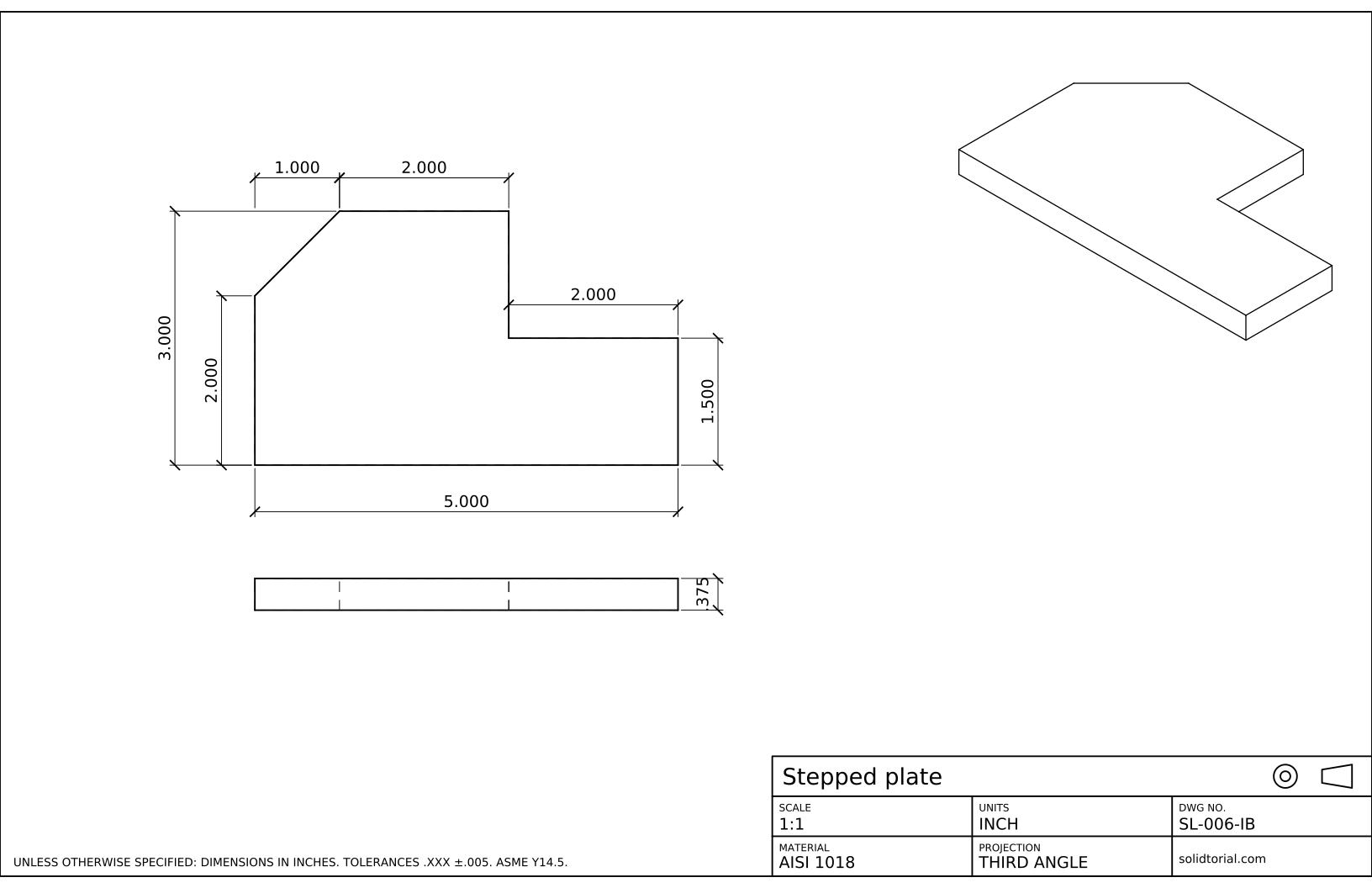
Inch sheet, third-angle projection (ASME), scale 1:1 on ANSI B. Click the drawing to open it full size.
Show the solution files
Metric sheet, ISO first-angle projection, scale 1:1 on A3. Click the drawing to open it full size.
Inch sheet, third-angle projection (ASME), scale 1:1 on ANSI B. Click the drawing to open it full size.
Common mistakes with AutoCAD coordinates
- Forgetting the @. With Dynamic Input off, 100,0 without @ is an absolute point, and the line jumps back toward the origin.
- Typing the first point without #. With Dynamic Input on, a first point typed as plain numbers is still absolute, but later points are relative. When in doubt, use # for absolute and @ for relative.
- Measuring angles clockwise. AutoCAD measures angles counterclockwise from the X axis. 90° is up and 270° is down.
- A comma for the decimal point. In AutoCAD the comma separates X from Y. Decimals always take a point, as in 28.2843.
- Starting far from the origin. If the first point is clicked on screen, every corner gets awkward coordinates. Start at 0,0 and the coordinates become the sizes of the part.
Absolute, relative and polar coordinates in AutoCAD
| Type | Written as | Measured from | Example in this plate |
|---|---|---|---|
| Absolute | #X,Y (or X,Y with Dynamic Input off) | The origin 0,0 | #0,0 for the first corner |
| Relative | @X,Y | The last point | @100,0 for the bottom edge |
| Polar | @length<angle | The last point, with an angle from the X axis | @28.2843<225 for the chamfer |
The same point can always be written in all three ways. Pick the one in which the numbers are the sizes on the drawing: that is the one you are least likely to mistype.
AutoCAD dynamic input and direct distance entry
Dynamic Input shows the coordinates next to the cursor and lets you type them there. Its pointer input setting decides whether later points are relative by default, which is the factory setting. With Ortho (F8) or polar tracking on, you can also point the cursor in a direction and type only the length, for example moving the cursor up and typing 30 for the right edge. That is direct distance entry, and the next lessons use it often.
The coordinate system itself can be moved and rotated: the World coordinate system is fixed, and a user coordinate system, UCS, can be placed anywhere. The 2D lessons stay in World; the auxiliary view lesson and the 3D lessons rotate the UCS.
AutoCAD coordinate system questions
How do I enter coordinates in AutoCAD?
Start a command such as LINE and type the point when AutoCAD asks for it: X,Y for an absolute point, @X,Y for a point relative to the last one, or @length
What is the difference between absolute and relative coordinates?
Absolute coordinates are measured from the origin of the drawing. Relative coordinates, written with @, are measured from the last point you entered.
How do I find the coordinates of a point in AutoCAD?
Type ID and click the point with an object snap. AutoCAD shows its X, Y and Z coordinates on the command line.
Which way are angles measured in AutoCAD?
By default counterclockwise from the positive X axis: 0° points right, 90° up, 180° left and 270° down.
Updated: August 12, 2026