
What this orthographic drawing lesson covers
- Choose the front view that describes the part best.
- Project the top view and the side view from the front view with XLINE.
- Carry depths from the top view to the side view with a 45° miter line.
- Decide which edges are visible and which are hidden in each view.
An orthographic drawing describes a part with flat views, each one looking straight at it along one axis: from the front, from above and from the side. No view shows the part as the eye sees it, but together they give every size exactly, which is what a workshop needs.
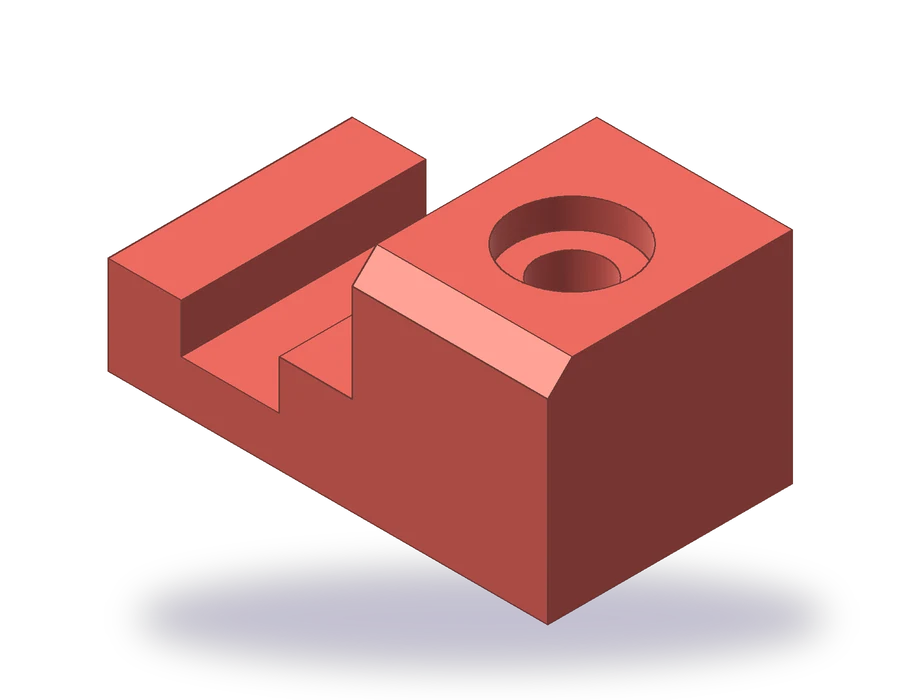
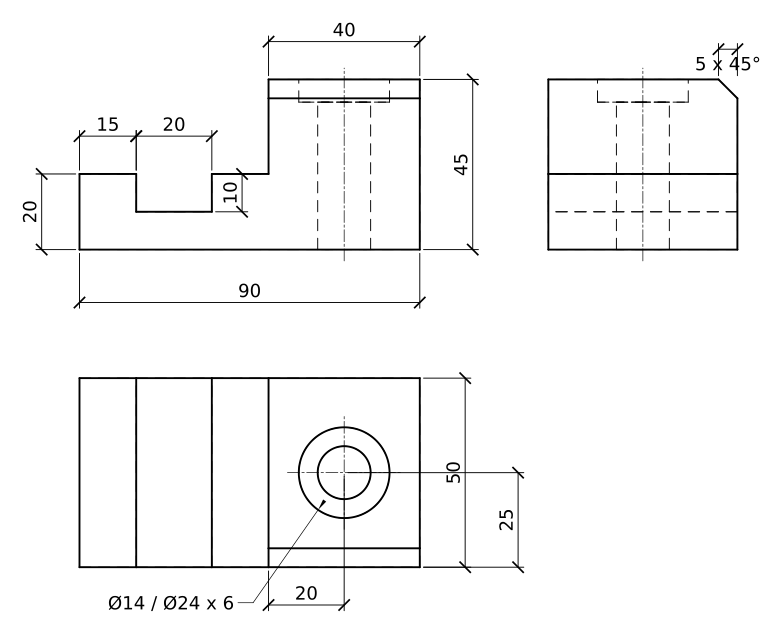
The part is a block 90 mm long and 50 mm deep. Its left part is 20 mm high, with a slot 20 mm wide and 10 mm deep across it, 15 mm from the left end; its right part, 40 mm long, rises to 45 mm, with a counterbored hole Ø14 through it, counterbore Ø24 x 6, and a 5 x 45° chamfer along its top front edge. The sheet uses first angle projection, the ISO convention.
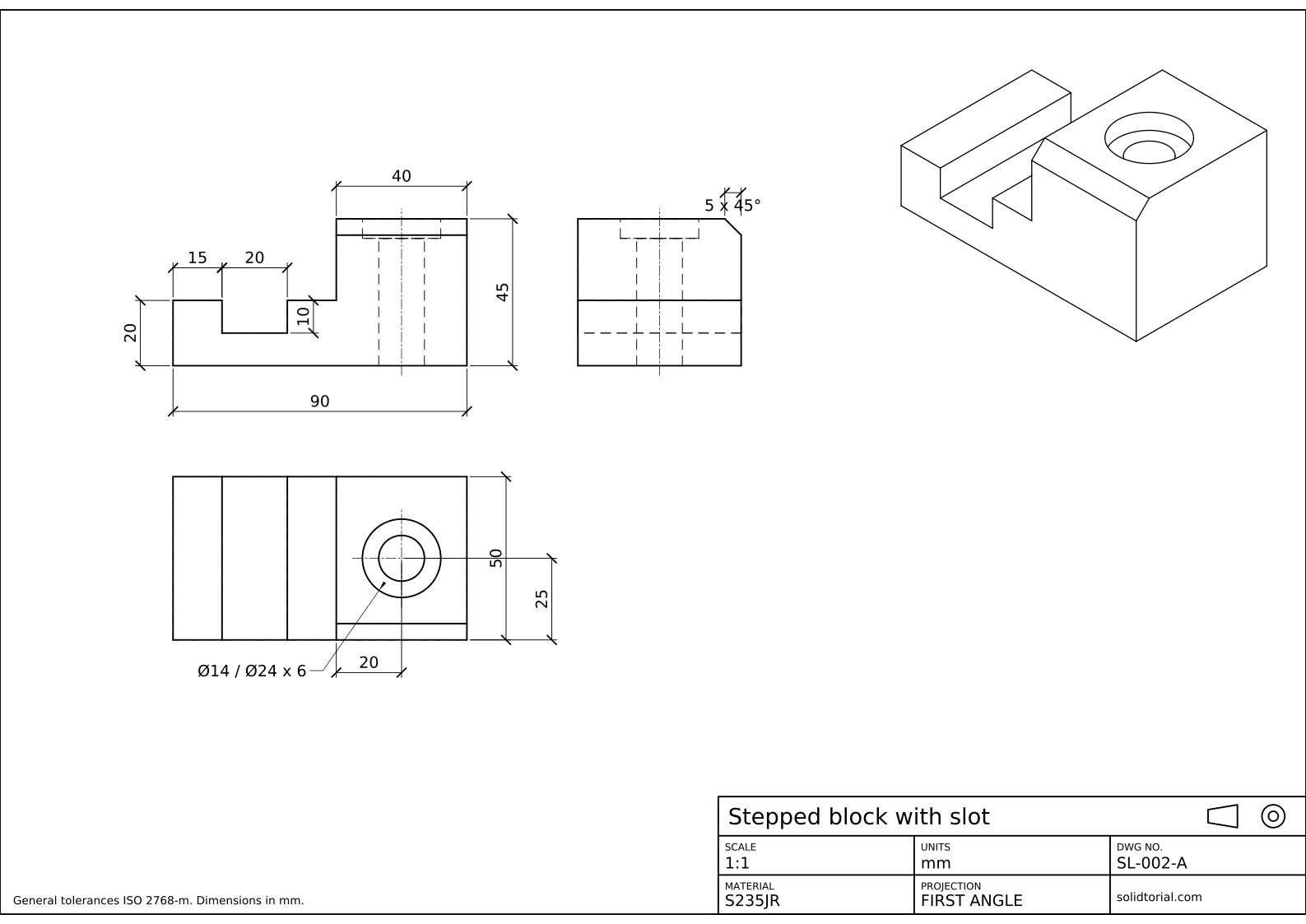
Metric sheet, ISO first-angle projection, scale 1:1 on A3. Click the drawing to open it full size.
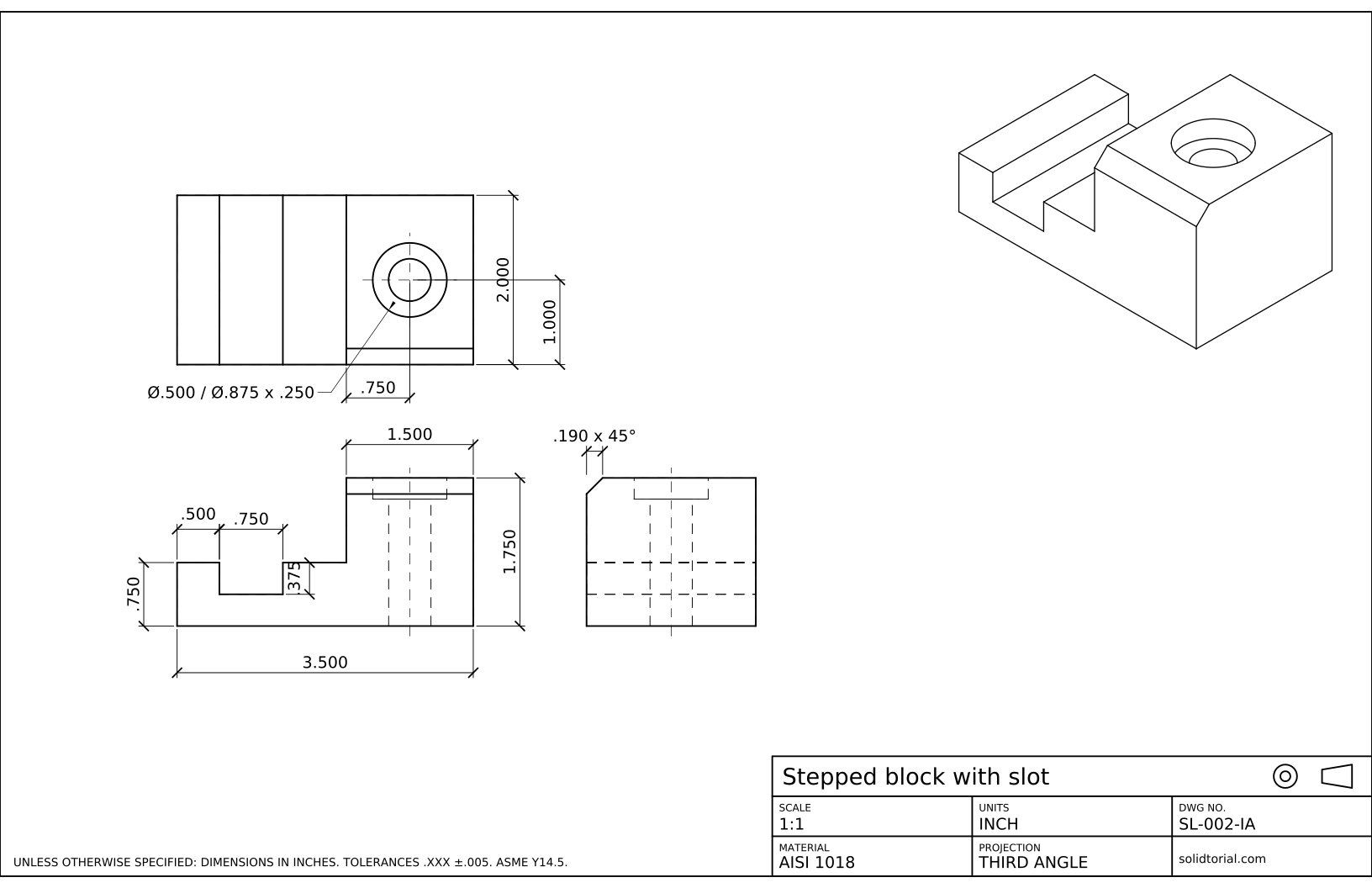
Inch sheet, third-angle projection (ASME), scale 1:1 on ANSI B. Click the drawing to open it full size.
AutoCAD commands for orthographic views
| Command | Alias | What it does here |
|---|---|---|
LINE | L | Draw the outlines of the views with relative coordinates. |
XLINE | XL | Project construction lines from one view to the next, vertical, horizontal or at 45°. |
OFFSET | O | Place the slot, the step and the hole at their distances. |
TRIM | TR | Cut the construction lines back to the outlines. |
CIRCLE | C | Draw the hole and the counterbore in the top view. |
LAYER | LA | Keep visible, hidden, center and construction lines apart. |
How to draw orthographic views in AutoCAD, step by step
-
Choose and draw the front view
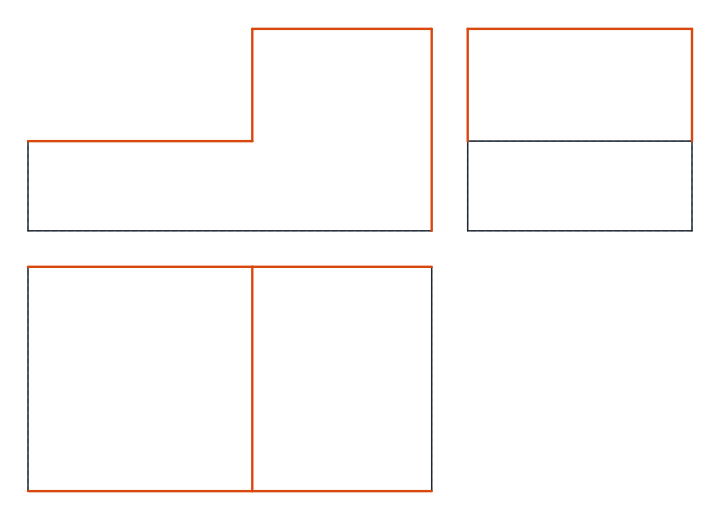
The front view should show the most characteristic shape of the part. Here that is the profile with the step and the slot, seen along the depth. Draw it on the VISIBLE layer: 90 long, 20 high on the left and 45 high over the last 40 mm, with the slot cut 20 wide and 10 deep starting 15 mm from the left end.
The counterbored hole goes down through the right part, centered on its 40 mm length. From the front it is hidden: on the HIDDEN layer, draw the Ø14 hole as two lines through the whole 45 mm and the Ø24 counterbore as two lines 6 mm deep from the top, with a center line on the axis.
-
Project the top view below it
In first angle projection the top view goes below the front view. Create a CONSTRUCTION layer and make it current. Type
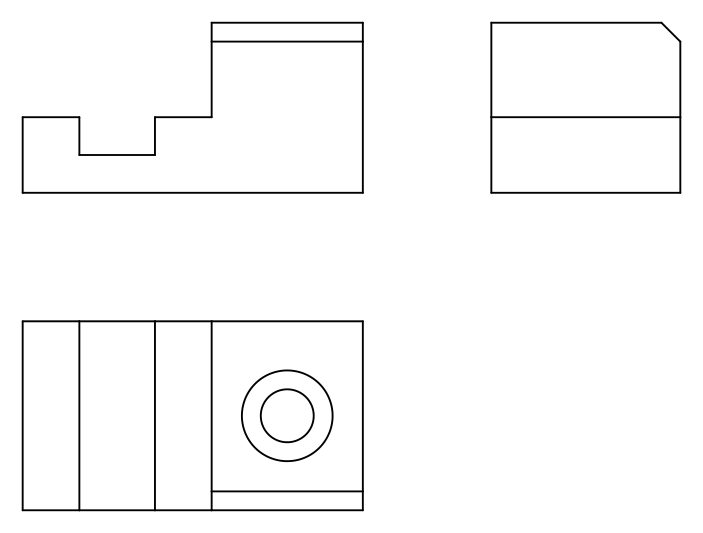
XL, choose Ver and click every vertical edge of the front view: the ends, the step and both sides of the slot. The lines run down across the sheet and fix the width of everything in the top view.Draw the top view 50 deep between those lines. From above, the slot shows as two visible lines across the depth, the step as one more, and the chamfer as a line 5 mm from the front edge over the right part. The hole and the counterbore are seen from their open end, as two visible circles, Ø14 and Ø24, at the center of the right part and of the depth.
-
Carry the depths to the side view with a 45° line
The view from the left goes on the right of the front view. Its heights come straight across from the front view with horizontal construction lines (
XL, Hor). Its depths come from the top view: draw anXLat 45° through the corner where the two views would meet, then project each depth of the top view horizontally to the 45° line and turn it upward from there. The 50 mm depth, the 5 mm chamfer and the hole positions all arrive in the right place.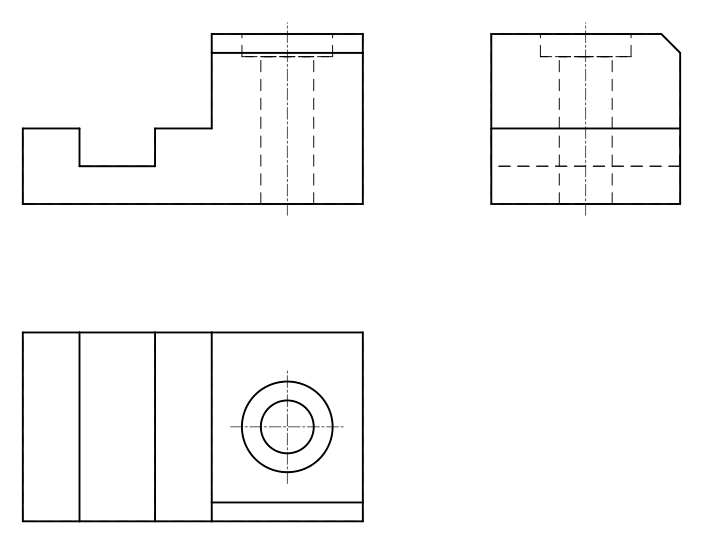
-
Draw the side view and decide what is hidden
Seen from the left, the block is 50 wide and 45 high, with a line across at 20 where the low part ends and the tall part continues behind it. The chamfer cuts the top front corner, 5 x 45°. The slot is inside the low part, so its bottom is a hidden line at a height of 10; the hole and counterbore are hidden too. Trim and delete the construction lines, then freeze the CONSTRUCTION layer.
Dimension each feature in the view that shows it best: the profile in the front view, the hole position and the counterbore note Ø14 / Ø24 x 6 in the top view, the chamfer in the side view.
Orthographic drawing practice: a larger stepped block
Draw a larger block in three views on your own: 100 long, 60 deep, 22 high on the left with a slot 24 wide and 12 deep starting 18 mm from the left end, and a right part 45 long rising to 50 with a counterbored hole Ø16, counterbore Ø28 x 7, at its center and a 6 x 45° chamfer on its top front edge. Project the views; do not measure them separately.
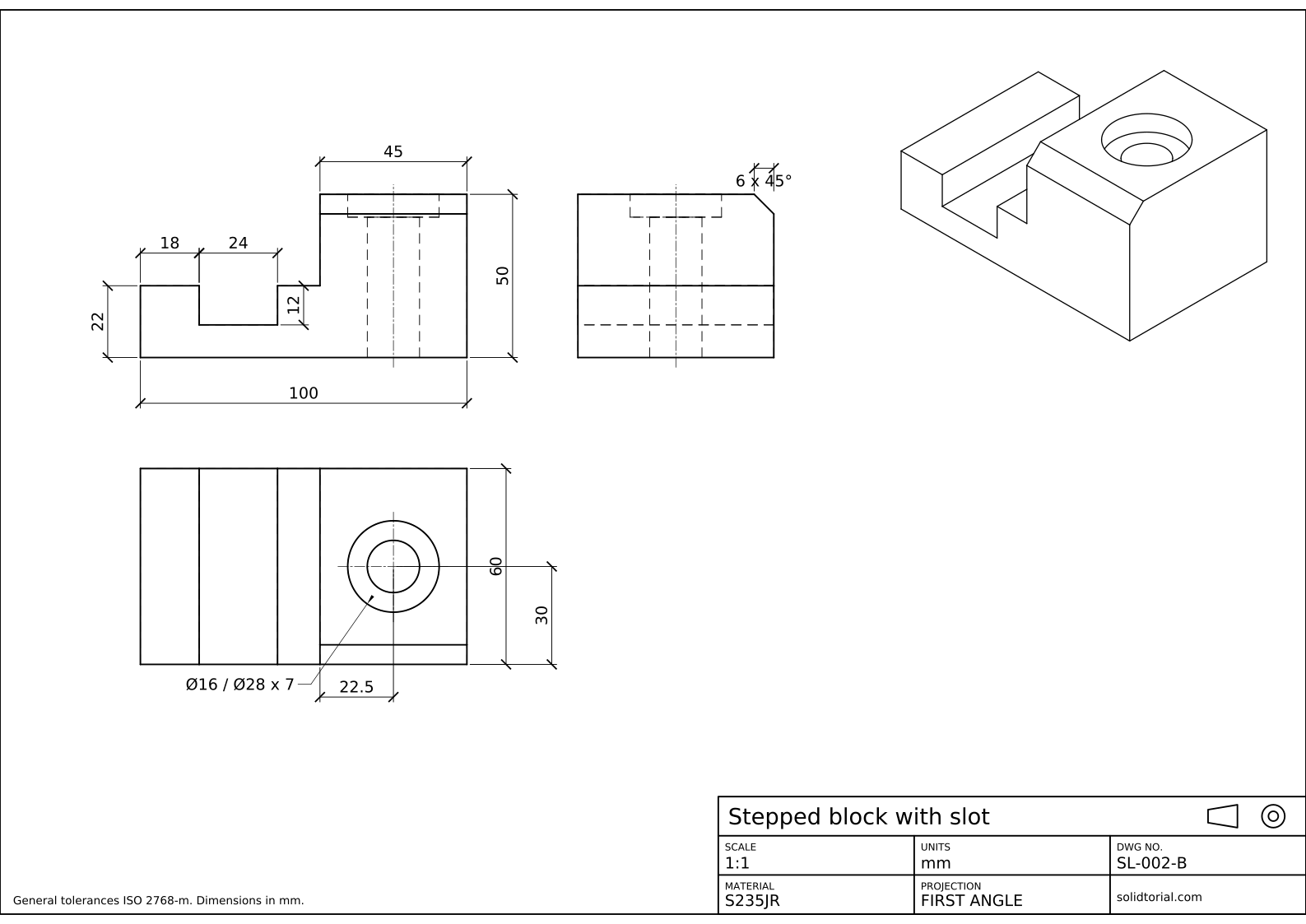
Metric sheet, ISO first-angle projection, scale 1:1 on A3. Click the drawing to open it full size.
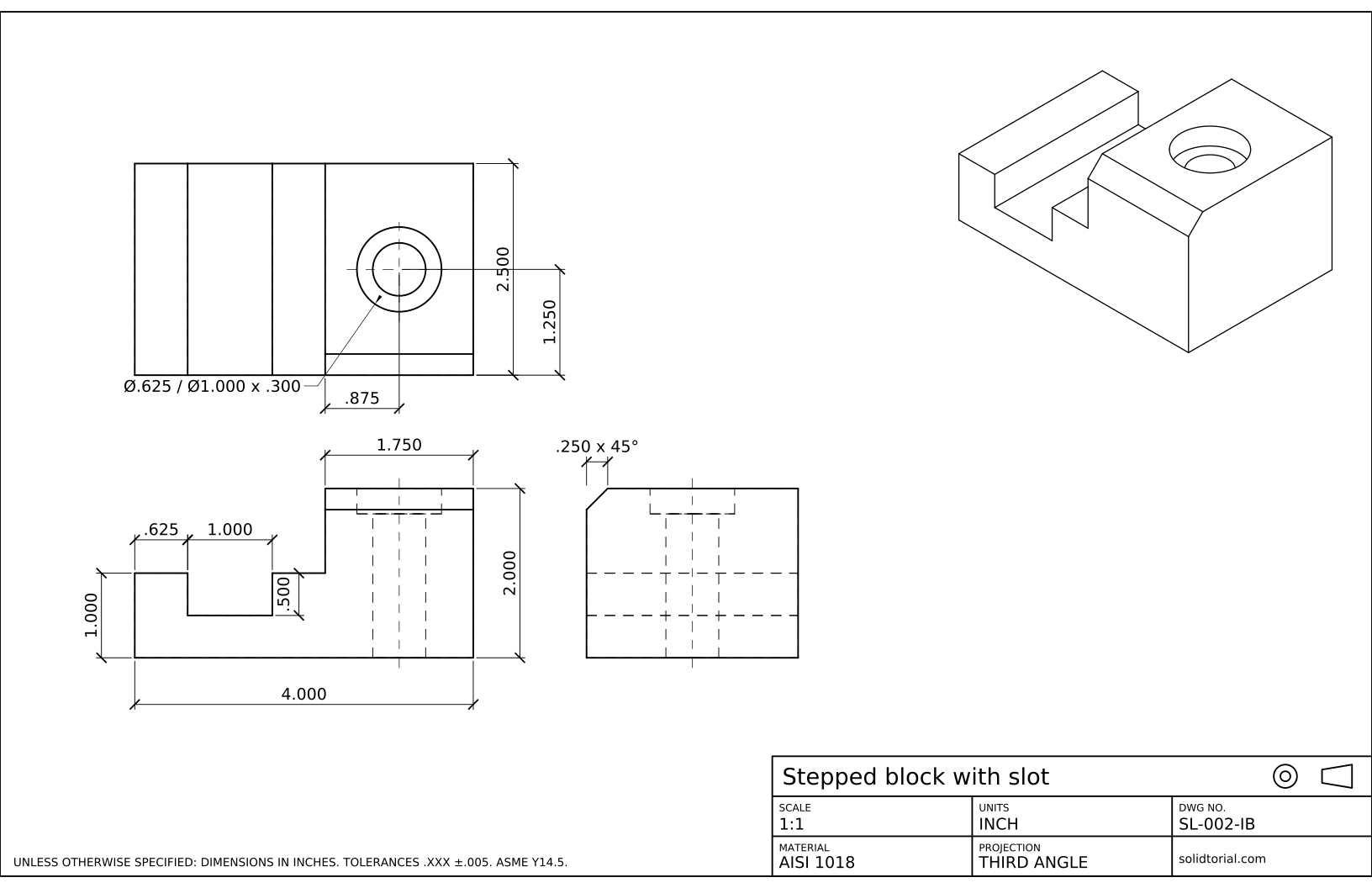
Inch sheet, third-angle projection (ASME), scale 1:1 on ANSI B. Click the drawing to open it full size.
Show the solution files
Metric sheet, ISO first-angle projection, scale 1:1 on A3. Click the drawing to open it full size.
Inch sheet, third-angle projection (ASME), scale 1:1 on ANSI B. Click the drawing to open it full size.
Common mistakes in orthographic projection drawing
- Views that do not line up. A top view drawn by measuring, instead of projecting, ends up a little off. Project with construction lines and the alignment is automatic. If a view has to move, use M (MOVE) with Ortho on, so it slides only along its projection line.
- Mixing up depth directions. In the side view, the front of the part faces the front view. The 45° line keeps the depths turned the right way.
- Hidden lines left out. A slot or hole that does not show in a view still needs its hidden lines there, unless another view already shows it clearly and the drawing would become cluttered.
- Visible lines drawn as hidden. The counterbore is hidden from the front but visible from above. Decide for each view separately.
- Construction lines left in the drawing. Put them on their own layer and freeze or delete it when the views are done.
Orthographic projection in AutoCAD: why three views
One view gives two of the three sizes of a part. The front view of this block gives its length and its heights, the top view its length and its depth, and the side view its depth and its heights. With three views, every size appears at least once at its true length, and features hidden in one view are seen in another.
Some parts need fewer views: a flat plate is fully described by one view and a note of its thickness, as in the first lessons. Others need more, or a section, as later lessons show.
Orthographic views and their placement
Where each view goes depends on the projection system. This sheet uses first angle, with the top view below and the left view on the right of the front view. American drawings use third angle, with the top view above and the right view on the right. Both are explained, with a part each, in the first angle and third angle projection lessons. The inch version of this block is drawn in third angle on a 3.500 x 2.000 footprint.
Orthographic projection questions
What is an orthographic drawing?
A drawing that describes an object with separate flat views, each looking straight at it along one axis, usually the front, top and side views.
Does AutoCAD have an orthographic view command?
For 2D drafting, you draw the views yourself and project them with construction lines as in this lesson. From a 3D model, VIEWBASE projects the views automatically, which the 3D to 2D lesson shows.
What is the 45° line used for?
It transfers depths from the top view to the side view: a line projected from the top view meets the 45° line and turns 90°, so the depth arrives at the same distance in the side view.
How do I choose the front view?
Pick the side that shows the most characteristic shape of the part with the fewest hidden lines, and that matches how the part sits or is assembled.
Updated: August 30, 2026