

What this isometric drawing lesson covers
- Turn on isometric drafting and switch between the three isoplanes.
- Draw edges along the isometric axes with polar coordinates and Ortho.
- Draw a non-isometric edge by locating its two ends first.
- Draw a hole on the top face as an isocircle and dimension in isometric.
An isometric drawing shows a part in one view with three of its faces visible, the way it looks on a catalog page or an assembly sheet. It is still a flat 2D drawing: its three axes are drawn at 30°, 150° and 90°, and lengths along them are measured at full size. AutoCAD has a drafting mode that aligns the cursor to those axes.
The part is a block 80 x 50 x 40 mm. Its front face is only 20 mm high, because a sloping face rises from it to the full 40 mm height 25 mm further back. At the back left a notch 30 mm long, 25 deep and 15 high is cut out of the top, and a Ø12 hole goes down through the flat part of the top. The sheet gives the three orthographic views; the isometric is what you draw from them.
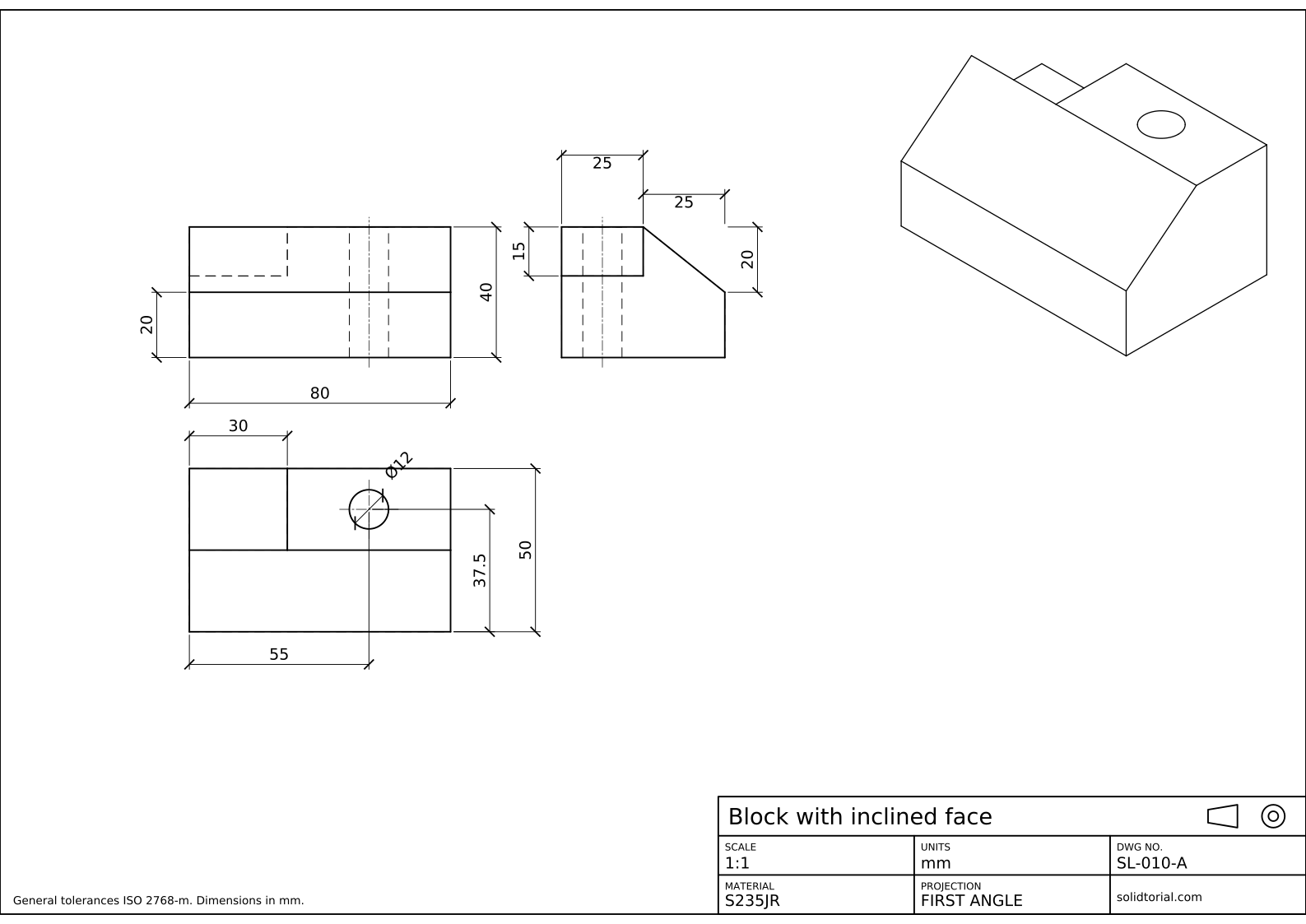
Metric sheet, ISO first-angle projection, scale 1:1 on A3. Click the drawing to open it full size.
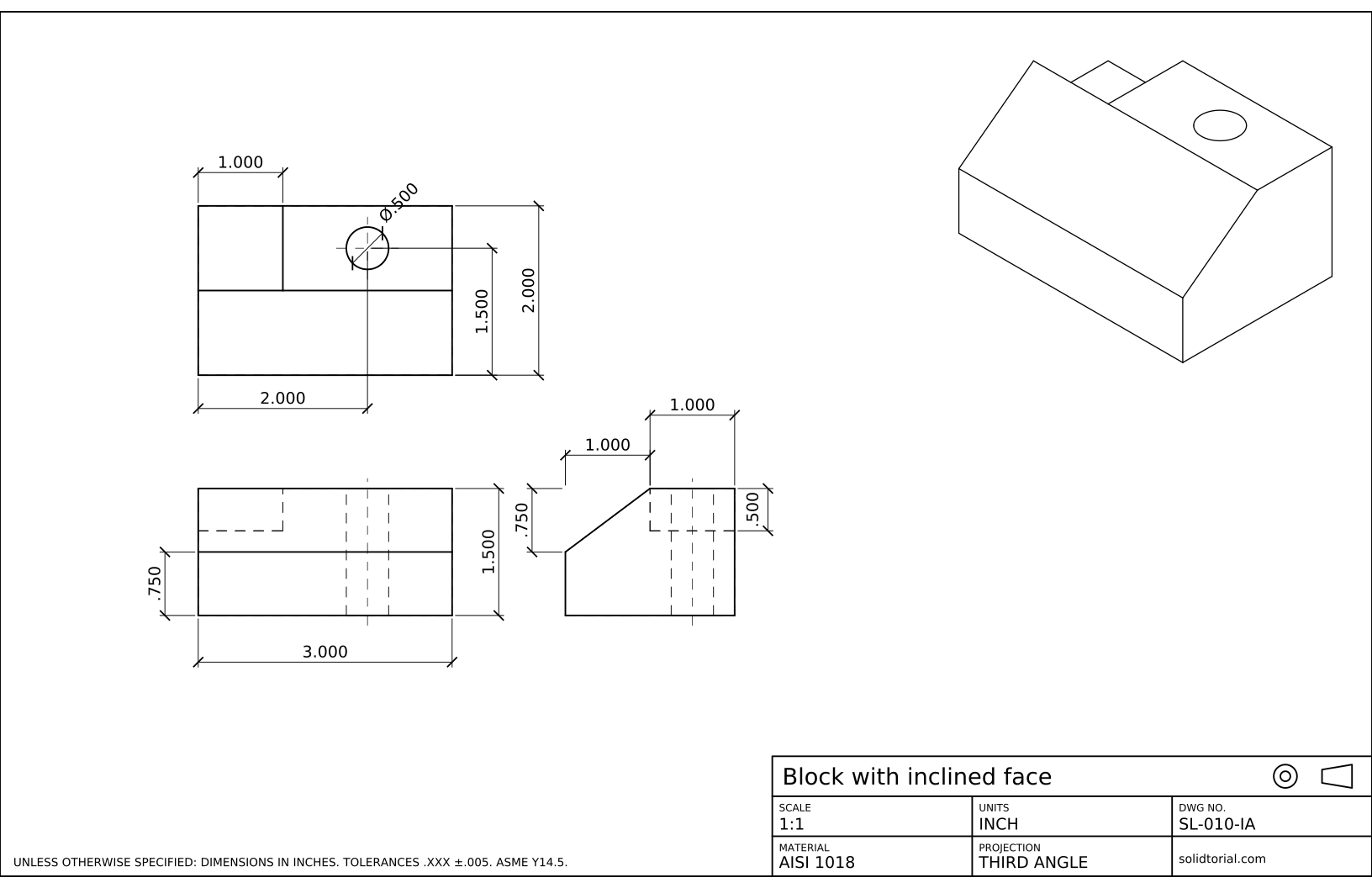
Inch sheet, third-angle projection (ASME), scale 1:1 on ANSI B. Click the drawing to open it full size.
AutoCAD isometric commands in this exercise
| Command | Alias | What it does here |
|---|---|---|
ISODRAFT | · | Turn on isometric drafting and choose the current isoplane. |
LINE | L | Draw edges with polar coordinates at 30°, 90°, 150° and 210°. |
ELLIPSE | EL | Draw the hole as an isocircle with the Isocircle option. |
COPY | CO | Copy edges along an isometric axis to build parallel faces. |
TRIM | TR | Remove the edges that are hidden behind the faces. |
DIMALIGNED | · | Dimension along the isometric axes. |
How to make an isometric drawing in AutoCAD, step by step
-
Turn on isometric drafting
Type
ISODRAFTand choose an isoplane, or click Isometric Drafting on the status bar. The crosshair turns to follow the isometric axes. Press F5 to cycle through the three isoplanes, Left, Top and Right: each one aligns the cursor with the pair of axes of one face. With Ortho on (F8), lines snap to the axes of the current isoplane.In this drawing the length of the block runs along 30°, its depth along 150° and its height straight up, at 90°.
-
Draw the box that encloses the part
Start at the bottom front left corner. Type
Land draw the bottom front edge with@80<30, then the right bottom edge with@50<150. Go back to the start and draw the left bottom edge, also@50<150. The vertical edges are 40 high,@40<90, except the two at the front, which you will cut down in the next step.Copy the bottom edges up 40 with
COand@40<90to make the top of the box. This box is a guide: the inclined face and the notch are cut out of it.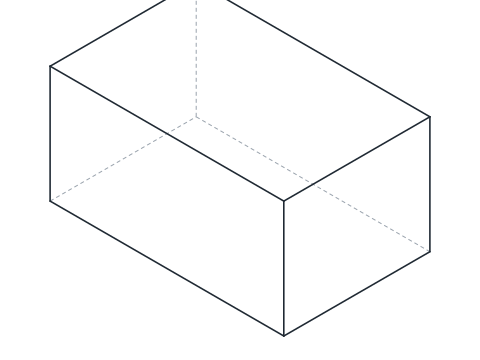
-
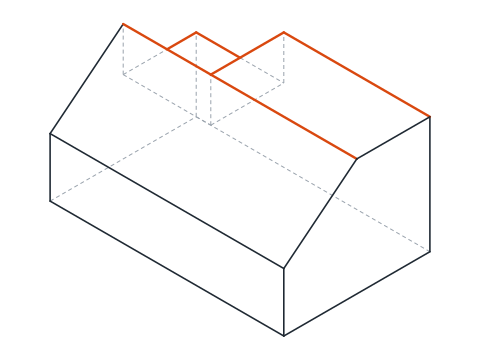
Draw the inclined face from its two ends
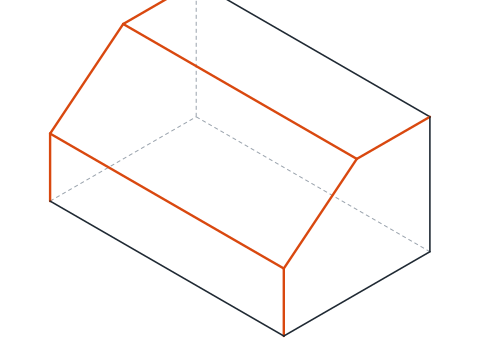
The sloping face is not parallel to any axis, so it cannot be drawn by length and angle. Locate its ends on lines that are. On the left end of the block, the face starts 20 mm up the front edge and ends at the top, 25 mm back along the depth. Mark the first point with
@20<90from the bottom front corner, and the second by going 25 along the top left edge from its front end. Join the two points with a line: that is the slope seen on the left end. Copy it 80 mm along 30° for the right end, and join the corresponding ends.This is the general rule of isometric drawing: lines along the axes are measured, every other line is drawn between points found on the axes.
-
Cut the notch at the back
The notch is at the back left corner of the top: 30 mm along the length from the left end, from 25 mm back to the rear face, and 15 mm deep. Draw its edges from the top back left corner: 30 along 30°, 25 toward the front along 330°, 15 down along 270°, and the matching edges on the floor of the notch. Trim the parts of the box edges that the notch removes.
-
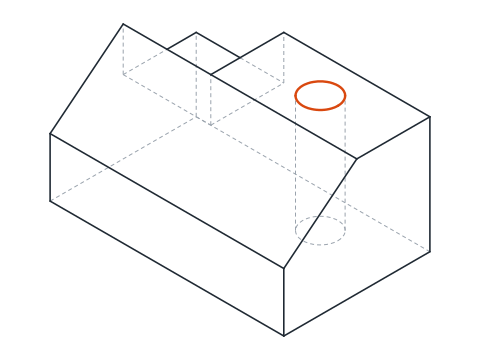
Draw the hole as an isocircle
The hole is on the top face, so press F5 until the isoplane is Top. Find its center: 55 mm along the length from the left end and 37.5 mm back from the front, on the top face. Type
EL, choose Isocircle, pick the center, typeDand enter 12. AutoCAD draws the ellipse that a Ø12 circle becomes on the top face.The Isocircle option only appears while isometric drafting is on.
-
Remove hidden edges and dimension in isometric
Isometric drawings show only visible edges. Trim the guide lines and every edge hidden behind a face: the back bottom corner, the parts of the box above the slope and inside the notch.
To dimension it, use
DIMALIGNEDalong each axis, then tilt the extension lines with DIMEDIT and its Oblique option, 30° or −30°, so they follow the axes too. A text style with an oblique angle of ±30° makes the numbers lie in the plane of each face.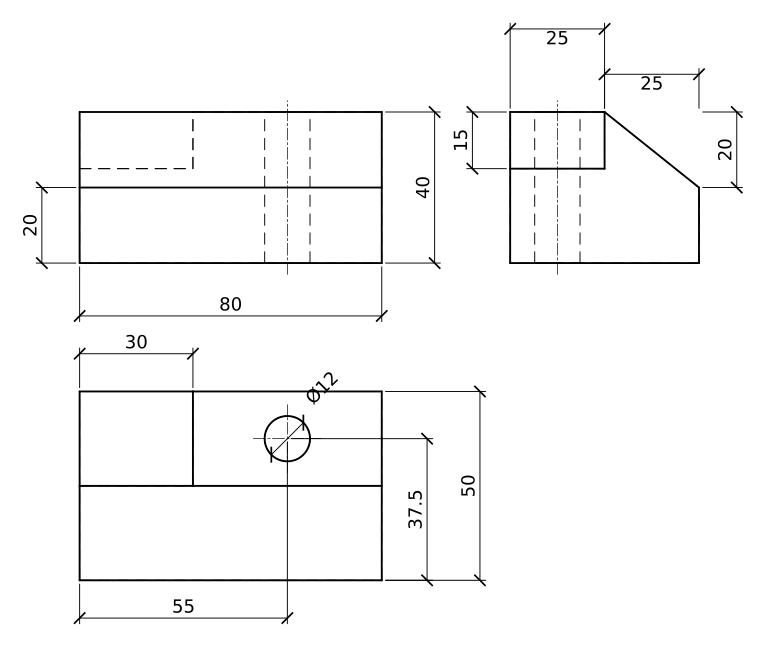
CAD isometric drawing practice: a larger block
Draw a larger block in isometric on your own: 90 x 60 x 45, a front face 23 mm high sloping up to full height 30 mm back, a notch 35 long, 30 deep and 18 high at the back left, and a Ø14 hole 62.5 mm from the left end and 45 mm from the front. Draw the slope from its end points and the hole as an isocircle on the Top isoplane.
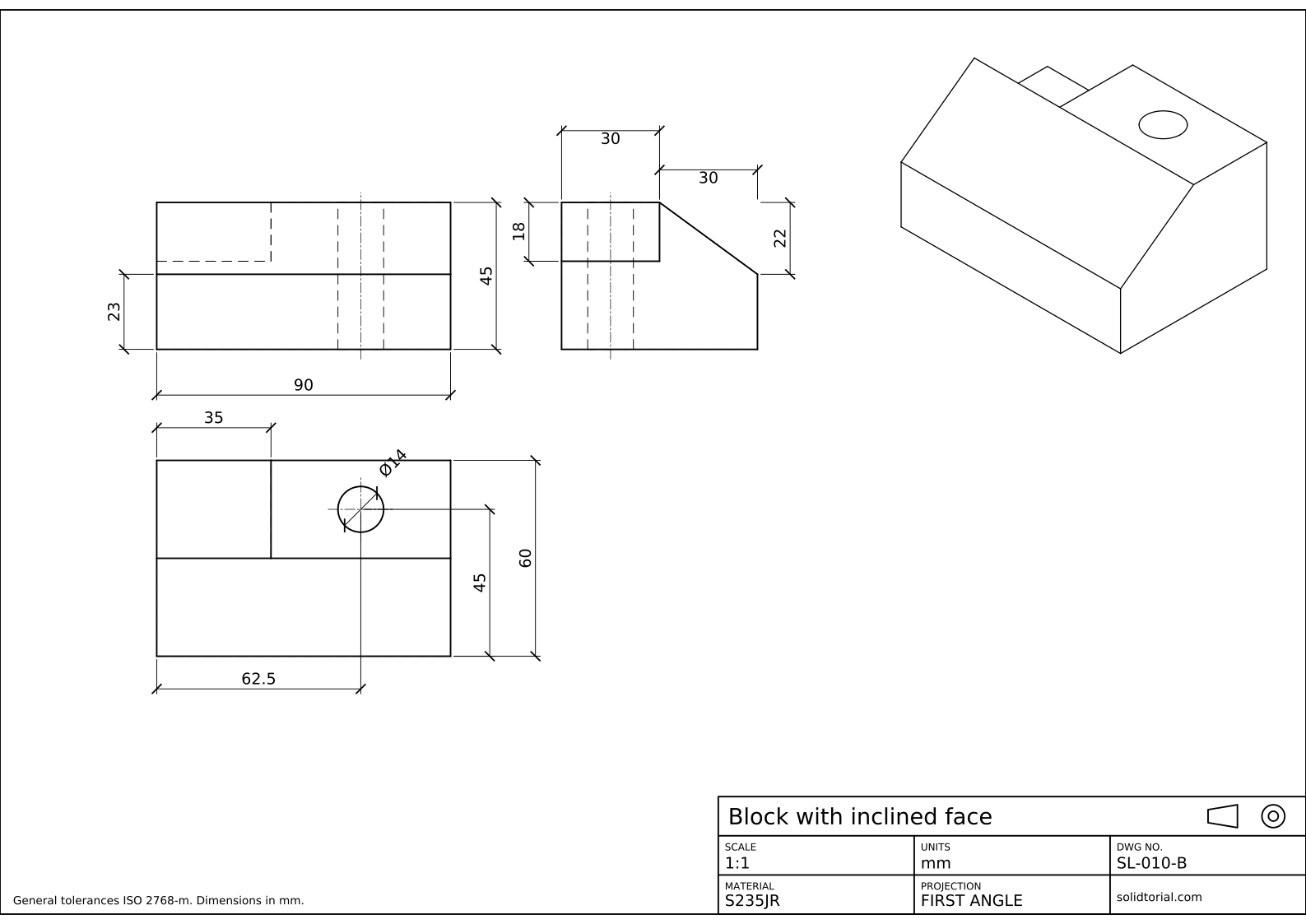
Metric sheet, ISO first-angle projection, scale 1:1 on A3. Click the drawing to open it full size.
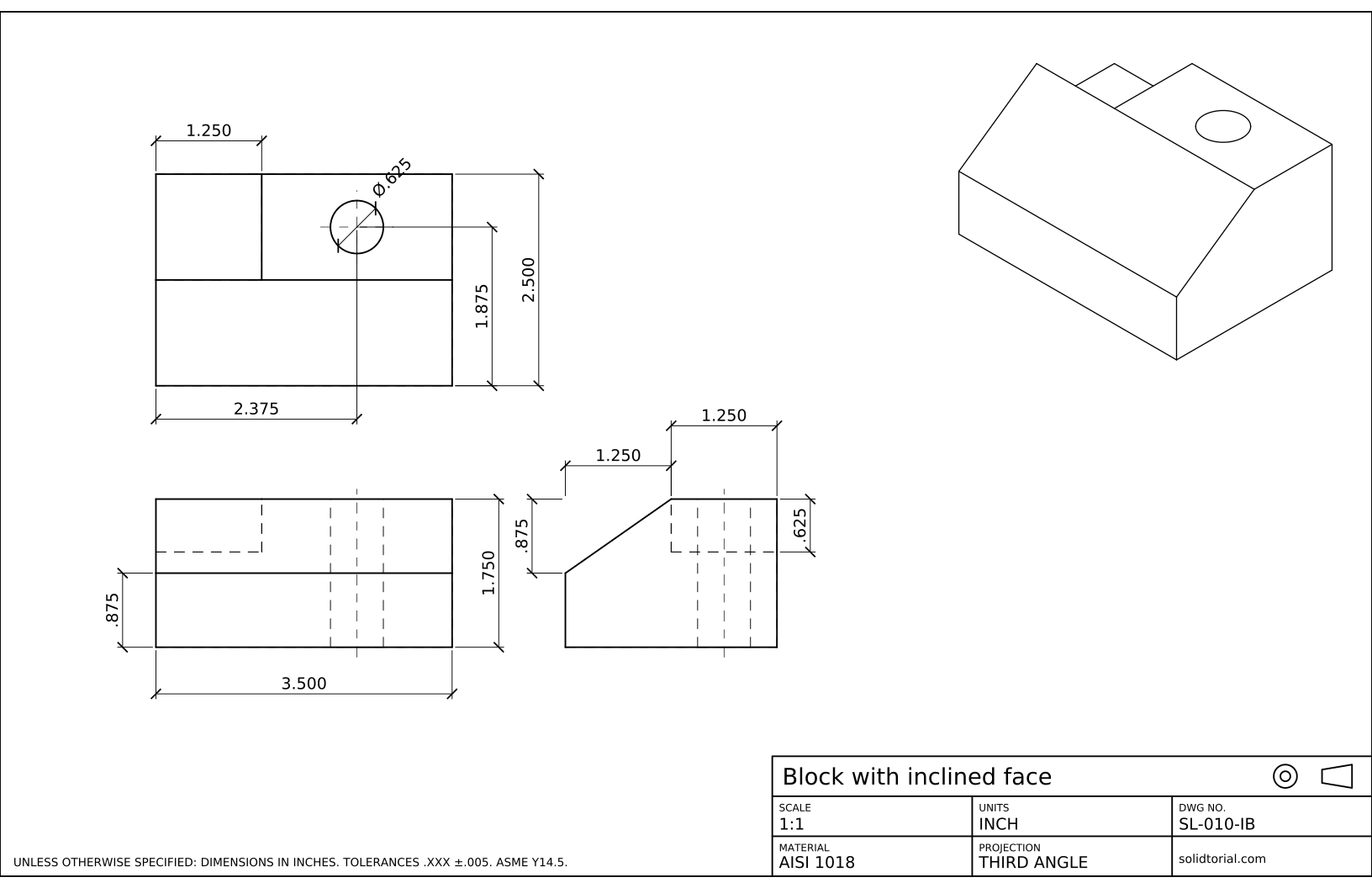
Inch sheet, third-angle projection (ASME), scale 1:1 on ANSI B. Click the drawing to open it full size.
Show the solution files
Metric sheet, ISO first-angle projection, scale 1:1 on A3. Click the drawing to open it full size.
Inch sheet, third-angle projection (ASME), scale 1:1 on ANSI B. Click the drawing to open it full size.
Common isometric drawing mistakes in CAD
- Measuring along a sloping line. Only lines parallel to the axes are drawn at true length. The slope is longer than its 25 mm and 20 mm, so draw it between its end points.
- Drawing the hole with CIRCLE. A circle on a face of the part is an ellipse in isometric. Use ELLIPSE with Isocircle.
- Isocircle on the wrong isoplane. The ellipse takes the orientation of the current isoplane. Switch to Top with F5 before drawing a hole in the top face.
- Isocircle option missing. It appears only while isometric drafting is on. Turn it on with ISODRAFT or the status bar.
- Hidden lines left in. An isometric pictorial shows what you see. Trim the edges behind the faces.
Isometric drawing of a circle: the isocircle
A circle on any face of an isometric drawing becomes an ellipse. Its long axis lies across the face, at 90° to the axis that is perpendicular to that face, and its proportions are fixed. The Isocircle option of ELLIPSE draws exactly that ellipse from a center and a radius or diameter, on the current isoplane. Holes on the left and right faces are drawn the same way after switching isoplanes with F5.
AutoCAD isometric projection vs isometric drawing
In a true isometric projection, lengths along the axes are shortened to about 82% of their real size, because the part is seen at an angle. An isometric drawing ignores that and draws them at full size, which makes it larger but much easier to draw and measure. AutoCAD isometric drafting produces isometric drawings, and so does this lesson. For a part whose round features are all on one face, the oblique drawing lesson shows a faster pictorial.
The inch version of the block is 3.000 x 2.000 x 1.500 with a Ø.500 hole.
AutoCAD isometric questions
How do I turn on isometric drawing in AutoCAD?
Type ISODRAFT and choose an isoplane, or click Isometric Drafting on the status bar. F5 then switches between the left, top and right isoplanes.
How do I draw a circle in isometric in AutoCAD?
Set the isoplane of the face, start ELLIPSE, choose Isocircle, pick the center and give the radius or diameter.
Is an AutoCAD isometric drawing a 3D model?
No. It is a 2D drawing whose lines follow the isometric axes. It cannot be rotated to another view; for that you need a 3D model, as in the later lessons.
How do I dimension an isometric drawing?
Use DIMALIGNED along each axis, then DIMEDIT with the Oblique option to tilt the extension lines to 30° or −30°, and a text style with an oblique angle so the text lies in the face.
Updated: September 8, 2026