

What this AutoCAD offset lesson covers
- Draw a rectangle with rounded corners in one command.
- Offset a closed outline to create a band of constant width.
- Place holes on center lines created with OFFSET.
- Trim lines back to a boundary with TRIM.
OFFSET makes a copy of an object at a fixed distance from it: a parallel line, a concentric circle, or a polyline that follows the original at the same gap all the way round. Any part with a wall, a band or evenly spaced lines is drawn faster with OFFSET than line by line.
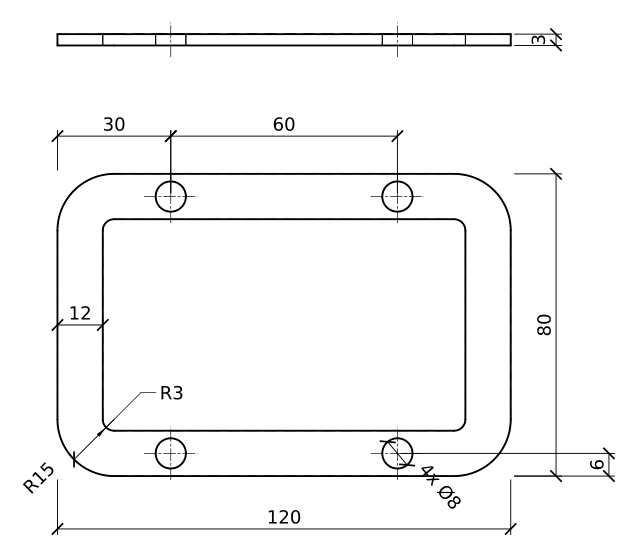
The part is a flat gasket 3 mm thick. Its outline is 120 x 80 mm with R15 corners; inside, a window leaves a band 12 mm wide all round, and four Ø8 bolt holes sit on the middle of the band, 60 mm apart along the long sides.
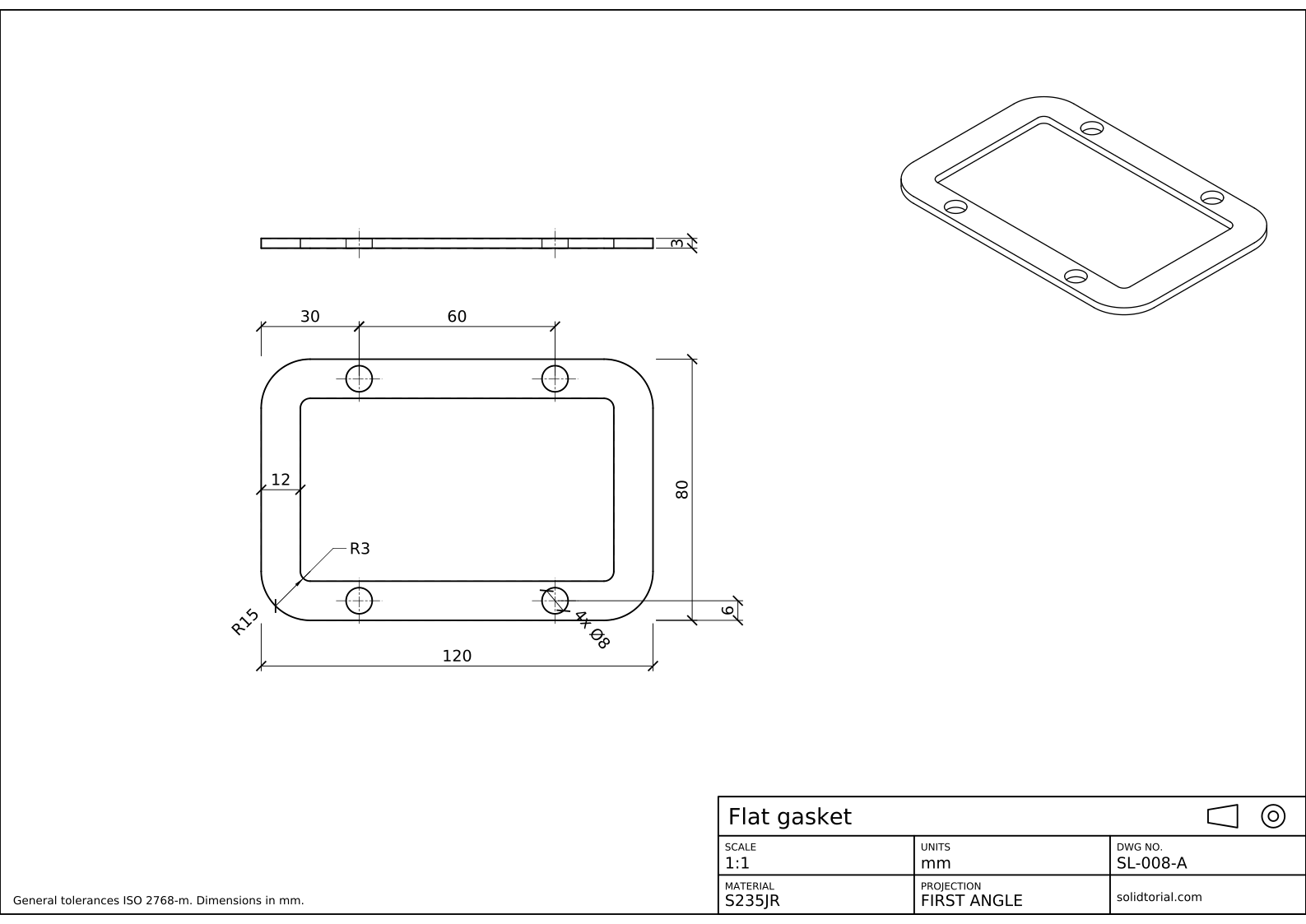
Metric sheet, ISO first-angle projection, scale 1:1 on A3. Click the drawing to open it full size.
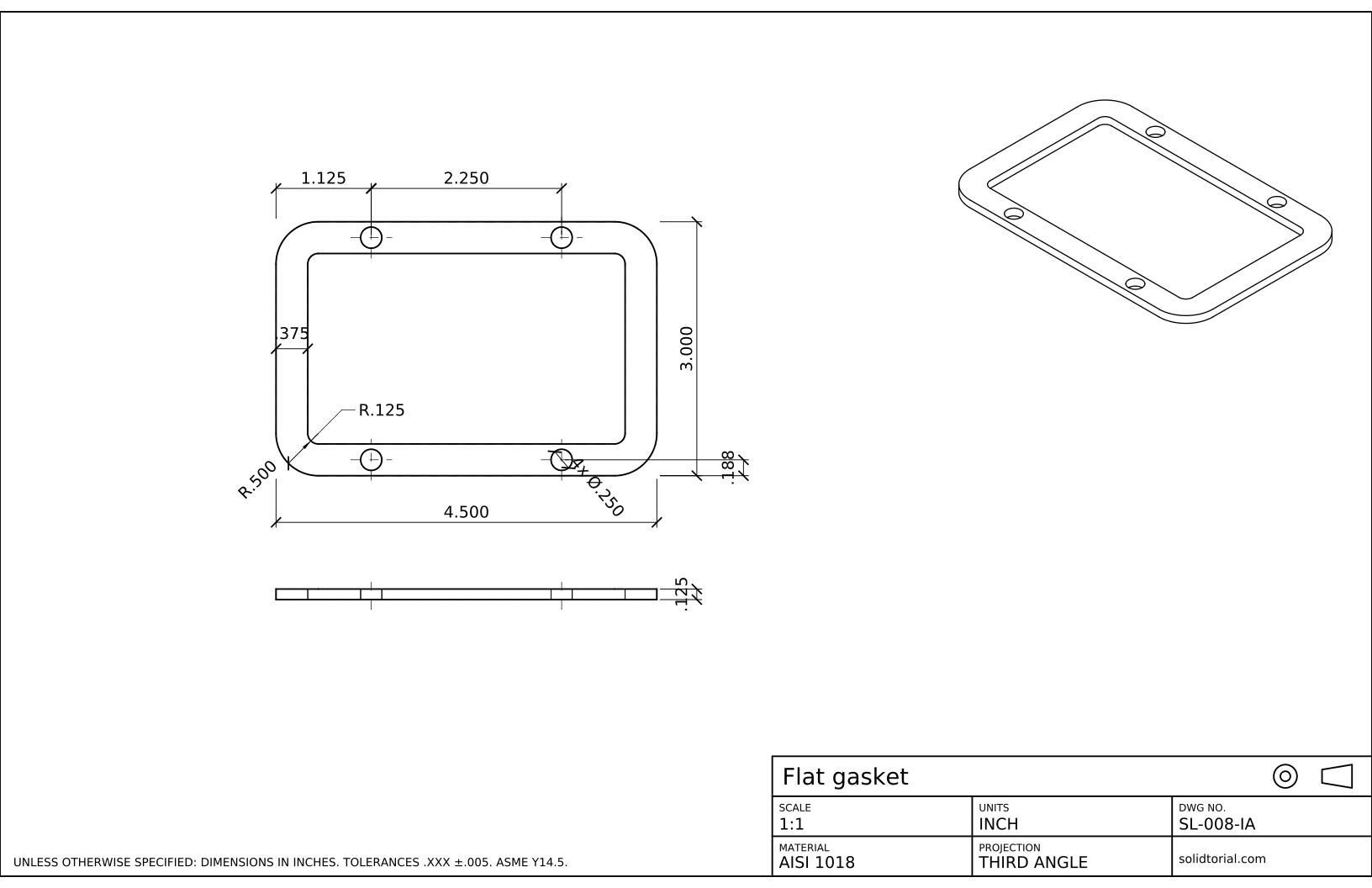
Inch sheet, third-angle projection (ASME), scale 1:1 on ANSI B. Click the drawing to open it full size.
The AutoCAD offset command and the rest of this exercise
| Command | Alias | What it does here |
|---|---|---|
RECTANG | REC | Draw the outline, 120 x 80, with R15 corners using the Fillet option. |
OFFSET | O | Offset the outline 12 mm inward for the window, and the center lines for the holes. |
LINE | L | Draw the two main center lines of the gasket. |
CIRCLE | C | Draw the four Ø8 holes at the crossings of the center lines. |
TRIM | TR | Cut the center lines back where they cross the window. |
How to draw the gasket with OFFSET and TRIM, step by step
-
Draw the outline with rounded corners
Type
REC, choose the Fillet option and enter 15. Pick the first corner at0,0and the opposite one at@120,80. The rectangle comes out with its four corners already rounded, and it is a single closed polyline, which matters for the next step.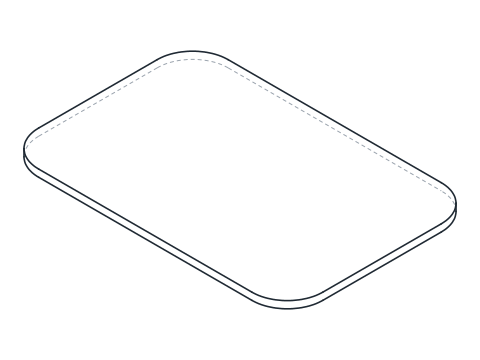
-
Offset the outline to make the window
Type
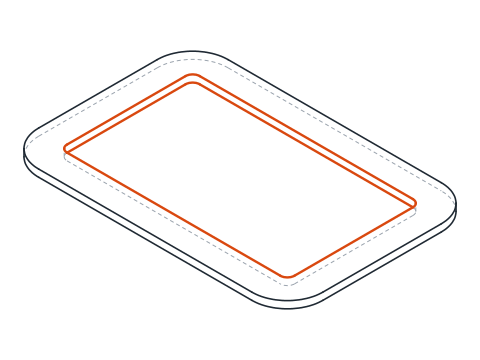
O, enter 12 as the offset distance, pick the outline and click anywhere inside it. AutoCAD draws a second rectangle 12 mm inside the first, 96 x 56. Its corners are rounded too, with a radius of 15 − 12 = 3: offsetting an arc inward reduces its radius by the offset distance. That gives the R3 of the window without any extra work.Press Enter to end the command. OFFSET remembers the last distance, so the next time you run it, 12 is offered as the default.
-
Draw the center lines with OFFSET
On the CENTER layer, draw a horizontal line through the middle of the gasket, at y = 40, slightly longer than the gasket, and a vertical one at x = 60. Now offset them: the horizontal line 34 up and 34 down gives the two hole rows at y = 74 and y = 6, in the middle of the band. The vertical line 30 left and 30 right gives the hole positions at x = 30 and x = 90.
Delete or keep the two middle lines as you prefer; the sheet keeps only the lines through the holes.
-
Draw the holes and trim the center lines
Type
C, pick an intersection of center lines with the Intersection snap, typeDand enter 8. Repeat at the other three crossings, or copy the first hole.The vertical center lines run across the window, where there is no material. Type
TRand click the parts of each vertical line that lie inside the window: with the default Quick mode, TRIM cuts each piece back to the nearest objects, here the edge of the window. What is left are short center lines through each hole.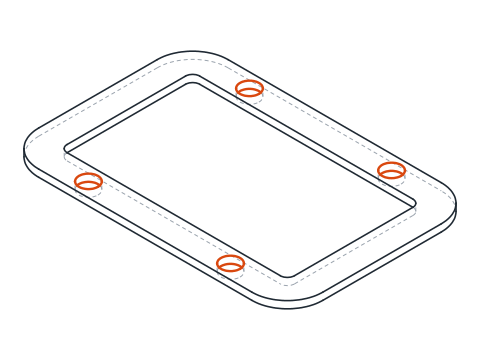
-
Draw the edge view and dimension the gasket
Draw the edge view above the gasket, 120 x 3, with the hidden lines of the holes. Dimension the outline, 120 x 80 and R15, the window corners R3 and the band width 12. Give the holes by their position, 30 from the end and 60 apart, 6 from the edge, and their size as 4x Ø8. The thickness, 3, goes on the edge view.
AutoCAD offset practice: a larger gasket
Draw a larger gasket on your own: 140 x 90 with R18 corners, a band 14 mm wide, and four Ø9 holes in the middle of the band, 35 mm from the ends and 70 mm apart, 3 mm thick. Check the radius of the window corners after offsetting: it should be 4.
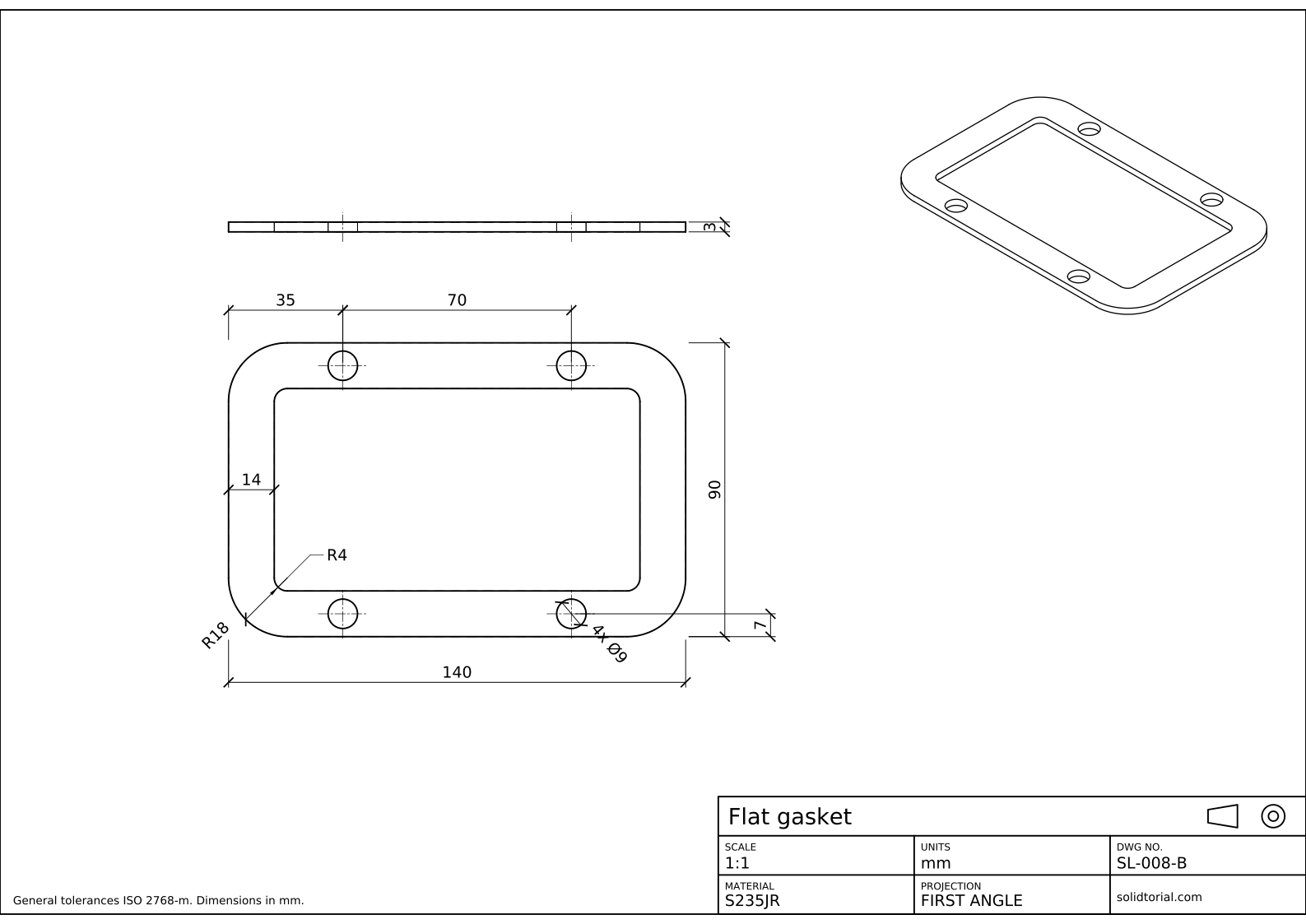
Metric sheet, ISO first-angle projection, scale 1:1 on A3. Click the drawing to open it full size.
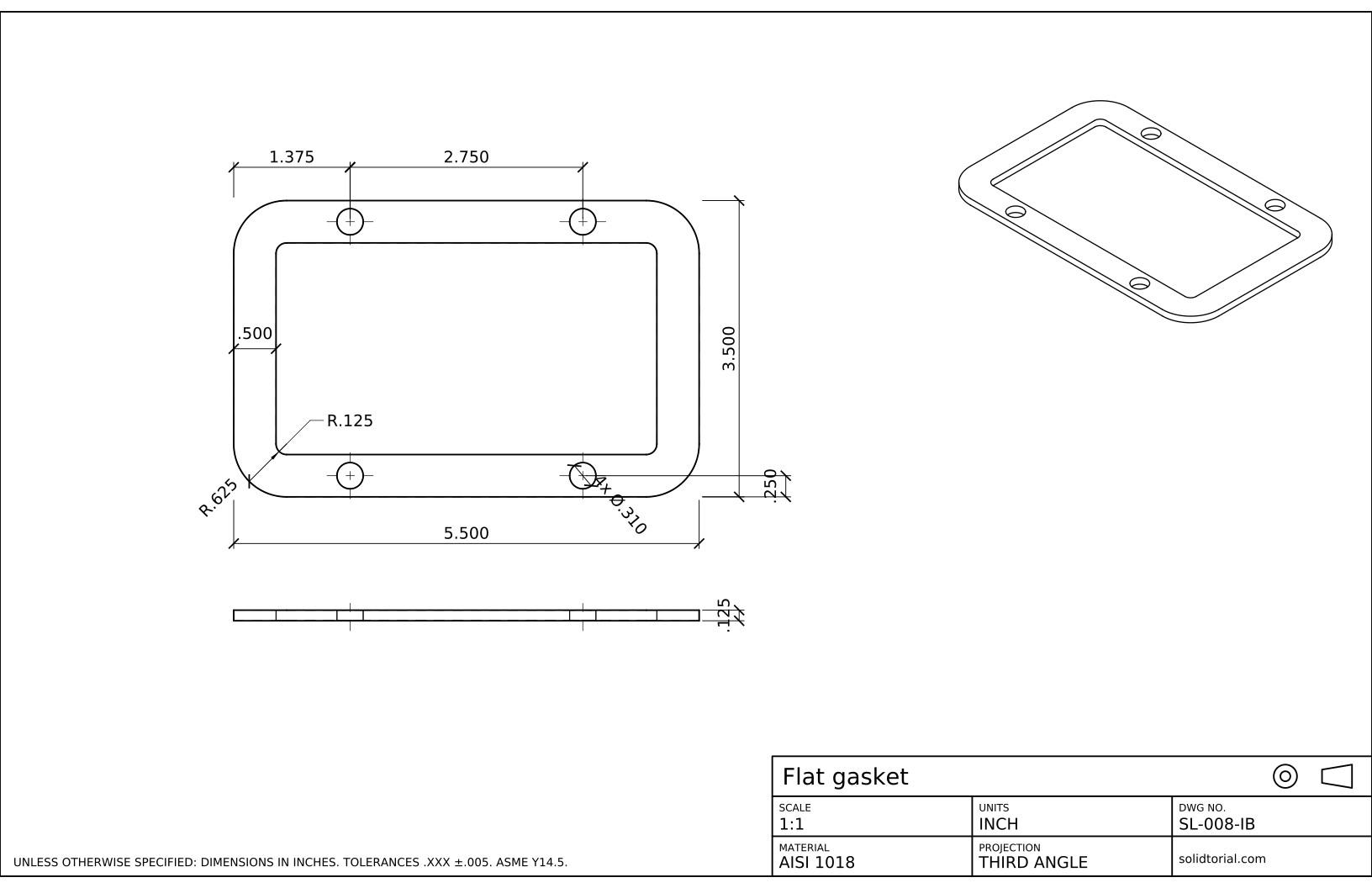
Inch sheet, third-angle projection (ASME), scale 1:1 on ANSI B. Click the drawing to open it full size.
Show the solution files
Metric sheet, ISO first-angle projection, scale 1:1 on A3. Click the drawing to open it full size.
Inch sheet, third-angle projection (ASME), scale 1:1 on ANSI B. Click the drawing to open it full size.
AutoCAD offset not working? Common causes
- Offsetting separate lines instead of a polyline. Four lines and four arcs offset one by one leave gaps or overlaps at the corners. Draw the outline as one polyline, as RECTANG does.
- Offset to the wrong side. The side is the one you click after selecting the object. Click inside the outline for the window.
- Offsetting more than the radius. An arc of R15 offset inward by more than 15 cannot exist, so AutoCAD changes the corner shape. Keep the band narrower than the corner radius.
- TRIM cuts the wrong piece. Click on the part to remove, not on the part to keep. Undo with U if a piece disappears by mistake.
- Center lines left on the object layer. OFFSET puts the copy on the layer of the original by default. Draw the first center line on the CENTER layer and the copies follow it.
AutoCAD offset command options: Through, Erase and Layer
OFFSET has more than a distance. Through lets you click the point that the copy must pass through instead of typing a distance. Erase deletes the original after offsetting, useful when a line simply has to move. Layer chooses whether the copy goes on the layer of the original or on the current layer, which saves changing layers afterwards. The Multiple option keeps offsetting the last copy at the same distance, handy for evenly spaced lines.
AutoCAD trim and extend: two sides of one tool
TRIM shortens objects to meet a boundary; EXTEND lengthens them until they reach one. While TRIM is running, holding Shift and clicking extends instead, and the same works the other way in EXTEND. In recent releases both commands default to a Quick mode that uses every object as a boundary, so you can click the piece to remove without selecting cutting edges first.
The inch version of the gasket is 4.500 x 3.000 with R.500 corners, a .375 band and four Ø.250 holes.
AutoCAD offset and trim questions
How do I use the offset command in AutoCAD?
Type OFFSET, enter the distance, select the object and click on the side where the copy should go. Repeat with other objects, then press Enter to finish.
Why does the offset of a rounded rectangle have smaller corners?
An arc offset inward keeps its center and loses the offset distance from its radius. An R15 corner offset by 12 becomes R3; offset outward it would become R27.
Why does OFFSET not work on my object?
Some objects cannot be offset, such as blocks, text and dimensions. A polyline that crosses itself can also fail. Explode blocks or redraw the outline as a clean polyline.
What is the difference between TRIM and EXTEND?
TRIM cuts objects back to a boundary and EXTEND lengthens them up to one. Holding Shift while picking switches from one behavior to the other.
Updated: August 18, 2026