
What this AutoCAD object snap lesson covers
- Turn on running object snaps and choose which ones to keep active.
- Draw circles by center and radius or diameter.
- Draw lines tangent to two circles with the Tangent snap.
- Use object snap tracking to place a point at a distance from another.
Object snaps make the cursor jump to exact points of existing objects: the end of a line, the center of a circle, the point where a line touches a circle. Without them, a point clicked on screen is only close to where you wanted it, and the error shows up later when a dimension reads 89.97 instead of 90.
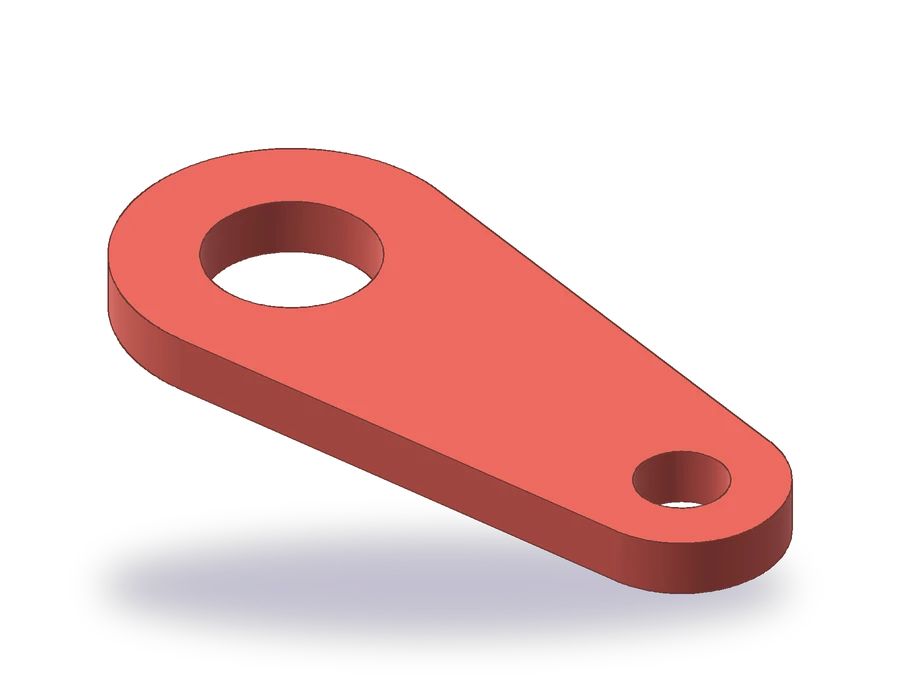
The part is a link 10 mm thick with two round bosses: a large one of R30 with a Ø30 hole, and a small one of R18 with a Ø16 hole, their centers 90 mm apart. Two straight sides, tangent to both bosses, close the outline.
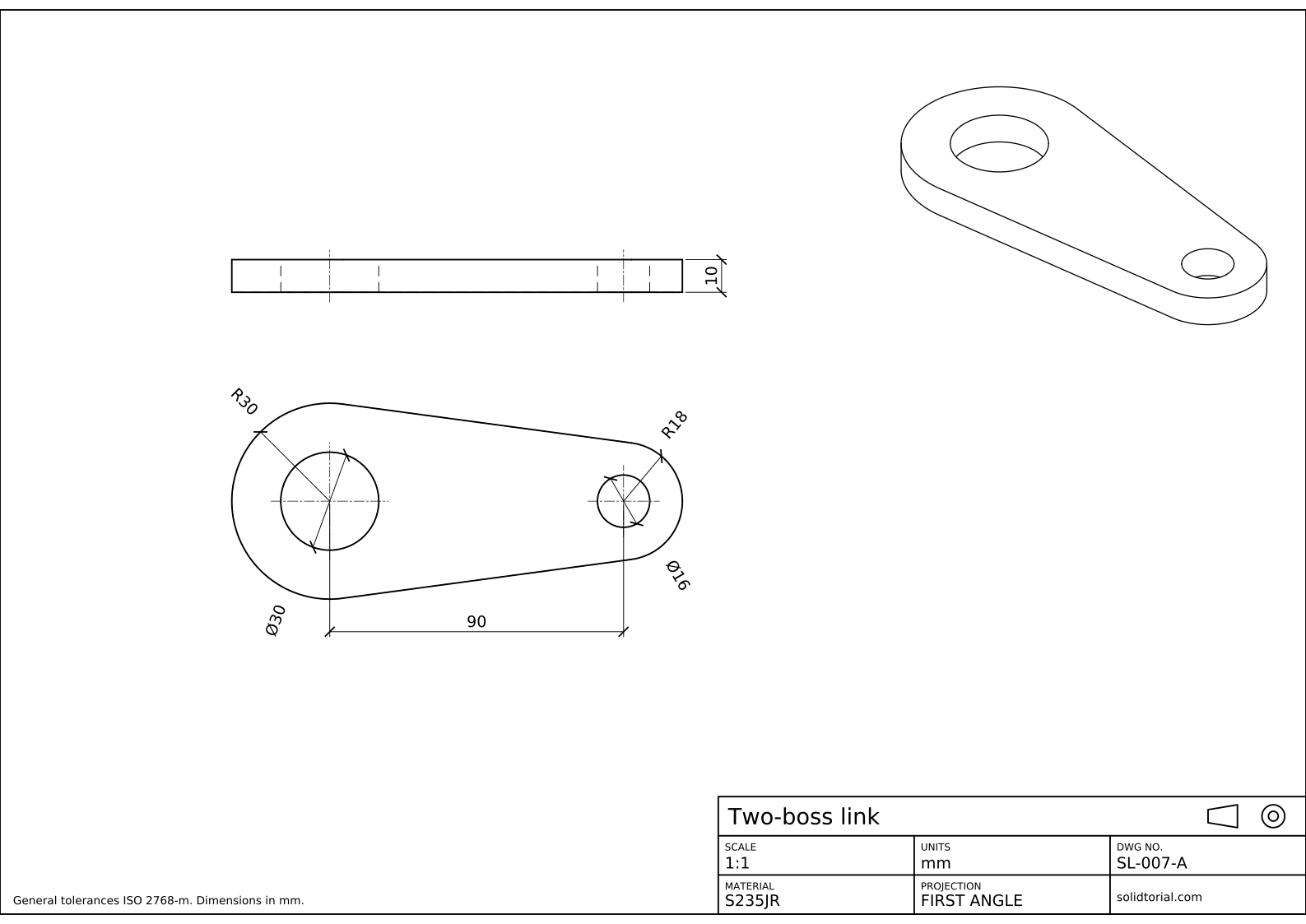
Metric sheet, ISO first-angle projection, scale 1:1 on A3. Click the drawing to open it full size.
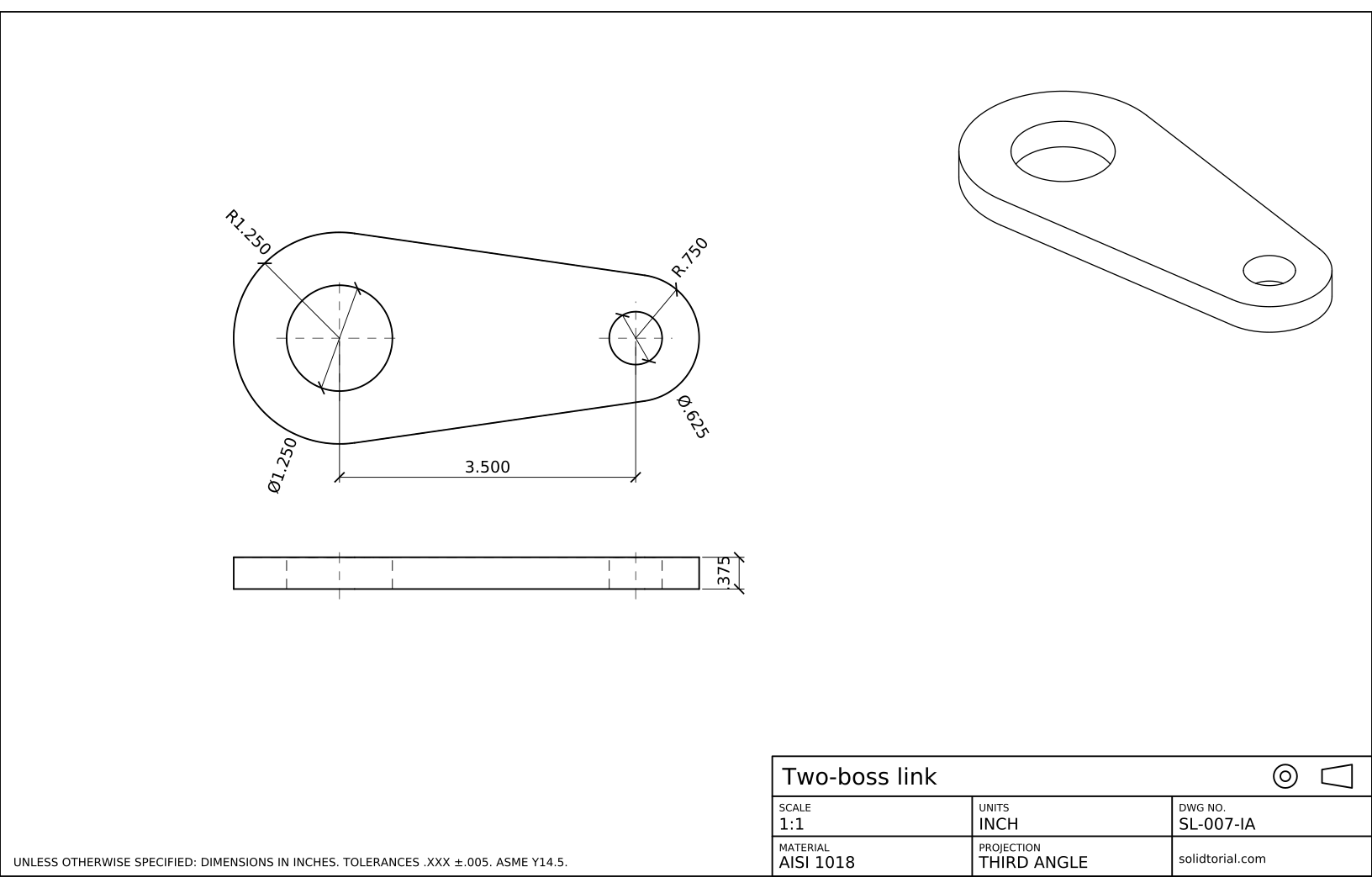
Inch sheet, third-angle projection (ASME), scale 1:1 on ANSI B. Click the drawing to open it full size.
AutoCAD osnap and drawing commands in this exercise
| Command | Alias | What it does here |
|---|---|---|
OSNAP | OS | Choose the running object snaps: Endpoint, Center, Quadrant, Intersection. |
CIRCLE | C | Draw the bosses by radius and the holes by diameter. |
LINE | L | Draw the two sides with the Tangent snap at both ends. |
TRIM | TR | Remove the arcs of the bosses between the tangent points. |
DIMRADIUS | DRA | Dimension the R30 and R18 bosses. |
DIMDIAMETER | DDI | Dimension the Ø30 and Ø16 holes. |
How to draw the link with AutoCAD object snaps
-
Set the running object snaps
Type
OSto open the Object Snap tab of Drafting Settings. Turn on Endpoint, Center, Quadrant and Intersection, and make sure Object Snap On and Object Snap Tracking On are checked. These are running snaps: they work every time AutoCAD asks for a point. F3 turns them all on and off, and F11 does the same for tracking.Leave Tangent off. Kept running, it gets in the way of other snaps, so it is better called once when you need it.
-
Draw the large boss and its hole
Type
C, give the center as0,0and the radius as 30. RunCagain, pick the same center with the Center snap (hover over the circle until the center marker appears), typeDfor diameter and enter 30: that is the hole.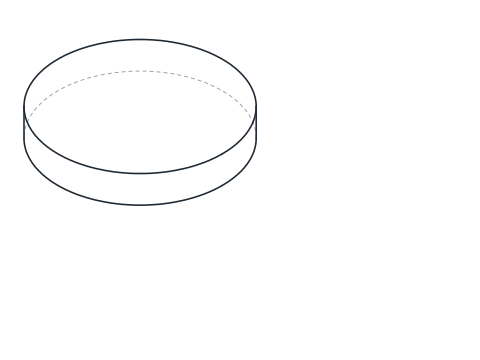
-
Place the small boss with object snap tracking
Type
C. Instead of typing the center, hover over the center of the large circle without clicking until a small + appears: the point is acquired. Move the cursor to the right; a dotted tracking line follows the X axis from that center. Type 90 and press Enter: the center lands exactly 90 mm to the right. Give the radius 18, then draw the Ø16 hole at the same center.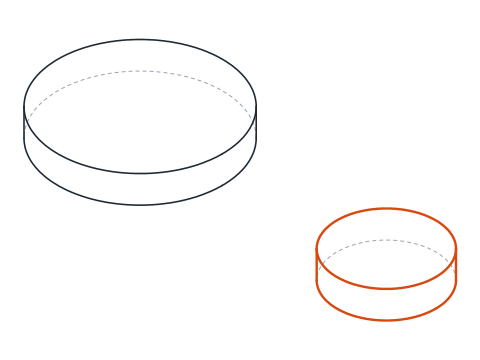
-
Draw the two sides with the Tangent snap
Type
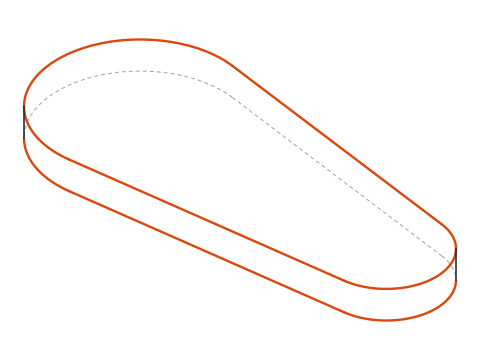
L. At the first point, typeTANand press Enter: this is a one-time snap override. Click the top of the large circle. At the next point, typeTANagain and click the top of the small circle. AutoCAD computes the line that touches both, so the side starts and ends exactly at the tangent points. Repeat for the bottom side, clicking near the bottom of each circle.If the cursor shows a different snap marker when several are possible, press Tab to cycle through them before clicking.
-
Trim the inner arcs
Type
TRand click the arc of each boss that lies between the two sides, inside the link. Because the bosses differ in size, the sides are not parallel: the large boss keeps a little more than half of its circle and the small one a little less. The two holes are not touched.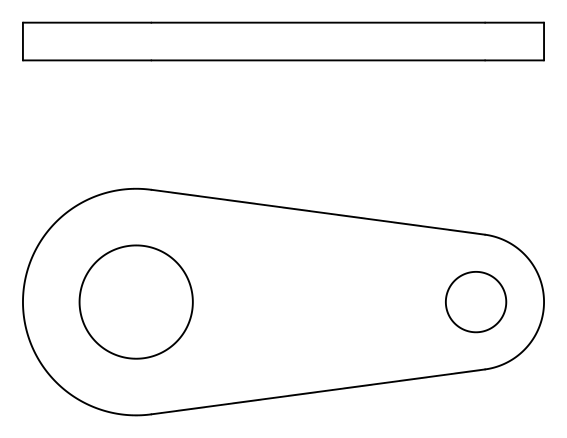
-
Draw the edge view and dimension
The link is 10 mm thick. Draw its edge view above the outline: track from the left Quadrant of the large boss and the right Quadrant of the small one to place the ends of a rectangle 10 mm high, then add the hidden lines of the holes and their center lines. Dimension the distance between centers, 90, using the Center snap at both ends; the bosses with
DRA, R30 and R18; the holes withDDI, Ø30 and Ø16; and the thickness, 10, on the edge view. If a circle has no center lines yet,DCE(DIMCENTER) adds a center mark to it.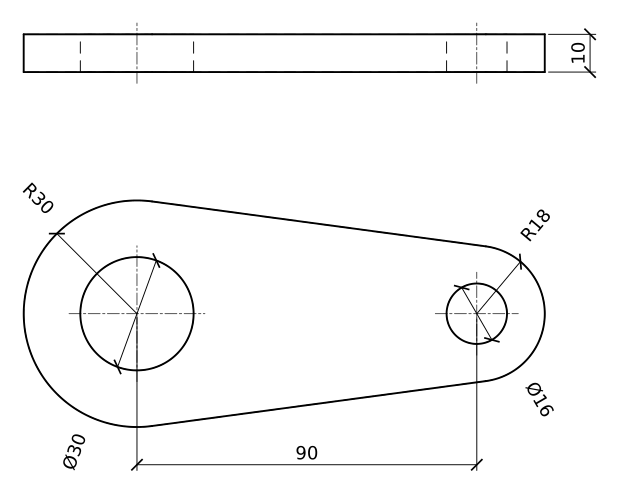
AutoCAD object snap practice: a longer link
Draw a longer link on your own: bosses of R35 and R20 with their centers 110 mm apart, holes of Ø36 and Ø18, and a thickness of 12. Use tracking for the second center and the Tangent snap for both sides, then check the center distance with DIST and the Center snap.
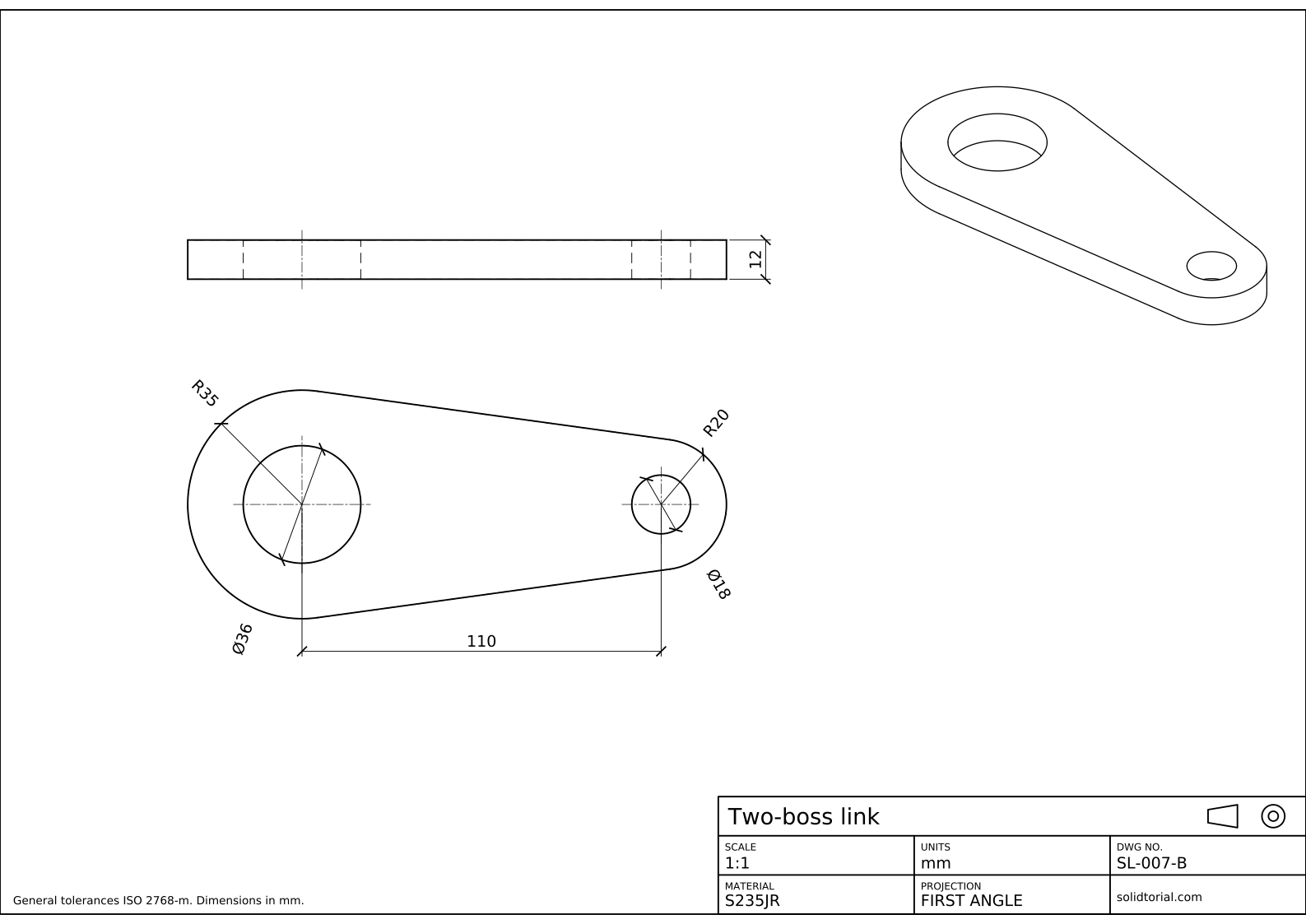
Metric sheet, ISO first-angle projection, scale 1:1 on A3. Click the drawing to open it full size.
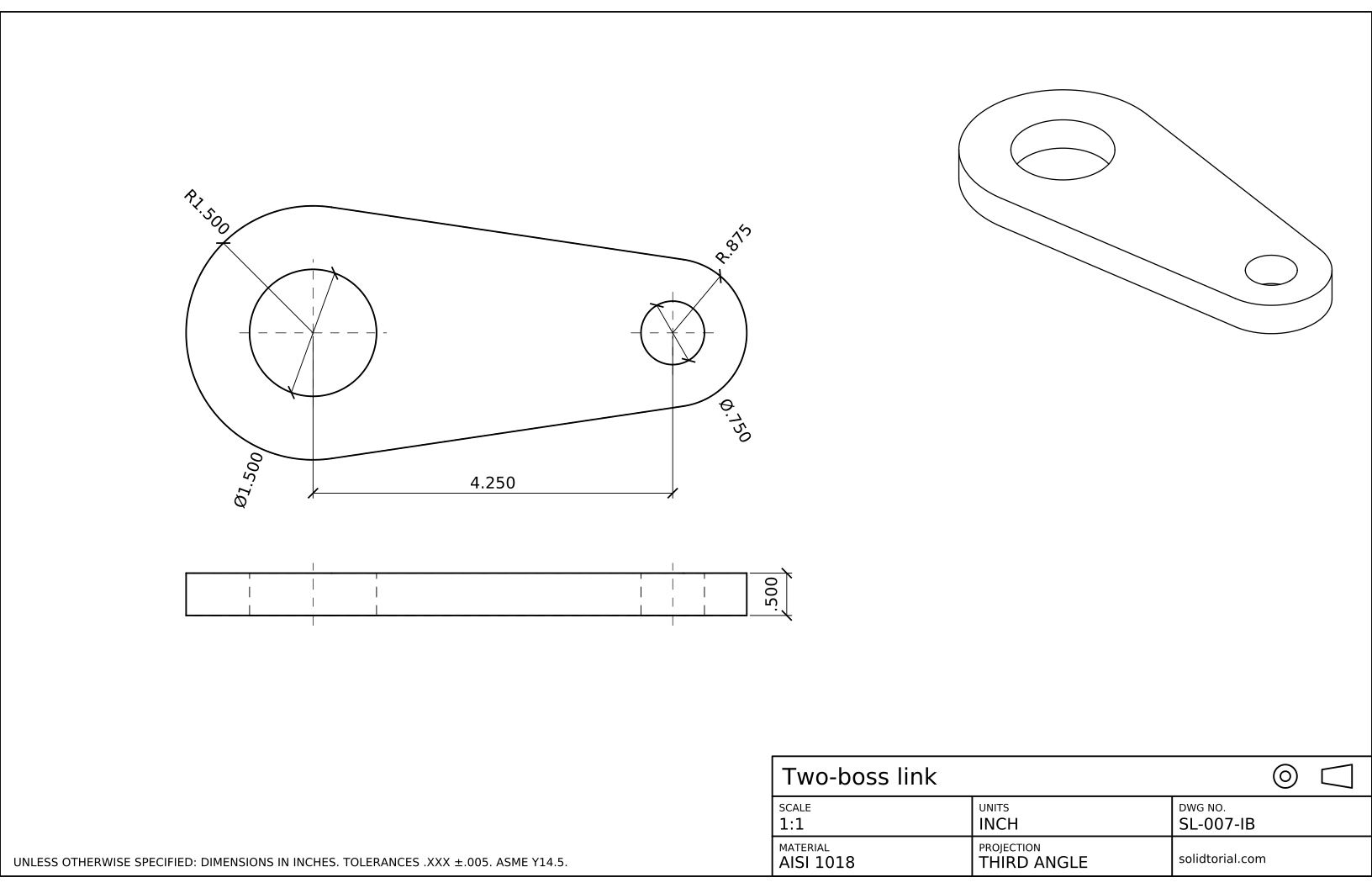
Inch sheet, third-angle projection (ASME), scale 1:1 on ANSI B. Click the drawing to open it full size.
Show the solution files
Metric sheet, ISO first-angle projection, scale 1:1 on A3. Click the drawing to open it full size.
Inch sheet, third-angle projection (ASME), scale 1:1 on ANSI B. Click the drawing to open it full size.
AutoCAD osnap not working? Common causes
- Object snaps switched off. If nothing snaps, F3 is off. Look at the status bar or press F3 once.
- Too many running snaps. With every mode on, the cursor jumps to points you did not want. Keep a few running and call the rest one at a time.
- The tangent line touches the wrong side. Tangent picks the side of the circle closest to where you click. Click near the top for the top side.
- Snapping to the hole instead of the boss. Both circles share a center, but Tangent and Quadrant depend on which circle you click. Zoom in if they are close.
- Snaps that ignore some objects. Objects on a locked or frozen layer, or text and hatch boundaries, can behave differently. Check the layer before blaming the snap.
AutoCAD osnap settings: running snaps and overrides
A running snap stays active for every point until you turn it off. An override, such as typing TAN, CEN or QUA at a point prompt, applies to the next point only and ignores the running snaps. The usual practice is to keep three or four running snaps for everyday points and use overrides for the special ones.
| Snap | Override | Finds |
|---|---|---|
| Endpoint | END | The end of a line or arc |
| Midpoint | MID | The middle of a line or arc |
| Center | CEN | The center of a circle or arc |
| Quadrant | QUA | The points at 0°, 90°, 180° and 270° of a circle |
| Intersection | INT | Where two objects cross |
| Tangent | TAN | The point where a line touches a circle or arc |
Object snap tracking
Tracking extends an invisible line from an acquired snap point, horizontally, vertically or at the polar angles. It lets you place a point at a distance from another without construction lines, as with the second center of this link. Acquire a point by hovering over it, move along the tracking line and type the distance.
The inch version of the link has bosses of R1.250 and R.750 with centers 3.500 apart.
AutoCAD object snap questions
How do I turn on object snap in AutoCAD?
Press F3 or click the object snap button on the status bar. To choose which snaps are active, type OS and check them in the Object Snap tab.
What is the difference between running snaps and snap overrides?
Running snaps work for every point while they are on. An override, typed at a point prompt, works for one point only and takes priority over the running snaps.
How do I draw a line tangent to two circles?
Start LINE, type TAN and click the first circle, then type TAN again and click the second circle near the side where the line should touch.
Why does object snap tracking not work?
Check that tracking is on with F11 and that the snap you want to track from is running. A point is acquired only after you hover over it for a moment.
Updated: August 15, 2026