

What this AutoCAD engineering drawing project covers
- Plan a drawing: choose the views, the scale and the sheet before drawing.
- Combine coordinates, snaps, offsets, fillets, layers and projection in one part.
- Draw a rib correctly in each of the three views.
- Check a finished drawing against a list before printing it.
Every lesson so far added one skill. This one asks for all of them on a single part, the way a real drawing is made: plan it, draw the views in projection, put each line on its layer, dimension, fill in the title block and print.
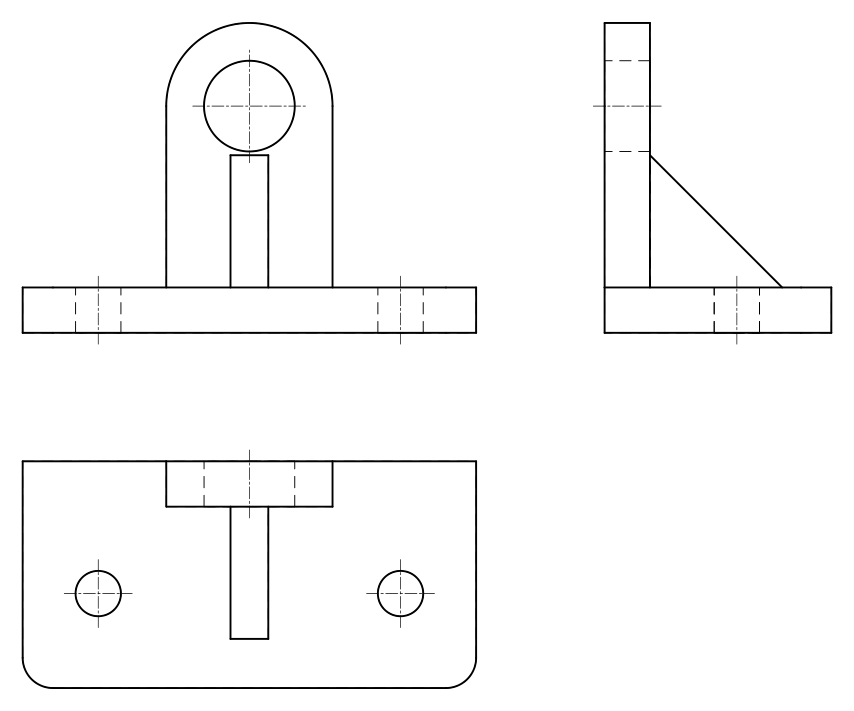
The part is a ribbed bearing bracket. A base 120 x 60 x 12 mm with R8 front corners carries two Ø12 holes; along its back edge rises a wall 44 mm wide and 12 thick, rounded with R22 around a Ø24 bore whose axis is 60 mm above the bottom; and a triangular rib 10 mm thick, 35 mm high and 35 mm long braces the wall from the front.
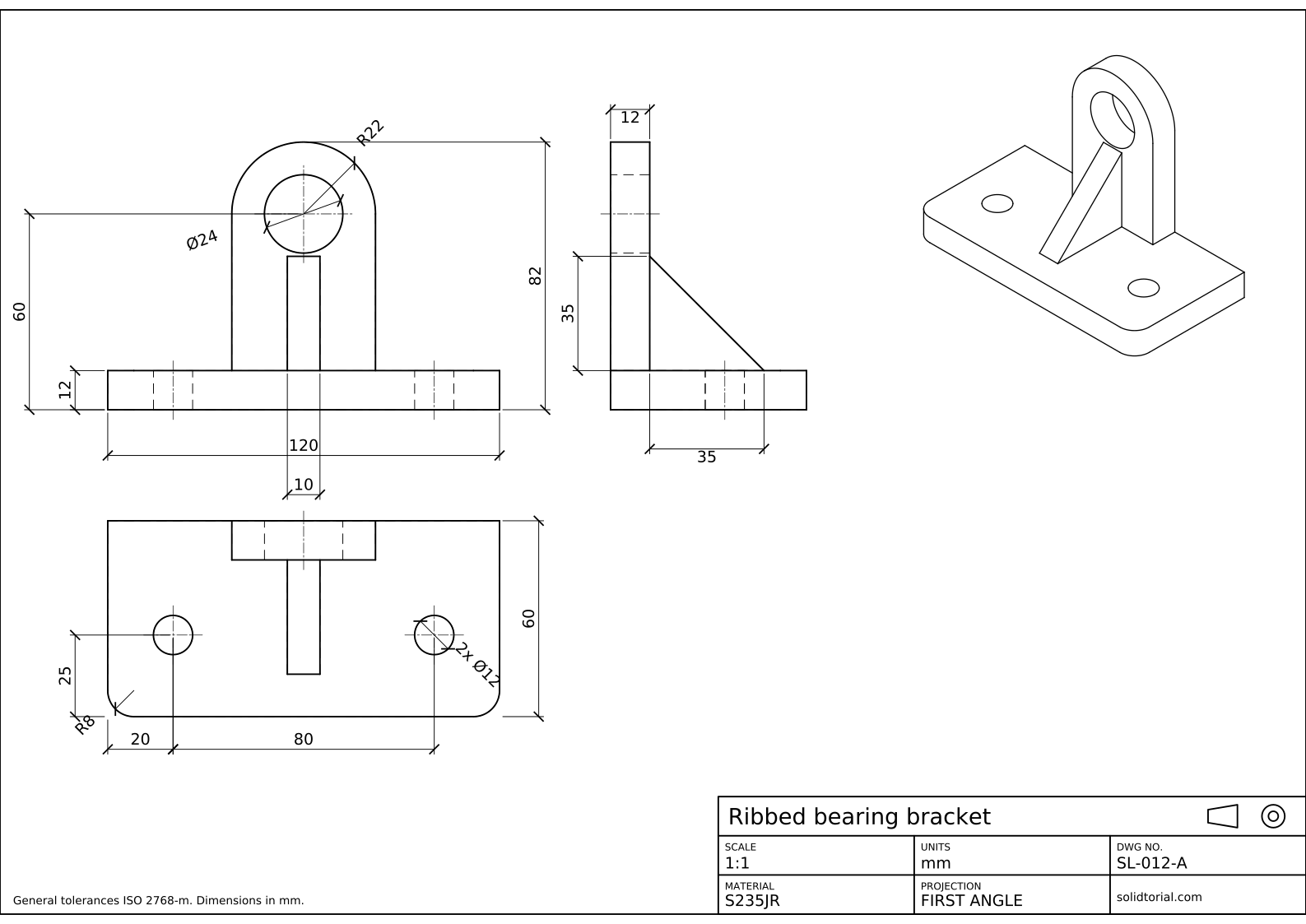
Metric sheet, ISO first-angle projection, scale 1:1 on A3. Click the drawing to open it full size.
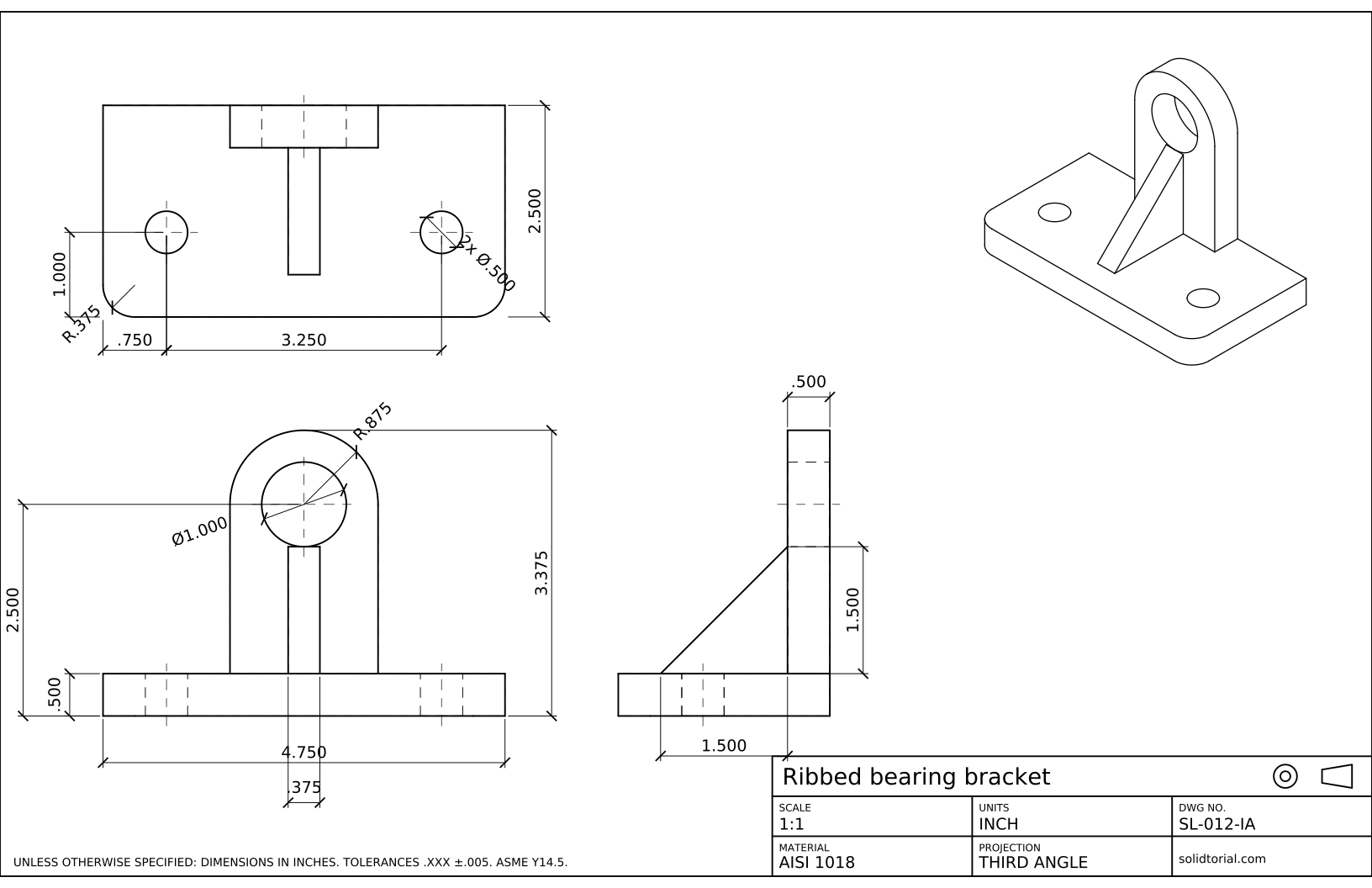
Inch sheet, third-angle projection (ASME), scale 1:1 on ANSI B. Click the drawing to open it full size.
AutoCAD commands you will combine in this project
| Command | Alias | What it does here |
|---|---|---|
LINE | L | Draw the outlines from coordinates and projections. |
XLINE | XL | Project the views from each other. |
OFFSET | O | Place the wall, the rib and the holes at their distances. |
FILLET | F | Round the R8 front corners of the base. |
CIRCLE | C | Draw the R22 boss, the Ø24 bore and the Ø12 holes. |
TRIM | TR | Clean the construction lines and the inside of the boss. |
DIMLINEAR | · | Dimension the views with the style of the dimensioning lesson. |
How to make an engineering drawing in AutoCAD, from blank sheet to PDF
-
Plan the views, the scale and the sheet
Before drawing, decide what the sheet will show. The front view shows the boss, the bore and the width of the rib. The side view is the only one where the rib shows its triangle. The top view shows the holes and the rounded corners. Three views, then, in first angle projection. At 1:1 the views take about 120 x 82, 120 x 60 and 60 x 82 mm, which fits an A3 sheet with room for dimensions. Start the drawing from the A3 template of the title block lesson, so the layers, styles and sheet are ready.
-
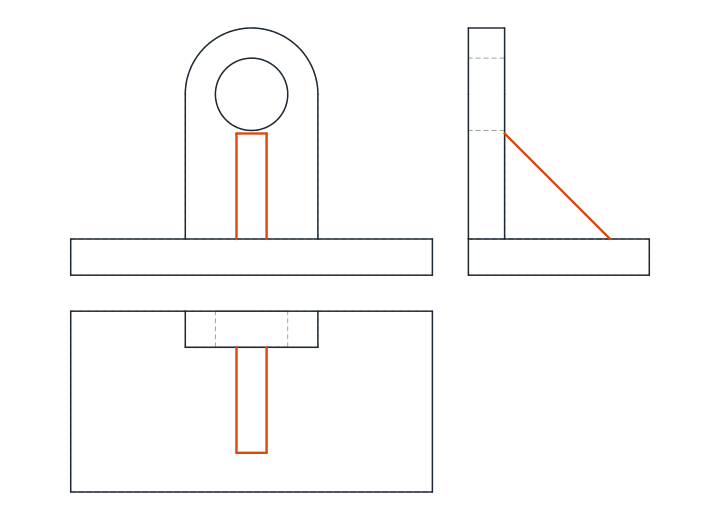
Draw the front view with the boss and the rib
Draw the base, 120 x 12. The wall is centered on it, 44 wide: draw its sides from the top of the base up to the axis at 60, then the R22 arc over the top and the Ø24 bore at the same center. The rib stands in front of the wall, so from the front it is a strip 10 wide, centered, from the top of the base up to where it meets the wall 35 mm higher.
The two holes of the base are hidden from the front: draw them as hidden lines, 20 mm from each end. Add the center lines of the bore and the holes.
-
Project the side view and draw the rib triangle
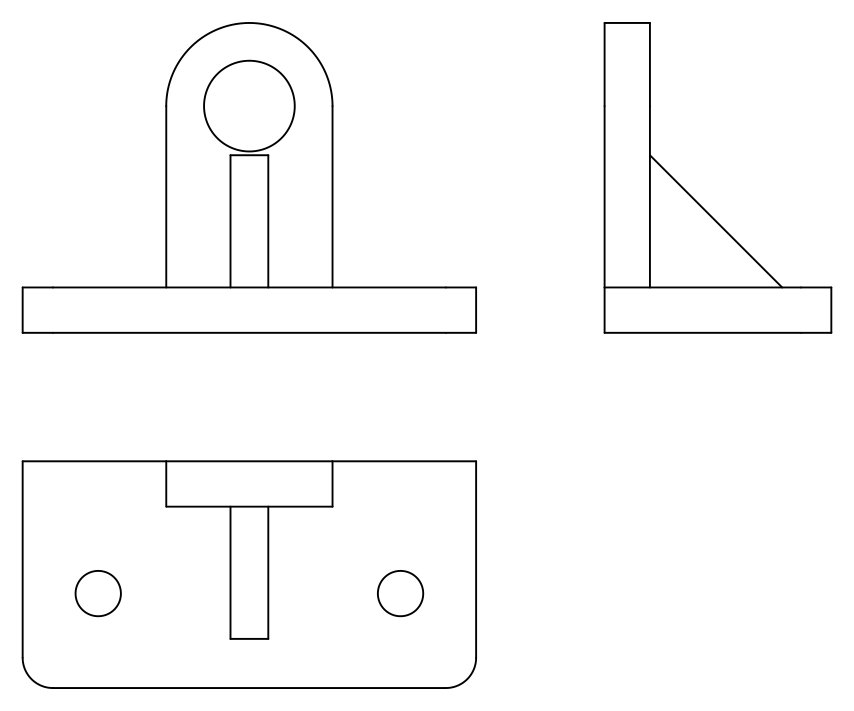
Project the heights across to the side view, on the right of the front view. From the side the base is 60 long and 12 high, and the wall is a strip 12 thick at its back end, rising to 82 mm, the top of the R22 boss. The rib is a right triangle in front of the wall: 35 mm up the wall from the top of the base, and 35 mm along the base. Draw its sloping edge between those two points. The bore crosses the wall as two hidden lines.
-
Project the top view and round the corners
Below the front view, draw the base, 120 x 60, with its back edge at the top. The wall is a rectangle 44 x 12 along the back edge, and the rib a rectangle 10 x 35 in front of it. Draw the two Ø12 holes 25 mm from the front edge, 20 mm from the ends and 80 mm apart. Round the two front corners with
Fand R8.Check the alignment of the three views: every edge of the wall and the rib must line up between the top view and the front view, and between the front view and the side view.
-
Dimension, fill in the title block and print
Dimension each feature once, in the view that shows it best: in the front view 120, 12, the axis height 60, the overall 82, R22 and Ø24; in the side view the wall 12 and the rib 35 and 35; in the top view 60, the holes at 20, 25 and 80 with 2x Ø12, the rib width 10 and R8. The 20 and the 80 form a chain: place the 20 with DIMLINEAR and add the 80 with
DCO(DIMCONTINUE), which starts from the last extension line. Sizes measured from one common edge are stacked instead withDBA(DIMBASELINE). Fill in the title block: Ribbed bearing bracket, SL-012-A, 1:1, mm, S235JR, first angle. Plot to PDF and compare the printed sheet with the solution.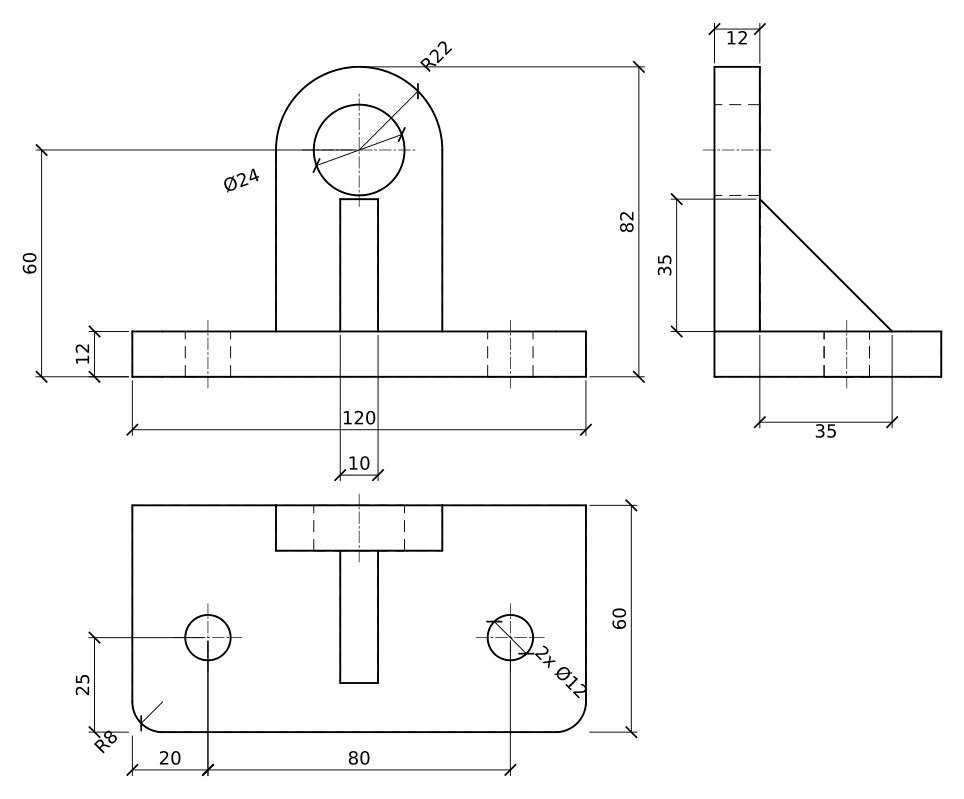
AutoCAD mechanical drawing practice: a larger ribbed bracket
Draw a larger bracket on a new sheet, alone from start to finish: base 140 x 70 x 14 with R10 front corners and two Ø14 holes 22 mm from the ends and 30 from the front, a wall 52 wide and 14 thick rounded with R26 around a Ø28 bore 70 mm above the bottom, and a rib 12 thick, 40 high and 40 long. Plan the views first, then time yourself: that is the real test of the first module.
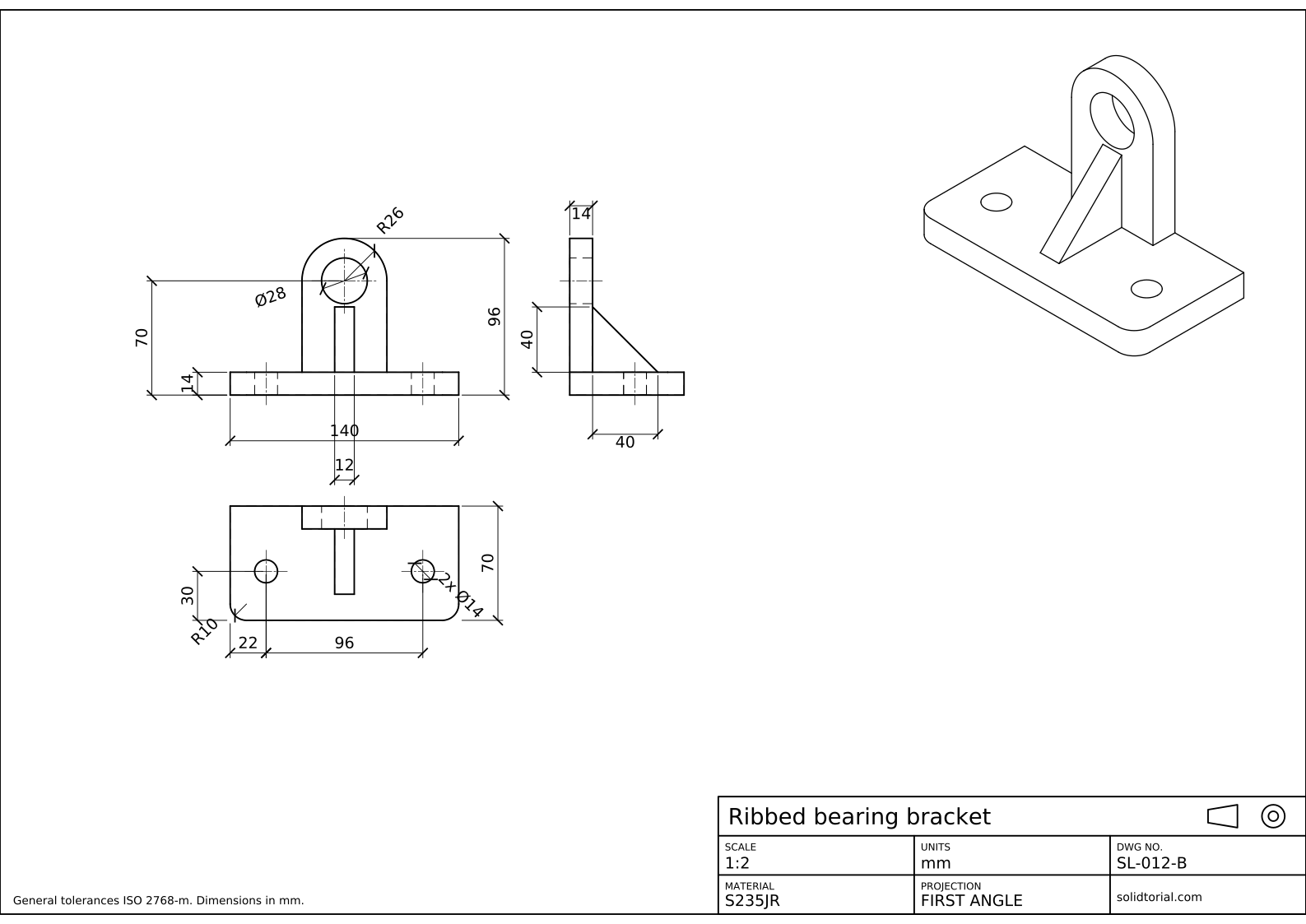
Metric sheet, ISO first-angle projection, scale 1:2 on A3. Click the drawing to open it full size.
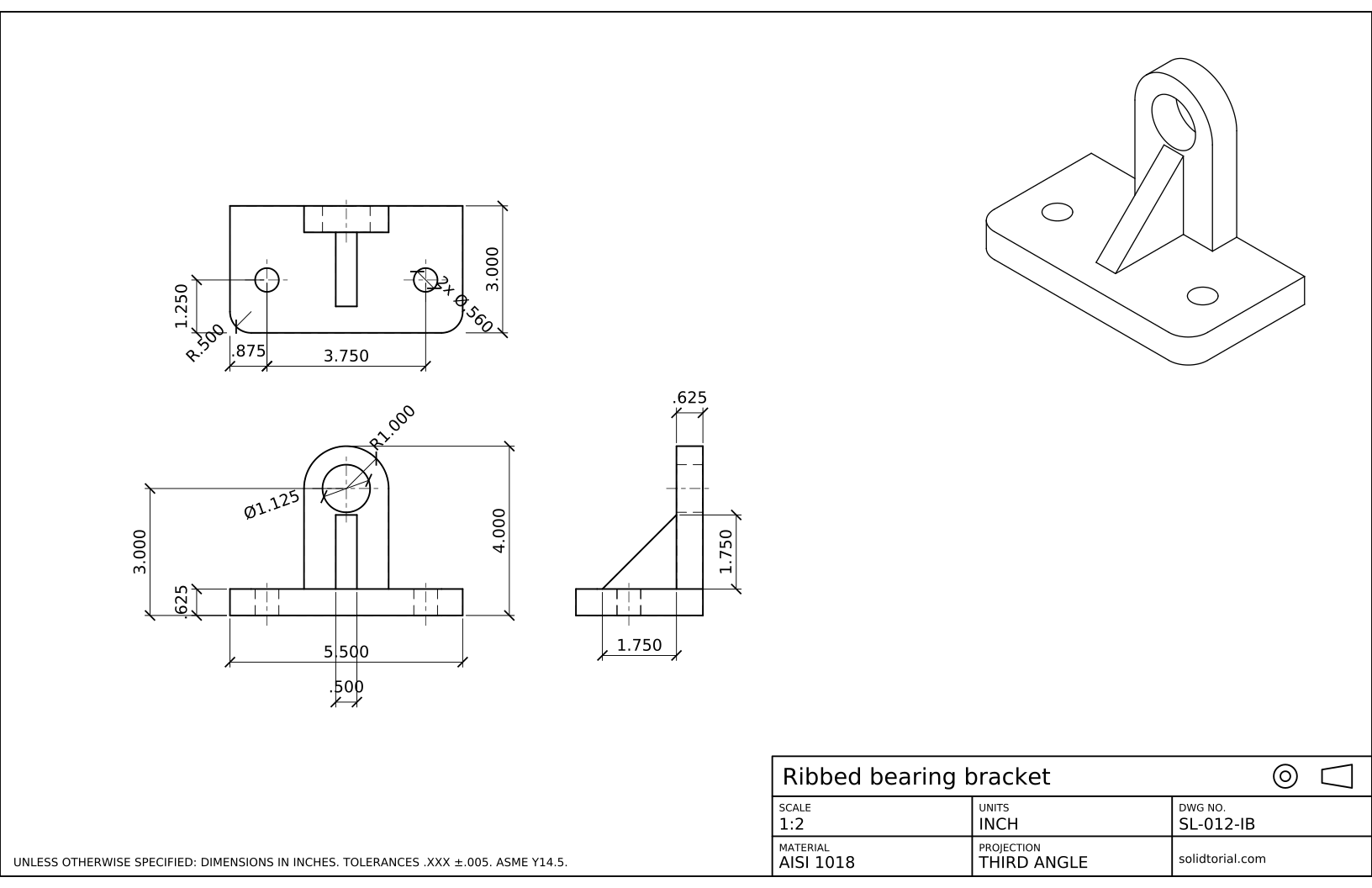
Inch sheet, third-angle projection (ASME), scale 1:2 on ANSI B. Click the drawing to open it full size.
Show the solution files
Metric sheet, ISO first-angle projection, scale 1:2 on A3. Click the drawing to open it full size.
Inch sheet, third-angle projection (ASME), scale 1:2 on ANSI B. Click the drawing to open it full size.
2D drawing in AutoCAD: checks before you print
- A size given twice. If 82 appears in the front and in the side view, one of them will be forgotten in a revision. Give each size once.
- A size missing. Try to build the part from the drawing alone: every edge must be located by some dimension. The rib needs its thickness, its height and its length.
- Views out of line. A view moved a few millimeters by hand breaks the projection. Move views only along their projection direction.
- Lines on the wrong layer. A hidden line drawn on VISIBLE prints thick and solid. Check a few lines of each type with the Properties palette.
- A title block that does not match. Scale, projection, material and drawing number must agree with the sheet.
AutoCAD engineering drawing checklist
Go through this list before releasing any sheet. The views are the minimum needed and are in projection; each feature is dimensioned once, in its clearest view; there are no dimensions to hidden lines when another view shows the edge visible; center lines mark every hole and axis; hidden lines show what matters and nothing more; text and dimensions are readable at the printed size; and the title block is complete and correct.
2D drawing in AutoCAD and what comes next
With this project you can produce a complete mechanical drawing of a prismatic part in AutoCAD. The second module builds on it: auxiliary views for inclined faces, half sections, threads, surface finish, oblique drawings, and finally 3D models from which the views are projected automatically. The inch version of this bracket is 4.750 x 2.500 x .500 with an R.875 boss and a Ø1.000 bore, drawn in third angle.
Engineering drawing questions
Can AutoCAD be used for mechanical engineering drawings?
Yes. Plain AutoCAD draws complete 2D mechanical drawings with views, sections, dimensions and title blocks, as in this bootcamp. Dedicated mechanical programs add part libraries and automatic views from 3D models.
How many views does an engineering drawing need?
As many as it takes to show every feature and size clearly, and no more. Many prismatic parts need three; flat parts often need one; this bracket needs three because the rib only shows its shape in the side view.
Why is the rib not hatched or sectioned?
Because the views on this sheet are not sections. In a section along a rib, drawing standards usually leave the rib unhatched, so it is not mistaken for a solid wall.
How long should this project take?
It depends on practice. The lesson estimate is 75 minutes for someone who has done the previous eleven lessons.
Updated: September 14, 2026