
What this auxiliary view lesson covers
- Explain why a face inclined to the principal planes needs an auxiliary view.
- Rotate the UCS to an inclined edge so that Ortho and DIMLINEAR follow it.
- Project a partial auxiliary view with a reference line and projectors.
- Dimension the inclined plate where it is shown at its true shape and size.
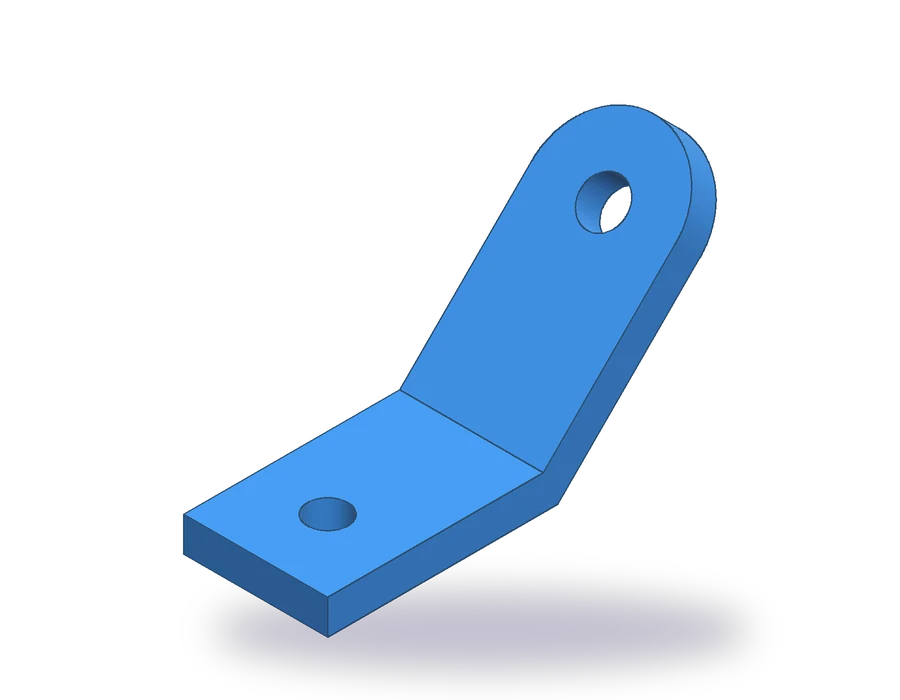
The bracket in this lesson is a flat base, 80 x 50 x 12 mm, with a plate of the same thickness bent up at 45°. The plate ends in a full round of R25 with a Ø16 hole, and the base has a Ø14 hole for its fixing screw.
Draw the plate in a normal top view and it comes out shorter than it is, with its round end and its hole turned into ellipses. None of those lines can carry a dimension. The way out is an auxiliary view: a view projected onto a plane parallel to the inclined face, where the plate appears at its true shape. On the sheet it sits next to the front view, aligned with the plate.
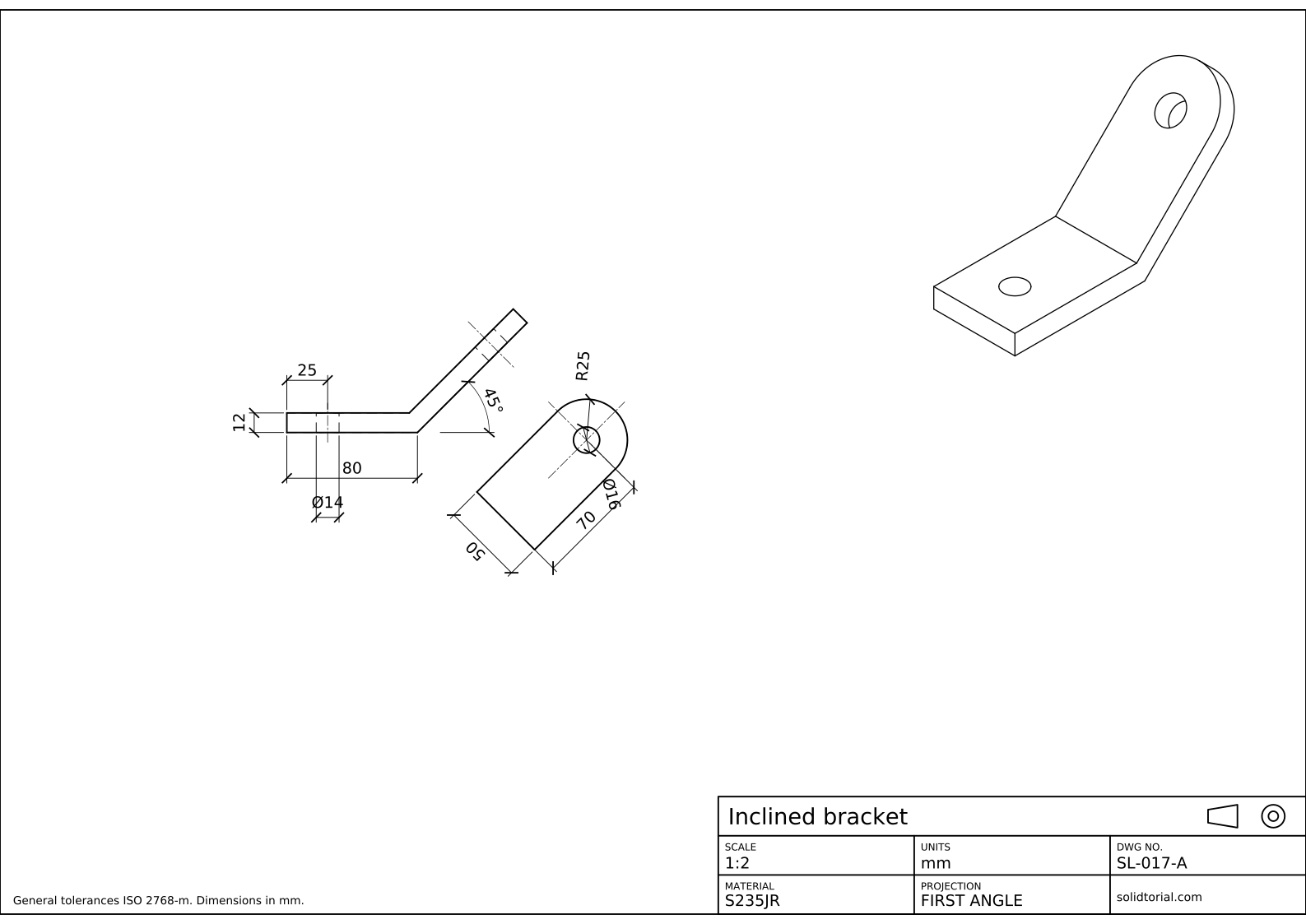
Metric sheet, ISO first-angle projection, scale 1:2 on A3. Click the drawing to open it full size.
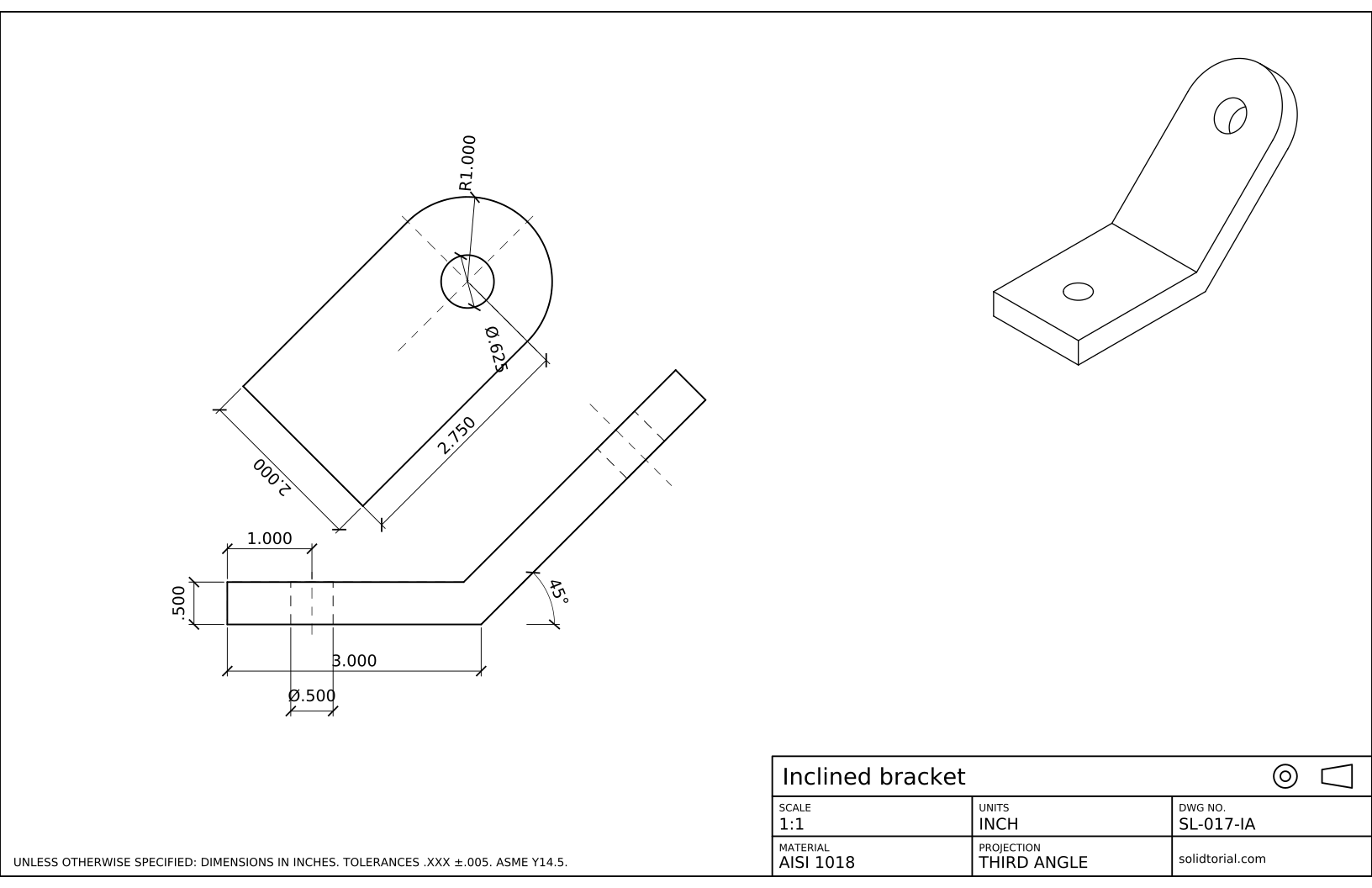
Inch sheet, third-angle projection (ASME), scale 1:1 on ANSI B. Click the drawing to open it full size.
AutoCAD commands for an auxiliary view
| Command | Alias | What it does here |
|---|---|---|
RECTANG | REC | Draw the base of the front view, 80 x 12. |
LINE | L | Draw the edge view of the plate with polar coordinates, for example @95<45. |
OFFSET | O | Give the plate its 12 mm thickness and place the reference line of the auxiliary view. |
UCS | · | Align the X axis with the inclined edge (Object option), then return to World. |
CIRCLE | C | Draw the R25 end and the Ø16 hole in the auxiliary view. |
TRIM | TR | Cut the half of the R25 circle that falls inside the plate. |
DIMANGULAR | DAN | Dimension the 45° angle between the base and the plate in the front view. |
How to draw an auxiliary view in AutoCAD, step by step
-
Draw the base and the edge view of the plate
Type
RECand draw the base from 0,0 to 80,12. The lower face of the plate starts at the bottom right corner of the base and rises at 45°. Its rounded end has its center 70 mm along that face, and the end itself reaches 25 mm further, so draw the line withL, pick the corner and type@95<45.Type
O, enter 12 and offset that line up and to the left: this is the upper face of the plate. Trim it where it meets the top of the base, then close the end of the plate with a line square to both faces.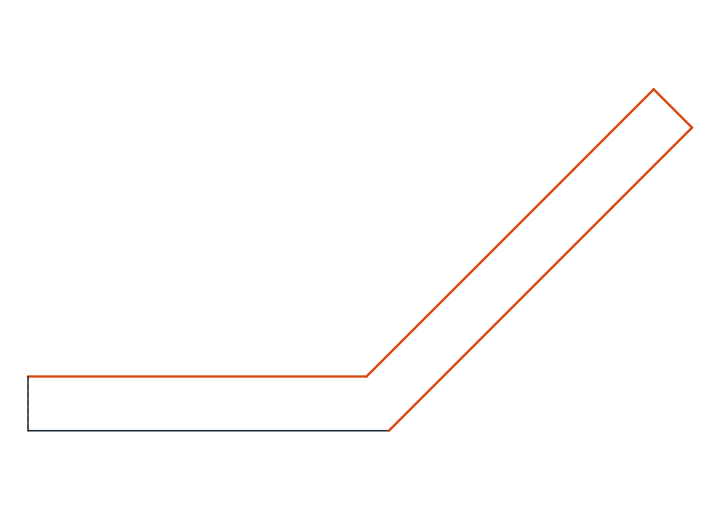
-
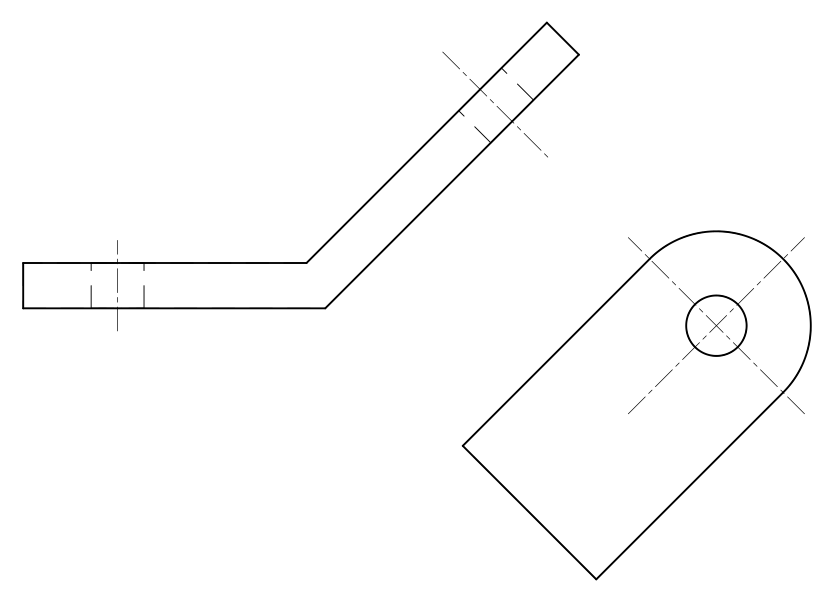
Add the holes as hidden lines and center lines
In the base, the Ø14 hole has its axis 25 mm from the left end: draw its center line there and two hidden lines 7 mm to each side. In the plate, the Ø16 hole sits on the center of the rounded end, 70 mm from the corner along the lower face. Its center line and its two hidden lines run square to the plate, not vertical. Both holes go right through, so their lines cross the full thickness.
-
Rotate the UCS to the inclined plate
Type
UCS, choose the Object option and click the lower face line of the plate near its start. The X axis now runs along the plate and the Y axis square to it. With Ortho on (F8), every line you draw is either parallel or perpendicular to the inclined face, and DIMLINEAR measures in those two directions. That is all an auxiliary view needs. -
Draw the reference line and the projectors
The auxiliary view goes beside the plate, on the side the sheet shows. Draw projectors square to the plate from the corner where it starts, from the center of its rounded end and from its tip: they are the guides that keep the two views aligned.
Then draw a reference line across the projectors, parallel to the plate, about 30 mm away from it. In the auxiliary view, every distance measured from this line is a depth of the part, the same distance you would measure in a top view. The plate is 50 mm deep, so offset the reference line by 50 mm.
-
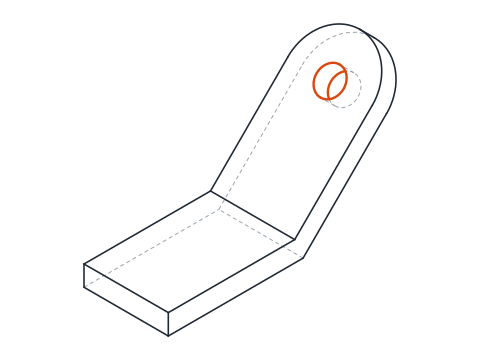
Draw the true shape of the plate
Between the reference line and its 50 mm offset, the plate runs from the projector of its starting corner to the projector of the end center, 70 mm. At the end center, halfway between the two lines, draw
Cwith radius 25: it touches both lines. Trim the half of the circle that falls over the plate, and draw a second circle of Ø16 at the same center for the hole.Only the plate goes into this view. The base would appear distorted in it and adds nothing, so the drawing shows a partial auxiliary view and breaks off at the bend.
-
Dimension both views and return to the World UCS
While the UCS is still rotated, dimension the auxiliary view: 70 along the plate with
DIMLINEAR, the 50 width, the R25 end withDIMRADIUSand the Ø16 hole withDIMDIAMETER. Then typeUCSand press Enter to accept World.In the front view, give the base its 80 and 12, place the Ø14 hole at 25 from the end, and dimension the angle with
DANbetween the bottom of the base and the plate: 45°. The plate thickness can be given once in either view.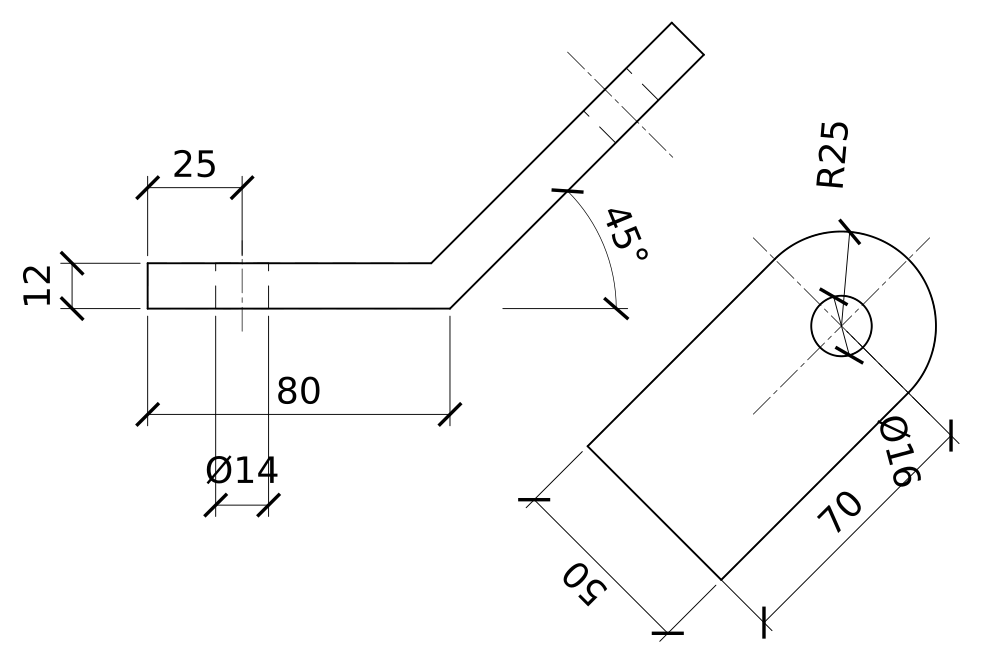
Auxiliary view example to practice: the plate at 40°
Draw a second bracket on your own: a base 90 x 60 x 14 mm with a Ø16 hole 30 mm from its end, and a 14 mm plate bent up at 40°, with its end center 80 mm along the plate, an R30 end and a Ø20 hole. The steps are the same, but at 40° the projectors and the reference line are no longer at the easy 45° directions, which is exactly where rotating the UCS saves time.
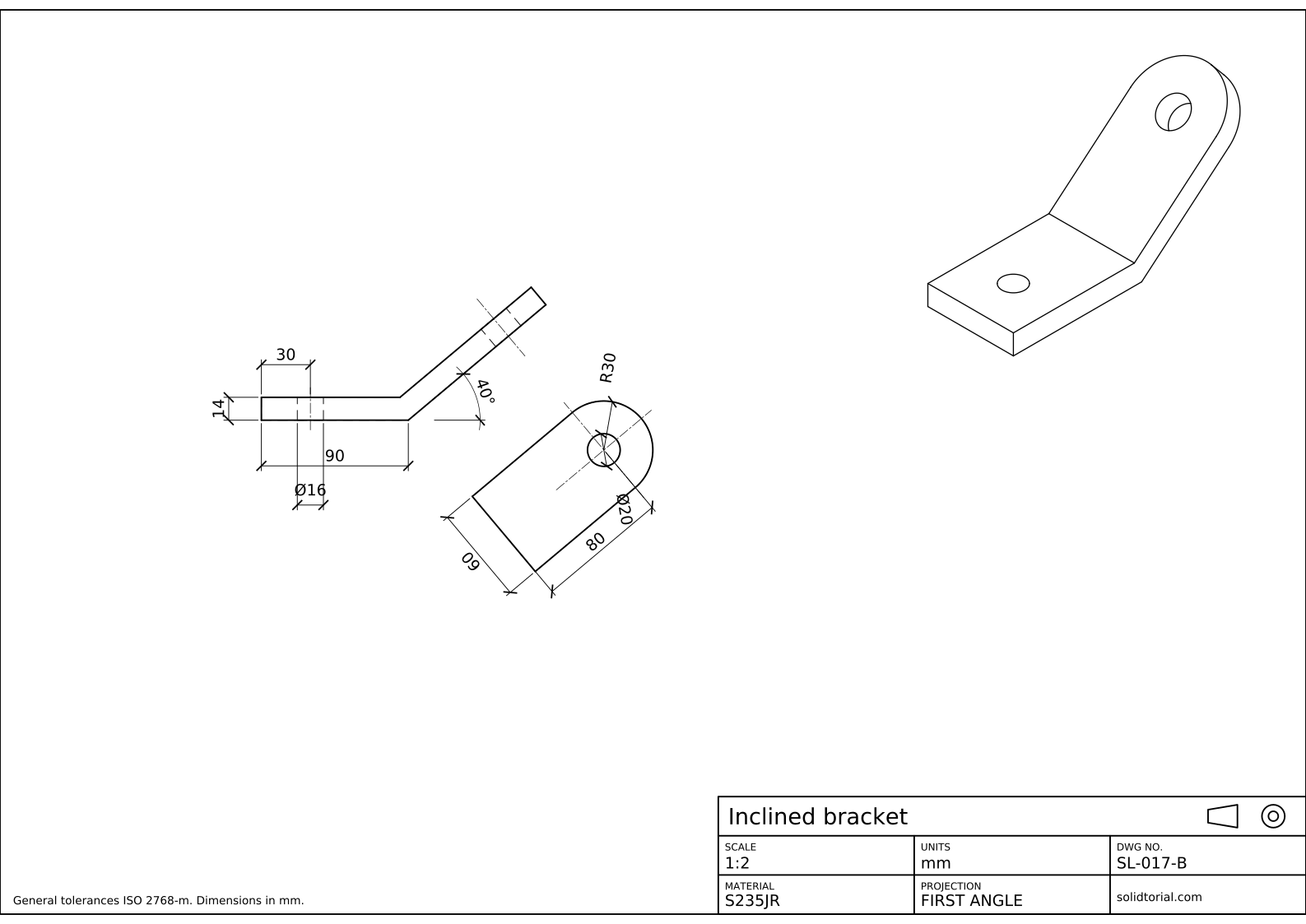
Metric sheet, ISO first-angle projection, scale 1:2 on A3. Click the drawing to open it full size.
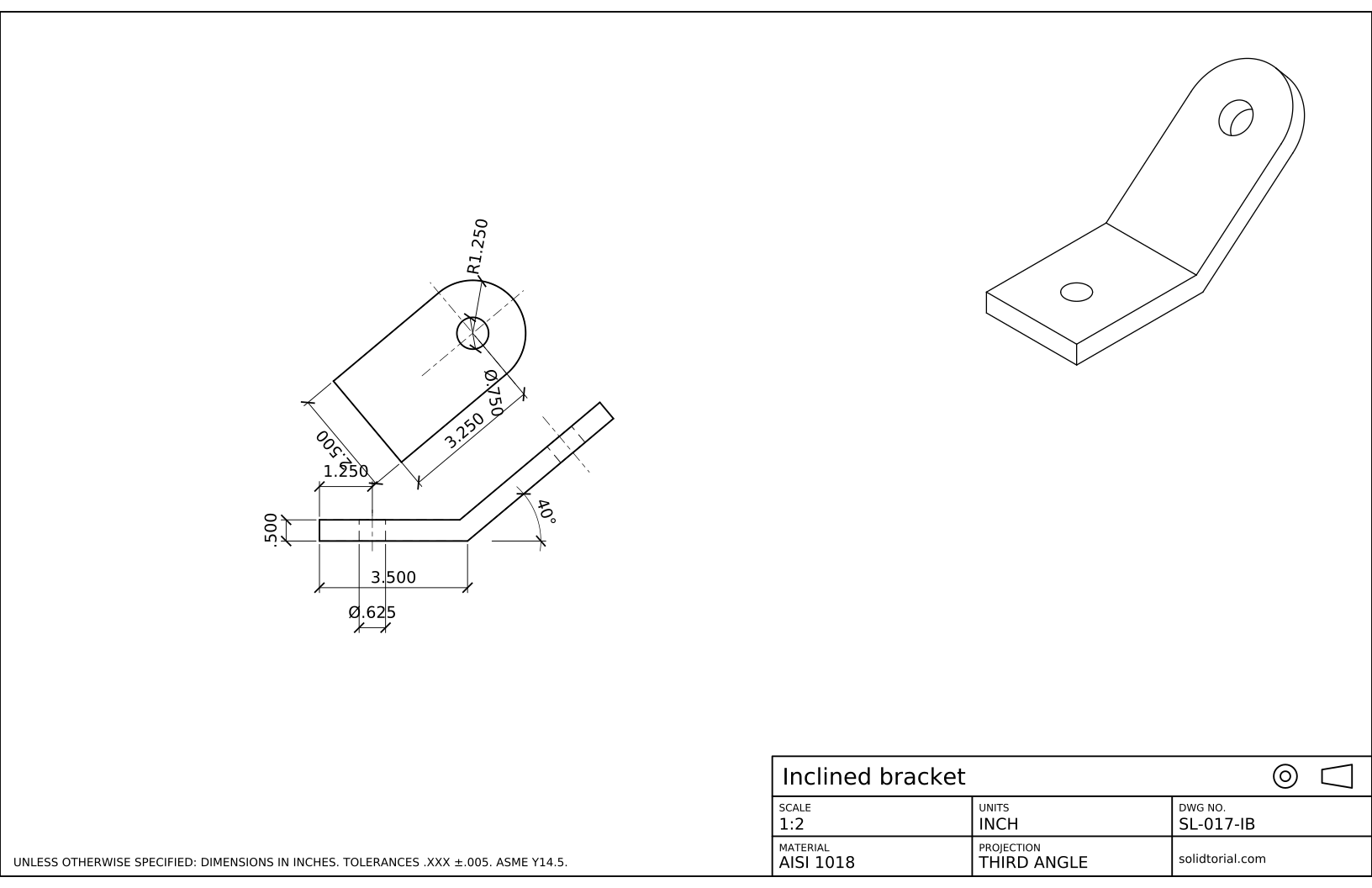
Inch sheet, third-angle projection (ASME), scale 1:2 on ANSI B. Click the drawing to open it full size.
Show the solution files
Metric sheet, ISO first-angle projection, scale 1:2 on A3. Click the drawing to open it full size.
Inch sheet, third-angle projection (ASME), scale 1:2 on ANSI B. Click the drawing to open it full size.
Common auxiliary view drawing mistakes
- Projecting horizontally out of habit. The projectors of an auxiliary view are perpendicular to the inclined face. Rotate the UCS or set polar tracking to the angle of the plate before drawing them.
- Taking depths from the wrong place. Every distance across the auxiliary view comes from the depth of the part, measured from the reference line. Taking it from the front view mixes up the two directions.
- Drawing the whole part in the auxiliary view. Everything that is not parallel to the plate comes out foreshortened. A partial view of the inclined feature is clearer and is what drawing standards expect.
- Forgetting to go back to the World UCS. Dimensions and hatches placed afterwards follow the rotated axes. Return to World as soon as the auxiliary view is finished.
- Dimensioning the hole in the front view. There it is a pair of hidden lines. Its diameter belongs in the auxiliary view, where it is a true circle.
What is an auxiliary view in engineering drawing
The three principal views look at a part along its main axes. A face that is perpendicular to one principal plane and inclined to the other two shows up as a line in one view and foreshortened in the other two. A primary auxiliary view is projected from the view where that face appears as a line, onto a plane parallel to the face, so the face is drawn at its true shape and size. That is the case of the bracket: the plate is a line in the front view.
When a face is inclined to all three principal planes, a primary auxiliary view can only show it as a line. A secondary auxiliary view, projected from the primary one, then shows its true shape. The construction is the same done twice: a new reference line, new projectors and depths taken from the previous view.
Partial auxiliary views and where to place them
Drawings rarely show the whole part in an auxiliary view. The usual practice is a partial view of the inclined feature only, broken off where the part changes direction, as on this sheet. Keep the auxiliary view aligned with the face it describes. If there is no room, it can be moved elsewhere on the sheet with a viewing arrow and a letter on the original view.
The inch version of the exercise has its own sizes, a 3.000 x 2.000 x .500 base and a .500 plate at 45° with an R1.000 end, and follows the third-angle placement of ASME drawings. Its steps do not change.
Auxiliary view questions
Is there an auxiliary view command in AutoCAD?
Not for 2D drafting. You build the view with projectors and a reference line as in this lesson. Rotating the UCS to the inclined edge is what makes the construction quick.
Why does the hole look like an ellipse in the top view?
Because the plate is tilted with respect to the top view, every circle on it is seen at an angle and projects as an ellipse. In the auxiliary view you look square at the plate, so the hole is a true circle again.
What is the difference between a primary and a secondary auxiliary view?
A primary auxiliary view is projected from one of the principal views and shows faces that are inclined to two principal planes. A secondary auxiliary view is projected from a primary one and is needed for oblique faces, which are inclined to all three.
Can I use polar tracking instead of rotating the UCS?
Yes. Set the polar increment to the angle of the plate in DSETTINGS and the projectors snap to it. The UCS method has the advantage that DIMLINEAR then measures along the plate as well.
Updated: September 29, 2026