
What this AutoCAD 3D to 2D lesson covers
- Model a part with fillets, ribs and a bore using the commands of the previous lesson.
- Set first or third angle projection for drawing views with VIEWSTD.
- Create a base view and projected views of the solid with VIEWBASE.
- Know when FLATSHOT, a static 2D copy, is the better tool.
In the first part of the bootcamp you drew every view line by line, and a change to the part meant redrawing several views. With a 3D model the views can come from the solid. AutoCAD projects them onto a layout, removes hidden edges or shows them dashed, and keeps them linked to the model.
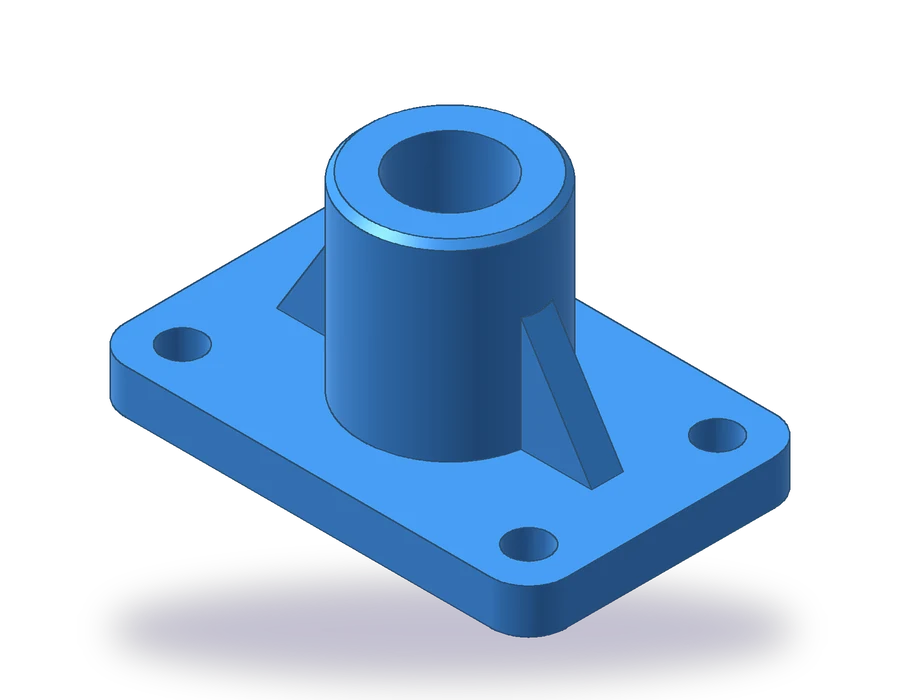
The part is a ribbed base: a plate 140 x 90 x 14 mm with R12 corners and four Ø13 holes 15 mm from the edges, a Ø56 hub rising to 74 mm with a Ø32 bore through it, and two ribs 10 mm thick and 40 mm high that brace the hub along the length of the plate. You model it first and then turn it into the sheet at 1:2. As in the previous lesson, this needs the full version of AutoCAD.
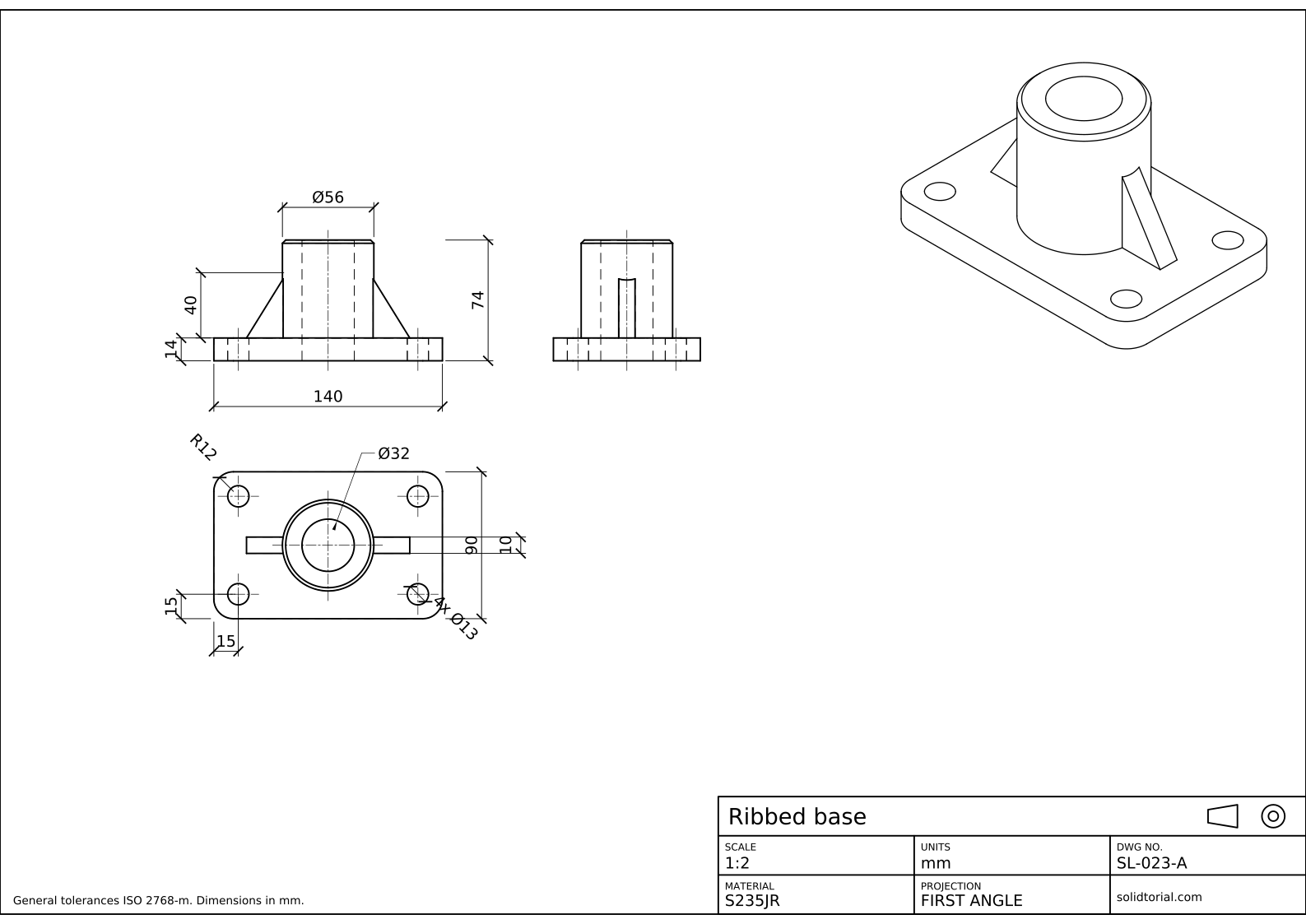
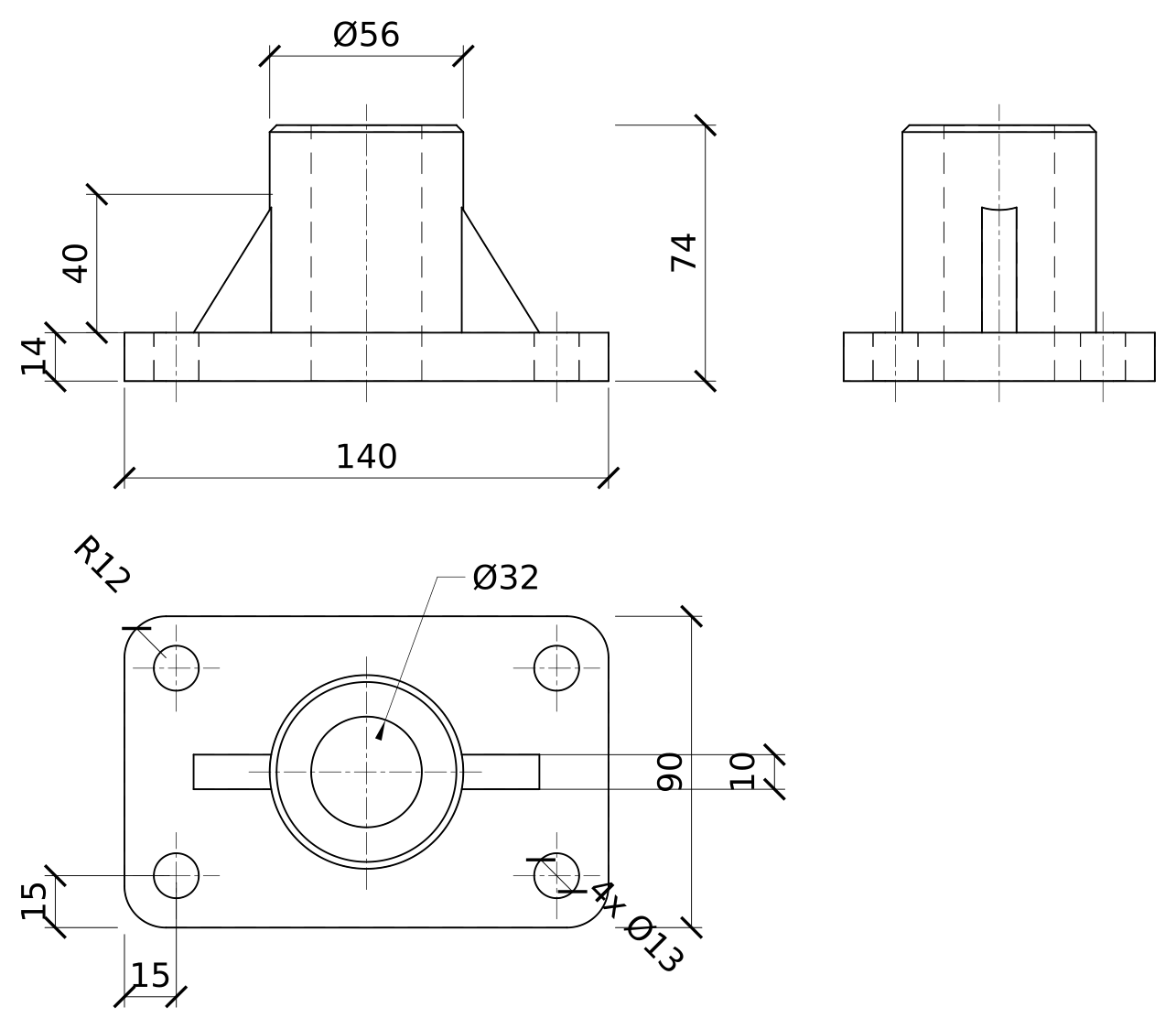
Metric sheet, ISO first-angle projection, scale 1:2 on A3. Click the drawing to open it full size.
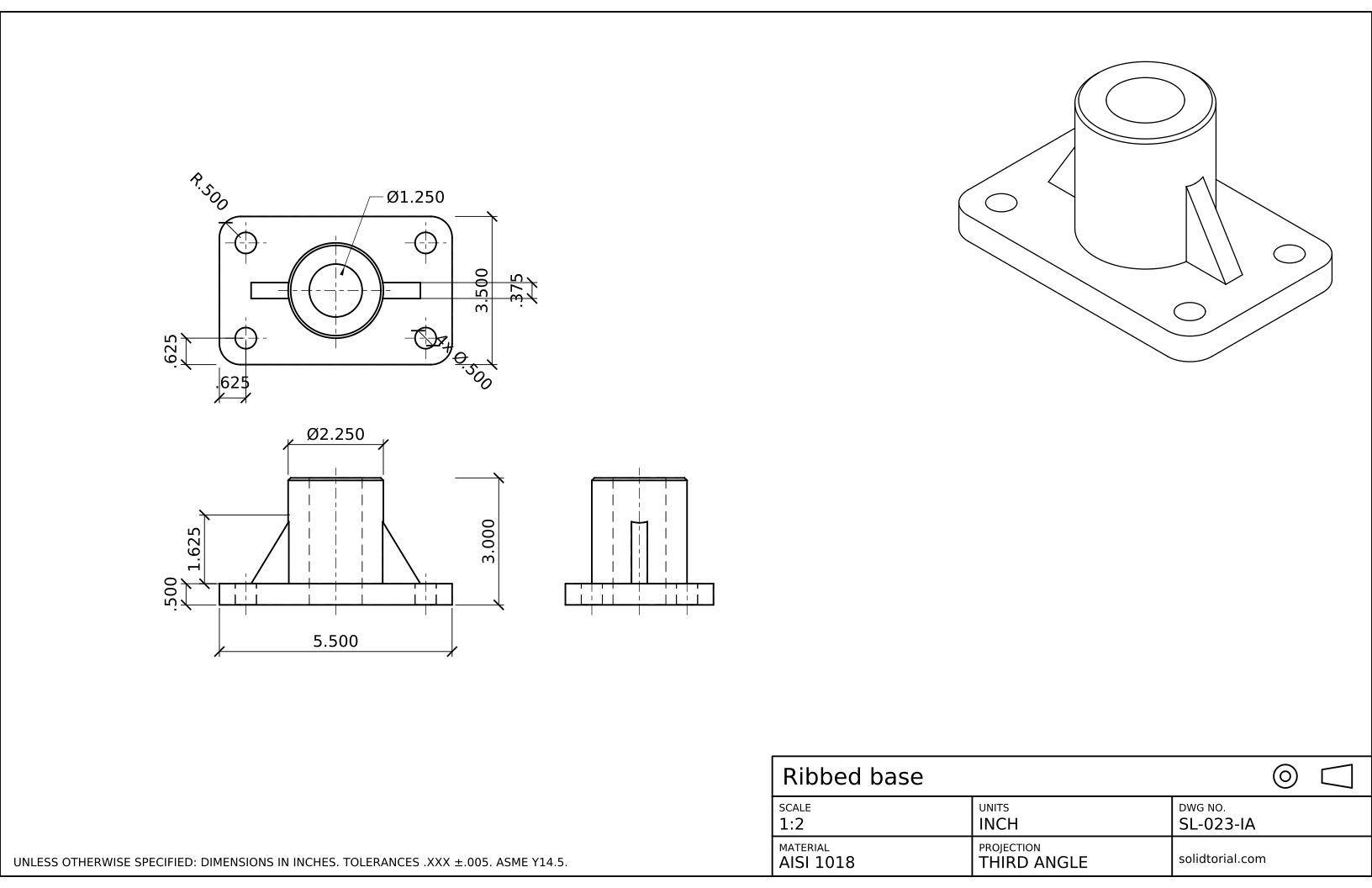
Inch sheet, third-angle projection (ASME), scale 1:2 on ANSI B. Click the drawing to open it full size.
AutoCAD commands to convert a 3D model to 2D
| Command | Alias | What it does here |
|---|---|---|
BOX | · | Create the plate, 140 x 90 x 14. |
FILLETEDGE | · | Round the four vertical corners of the plate with R12. |
CYLINDER | CYL | Create the hub, the bore and the four holes. |
EXTRUDE | EXT | Turn the triangular rib profiles into ribs 10 mm thick. |
VIEWSTD | · | Choose first or third angle projection for the drawing views. |
VIEWBASE | · | Place the front view of the solid on a layout and project the others from it. |
FLATSHOT | FSHOT | Make a static 2D copy of the current view as a block. |
CENTERMARK | · | Add center marks to the holes in the projected views. |
How to get 2D views from a 3D model in AutoCAD
-
Model the plate and its holes
In the World UCS, type
BOXfrom0,0,0to@140,90,14. TypeFILLETEDGE, set the radius to 12 and pick the four vertical edges at the corners. For the holes, create a cylinder of radius 6.5 and height 14 at15,15,0, copy it to the other three corners (125,15, 15,75 and 125,75) and subtract the four from the plate withSU.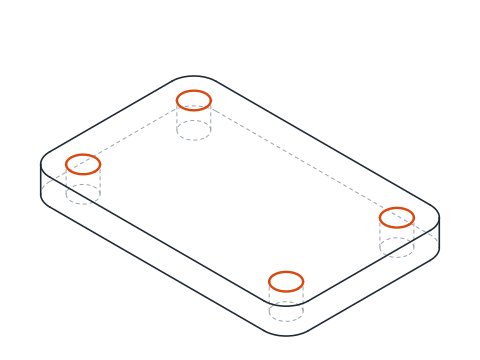
-
Add the hub and the ribs
The hub is a cylinder at the center of the plate:
CYL, center70,45,14, radius 28, height 60, so it reaches 74 mm.Each rib is a triangle in the vertical plane through the middle of the plate, extruded to 10 mm. Set a UCS with origin
0,50,0, a point on X at1,50,0and a point on the XY plane at0,50,1: X runs along the plate, Y points up and Z points to the front. Draw the right rib withPLthrough95.2,14,95.2,54and120,14, closed, and the left rib through44.8,14,44.8,54and20,14. They start 2.8 mm inside the hub wall so they merge with it. Extrude both 10 mm, go back to the World UCS andUNIthe plate, the hub and the ribs.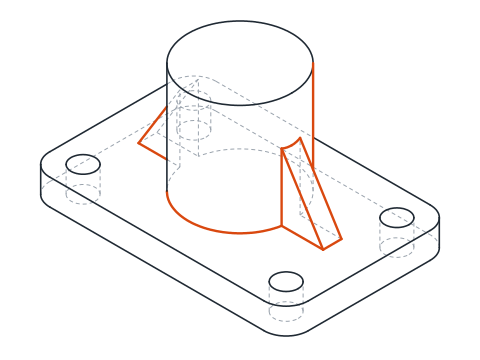
-
Bore the hub, chamfer it and check the volume
Create a cylinder at
70,45,0with radius 16 and height 74 and subtract it: the Ø32 bore goes right through plate and hub. TypeCHAMFEREDGE, set both distances to 2 and pick the outer top edge of the hub.Run
MASSPROPon the solid. The volume should be close to 263 072 mm³ before you go on to the drawing.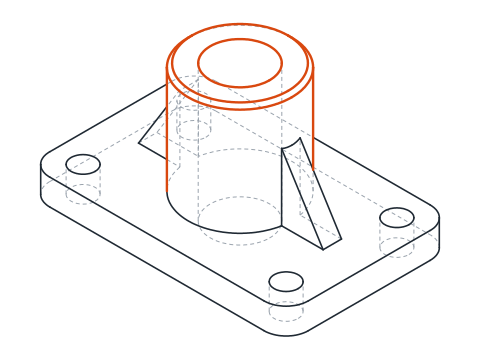
-
Set the projection and place the base view
Type
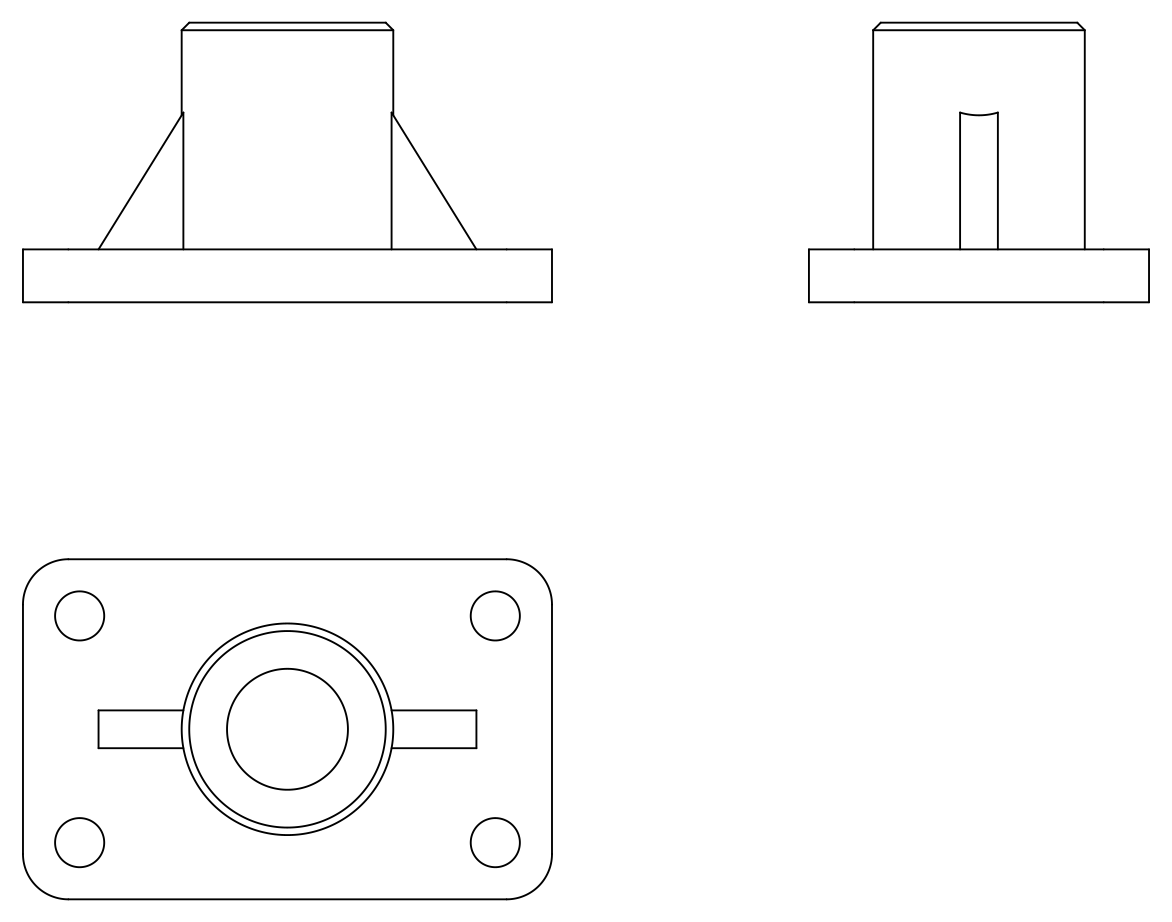
VIEWSTDand set the projection type to first angle, the ISO convention of this sheet; the inch sheet uses third angle. Then typeVIEWBASE, press Enter to use the entire model and accept the layout it proposes. On the layout, before clicking, set the options: Orientation Front, Hidden lines Visible and hidden lines, Scale 1:2. Click to place the front view.Without ending the command, move the cursor below the front view and click to place the top view, then to the right and click again for the side view. Press Enter to finish. The three views are aligned and show hidden edges dashed.
-
Finish the drawing on the layout
Drawing views do not add center lines by themselves. Type
CENTERMARKand pick the holes and the hub in the top view, then useCENTERLINEbetween the edges of the bore in the front and side views. Dimension directly on the layout: the dimensions attach to the view geometry, so they follow the views if the model changes.The sheet dimensions the plate (140, 90, 14), the R12 corners, the holes (4x Ø13 at 15 from the edges), the hub (Ø56, 74 overall), the Ø32 bore, and the ribs, 40 high and 10 thick.
-
Make a static 2D copy with FLATSHOT
Sometimes you only need flat lines, for example to send a DXF to someone without the model. Go to model space, click Front on the ViewCube, type
FSHOTand choose Insert as new block with obscured lines shown. AutoCAD creates a block of plain 2D lines of what you see. Unlike the VIEWBASE views, this copy is not linked to the solid: if the part changes, you run FLATSHOT again.
AutoCAD 3D in 2D practice: a larger ribbed base
Model a larger ribbed base and draw it with VIEWBASE: plate 160 x 100 x 16 with R14 corners and four Ø15 holes 17 mm from the edges, a Ø64 hub to 86 mm with a Ø38 bore, and ribs 12 thick and 46 high that stop 22 mm from the ends of the plate. Its volume should be close to 382.2 cm³.
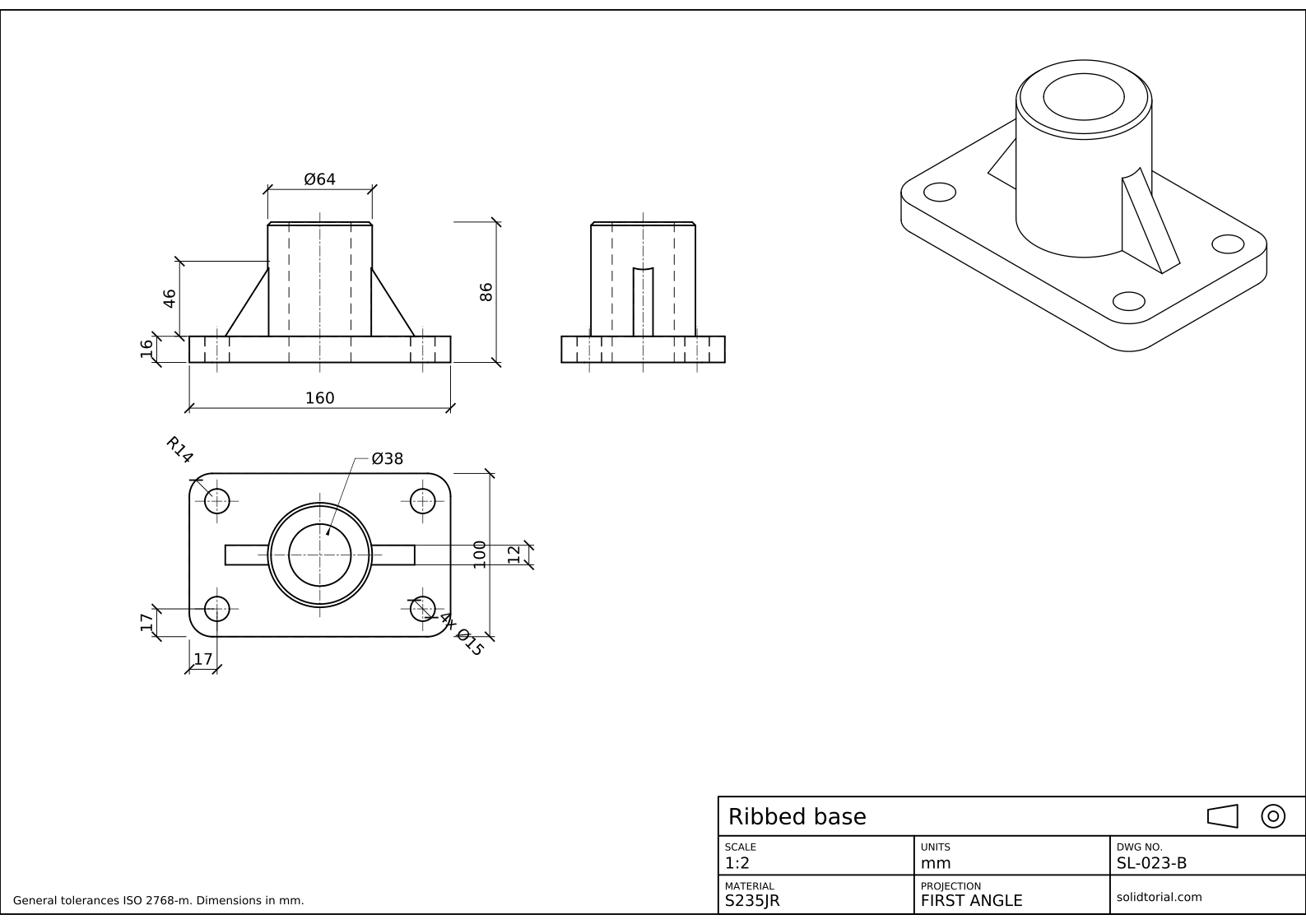
Metric sheet, ISO first-angle projection, scale 1:2 on A3. Click the drawing to open it full size.
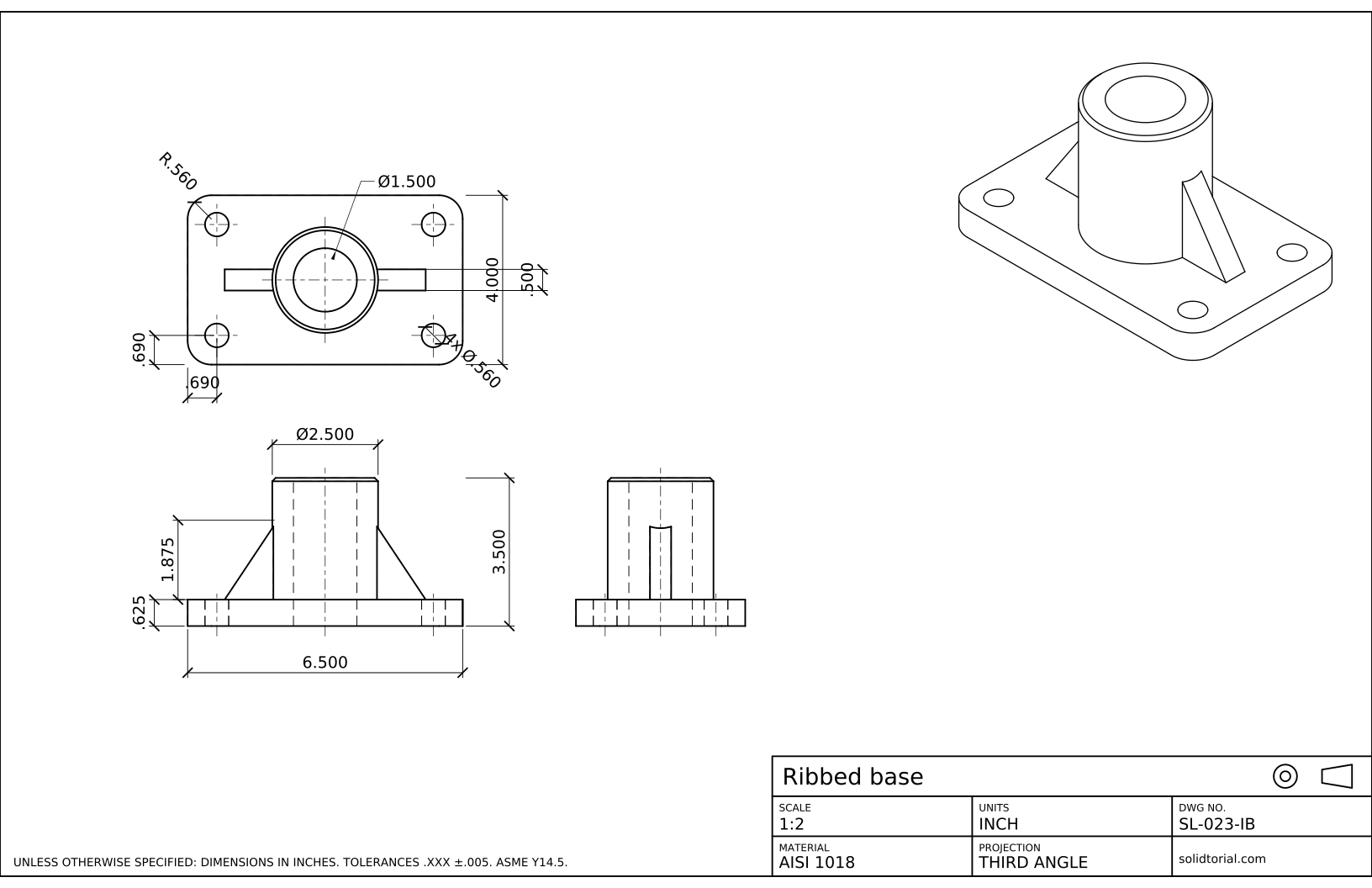
Inch sheet, third-angle projection (ASME), scale 1:2 on ANSI B. Click the drawing to open it full size.
Show the solution files
Metric sheet, ISO first-angle projection, scale 1:2 on A3. Click the drawing to open it full size.
Inch sheet, third-angle projection (ASME), scale 1:2 on ANSI B. Click the drawing to open it full size.
Common mistakes when converting AutoCAD 3D to 2D
- Choosing the projection after placing the views. VIEWSTD sets where the projected views go. Set it before VIEWBASE, or the top view lands above the front view when you expected it below.
- Converting a mesh or a set of faces. VIEWBASE and FLATSHOT need solids or surfaces. A model made of 3D faces, often imported, gives no views until it is converted.
- Editing the lines of a drawing view. They belong to the view and follow the model. Change the model, not the projected lines.
- Dimensioning in model space. The views live on the layout, so the dimensions go there too, where they attach to the view geometry.
- Using FLATSHOT for a drawing that will change. It gives a static copy. For a drawing that must follow the model, use VIEWBASE.
AutoCAD FLATSHOT, VIEWBASE and FLATTEN compared
All three take a 3D model to 2D lines, in different ways.
| Tool | Result | Linked to the model |
|---|---|---|
| VIEWBASE | Drawing views on a layout, with projected views, hidden lines and a scale | Yes |
| FLATSHOT | A block of 2D lines of the current view, in model space | No |
| FLATTEN | Moves the selected objects onto a flat plane, an Express Tool | No |
VIEWBASE is the tool for a mechanical drawing. FLATSHOT suits a quick 2D outline, and FLATTEN is meant for 2D geometry that ended up at different heights, not for solids.
AutoCAD 3D flatten to 2D in inches
The inch version of the base is 5.500 x 3.500 x .500, with a Ø2.250 hub rising to 3.000 and a Ø1.250 bore. Model it with inch coordinates, set VIEWSTD to third angle and place the views at 1:2: the top view then goes above the front view, as on its sheet.
AutoCAD 3D to 2D questions
How do I convert a 3D model to 2D in AutoCAD?
Use VIEWBASE to project linked drawing views of the solid onto a layout, or FLATSHOT to make a static block of 2D lines from the current view. Both need the full version of AutoCAD.
Why does VIEWBASE say there are no solids or surfaces?
The model is made of meshes or 3D faces, often after an import. Convert it to solids or surfaces first; drawing views cannot be made from other objects.
Do the drawing views update when I change the model?
Yes. Views made with VIEWBASE keep a link to the model. When it changes they are marked out of date and can be updated, while FLATSHOT copies stay as they were.
Can I make a section view from the model?
Yes, with VIEWSECTION on a view created by VIEWBASE. In model space, SECTIONPLANE cuts the solid live so you can look inside it while modeling. The section lesson shows how a section is drawn by hand, which is useful to understand what the command does.
Updated: October 17, 2026